


Cloud Assets
- Click 'Security' > 'Cloud Security' > 'Cloud Assets' to open this interface.
Cloud Assets is the inventory behind everything else in this group. It is the list of resources the console has discovered in your connected clouds, clusters, registries and repositories, grouped so you can see how many of each kind you have and how many findings each kind carries.
You can filter the inventory ten different ways, search it, change how it is grouped, set the dates it covers, and export it.
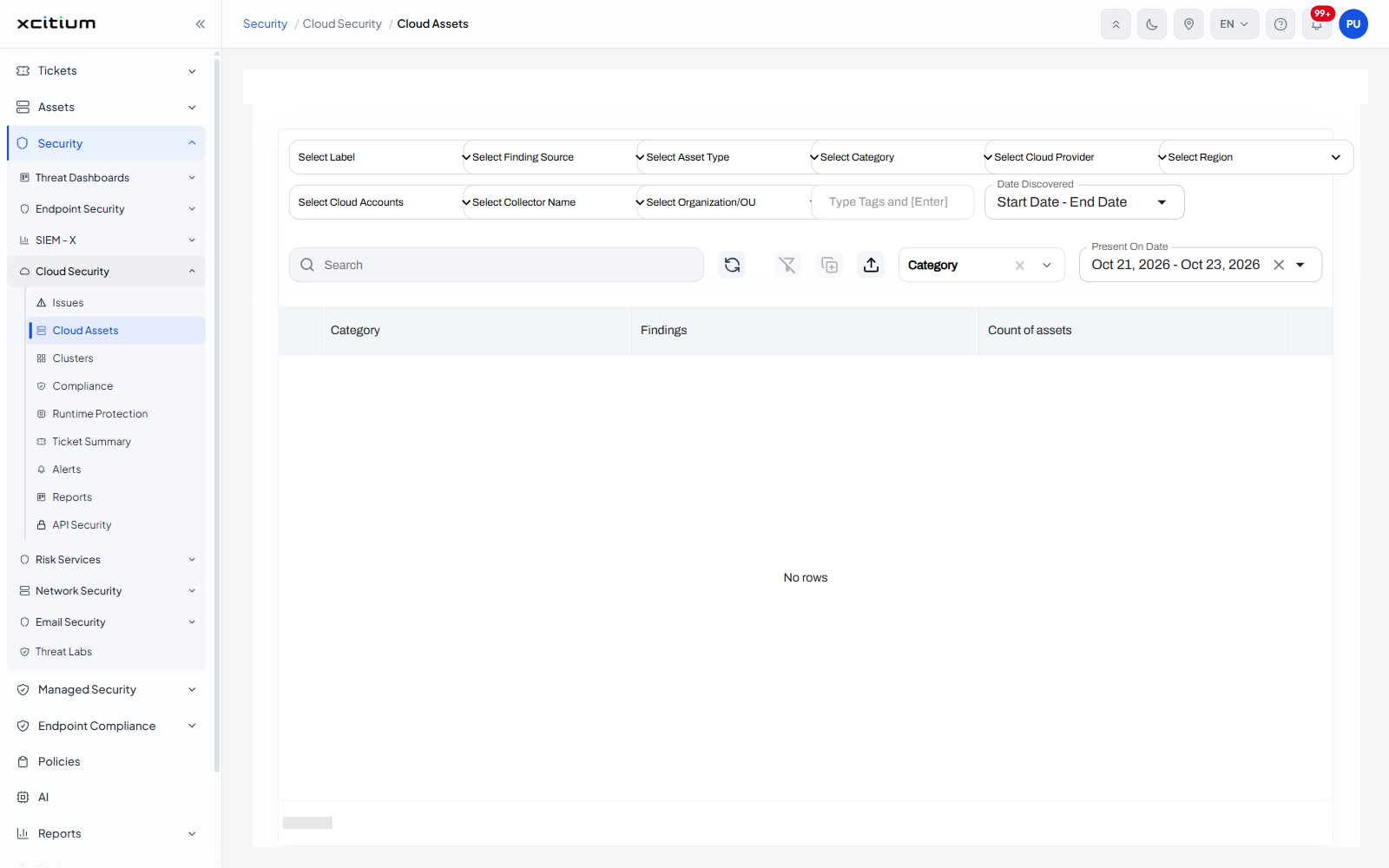
The filter bar
Two rows of drop-downs run across the top of the screen. Each is empty until you choose a value.
| Filter | Description |
| Select Label | The label the asset was onboarded under. |
| Select Finding Source | Which scan or integration reported findings against the asset. |
| Select Asset Type | The kind of asset, for example a container or a repository. |
| Select Category | The category the asset falls into. |
| Select Cloud Provider | AWS, Azure, GCP or OCI. |
| Select Region | The provider region the asset sits in. |
| Select Cloud Accounts | The onboarded account the asset belongs to. |
| Select Collector Name | The collector that discovered the asset. |
| Select Organization/OU | The organization or organizational unit. |
| Type Tags and [Enter] | A free-text tag box. Type a tag and press Enter to add it. |
| Date Discovered | A date range, shown as 'Start Date - End Date' until it is set. |
Controls above the table
| Control | Description |
| Search | A box with the placeholder 'Search'. |
| Refresh | A circular-arrow icon that reloads the list. |
| Clear filters | A crossed-funnel icon that drops the filters you have set. |
| Columns | An icon that chooses which columns are shown. |
| Export | An upload icon at the right of the icon group. |
| Group by | A drop-down showing the field the list is grouped on. It opens on 'Category' and carries an '×' to clear it. |
| Present On Date | A date range at the far right, showing the dates it covers. |
Column descriptions
| Column | Description |
| (expander) | A chevron at the start of each group row. |
| Category | The grouping value - the field chosen in the 'Group by' drop-down. |
| Findings | How many findings the assets in that group carry. |
| Count of assets | How many assets are in the group. |
The column set follows the 'Group by' choice: with 'Category' selected the first column is headed 'Category'.
Set the dates
- Click the 'Present On Date' control at the right, or the 'Date Discovered' control in the filter bar.
- Pick a preset, or set 'Start Date' and 'End Date' with the month calendar.
- Click 'Apply'. 'Cancel' leaves the dates unchanged; 'Reset' puts the picker back.
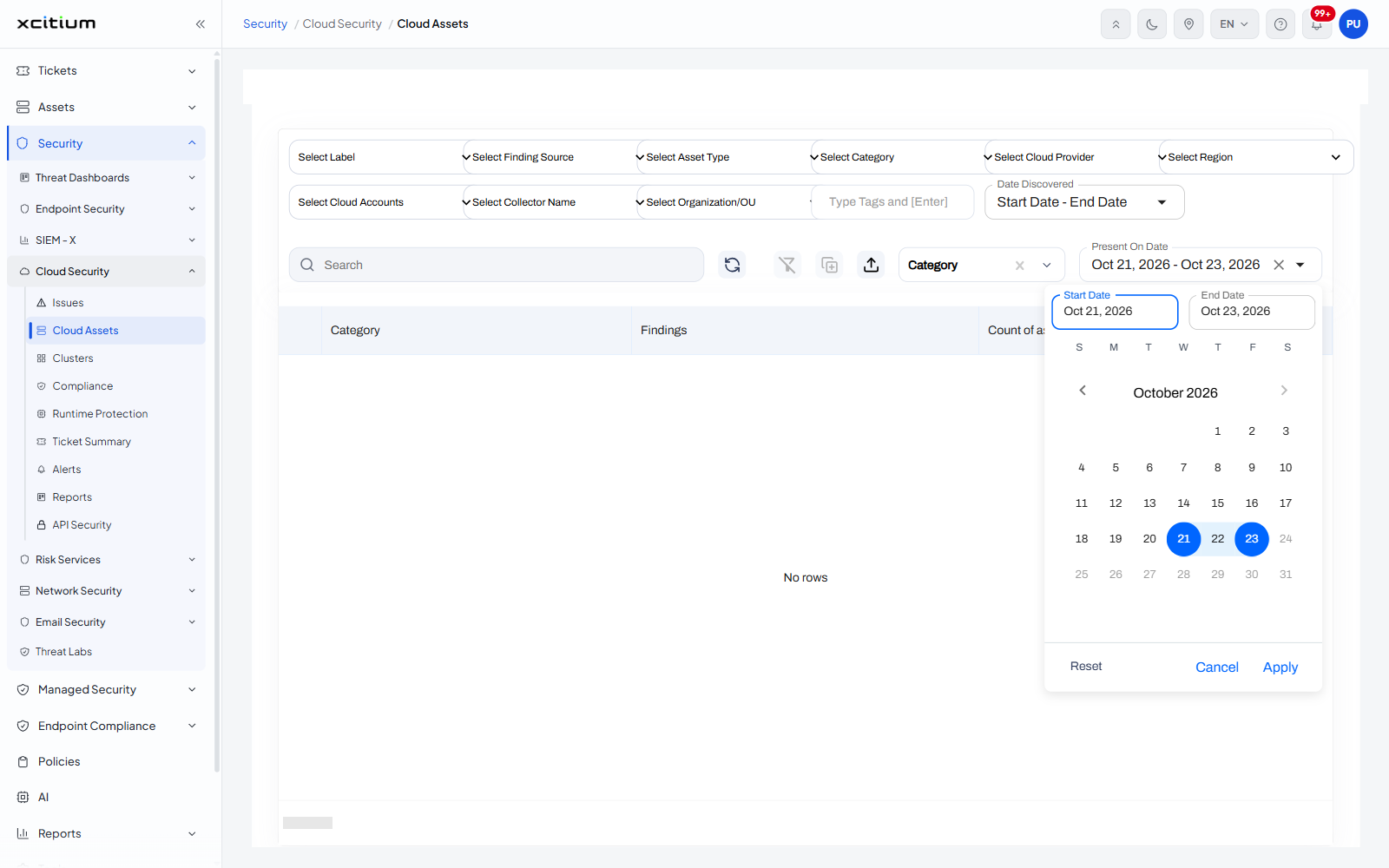
Note: 'Present On Date' opens on a two-day window. When no assets fall in the date window, the list reads 'No rows' and '0 - 0 of 0'. Widen the dates before you decide the inventory is empty.