


The Tool Card and Its Controls
- Click 'Tools' in the left navigation bar to see the cards described here.
Every tool on the 'Tools' page is presented as a card. The cards are identical in layout, so once you can read one you can read all six. This page describes the card in detail, the two buttons in its footer and the 'Details' panel that the 'Info' button opens.
You can read a tool's current version and release date from the card, open its description, and start its download.
Anatomy of a Card
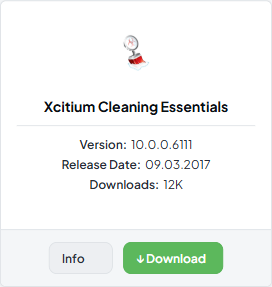
| Element | Description |
| Icon | The product logo for that tool, centred at the top of the card. Each tool has its own icon; the icons are not clickable. |
| Name | The tool's name, centred below the icon. A long name wraps onto a second line, which makes that card's body slightly shorter than its neighbours. |
| Separator | A thin horizontal rule between the name and the version lines. |
| Version | The build number of the download, for example '10.0.0.6111'. The label and the value are shown on one line as 'Version: 10.0.0.6111'. One card writes the value with a leading 'v' ('v3.4.0.101'); the rest do not. |
| Windows Version | Replaces 'Version' on the two remote-control cards. The build number of the Windows download. |
| Mac OS Version | Shown only on the 'Xcitium Remote Control' card. The build number of the Mac OS download. |
| Release Date | The date the build was published, written day.month.year. Not shown on the two remote-control cards. |
| Downloads | How many times the tool has been downloaded. Values in the thousands are abbreviated with a 'K'. A tool with no downloads yet shows '0'. |
| Card footer | A shaded strip at the bottom of the card holding the two buttons. The footer is always present and always holds exactly two buttons. |
The Two Buttons
| Button | Appearance | Description |
| Info | Plain outlined button, left of the footer | Opens the 'Details' panel for that tool. Nothing is downloaded and nothing is changed. The panel can be closed again without side effects. |
| ↓ Download | Solid green button with a downward arrow, right of the footer | Downloads that tool. There is no confirmation step on the page before the download begins. |
The 'Details' Panel
Clicking 'Info' opens a panel in the middle of the window, over a dimmed copy of the page.
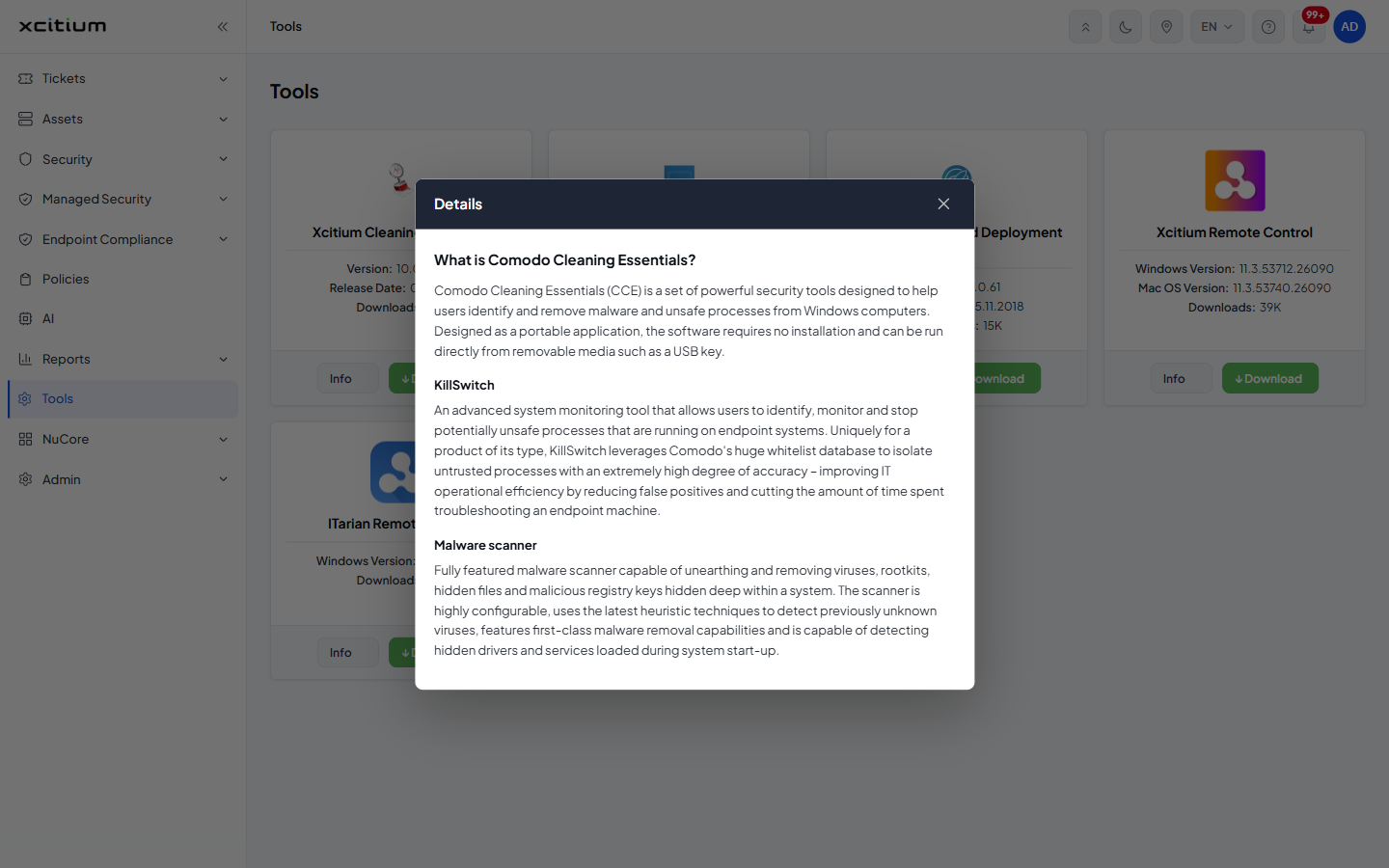
| Part of the panel | Description |
| Title bar | A dark strip reading 'Details'. It reads 'Details' for every tool — the title does not name the tool you clicked. |
| Body | The tool's description: a heading, one or more paragraphs, and on some tools a sub-heading and a bulleted list. The text is read-only. |
Open and Close a Tool's Description
- Click 'Tools' in the left navigation bar.
- Click 'Info' on the card for the tool.
- Read the 'Details' panel.
- Click the '×' icon at the top right of the panel. The panel closes and the grid is shown again.
- Open another tool's panel the same way. Only one panel is open at a time.