


Candidates
- Click 'AI' > 'AI Agent' > 'Manage Your AI Agent' > 'Candidates' on an HR Recruitment agent to open this interface.
The 'Candidates' tab, headed 'Candidates Scores', lists everyone who has started an interview with the agent and the score the agent gave them.
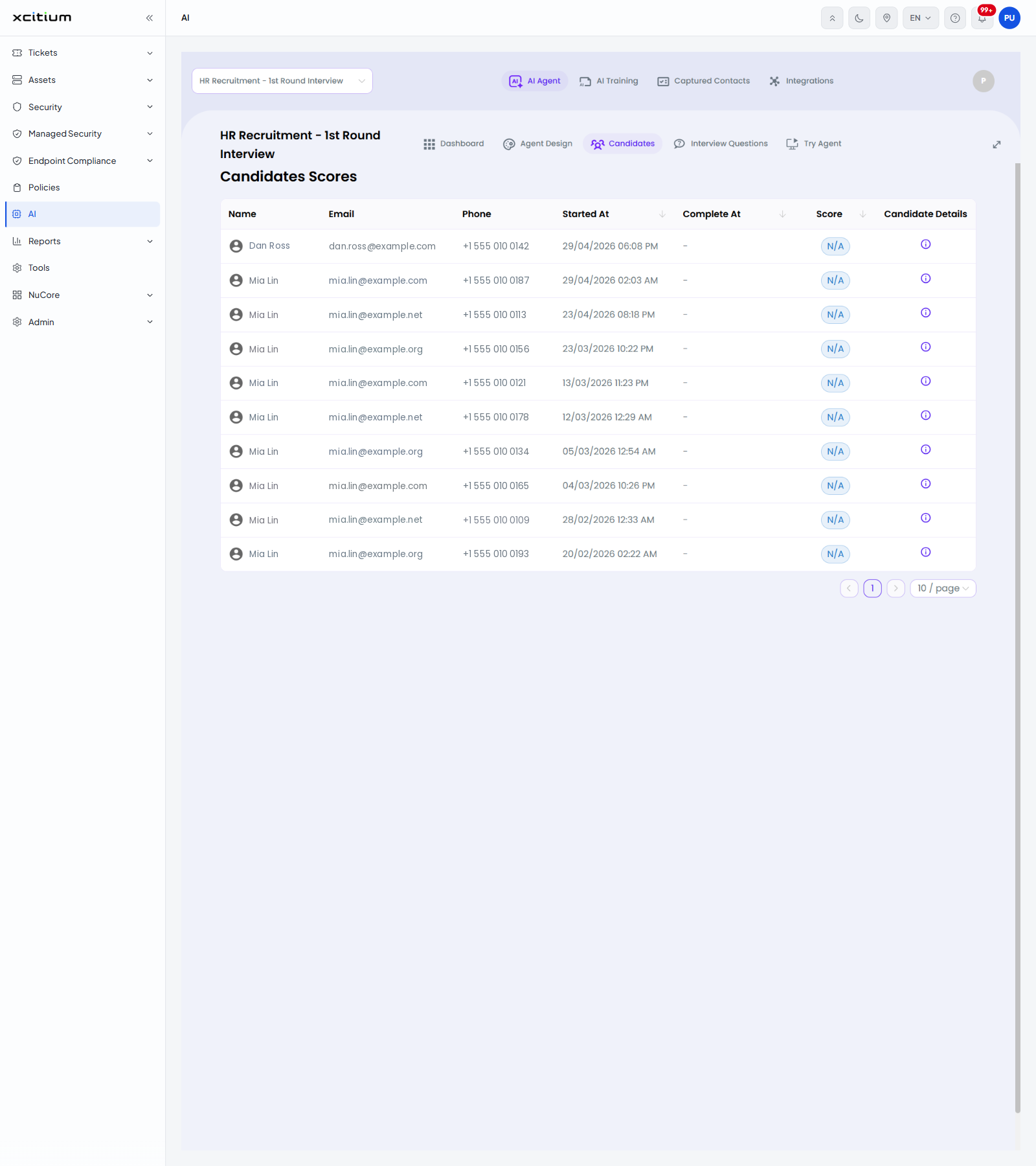
The table
| Column | Description |
| Name | The candidate's name, with a person icon. |
| The candidate's email address. | |
| Phone | The candidate's phone number. |
| Started At | The date and time the interview began. The column can be sorted. |
| Complete At | The date and time the interview finished, or a dash while it is unfinished. The column can be sorted. |
| Score | The score the agent gave, or 'N/A' when the interview has not been scored. The column can be sorted. |
| Candidate Details | An information button that opens the candidate's own screen. |
The candidate screen
The information button opens a screen with the candidate's name, email address and phone number at the top and a 'Back' link to return to the list. It is split into two panels.
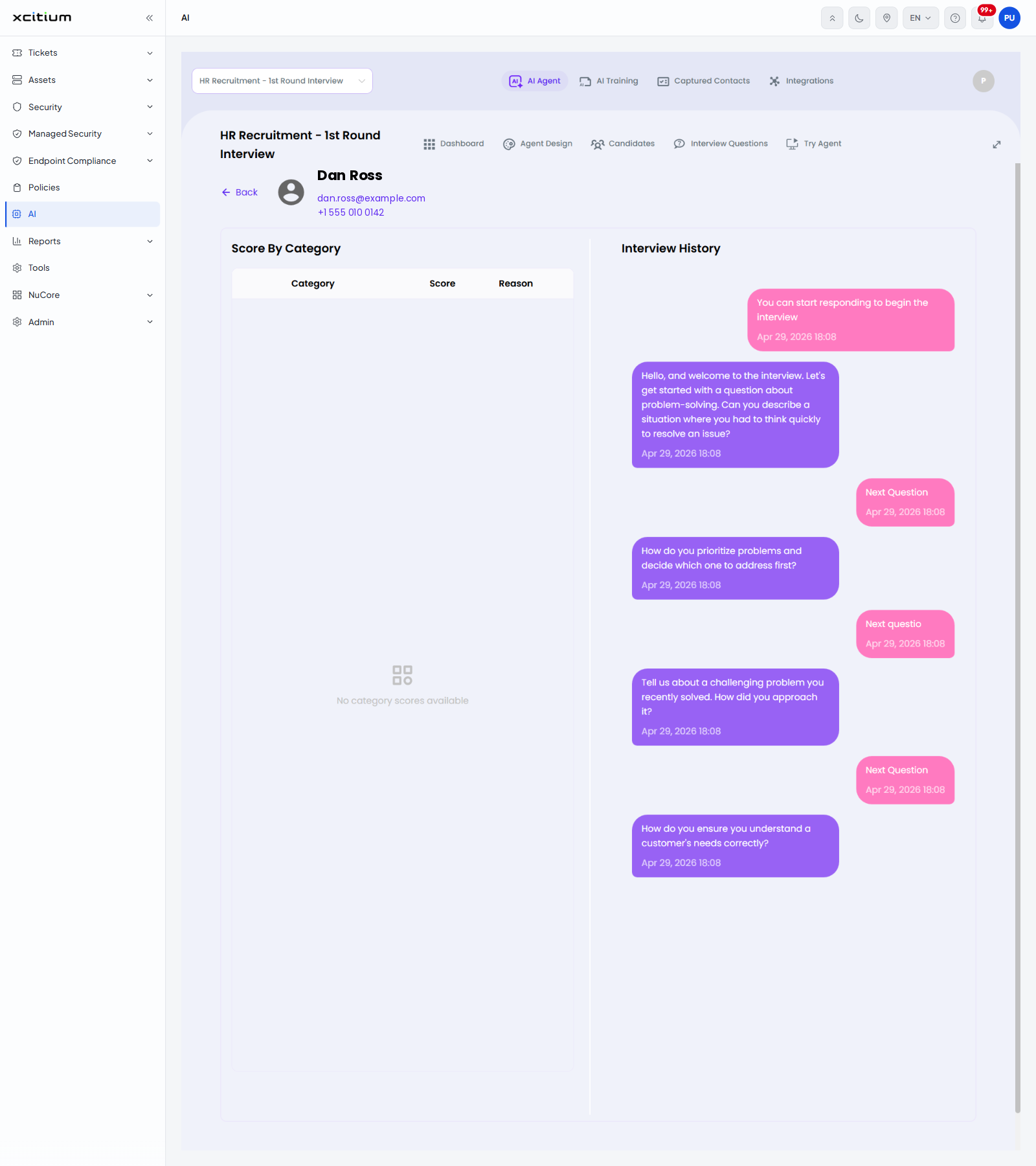
| Panel | Description |
| Score By Category | A table with the columns 'Category', 'Score' and 'Reason'. When the interview has not been scored it shows 'No category scores available'. |
| Interview History | The full transcript of the interview, each message with its date and time. |
Review a candidate
- Click 'AI' > 'AI Agent' > 'Manage Your AI Agent' > 'Candidates'.
- Sort by 'Score' or 'Complete At' to bring the finished interviews to the top.
- Click the information button in 'Candidate Details'.
- Read the category scores on the left and the transcript on the right.
- Click 'Back' to return to the list.
The questions the agent asks come from 'Interview Questions'.