


All Assets - Table View
- Click 'Endpoint Compliance' > 'All Assets' > 'Table View' to open this interface.
The 'Table View' switch on the 'All Assets' toolbar replaces the two-pane layout with a single wide table headed 'Assets'. The table puts every asset property side by side, which makes it the quickest way to compare assets or to export them.
You can sort, search, filter, choose columns and export from this interface, and run actions against a single asset.
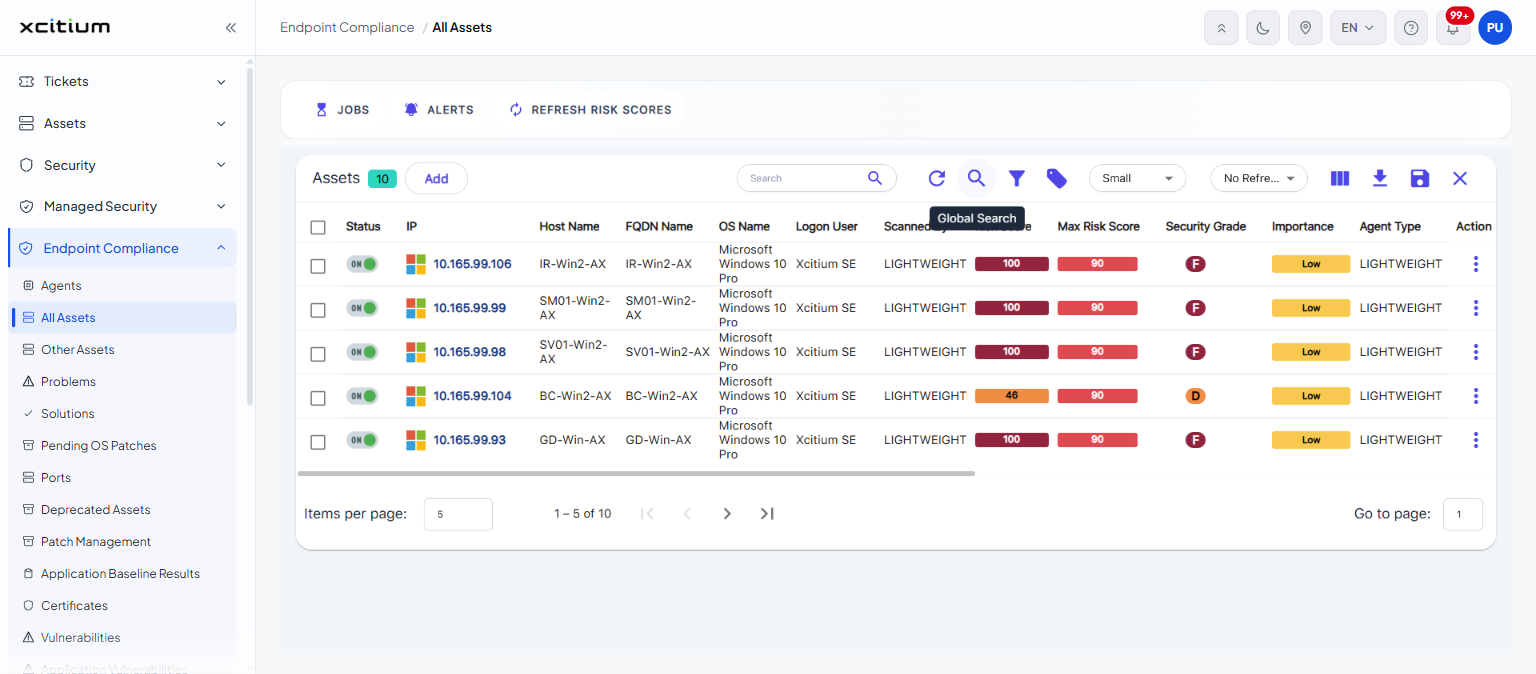
Columns
These columns are shown by default:
| Column | Description |
| (check box) | Selects the row. The check box in the heading selects every row on the page. |
| Status | Whether the asset is online. |
| IP | The asset's IP address. |
| Host Name | The machine name. |
| FQDN Name | The fully qualified domain name. |
| OS Name | The operating system. |
| Logon User | The user last signed in on the machine. |
| Scanned By | The agent that scanned the asset. |
| Risk Score | The asset's current risk score. |
| Max Risk Score | The highest risk score the asset can reach. |
| Security Grade | The letter grade summarising the asset's security posture. |
| Importance | How important the asset has been marked. |
| Agent Type | The kind of agent that reports the asset. |
| Manufacturer | The hardware manufacturer. |
| Vulnerabilities | The total number of vulnerabilities found. |
| Critical | How many of them are critical. |
| High | How many are high. |
| Medium | How many are medium. |
| Low | How many are low. |
| Informational | How many are informational. |
| Registry | How many registry findings there are. |
| Last Scanned Time | When the asset was last scanned. |
| Domain Status | Whether the machine is in a domain or a workgroup. |
| MAC Address | The network adapter's hardware address. |
| Action | Opens the row menu described below. |
These further columns are available from the 'View Column, Reorder Columns' panel and are hidden by default:
| Column | Description |
| OS Version | The operating system version. |
| CISA | Findings listed in the CISA known-exploited catalogue. |
| High EPSS (≥ 0.95) | Findings whose EPSS score is 0.95 or above. |
| Discovered Time | When the asset was first discovered. |
| Asset ID | The asset's internal identifier. |
| Discovered Using | The method by which the asset was discovered. |
| Auto Tags | Tags the system applied by itself. |
| Manual Tags | Tags added by hand. |
Row actions
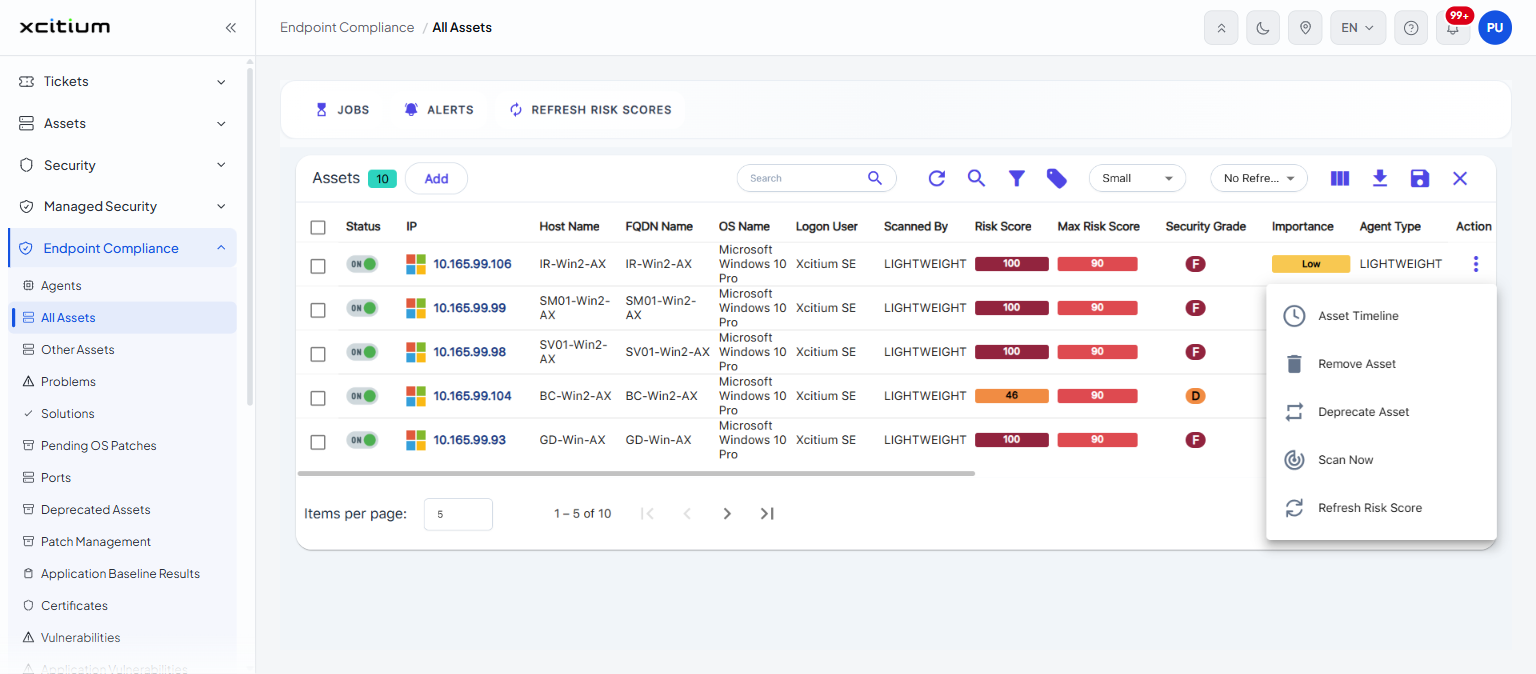
Click the three-dot button in the 'Action' column of a row to open its menu:
| Action | Description |
| Asset Timeline | Shows the history recorded for the asset. |
| Remove Asset | Removes the asset from the inventory. |
| Deprecate Asset | Moves the asset to the 'Deprecated Assets' page. |
| Scan Now | Starts a scan of the asset. |
| Refresh Risk Score | Recalculates the asset's risk score. |
To go back to the two-pane layout, click the 'Table View' switch again.