


The Admin Console
Sign in to the console. Every screen in this guide sits inside the frame described here.
The console has three fixed parts: the navigation down the left, the bar across the top, and the working area between them. The left navigation and the top bar stay the same wherever you are; only the working area changes.
You can move between modules, collapse the navigation to give the working area more room, pin the screens you use most, change the language and theme, and reach your account settings.
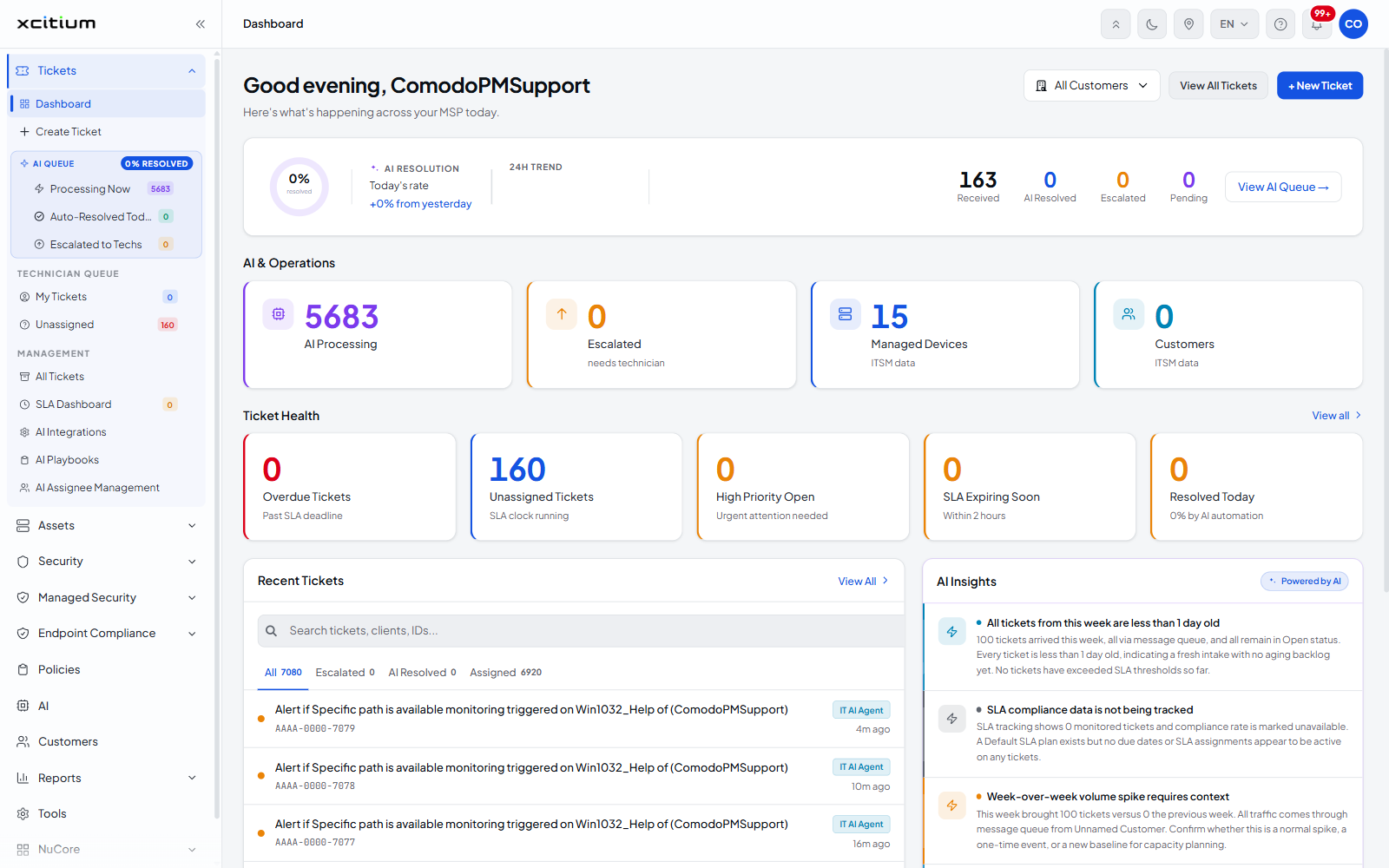
The left navigation
The product logo sits at the top, with a collapse button beside it. Beneath it the twelve modules are listed in a fixed order:
Tickets · Assets · Security · Managed Security · Endpoint Compliance · Policies · AI · Customers · Reports · Tools · NuCore · Admin.
Collapsing the navigation
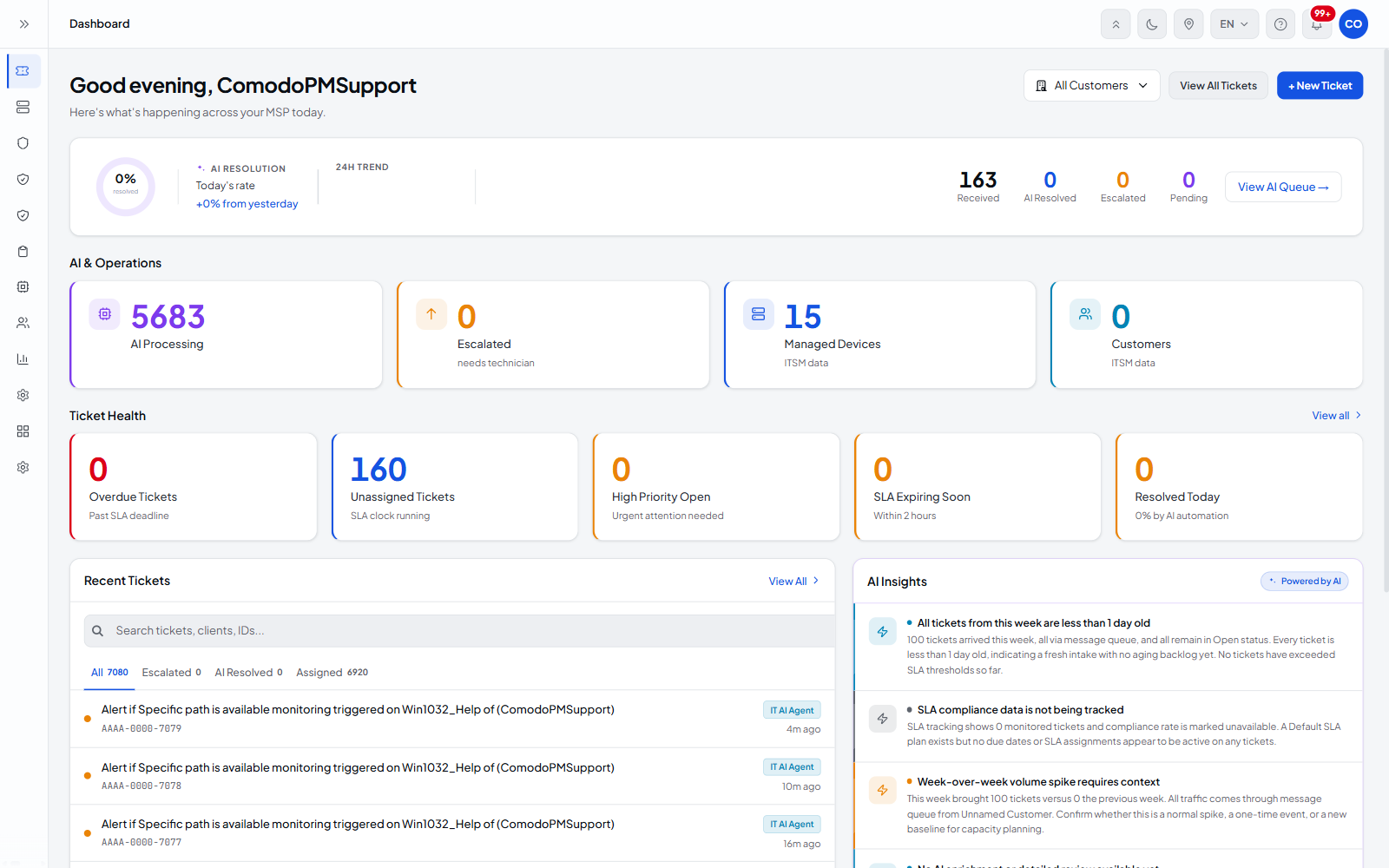
The button at the top right of the navigation collapses it from its full width to a narrow icon strip, giving the working area the space back. Clicking it again expands the navigation.
The top bar
The breadcrumb for the current screen sits at the left of the top bar. The controls sit at the right, in this order:
| Button / icon | Description |
| Switch to top navigation | Moves the module navigation from the left-hand strip to a bar across the top of the window. |
| Switch to dark | Switches the console to the dark theme. The button then reads 'Switch to light'. |
| Pinned pages | Opens the list of screens you have pinned. See below. |
| EN | The language selector. It offers the same seventeen languages as the sign-in page. |
| Help | Opens the help menu. See below. |
| Notifications | Opens the notifications screen. The icon carries a count badge of unread items, shown as 99+ when there are many. |
| (your initials) | Opens the account menu. See below. |
The Pinned pages list
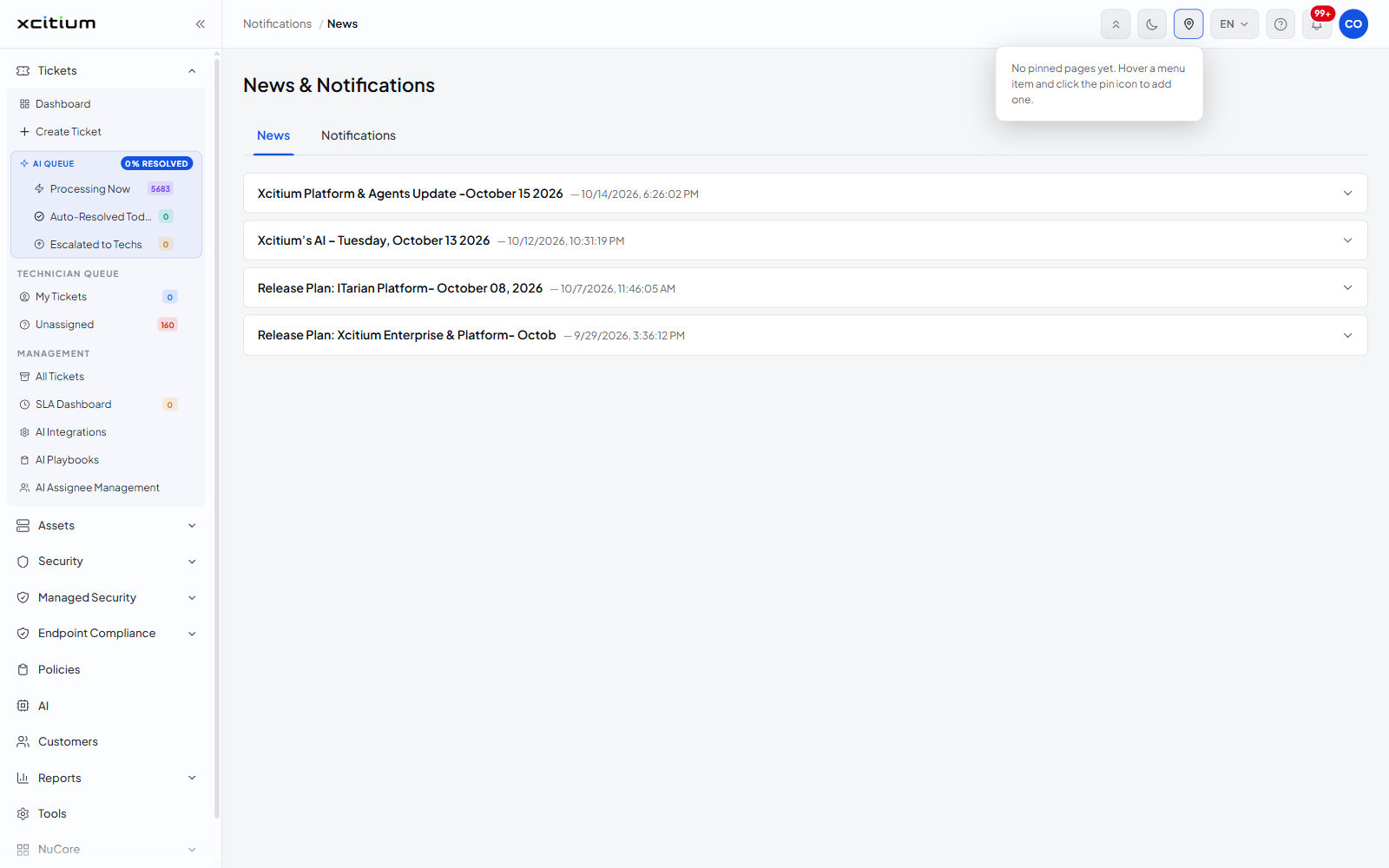
Pinning puts a screen you use often within one click of anywhere in the console. Until you pin something the list reads 'No pinned pages yet. Hover a menu item and click the pin icon to add one.'
The Help menu
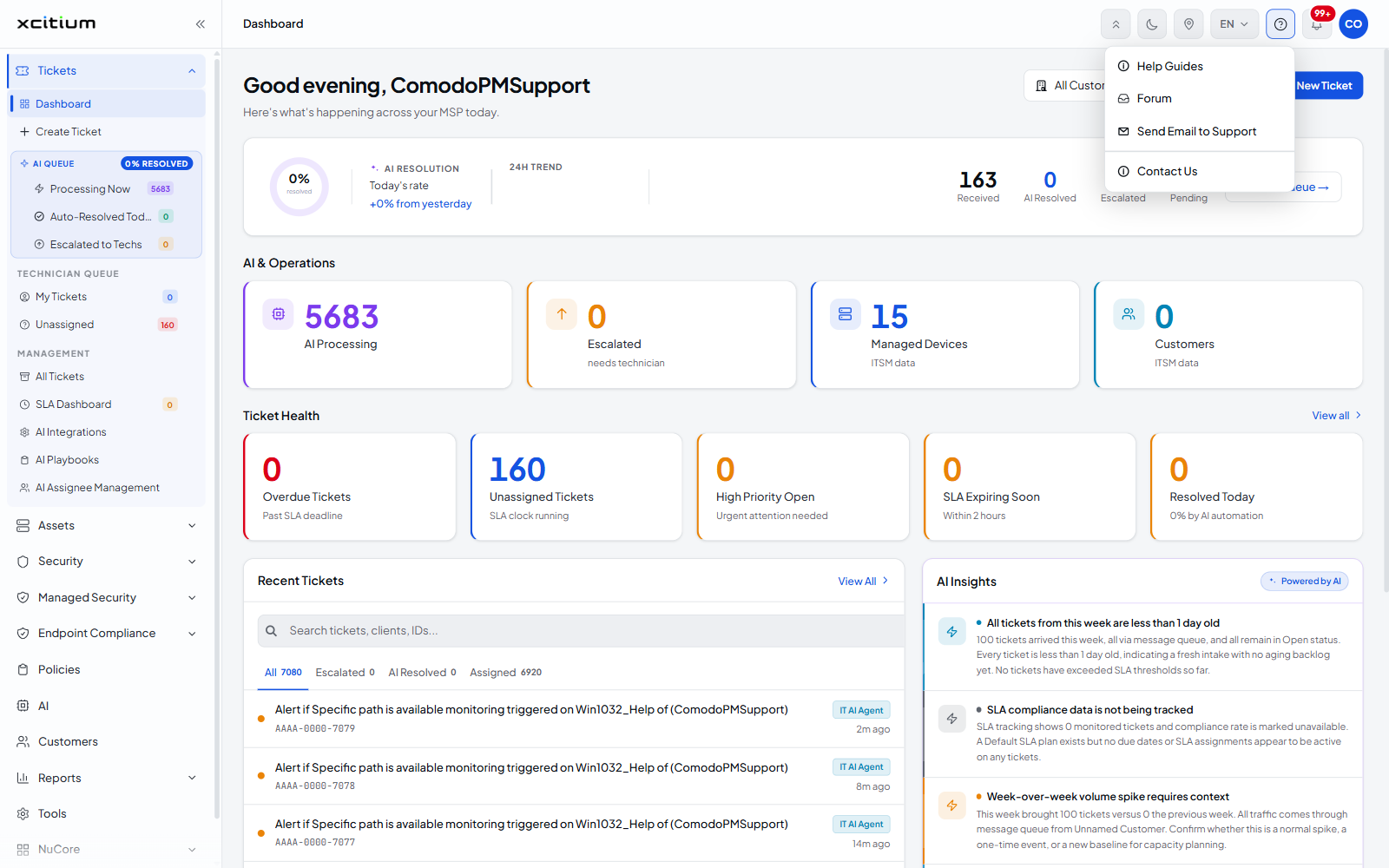
| Option | Description |
| Help Guides | Opens the product documentation. |
| Forum | Opens the community forum. |
| Send Email to Support | Starts an email to the support team. |
| Contact Us | Opens the contact details. |
The account menu
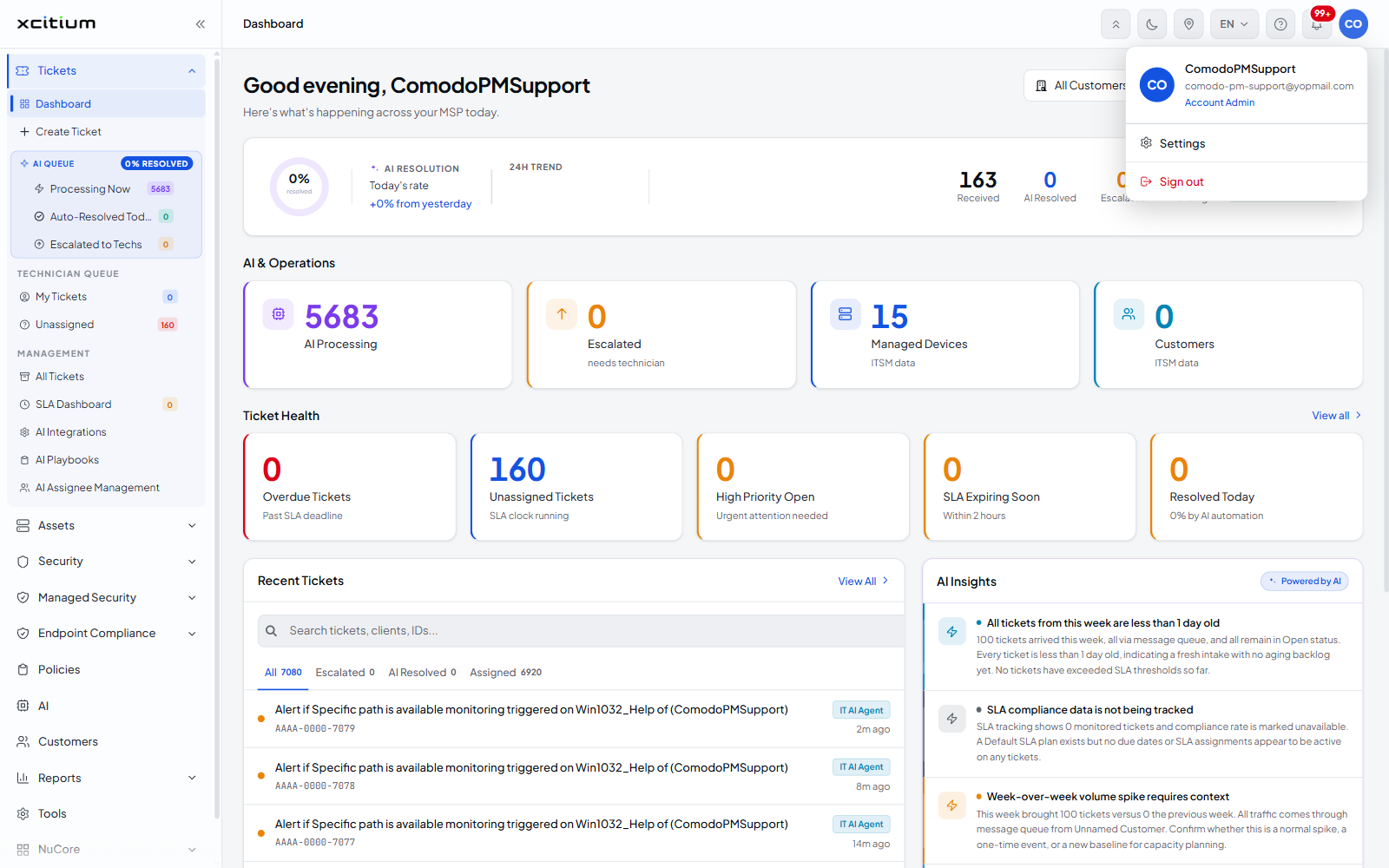
The menu opens with your initials, your account name, the email address the account uses, and your role on the account — for example Account Admin. Two entries sit below:
| Option | Description |
| Settings | Opens your account settings. |
| Sign out | Signs you out and returns you to the sign-in page. |
Pin a screen you use often
- Open the module that holds the screen in the left navigation.
- Hover over the link.
- Click the pin icon that appears on it.
- Click 'Pinned pages' in the top bar to reach it from anywhere.
Note: the breadcrumb at the left of the top bar is the quickest way back up a tree: each part of it is a link to that level.