


Send the Enrollment Link
Complete step 1 of the enrollment wizard and click 'Next' to reach 'Installation Instructions'.
This step turns the choices you made into a link. Whoever opens that link on the device downloads an installer already carrying the customer, user, clients, profile and reboot settings you picked.
You can copy either form of the link, email it from the wizard, start another enrollment, or move on to building a bulk package instead.
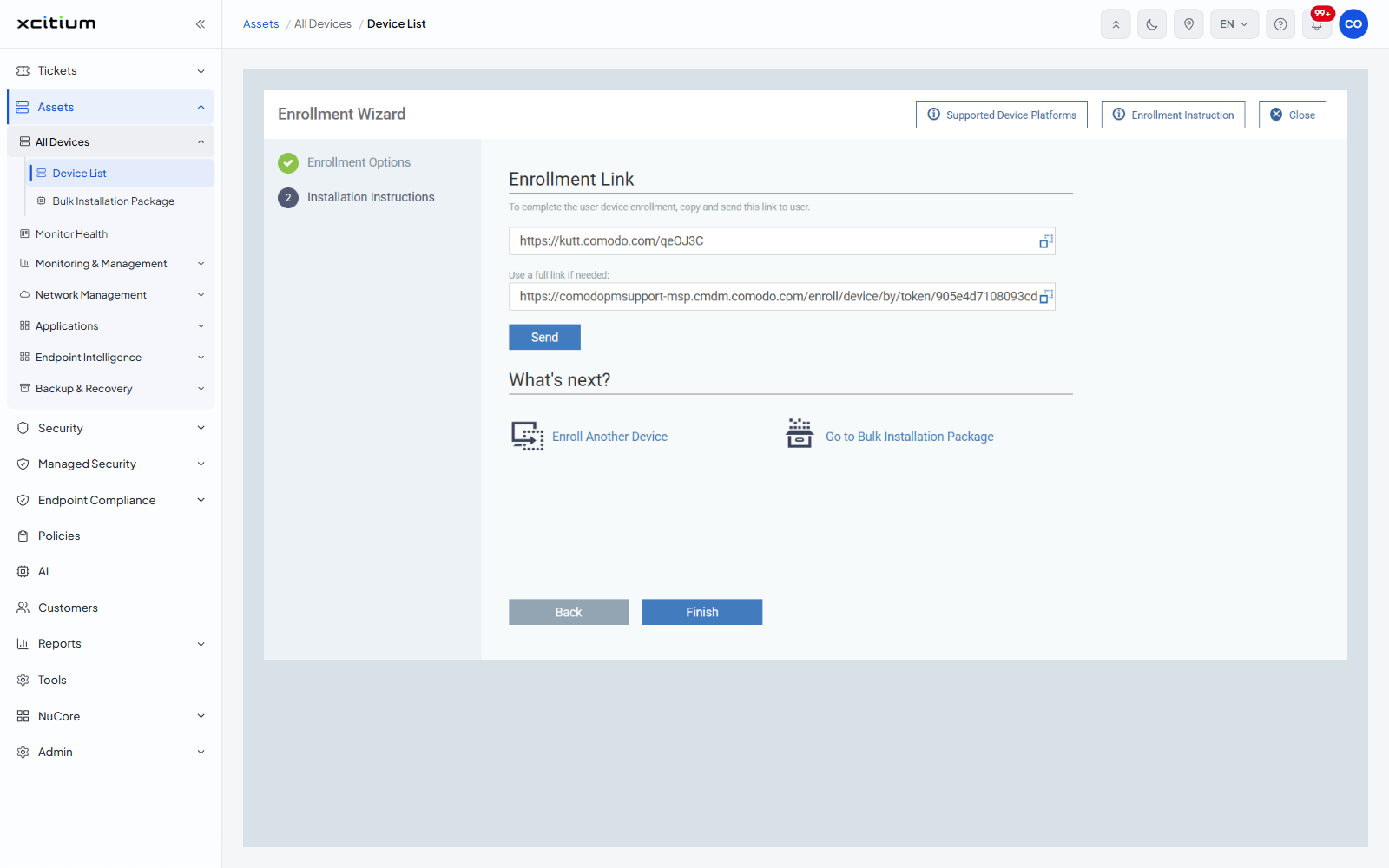
Enrollment Link
The section opens with the line 'To complete the user device enrollment, copy and send this link to user.'
| Control | Description |
| Short link | A read-only box holding the shortened enrollment link, with a copy icon beside it. |
| Use a full link if needed | A second read-only box holding the full tokenised link, with its own copy icon. Use it where short links are blocked. |
| Send | Emails the link to the user the enrollment was raised for. |
What's next?
| Link | Description |
| Enroll Another Device | Returns to step 1 with the form cleared. |
| Go to Bulk Installation Package | Opens the bulk package builder. See Bulk Installation Package. |
The buttons
| Button | Description |
| Back | Returns to 'Enrollment Options' with your choices intact. |
| Finish | Closes the wizard and returns to the Device List. |
Send the link
- Complete step 1 and click 'Next'.
- Click the copy icon beside the short link, or beside the full link if short links are blocked on your network.
- Send the link to whoever will install the client, or click 'Send' to email it from here.
- Click 'Finish'.
Note: to enroll many devices at once, use a bulk installation package instead of sending a link per device. See Bulk Installation Package.