


Detected Scripts
- Click 'Security' > 'Endpoint Security' > 'File Rating' > 'Detected Scripts' to open this interface.
Scripts are not ordinary executables, so the security client records them separately. This tab lists every script the client has seen running on your devices, what launched it, how many devices it reached and what rating it carries.
You can narrow the list to a device group, filter it, read the script's own content, open the file details of a script, change its rating and export the list.
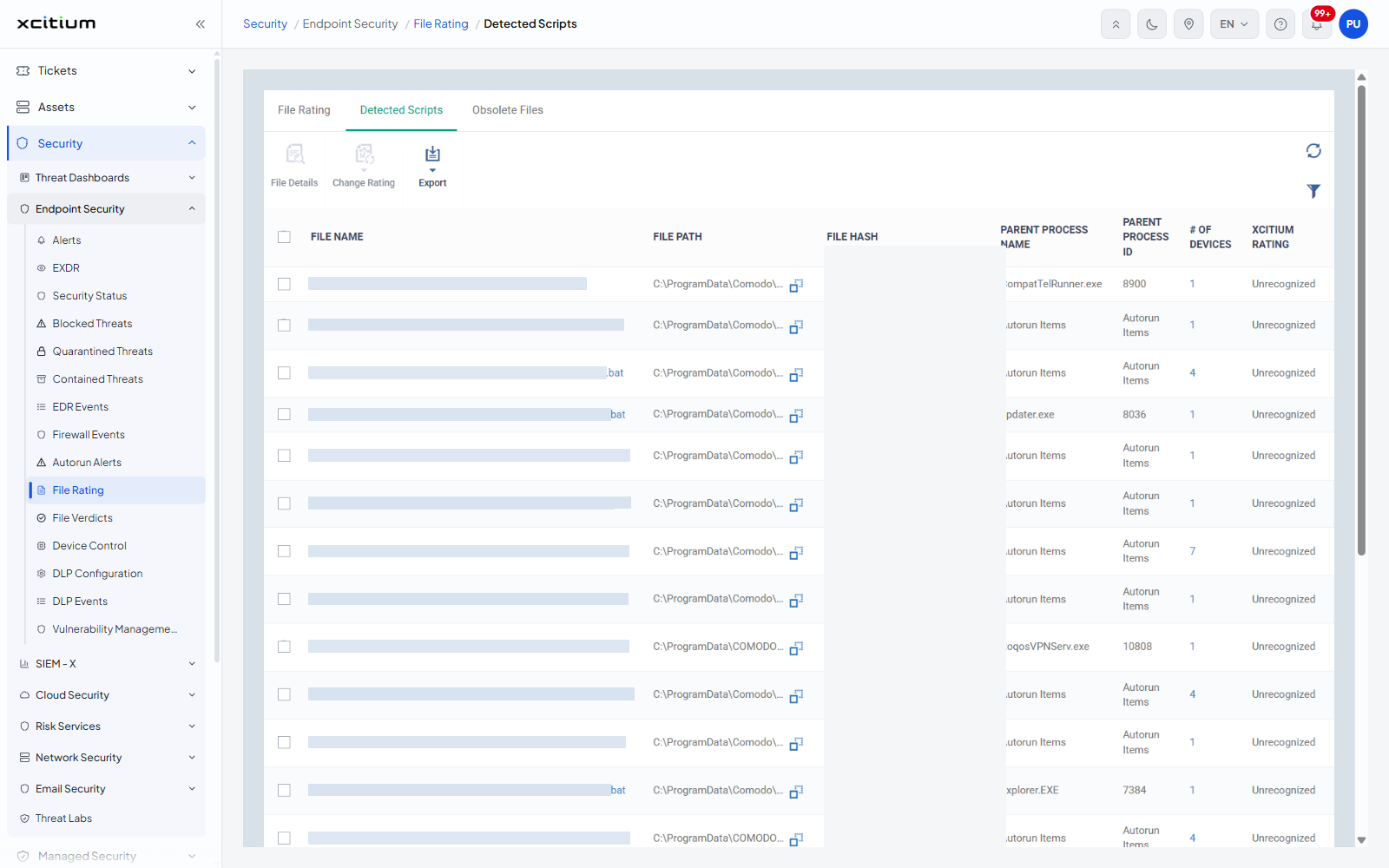
The interface
'File Rating' has three tabs: 'File Rating', 'Detected Scripts' and 'Obsolete Files'. The group tree on the left, with its 'Search group name' box and 'Show all' entry, filters all three. A select-all check box sits in the header row and a check box on each row.
Column descriptions
| Column | Description |
| FILE NAME | The name the script was written out under. Client-generated script files follow the pattern '<parent>_<hash>.bat' or '.cmd'. |
| FILE PATH | Where the script sat on the device, with a copy button beside the value. |
| FILE HASH | The SHA-1 of the script, with a copy button. |
| PARENT PROCESS NAME | The process that ran the script, for example 'CompatTelRunner.exe' or 'updater.exe'. Scripts started by an autorun show 'Autorun Items'. |
| PARENT PROCESS ID | The process id of that parent. Scripts started by an autorun show 'Autorun Items' here too. |
| # OF DEVICES | How many devices the script has been seen on, shown as a link when it is more than one. |
| XCITIUM RATING | The verdict service's rating. Value seen: 'Unrecognized'. |
| ADMIN RATING | The rating an administrator has set. Value seen: 'Not set'. |
| SCRIPT DETAILS | A link on each row. It reads 'Details' when the script's content is already held, and 'Request Details' when the content has to be fetched from the device first. |
The toolbar
| Button | Description |
| File Details | Opens the selected script's file details. |
| Change Rating | A menu that sets the admin rating of the selected scripts. |
| Export | A menu leading to 'Export to CSV'. |
Two icons sit at the right of the toolbar: 'Table refresh' and 'Table filter'. 'File Details' and 'Change Rating' are greyed out until a row is selected.
Read a script
- Find the script in the list.
- Click 'Details' in its 'SCRIPT DETAILS' column.
- A dialog headed 'Script Details' opens with the script's content. Where the client holds no content for the script the body is blank.
- Close it with 'Close' at the bottom right, or the '×' in its title bar.
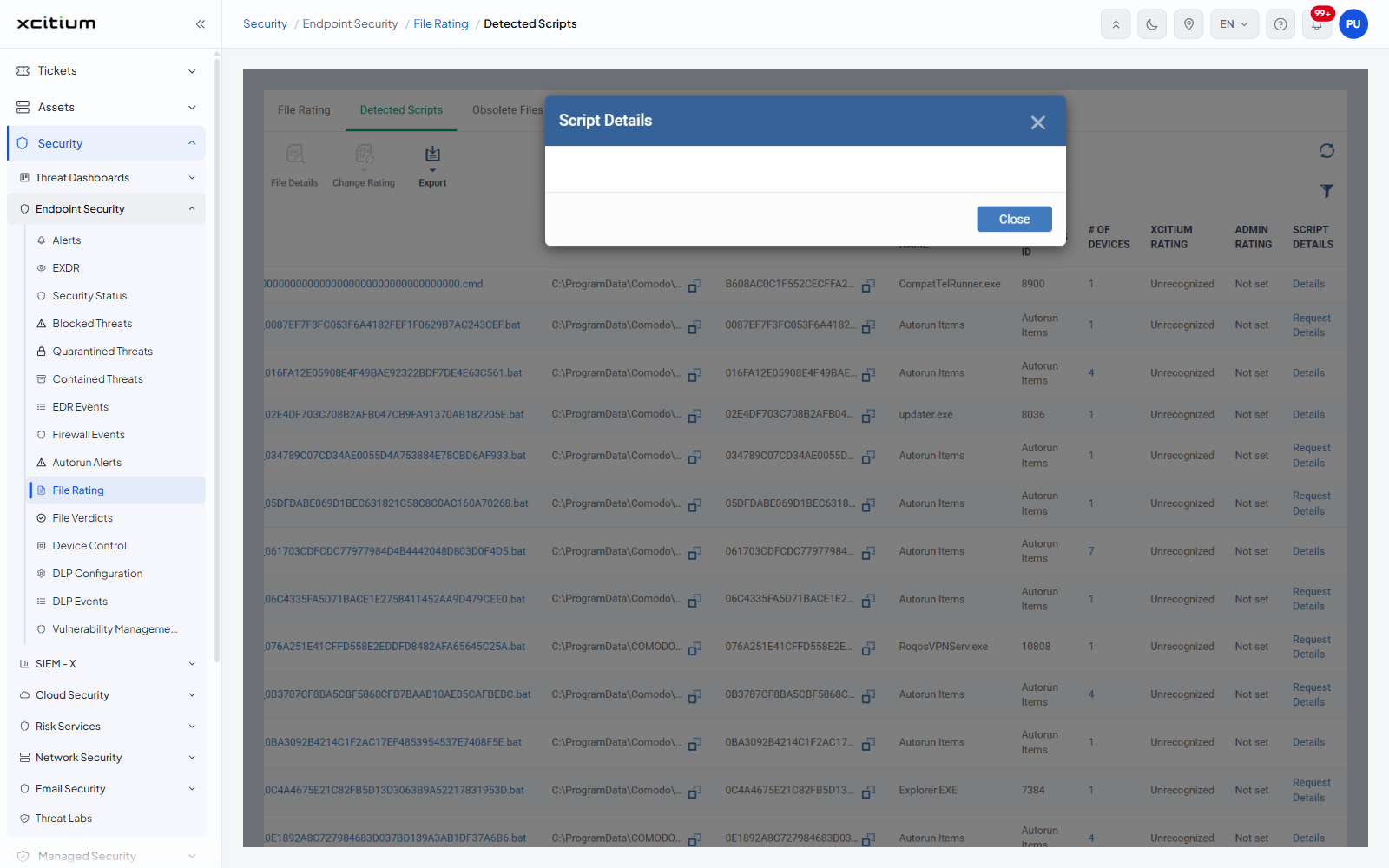
Note: where the link reads 'Request Details' the content is not held yet. Clicking it asks the device for the script, so the content appears only after the device has answered.
Filter the list
- Click the funnel icon ('Table filter') at the right of the toolbar.
- Set 'File name', 'File path' or 'File hash'.
- Click the funnel again to close the panel.