


Reports Beta
- Click 'Reports' > 'Custom Reports' > 'Standard' > 'Generated Reports' > 'Reports Beta' to open this interface.
'Reports Beta' is the next reporting console. It replaces the whole console panel and sets the page breadcrumb to 'Reports / Custom Reports / Reports Beta'. It has its own report types, its own scheduling and its own output formats, separate from the catalogue on the 'Standard' tab.
You can search and filter the reports already produced, read a report's details, download a finished file, manage recurring reports and build a new one.
The Interface
The beta console carries three tabs of its own, and 'Generated Reports' opens first:
| Tab | Description |
| Generated Reports | Every report the beta console has produced, with its status and a row of actions. Described below. |
| Scheduled Reports | The recurring reports set up in the beta console. See Reports Beta: Scheduled Reports. |
| Create Report | The report builder. See Reports Beta: Create a Report. |
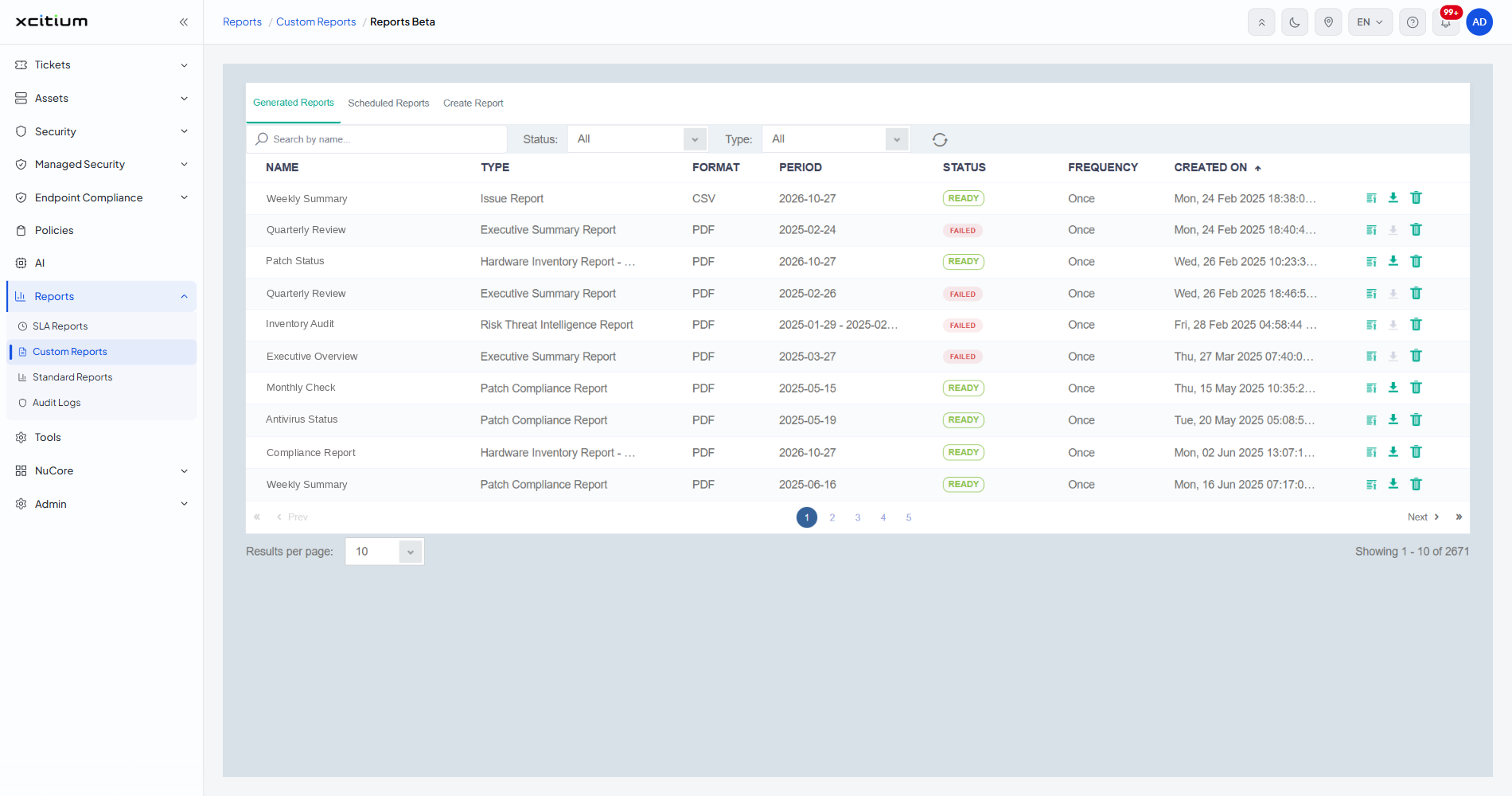
Column Descriptions — 'Generated Reports'
Every heading is sortable; click it to reorder the list. The list opens sorted on 'CREATED ON'.
| Column | Description |
| NAME | The name typed into 'Custom Report Name' when the report was built. |
| TYPE | Which of the beta report types was produced, for example 'Issue Report', 'Executive Summary Report' or 'Patch Compliance Report'. |
| FORMAT | The file format: 'PDF' or 'CSV'. |
| PERIOD | The period the report covers, as a single date or a date range. |
| STATUS | A badge reading 'READY' when the file can be downloaded or 'FAILED' when the report could not be produced. 'In Progress' is also offered by the status filter. |
| FREQUENCY | How the report was asked for: 'Once' for a one-off, or the schedule it came from. |
| CREATED ON | When the report was asked for, written as a full GMT date and time. |
| (actions) | The unnamed last column. Three icons per row — see the row-action table below. |
Row Actions
| Icon | Description |
| Details | Opens the 'Report Details' dialog for that row. |
| Download | Fetches the report file. The icon is live on a 'READY' row and greyed out on a 'FAILED' one, because there is no file to fetch. |
| Delete | The red bin. Removes the report from the list. |
Filters and Paging
| Control | Options / default |
| Search by name... | Free text. Filters the list by report name. |
| Status: | 'All' (the default), 'In Progress', 'Ready', 'Failed'. |
| Type: | 'All' (the default), 'AV Scan History Report', 'Hardware Inventory', 'Hardware Inventory Real-Time Report', 'Issue Report', 'Patch Compliance Report', 'Risk Assets Report', 'Risk Threat Activity Report', 'Risk Threat Intelligence Report', 'Executive Summary Report'. |
| Refresh | The circular-arrow icon to the right of the filters. Re-reads the list. |
| Paging | First, 'Prev', numbered pages, 'Next' and last buttons under the table. |
| Results per page: | 10 (the default), 20, 30, 50, 100. The count at the right reads, for example, 'Showing 1 - 10 of 2671'. |
The 'Report Details' Dialog
Click the 'Details' icon on a row to open it.
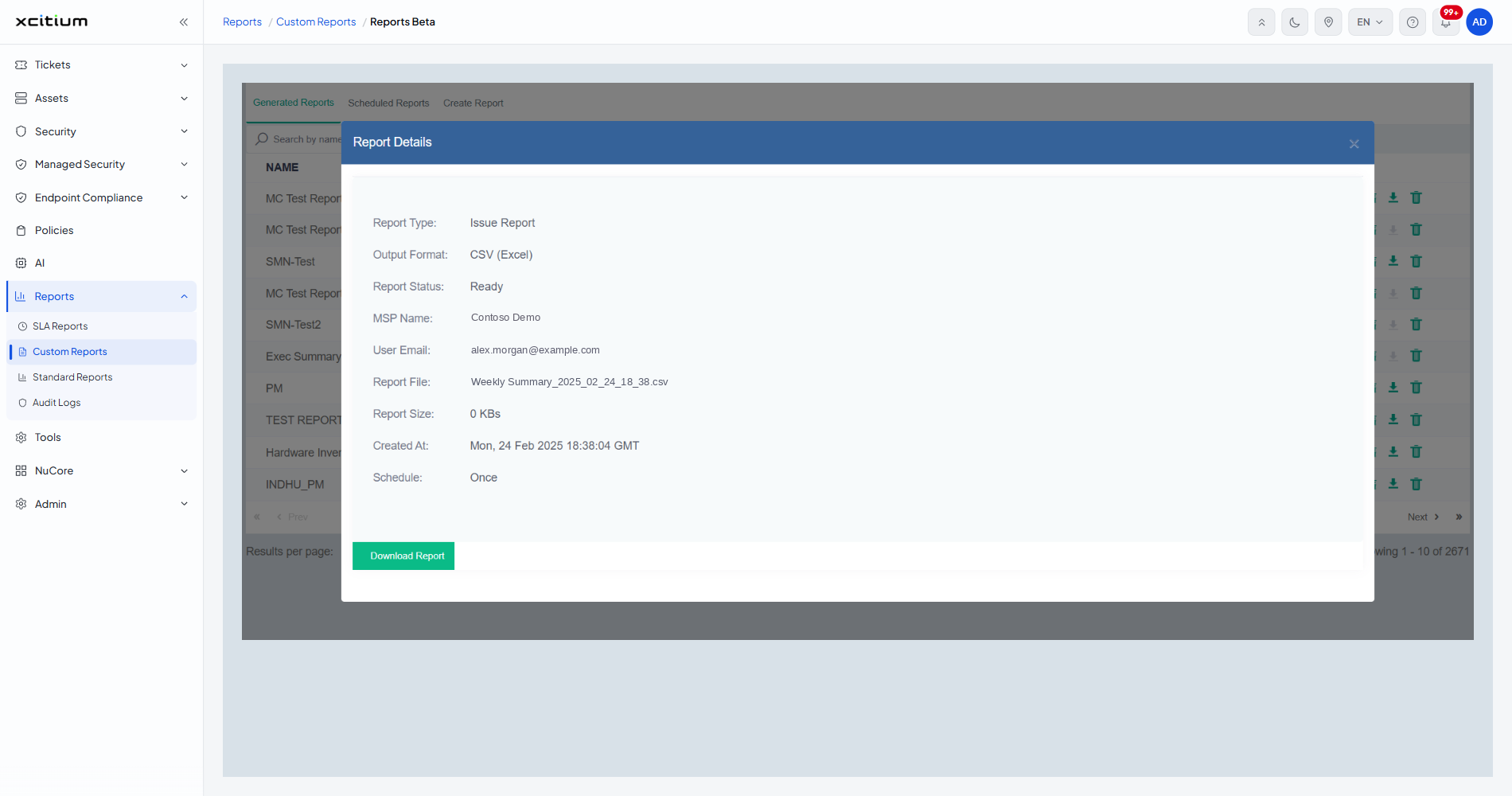
| Field | Description |
| Report Type: | The beta report type that was produced. |
| Output Format: | The format chosen when the report was built, for example 'CSV (Excel)'. |
| Report Status: | 'Ready', 'In Progress' or 'Failed'. |
| MSP Name: | The company the report belongs to. |
| User Email: | The administrator who asked for it. |
| Report File: | The file name, including its extension. |
| Report Size: | The file size in KBs. |
| Created At: | The full GMT date and time. |
| Schedule: | 'Once', or the frequency the report runs at. |
A green 'Download Report' button sits at the bottom of the dialog, and a '×' close icon in its blue header.
Find and Download a Report
- Click 'Reports' > 'Custom Reports' and open the 'Generated Reports' sub-tab.
- Click 'Reports Beta'.
- Type part of the report's name into 'Search by name...', or set 'Status:' to 'Ready' and 'Type:' to the report you want.
- Click the 'Details' icon on the row to check the file name and size.
- Click 'Download Report' in the dialog, or close the dialog and click the download icon on the row.
Leave the Beta Console
- Click 'Custom Reports' in the page breadcrumb to go back to the normal console.
Note: the beta console keeps its own records. A report produced from the 'Standard' tab's catalogue does not appear here, and a beta report does not appear on the 'Standard' tab.