


Rule Engine
- Click 'Security' > 'Cloud Security' > 'Issues', then click the 'Rule Engine' tab to open this interface.
A rule watches the findings and does something when one matches. Instead of reading the whole findings list every day, you write a rule that says 'when a finding looks like this, raise a ticket' or 'when a finding looks like this, send it to a channel', and the console does it for you.
You can see the rules that exist, what each one matches, what it does, whether it is running and when it expires, turn one on or off, edit one, delete one, and create a new one.
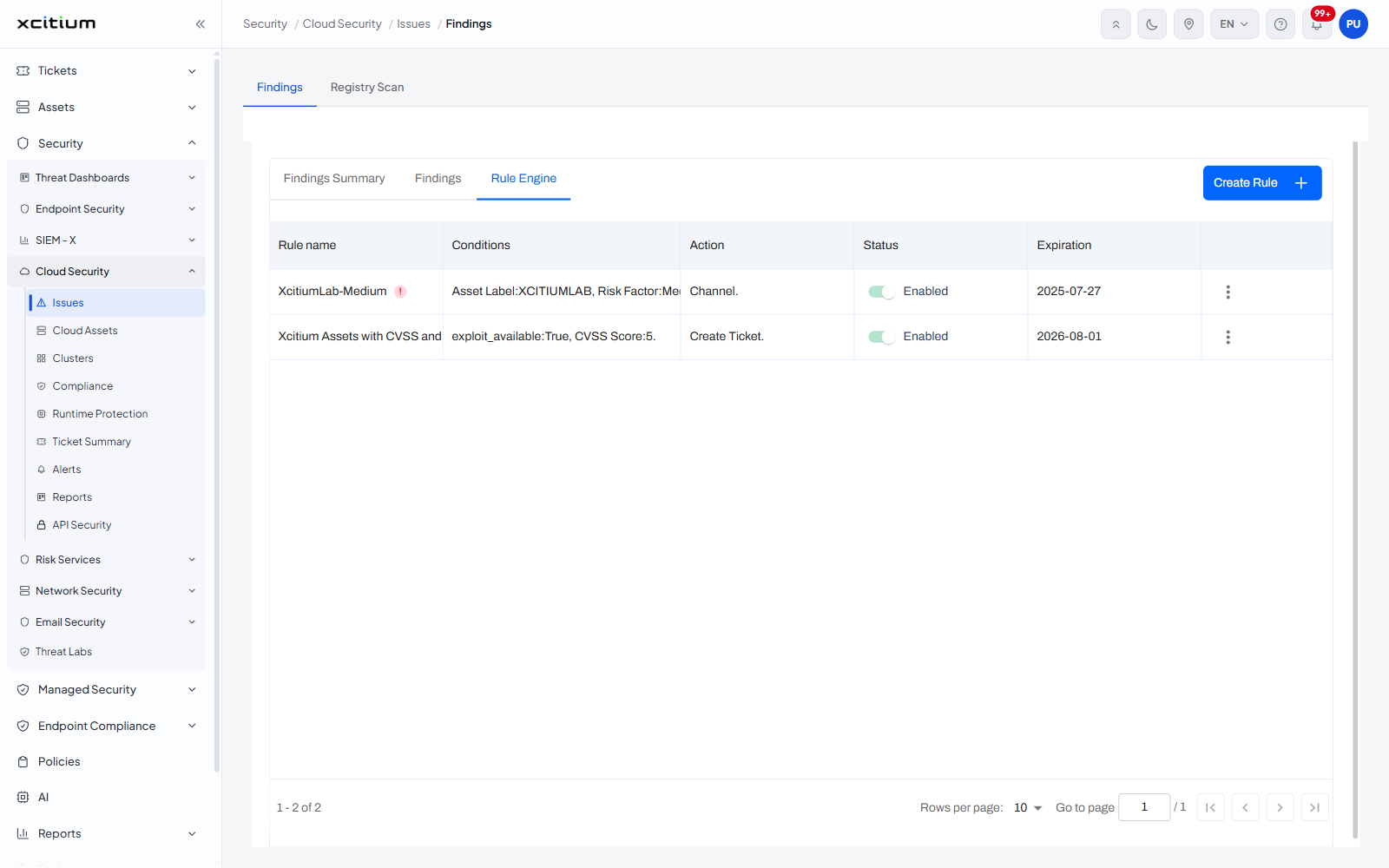
Column descriptions
| Column | Description |
| Rule name | The name the rule was saved under. A red exclamation icon appears beside the name on a rule that needs attention - for example one whose expiration date has passed. |
| Conditions | What the rule matches, written out as a list of field and value pairs, for example 'Asset Label:XCITIUMLAB, Risk Factor:Medium.' or 'exploit_available:True, CVSS Score:5.' |
| Action | What the rule does when it matches. Values seen: 'Create Ticket.', 'Channel.' |
| Status | A switch with its state beside it. Value seen: 'Enabled'. Use the switch to turn the rule off without deleting it. |
| Expiration | The date the rule stops applying. |
| (unnamed) | A three-dot menu at the end of each row. |
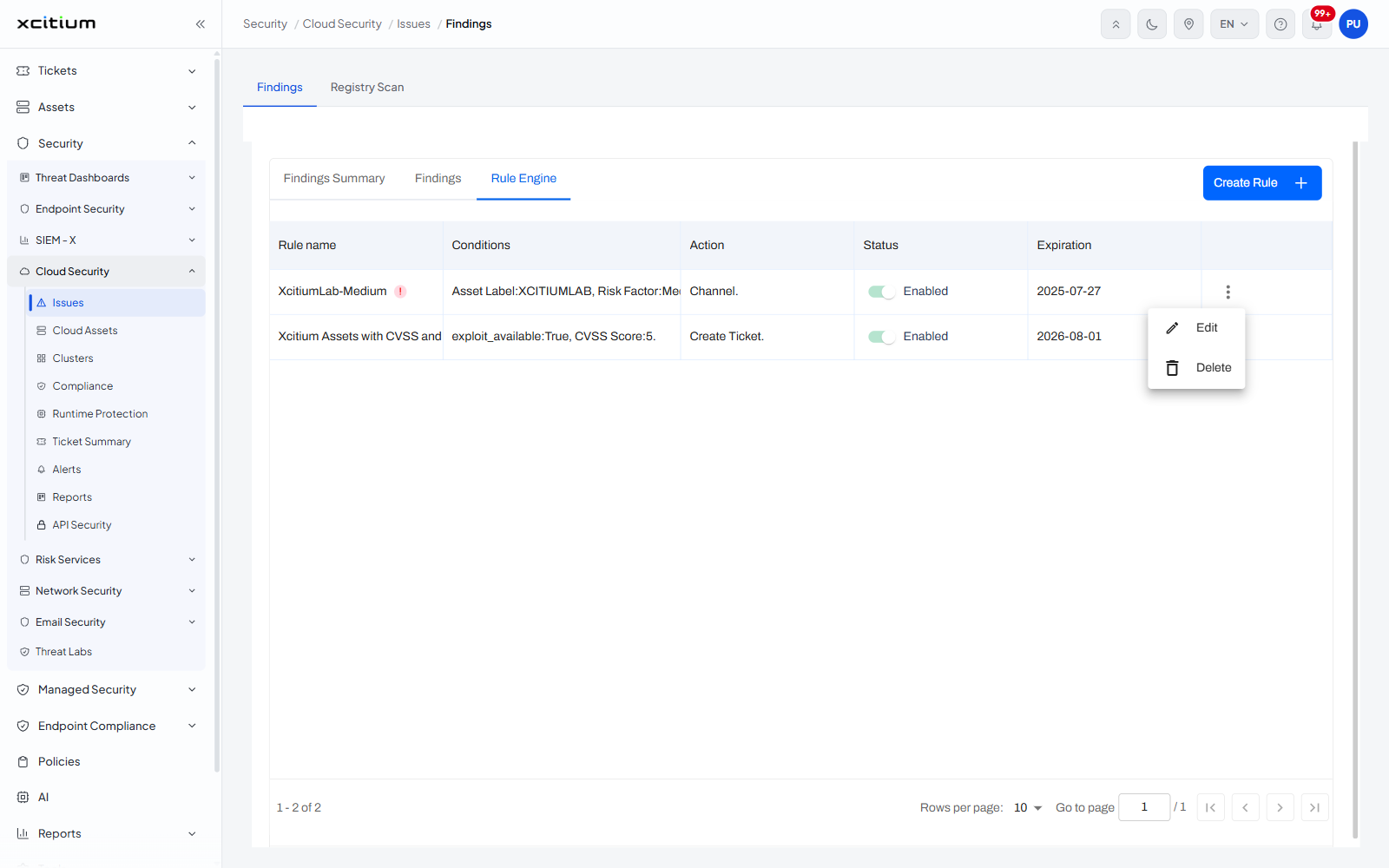
The row menu
Click the three-dot icon at the end of a rule's row. The menu holds two items:
| Item | Description |
| Edit | Opens the rule so its conditions, action and expiration can be changed. |
| Delete | Removes the rule. |
Other controls
| Control | Description |
| Create Rule | A blue button with a '+' at the top right. Starts a new rule. |
| Sort | A sort control on the column headings. |
Turn a rule off
- Find the rule in the list.
- Click the switch in its 'Status' column. The label beside it changes.