


Download and Install an Agent
- Click 'Endpoint Compliance' > 'Agents' > 'LightWeight Agents' > 'Agent' to open this interface.
The 'Agent' button beside the 'LightWeight Agents' card heading opens a panel that gives you the installer and the install command for each supported platform. The panel explains: 'An agent is installed at the end user's system using the below command. The agent scan fetches the system's details on to the portal. Further the discovery settings associated to the agent's network can be added to discover all the assets defined under the agent's network with the agent scan.'
You can copy the install command, download the installer, and read the identifiers the command uses from this interface.
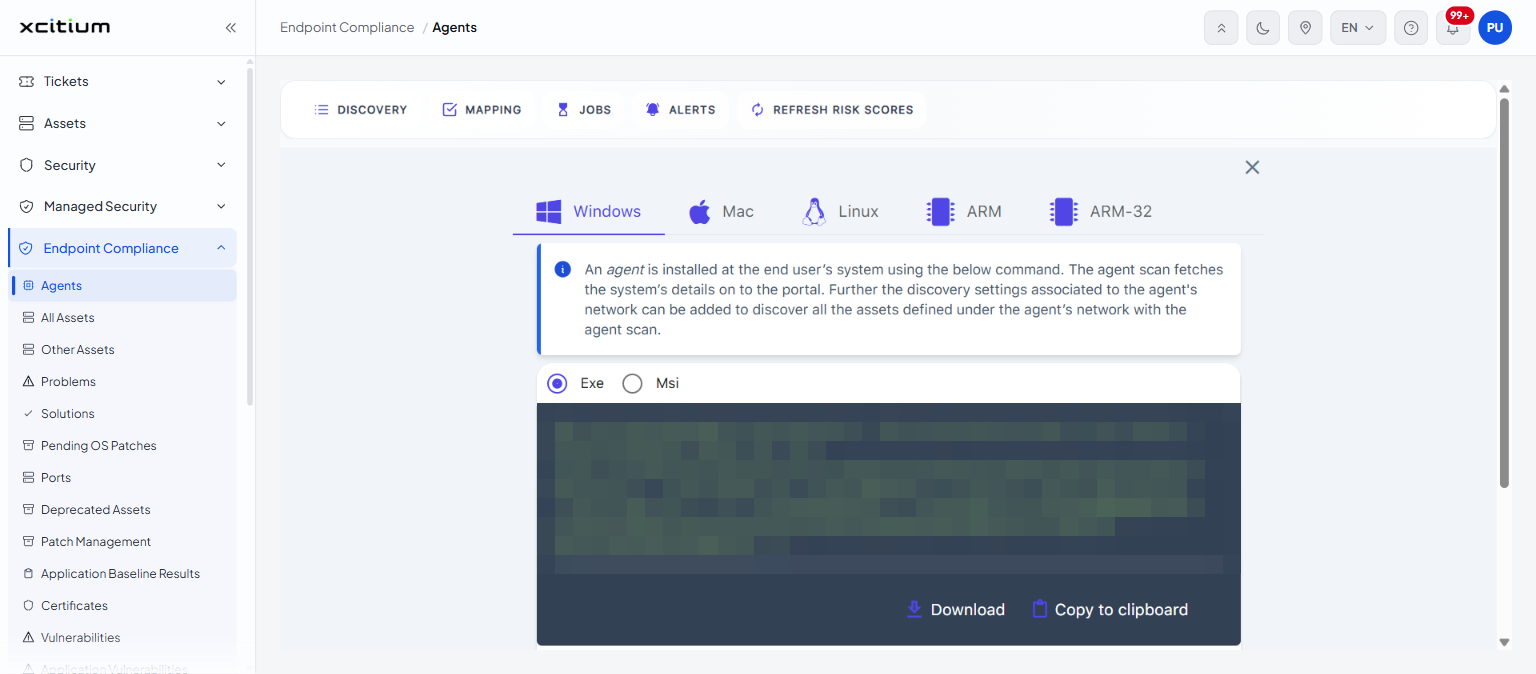
Platform tabs
The panel has five tabs:
| Tab | Package options offered |
| Windows | Two radio buttons, 'Exe' and 'Msi'. 'Exe' is selected by default. |
| Mac | One radio button, 'Pkg'. |
| Linux | One radio button, 'Exe'. |
| ARM | One radio button, 'Exe'. |
| ARM-32 | No package option is offered; the command is shown directly. |
'Windows' is the tab shown when the panel opens.
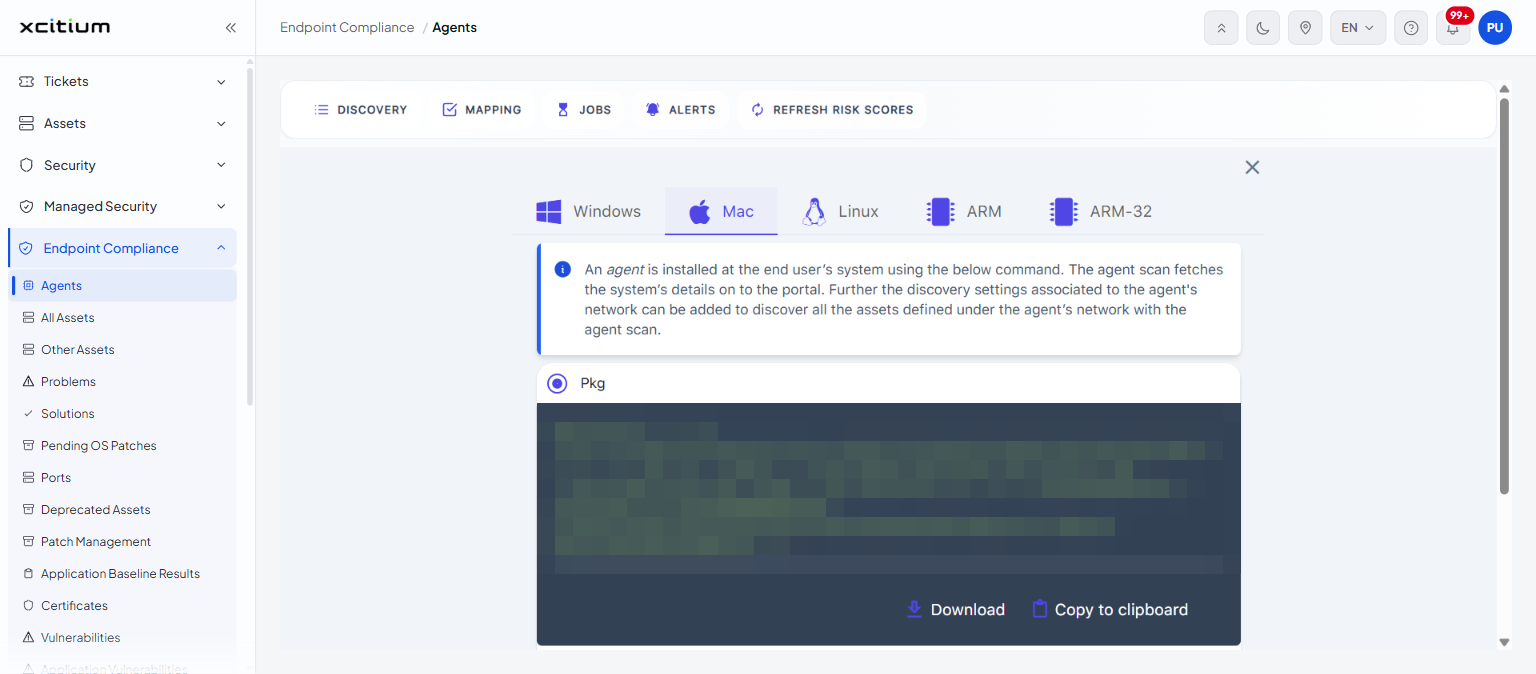
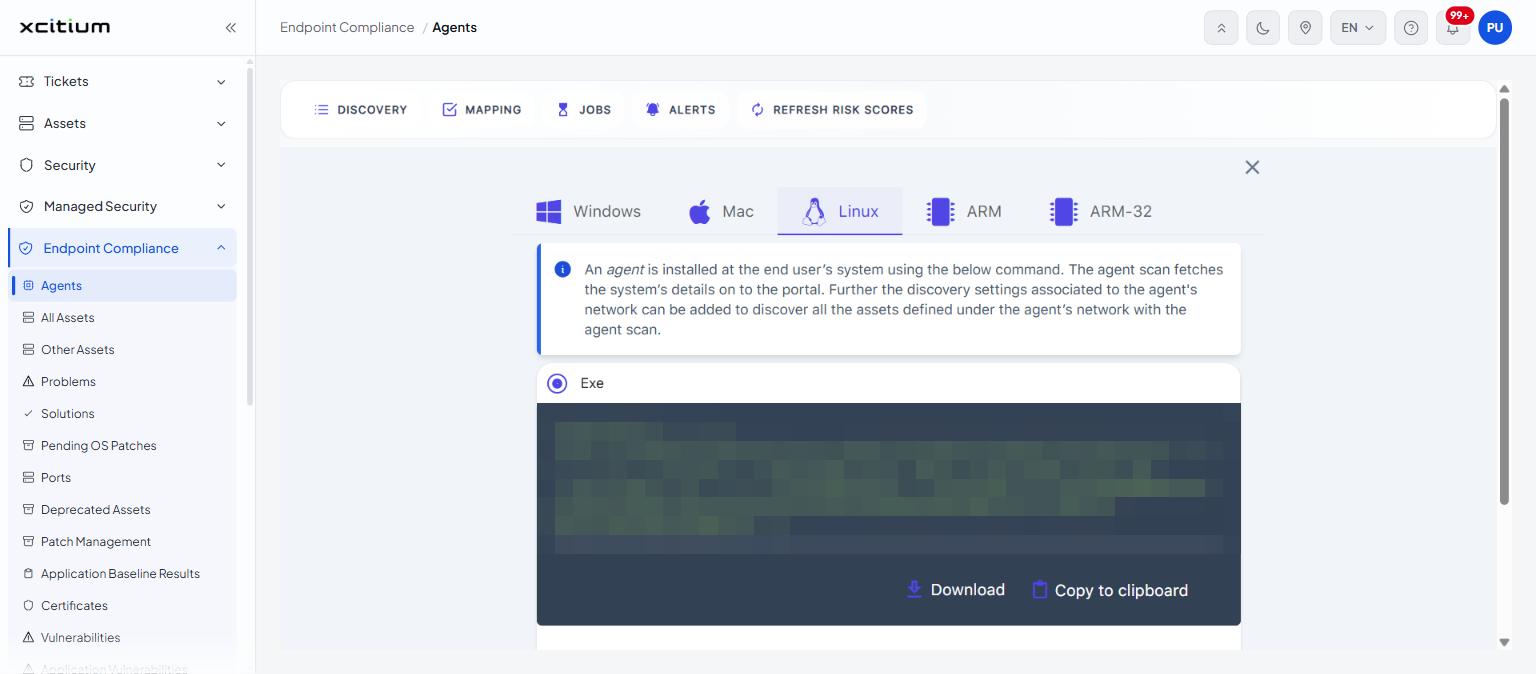
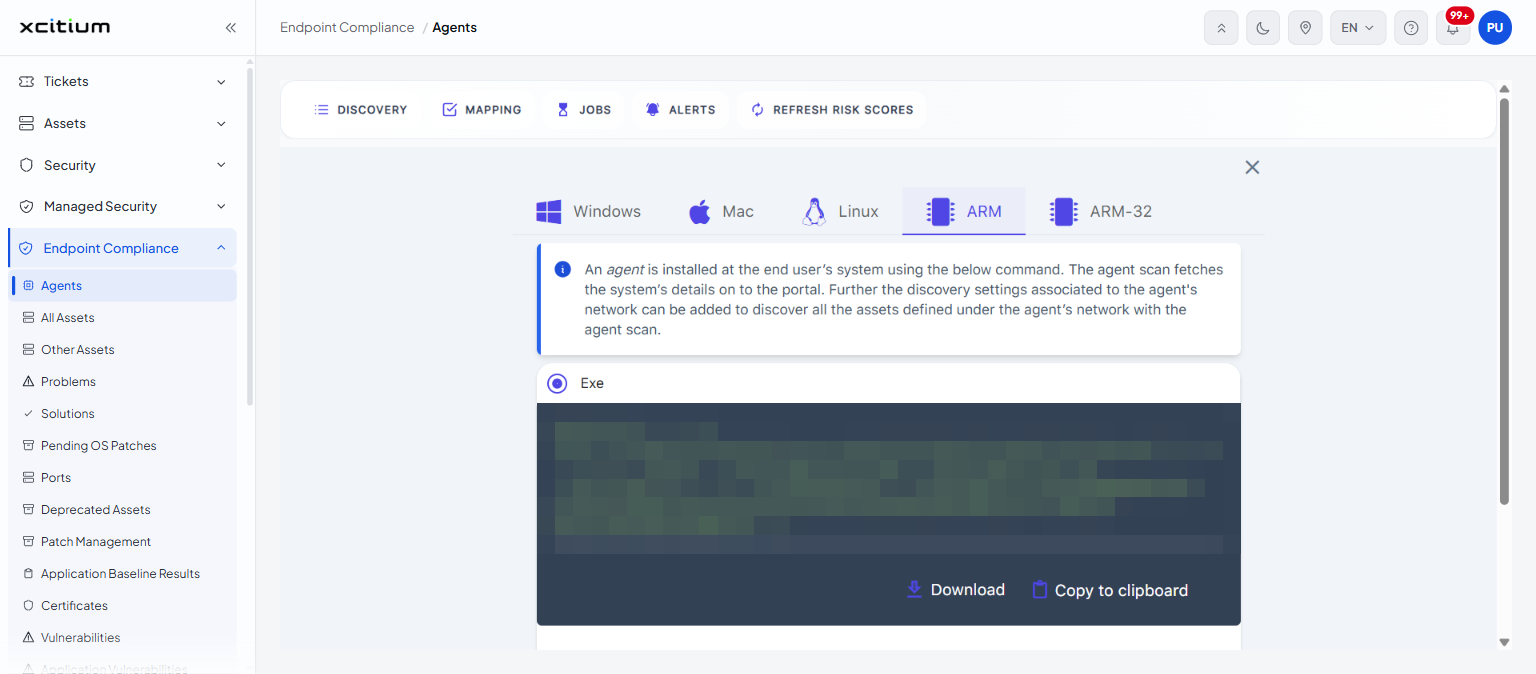
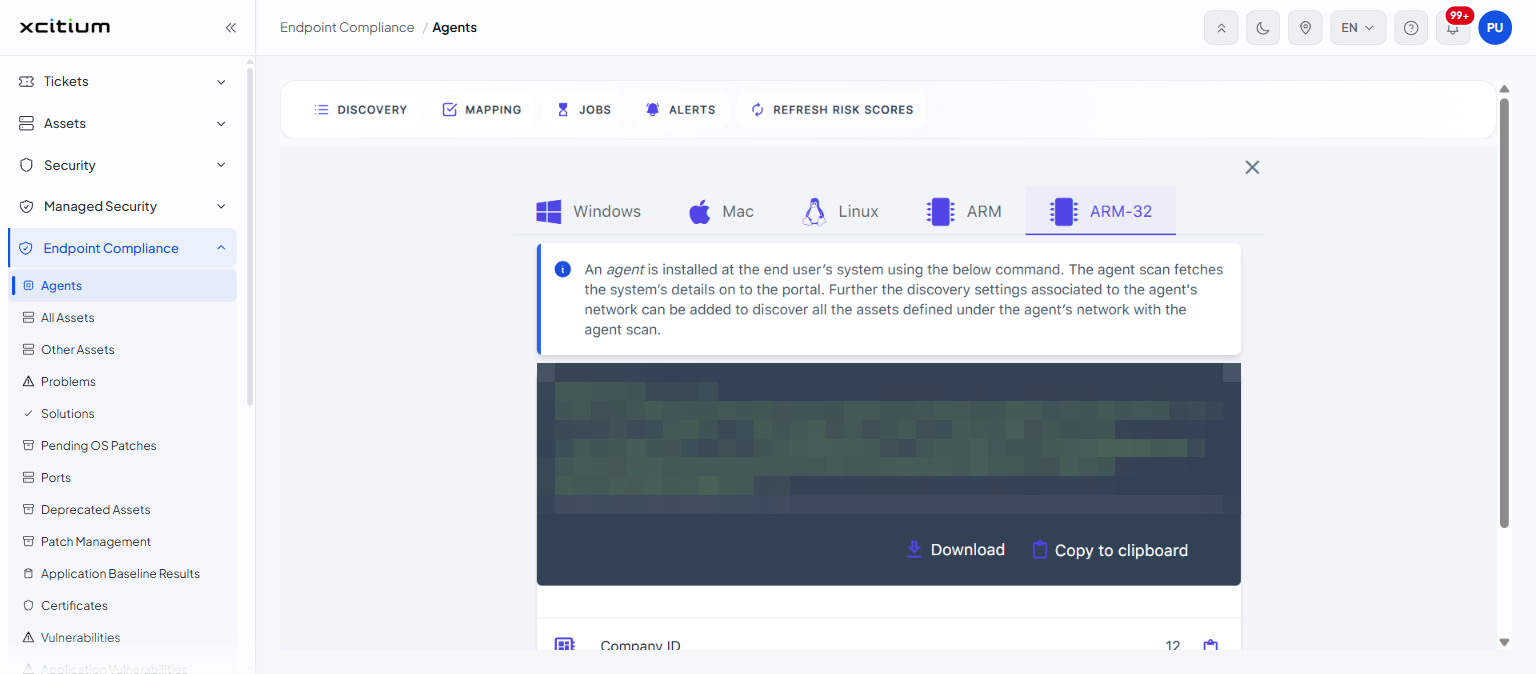
Controls on each tab
| Control | Description |
| Package radio buttons | Choose the installer format. The command below changes to match. |
| Command block | A dark panel holding the complete install command for the selected platform and format. |
| Download | Downloads the installer for the selected platform and format. |
| Copy to clipboard | Copies the command shown above it. |
| Company ID | The company identifier that the command passes to the installer. |
| Tenant ID | The tenant identifier that the command passes to the installer. |
| Secret | The shared secret that the command passes to the installer. |
| X | Closes the panel. |
Install an agent
- Click 'Endpoint Compliance' > 'Agents'.
- Make sure the 'LightWeight Agents' tab is open.
- Click the 'Agent' button beside the card heading.
- Click the tab for the endpoint's platform.
- Choose the package format if the tab offers a choice.
- Click 'Copy to clipboard' to take the command, or click 'Download' to take the installer file.
- Run the command, or the installer, on the endpoint.
- Click the X to close the panel.
Note: the agent installed from this panel is a lightweight agent and scans only the machine it is installed on.