


XCS Access Control
- Open a Windows profile, then click the 'XCS Access Control' tab.
'XCS Access Control' stops the person at the device changing the security client's settings. The panel is headed 'Xcitium Client Security Access Control' and carries 'Edit' and 'Delete' buttons.
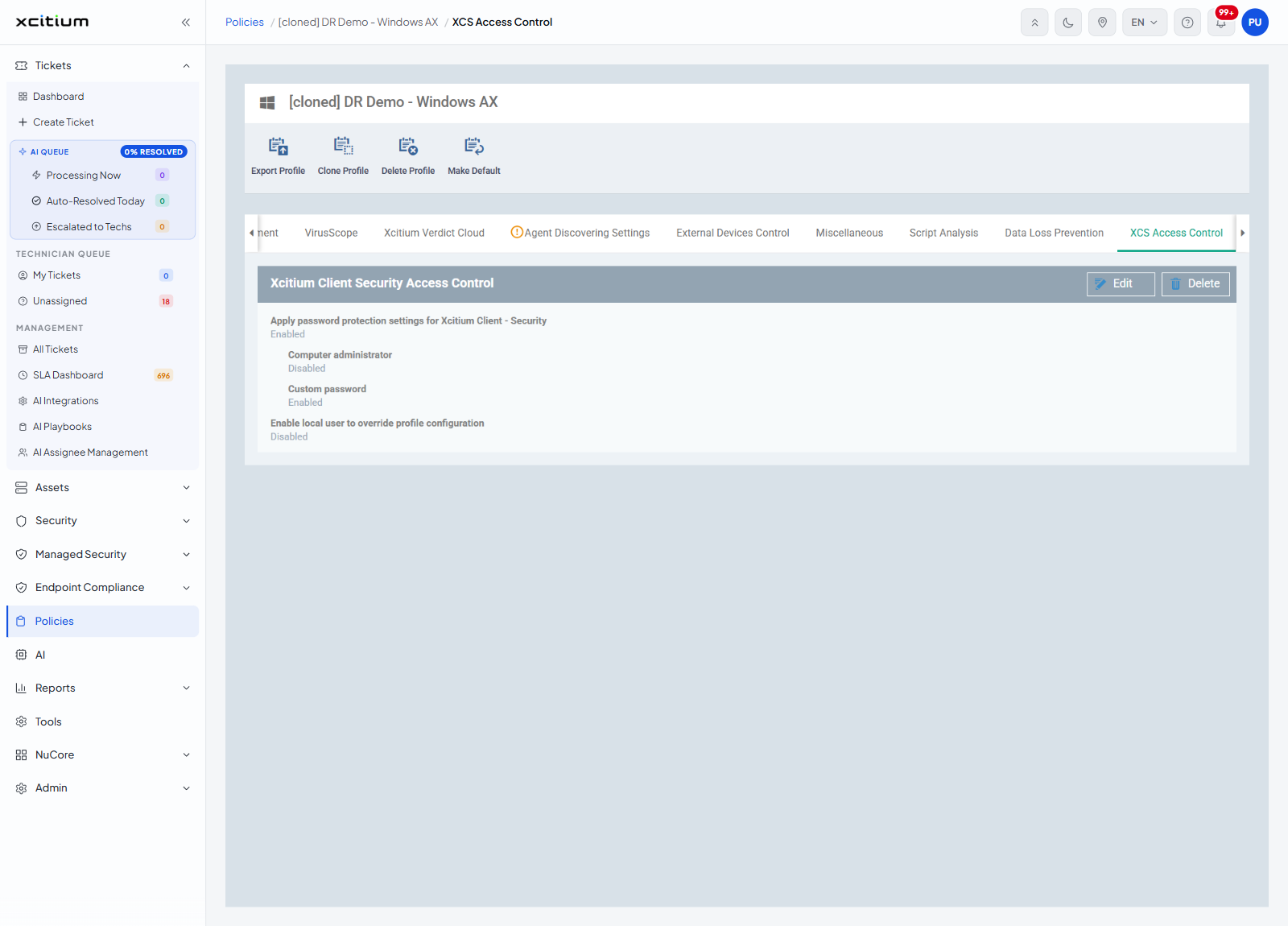
Settings
| Setting | Value seen | Description |
| Apply password protection settings for Xcitium Client - Security | Enabled | Puts the client's settings behind a password. |
| Computer administrator | Disabled | Uses the device's own administrator account as the password. |
| Custom password | Enabled | Uses a password you set here. |
| Enable local user to override profile configuration | Disabled | Lets the person at the device change settings the profile has set. |
Lock down the security client
- Click 'Policies' in the left navigation bar and open the profile.
- Click the 'XCS Access Control' tab.
- Click 'Edit'.
- Turn on 'Apply password protection settings for Xcitium Client - Security'.
- Choose 'Computer administrator' or 'Custom password'.
- Leave 'Enable local user to override profile configuration' off unless you want the device user to be able to change the profile's settings.
- Click 'Save'.
Note: 'Enable local user to override profile configuration' is referred to by the 'Containment' section. Its 'Baseline' sub-tab warns that profile settings are pushed once when baseline mode ends if this option is on. See Containment.
Note: the communication client is locked down separately. See Client Access Control.