


Agent Repository
- Click 'AI' > 'AI Agent' > 'Manage Your AI Agent', then click 'Repository' (under the three-dot button on the tab bar if it is not shown).
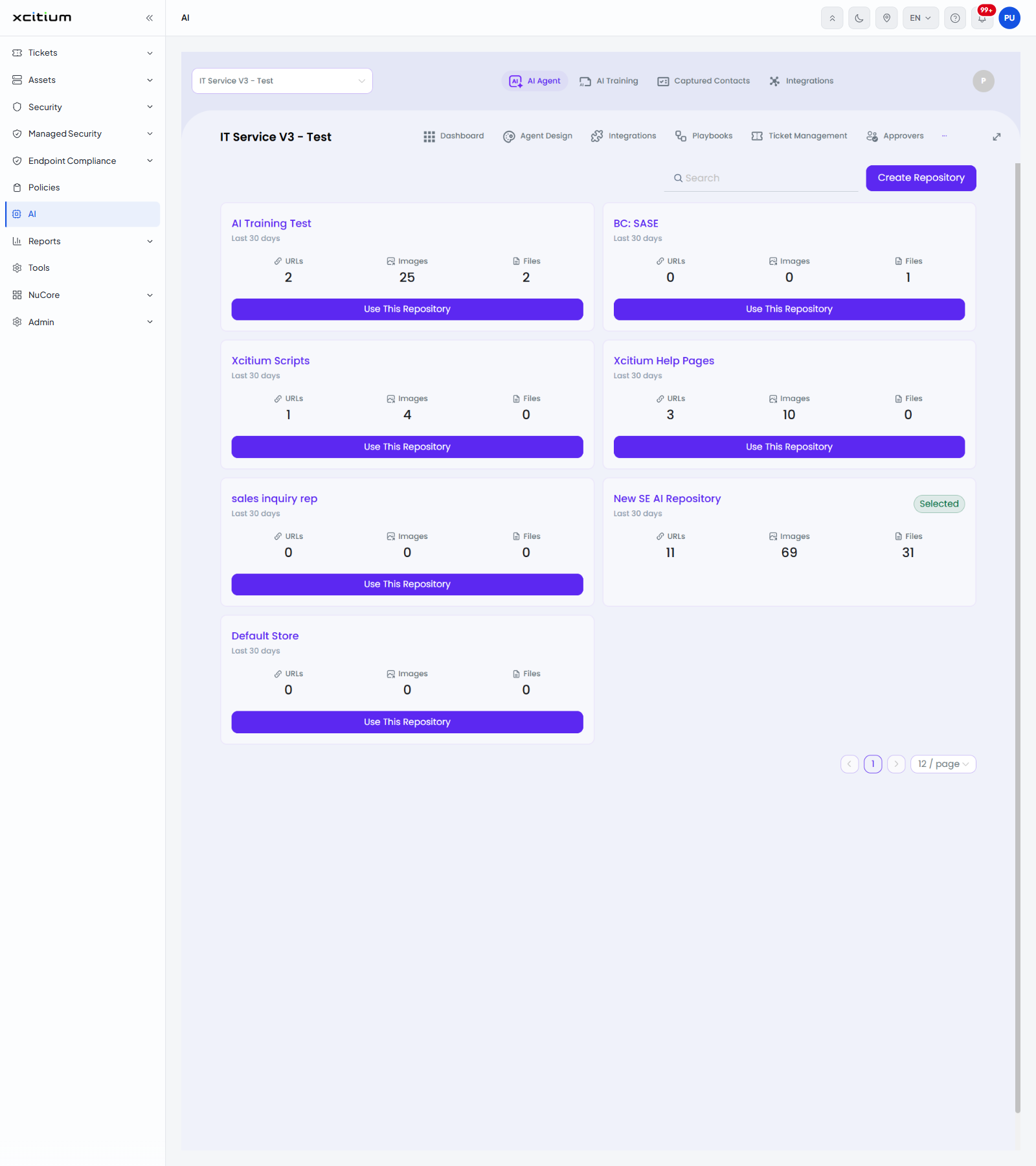
The 'Repository' tab decides which training repository the agent reads from. Every repository in your account is listed as a card and the one in use carries a 'Selected' badge.
Controls
| Control | Description |
| Search | Narrows the cards by repository name. |
| Create Repository | Makes a new repository without leaving the tab. |
| Use This Repository | Points the agent at that repository. |
| Selected | A badge on the repository the agent is using now. That card has no button. |
| Paging | Page buttons and a rows-per-page list, set to '12 / page'. |
What a repository card shows
| Element | Description |
| Name | The label of the repository. |
| Last 30 days | The period the counts cover. |
| URLs | How many web addresses the repository holds. |
| Images | How many images it holds. |
| Files | How many files it holds. |
Change the repository an agent uses
- Click 'AI' > 'AI Agent' > 'Manage Your AI Agent' > 'Repository'.
- Find the repository, using 'Search' if the list is long.
- Click 'Use This Repository' on its card. The badge moves to that card.
See 'AI Training' to add URLs, images and files to a repository.