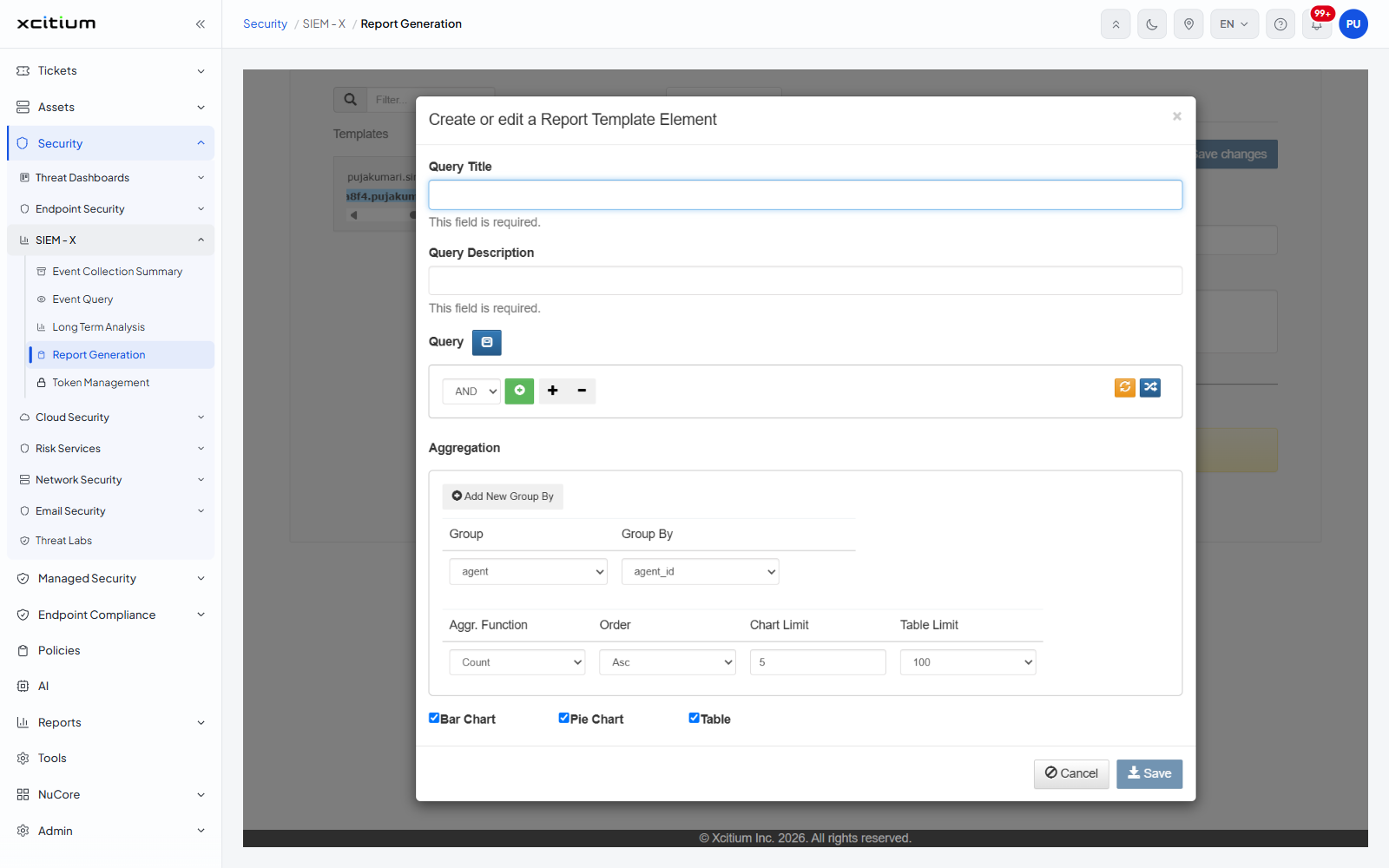
Report Generation
- Click 'Security' > 'SIEM - X' > 'Report Generation' to open this interface.
Report Generation turns SIEM queries into reports you can schedule and send out. The report templates sit in a folder tree on the left. The right of the screen has two tabs: 'Distribution', which controls who gets the report and when, and 'Report Template', which defines what the report contains.
You can build a template tree, pick a template, give it a title and description, add report elements, generate a report on demand, schedule it, and e-mail it to a list of recipients.
The template tree
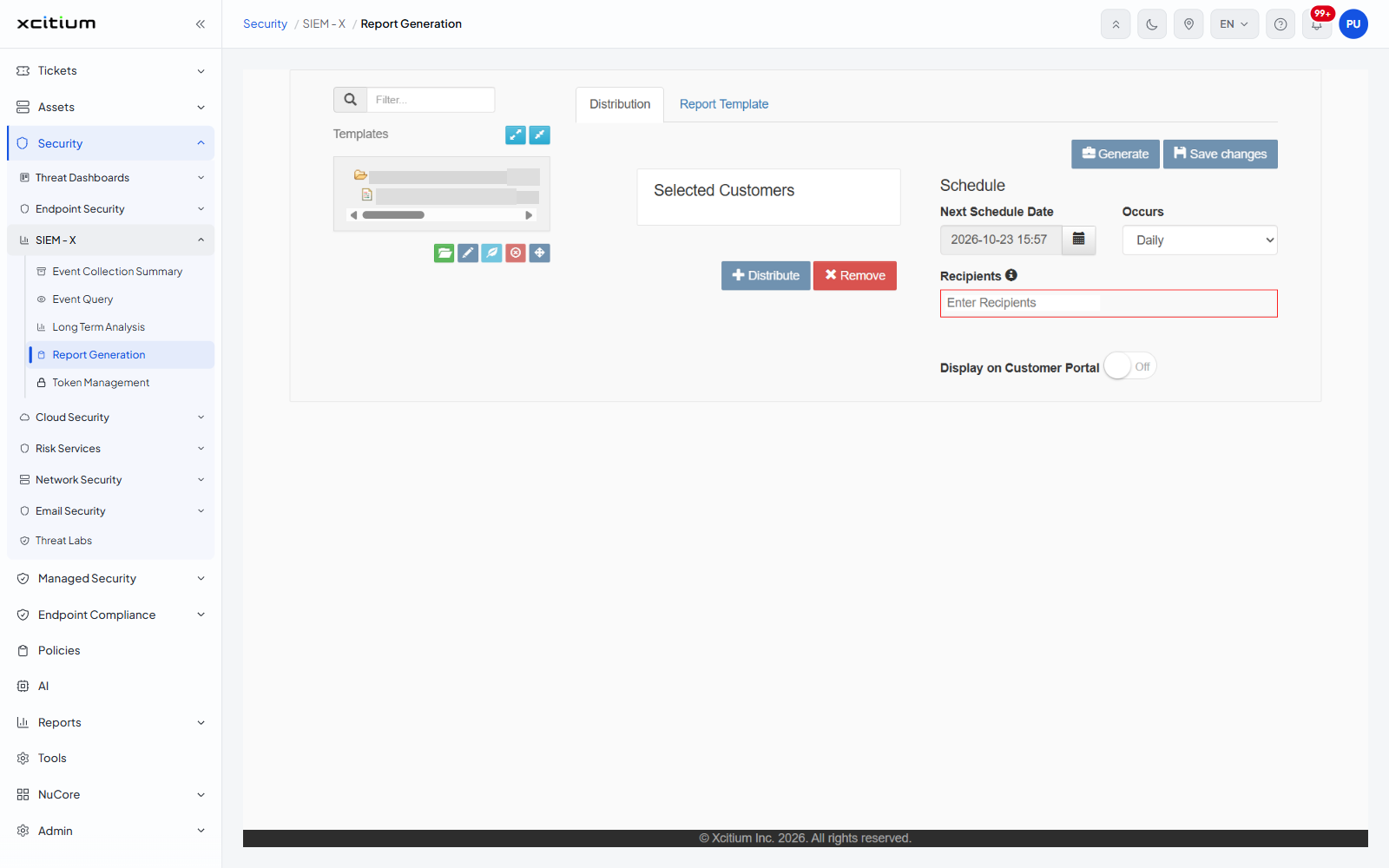
The tree is headed 'Templates' and is preceded by a 'Filter...' box with a magnifier button. Two blue buttons beside the heading carry the tooltips 'Expand All' and 'Collapse All'. A row of coloured buttons sits under the tree.
| Button | Tooltip |
| Green folder | Add Folder |
| Blue pencil | Edit Folder |
| Blue leaf | Create New Leaf |
| Red circle | Delete |
| Blue cross-arrows | Move item to selected folder |
Note: 'Delete' removes the selected folder or template.
The 'Distribution' tab
'Distribution' is the tab the screen opens on. Two buttons sit at its top right: 'Generate', which produces the report now, and 'Save changes', which stores the distribution settings.
| Field | Control | Description |
| Selected Customers | A list box | The customers the report covers. Empty until customers are added. |
| Distribute | Blue button with a '+' | Adds a customer to 'Selected Customers'. |
| Remove | Red button with an '×' | Takes the selected customer out of the list. |
| Next Schedule Date | Date box with a calendar button | When the report next runs. Shown pre-filled with a date and time. |
| Occurs | Drop-down | 'Daily' (the default), 'Weekly', 'Monthly'. |
| Recipients | Tag box, placeholder 'Enter Recipients' | Who receives the report. The information icon beside the label reads 'Enter the recipient e-mail address and press ENTER'. |
| Display on Customer Portal | Switch, shown 'Off' | Whether the finished report is published to the customer portal. |
The 'Report Template' tab
Click 'Report Template' to open the second tab. With no template selected the tab is empty.
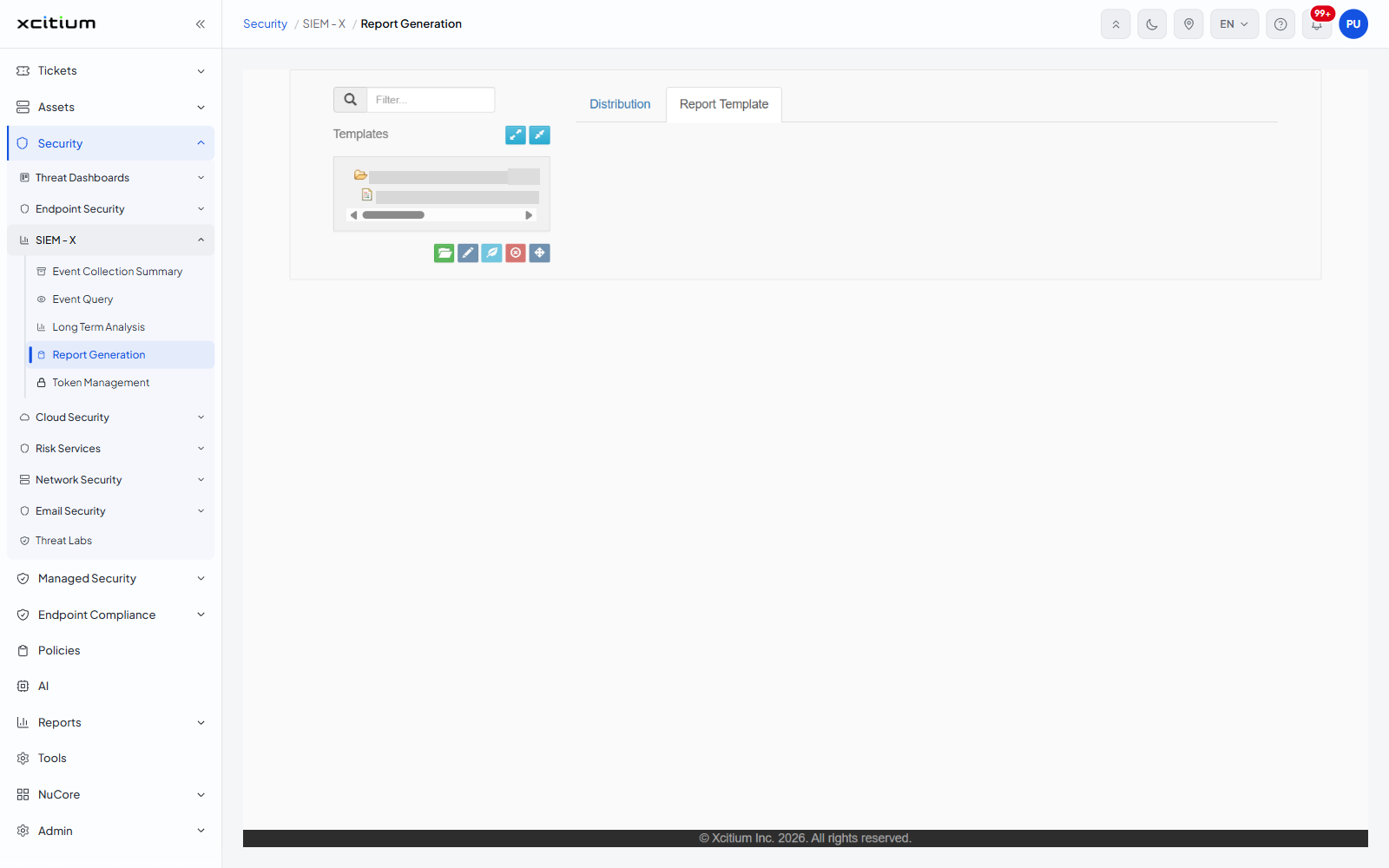
Click a template in the tree and the tab fills in. Two buttons appear at the top right: 'Clone', which copies the template, and 'Save changes'.
| Section | What it holds |
| Query Metadata | 'Title' - a text box with the placeholder 'Report title', required. 'Description' - a resizable text area with the placeholder 'Report description', required. |
| Report Elements | The list of elements in the report. While it is empty it reads 'You need to add at least one report element.' An 'Add' button sits under the message. |
Add a report element
- Open the 'Report Template' tab and click a template in the tree.
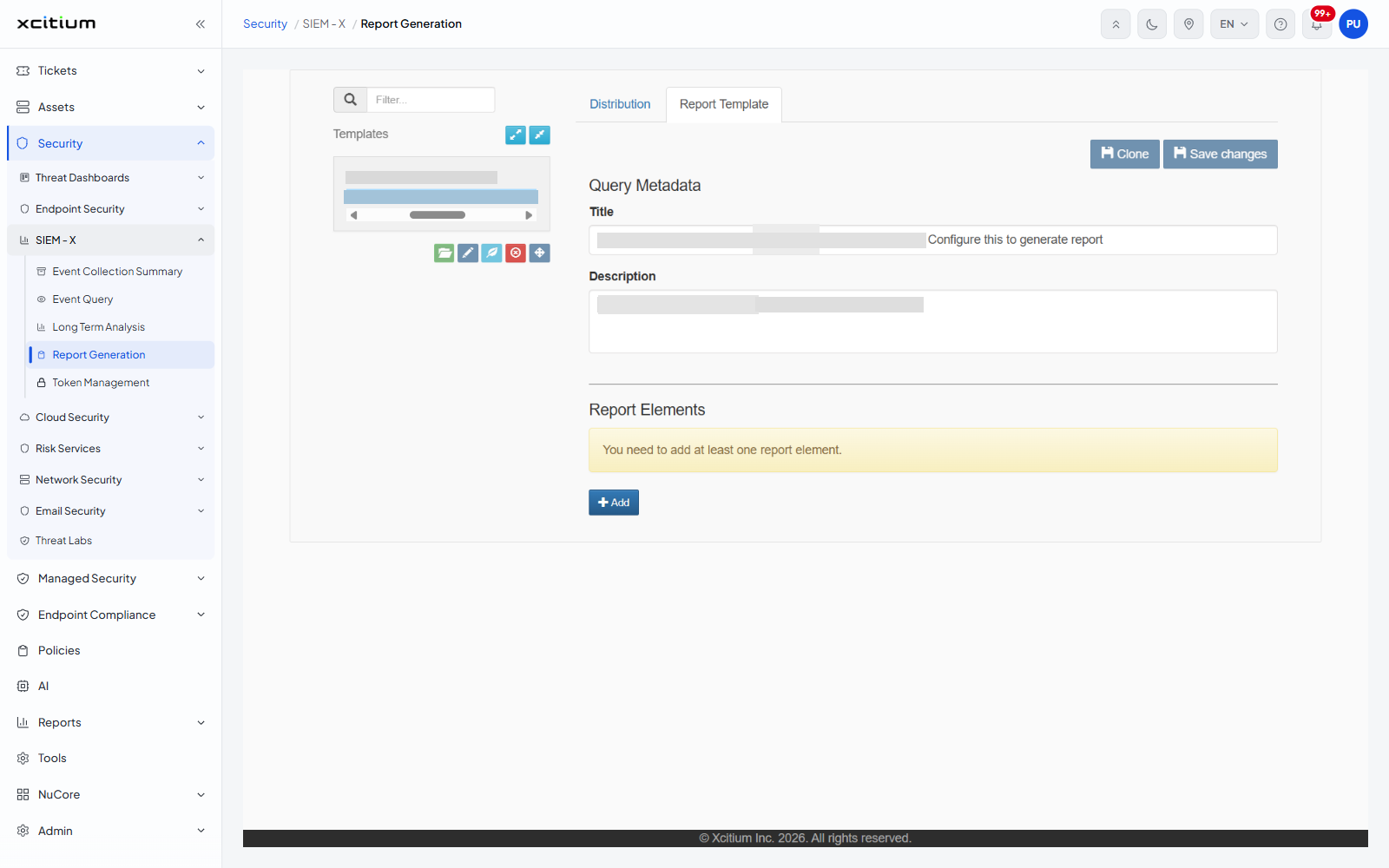
- Click 'Add' under 'Report Elements'. The dialog 'Create or edit a Report Template Element' opens.
- Fill in the fields described below.
- Click 'Save', or 'Cancel' to leave the template as it was.
| Field | Control | Options / default | Required |
| Query Title | Text box | Empty. The hint under it reads 'This field is required.' | Yes |
| Query Description | Text box | Empty. The hint under it reads 'This field is required.' | Yes |
| Query | Condition builder | A logical operator drop-down offering 'AND', 'OR' and 'NOT', a green button, a '+' button and a '-' button that add and remove condition rows, and two buttons at the right of the builder bar. | - |
| Add New Group By | Button | Adds another grouping row to the 'Aggregation' panel. | - |
| Group | Drop-down | 'agent' (default), 'application', 'asset', 'classification', 'custom', 'destination', 'device', 'event', 'file', 'network', 'product', 'rule', 'score', 'source', 'syslog', 'threat', 'time', 'user' | - |
| Group By | Drop-down | The fields of the chosen group, for example 'agent_id' (default), 'agent_ip', 'agent_ip_number' for 'agent' | - |
| Aggr. Function | Drop-down | 'Count' (default), 'Sum', 'Average', 'Minimum', 'Maximum' | - |
| Order | Drop-down | 'Asc' (default), 'Desc' | - |
| Chart Limit | Number box | 5 | Yes |
| Table Limit | Drop-down | '10', '30', '50', '100' (default) | - |
| Bar Chart | Check box | Ticked | - |
| Pie Chart | Check box | Ticked | - |
| Table | Check box | Ticked | - |