


Discovery Logs
- Click 'Assets' > 'Network Management' > 'Discoveries', click a discovery name, then open the 'Discovery Logs' tab.
The tab records every run of this discovery: which probe did the scanning, when it started and finished, how the run was triggered and how it ended.
You can confirm a scheduled scan actually ran, and open any run for its detail.
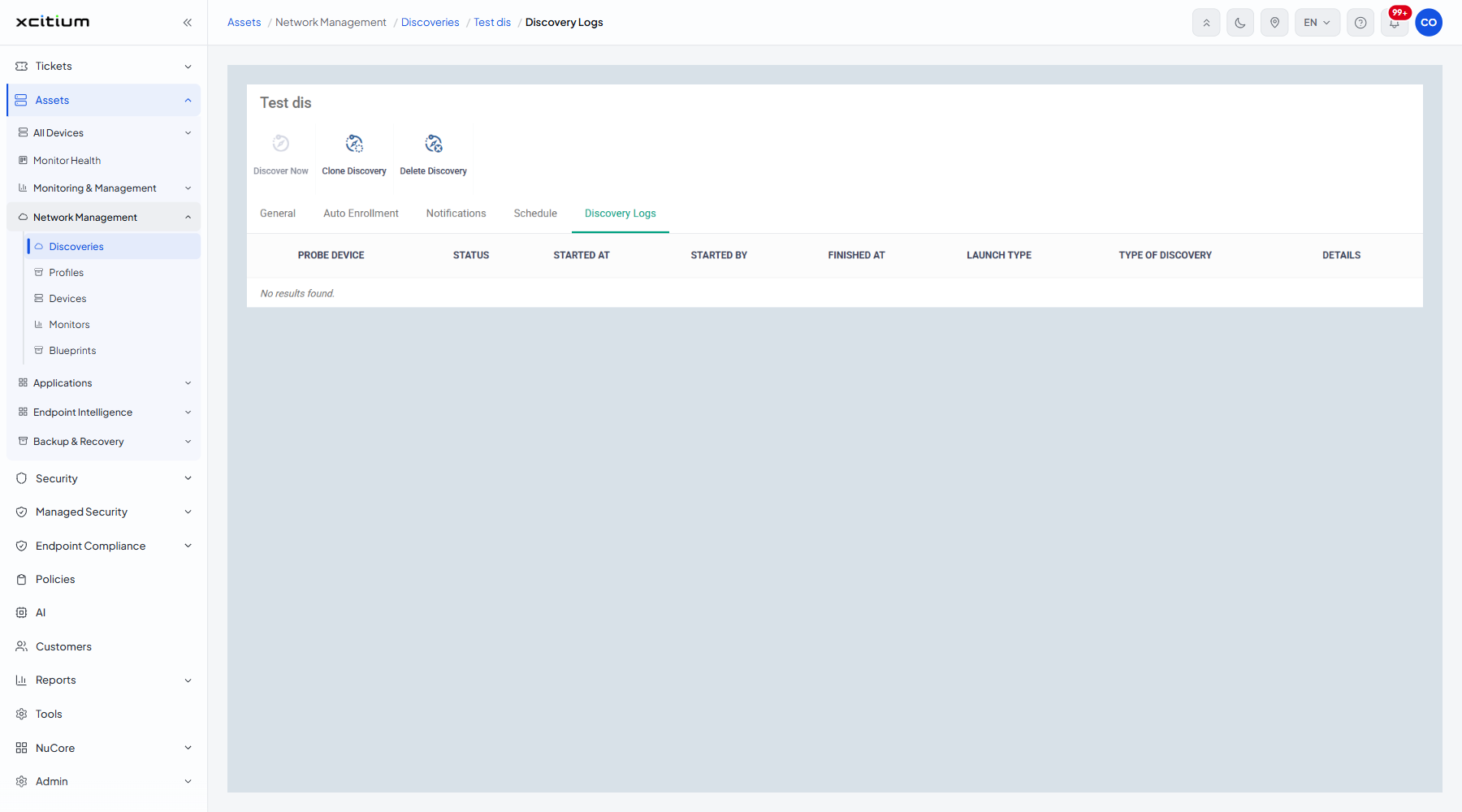
The columns
| Column | Description |
| Probe device | The managed device that did the scanning. |
| Status | How the run ended. |
| Started at | When the scan began. |
| Started by | The administrator who started it, or the schedule that did. |
| Finished at | When the scan ended. |
| Launch type | How the run was triggered, for example on demand or by a schedule. |
| Type of discovery | The method the run used, matching the Type column on the Discoveries list. |
| Details | A link that opens the run. |
When the discovery has never run the tab reads 'No results found.'
Confirm a scheduled scan ran
- Open the discovery and click the 'Discovery Logs' tab.
- Look for a row whose 'Started at' matches the schedule.
- Check 'Status' and 'Finished at'.
- Click 'Details' for the full account of the run.
Note: an empty log on a discovery with a schedule usually means the probe device was offline at every scheduled time and 'Skip if probe device is offline' is ticked.