


View a Maintenance Window
- Click 'Assets' > 'Monitoring & Management' > 'Maintenance Windows', then click a window name.
The window opens on a read-only page showing the schedule and the settings as they stand.
You can review a window without risking a change, and open it for editing from here.
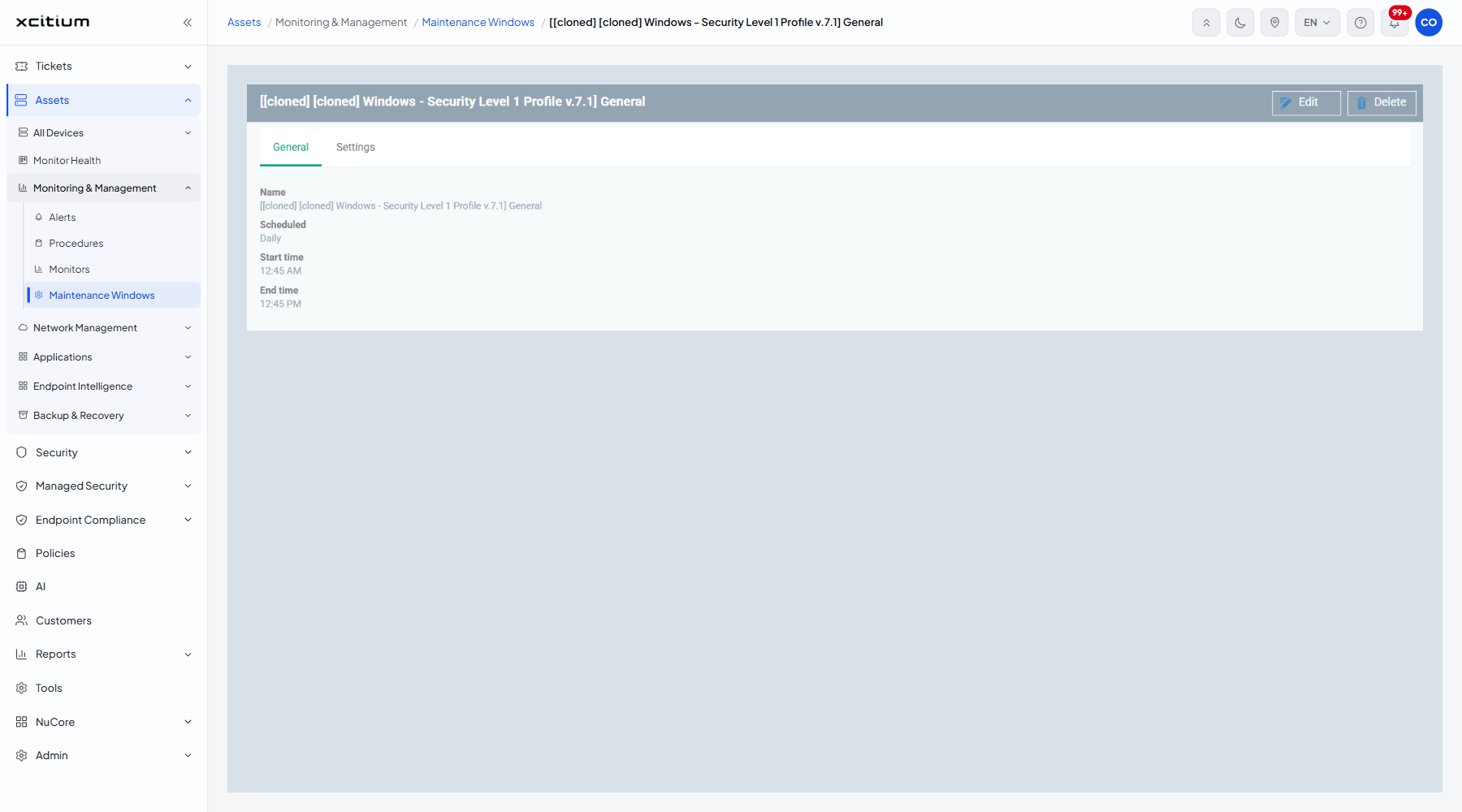
The header
The header shows the window name with two buttons:
| Button | Description |
| Edit | Reopens the Maintenance Window dialog over the saved values. |
| Delete | Removes the window. |
The General tab
| Column | Description |
| Name | The label of the window. |
| Scheduled | How often it recurs, for example 'Daily'. |
| Start time | The time the window opens. |
| End time | The time the window closes. |
The Settings tab
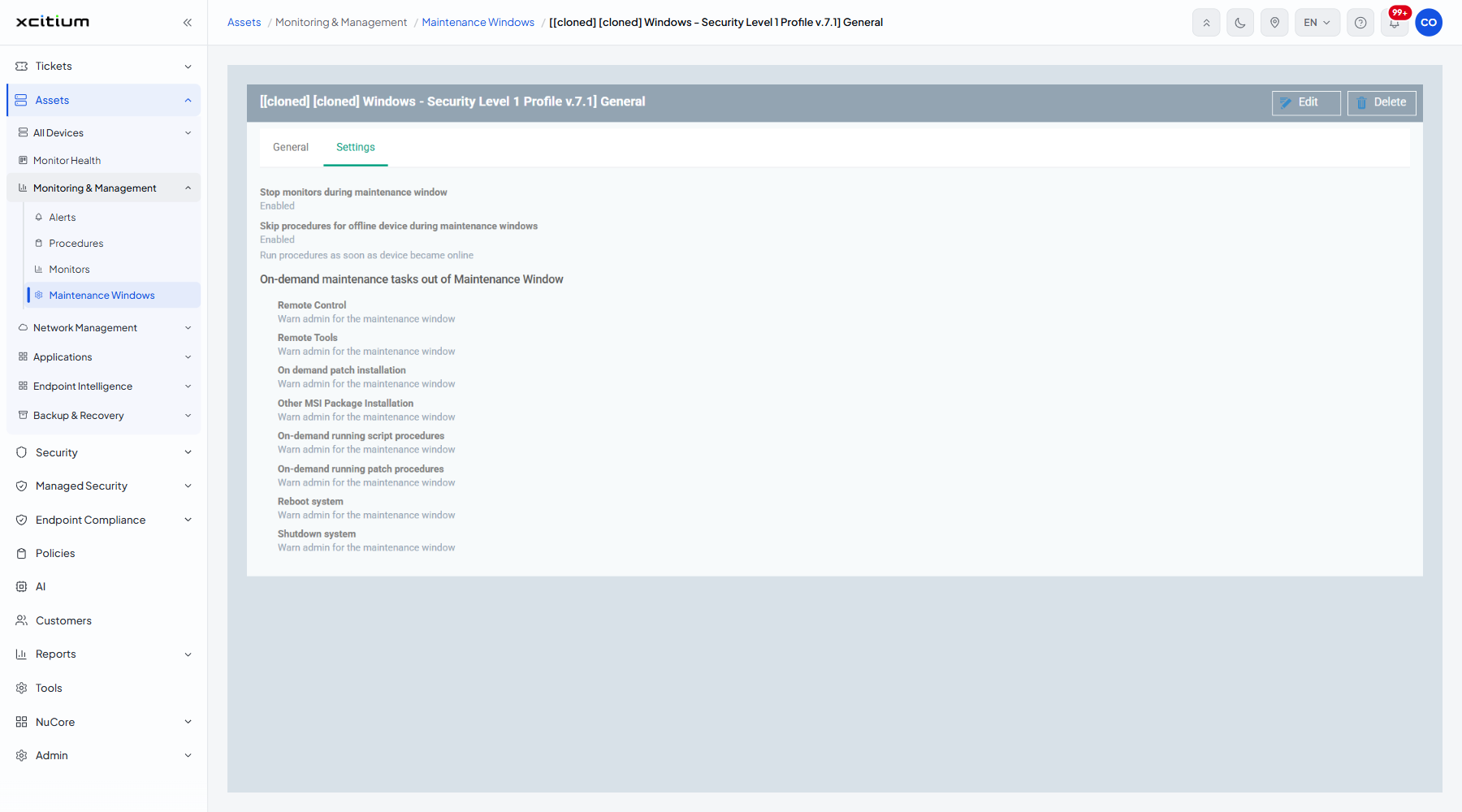
The Settings tab shows the same settings as the dialog, as read-only values. 'Stop monitors during maintenance window' and 'Skip procedures for offline device during maintenance windows' read 'Enabled' or 'Disabled'; the chosen offline-procedure rule is spelled out; and each of the eight on-demand tasks shows its current setting.
Review and change a window
- Click 'Assets' > 'Monitoring & Management' > 'Maintenance Windows'.
- Click the window name.
- Read the schedule on 'General' and the rules on 'Settings'.
- Click 'Edit' if you need to change anything.