


Desktop Application Control
- Click 'Assets' > 'Applications' > 'Desktop Application Control' to open this interface.
The screen has two tabs. The inventory lists every application found on the desktops you manage; the store lists the applications you can push out to them.
You can find out which devices carry an application, remove it, and install new software from the store.
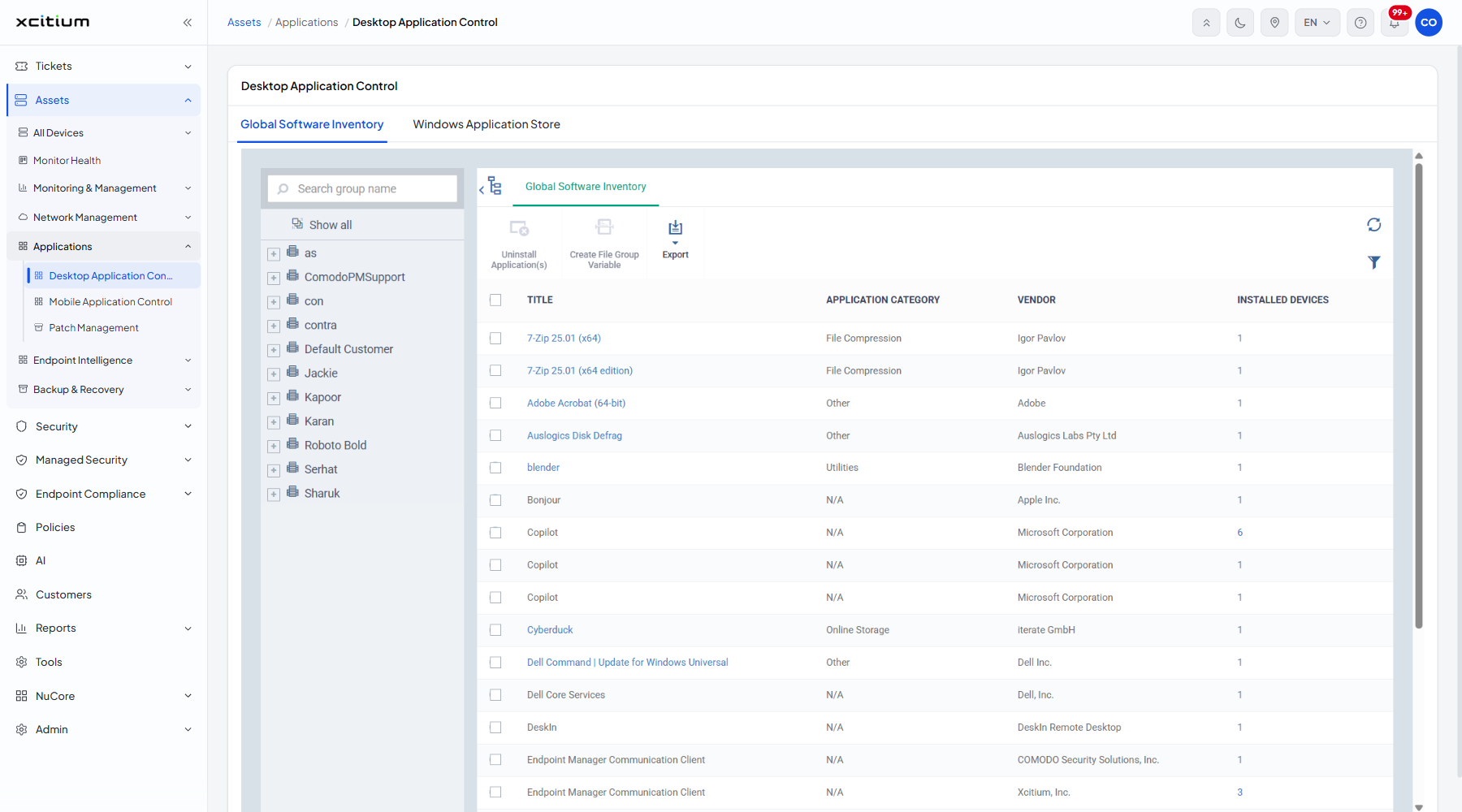
The left pane holds the customer and device-group tree with a 'Search group name' box and a 'Show all' button.
The two tabs
- Global Software Inventory — what is installed across your estate.
- Windows Application Store — the catalogue you install from.
The Global Software Inventory toolbar
| Button | Description |
| Uninstall Application(s) | Removes the ticked application from the devices that carry it. |
| Create File Group Variable | Turns the ticked application into a named file group you can use in policies. |
| Export | Writes the list to a spreadsheet. The menu holds one entry, 'Export to CSV'. |
A refresh icon and a filter icon sit at the right of the toolbar.
The columns
| Column | Description |
| (checkbox) | Ticks the row so the toolbar buttons become available. |
| Title | The name and version of the application as the device reports it. |
| Application category | What kind of application it is. Values seen: 'File Compression', 'Utilities', 'Online Storage', 'Developer Tools', 'Documents', 'Web Browsers', 'Runtimes', 'Messaging', 'Other', 'N/A'. |
| Vendor | Who publishes the application. |
| Installed devices | How many managed devices carry it, as a count and a link. Click it to open the application. |
Find out which devices carry an application
- Click 'Assets' > 'Applications' > 'Desktop Application Control'.
- Click the filter icon and type the name into ‘Title’, then click ‘Apply’.
- Click the count in the 'Installed devices' column.
- Open the 'Device List' tab to see each device, its version and the path the application sits at.