


View Applications Installed on a Device
- Open a device, then click the 'Software Inventory' tab.
Software Inventory is the list of every application the device reports as installed, from the last inventory scan. It is both a record and the place an application is removed from a single device.
You can see what is installed, who published it, which version is on and when it arrived, refresh the inventory, and remove an application from the device.
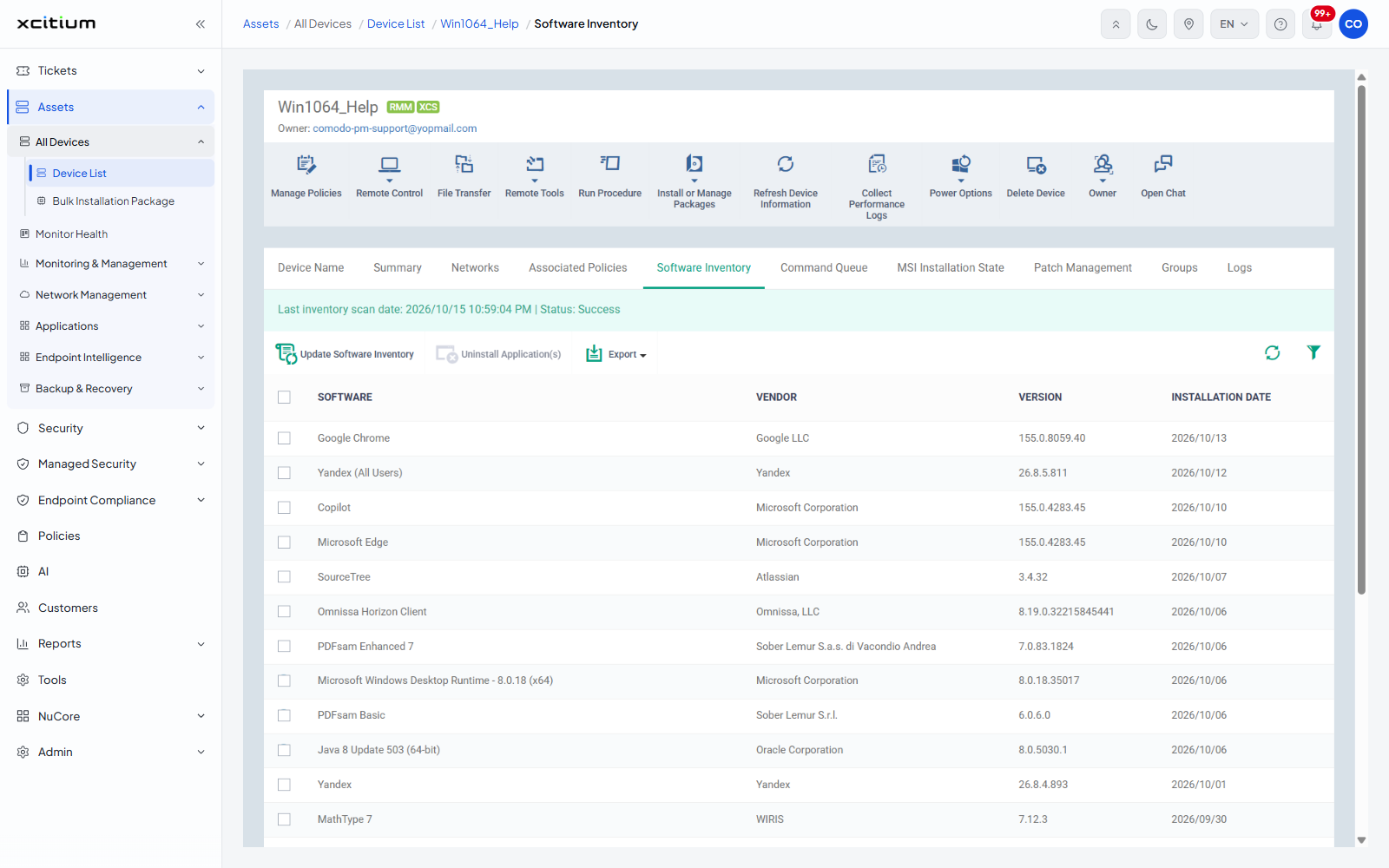
The scan banner
A banner above the toolbar reads 'Last inventory scan date:' with the time of the last scan, and 'Status:' with its result.
The toolbar
| Button | Description |
| Update Software Inventory | Asks the device to scan again and send a fresh list. |
| Uninstall Application(s) | Removes the ticked applications from the device. Greyed until a row is ticked. |
| Export | Offers 'Export to CSV'. |
A 'Table refresh' icon and a 'Table filter' icon sit at the right of the toolbar.
The application table
| Column | Description |
| (checkbox) | Selects the row. |
| SOFTWARE | The application name. |
| VENDOR | Who published it. |
| VERSION | The installed version. |
| INSTALLATION DATE | When it was installed on the device. |
Remove an application from a device
- Open the device and click the 'Software Inventory' tab.
- Tick the application you want removed.
- Click 'Uninstall Application(s)'.