


On-Demand Reports
- Click 'Reports' > 'Standard Reports' > 'On-Demand' to open this interface.
The 'On-Demand' tab lists every executive report that has been produced for your company, whether it was requested once or generated by a schedule. The newest report is at the top. Each row links to the finished report file.
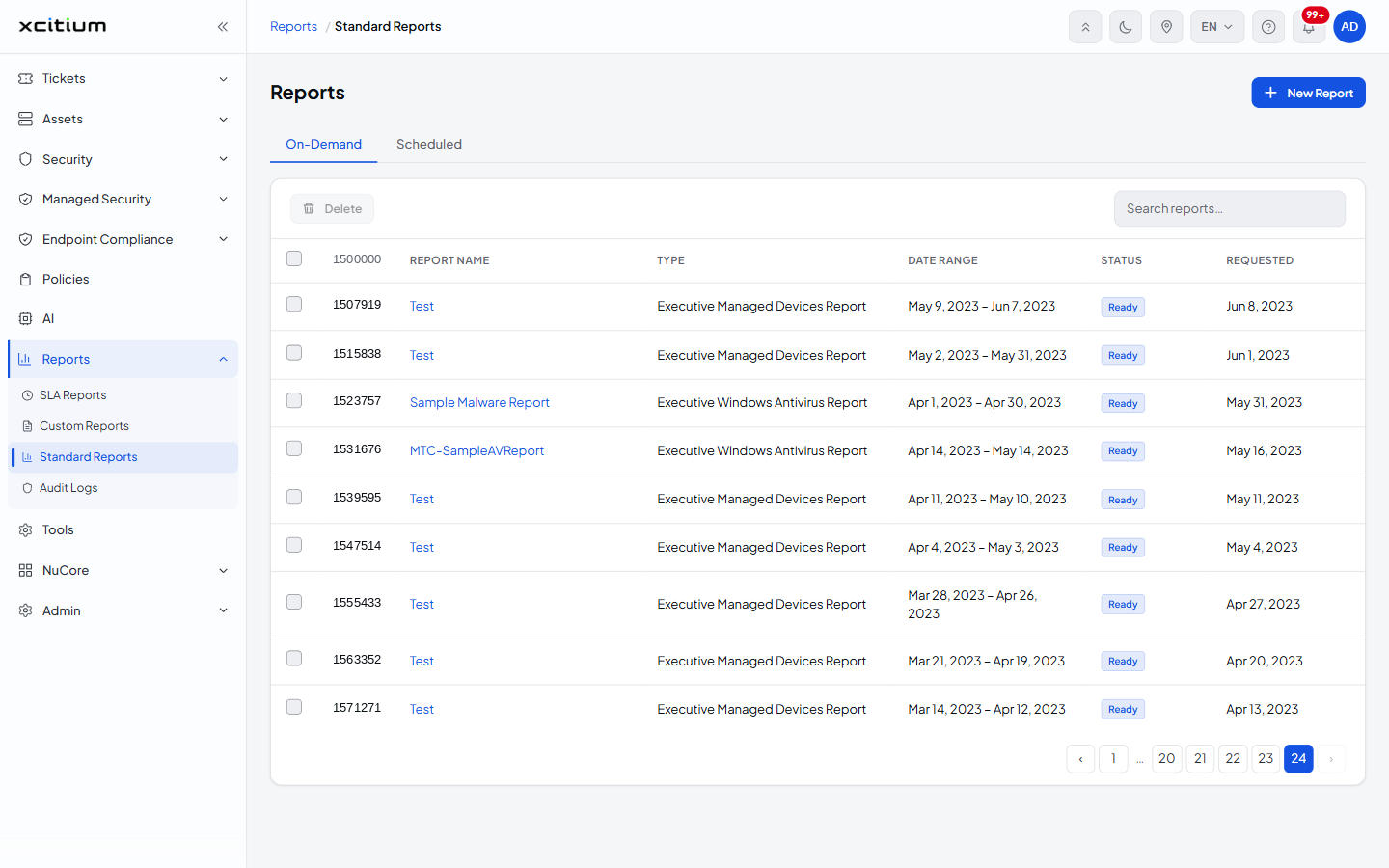
You can search the list by report name, open a finished report, page through the history, and select rows for deletion.
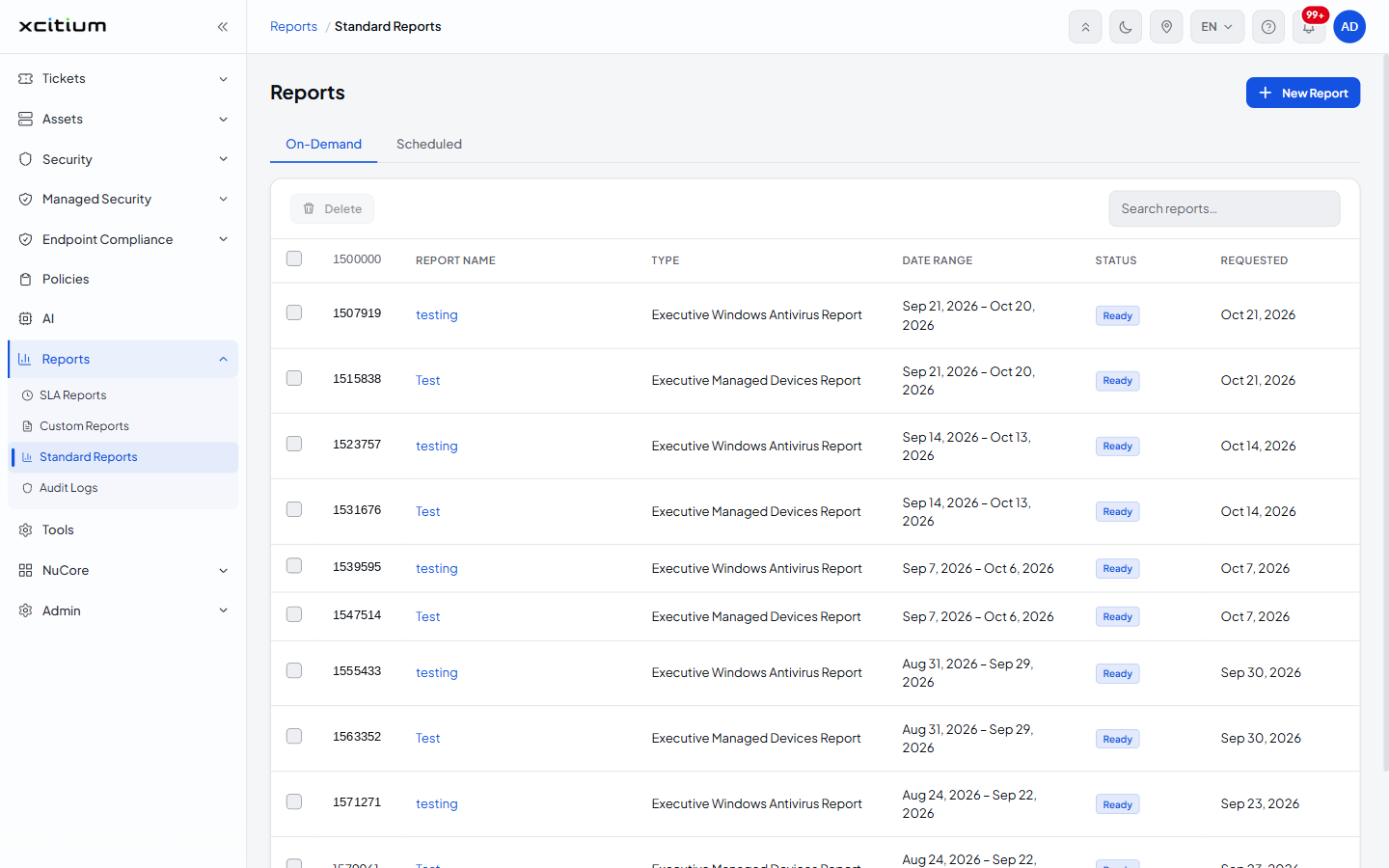
Column Descriptions
| Column | Description |
| (selection checkbox) | The leftmost column. Tick a row to select the report. The checkbox in the header row selects or clears every report on the page. Selecting at least one row enables the 'Delete' button. |
| ID | The number the platform gave the report request. IDs rise over time, so the highest number is the most recent report. |
| Report Name | The name you typed when you requested the report, shown as a link. Click it to open the finished report. |
| Type | Which of the five executive report types was produced, for example 'Executive Windows Antivirus Report'. |
| Date Range | The period the report covers, written as two dates, for example 'Sep 21, 2026 – Oct 20, 2026'. |
| Status | How far the request has got. A finished report reads 'Ready'. |
| Requested | The date the report was asked for. For a scheduled report this is the date the schedule ran. |
Toolbar
| Control | Description |
| Delete | Removes the selected reports. The button is greyed out until at least one row is ticked. |
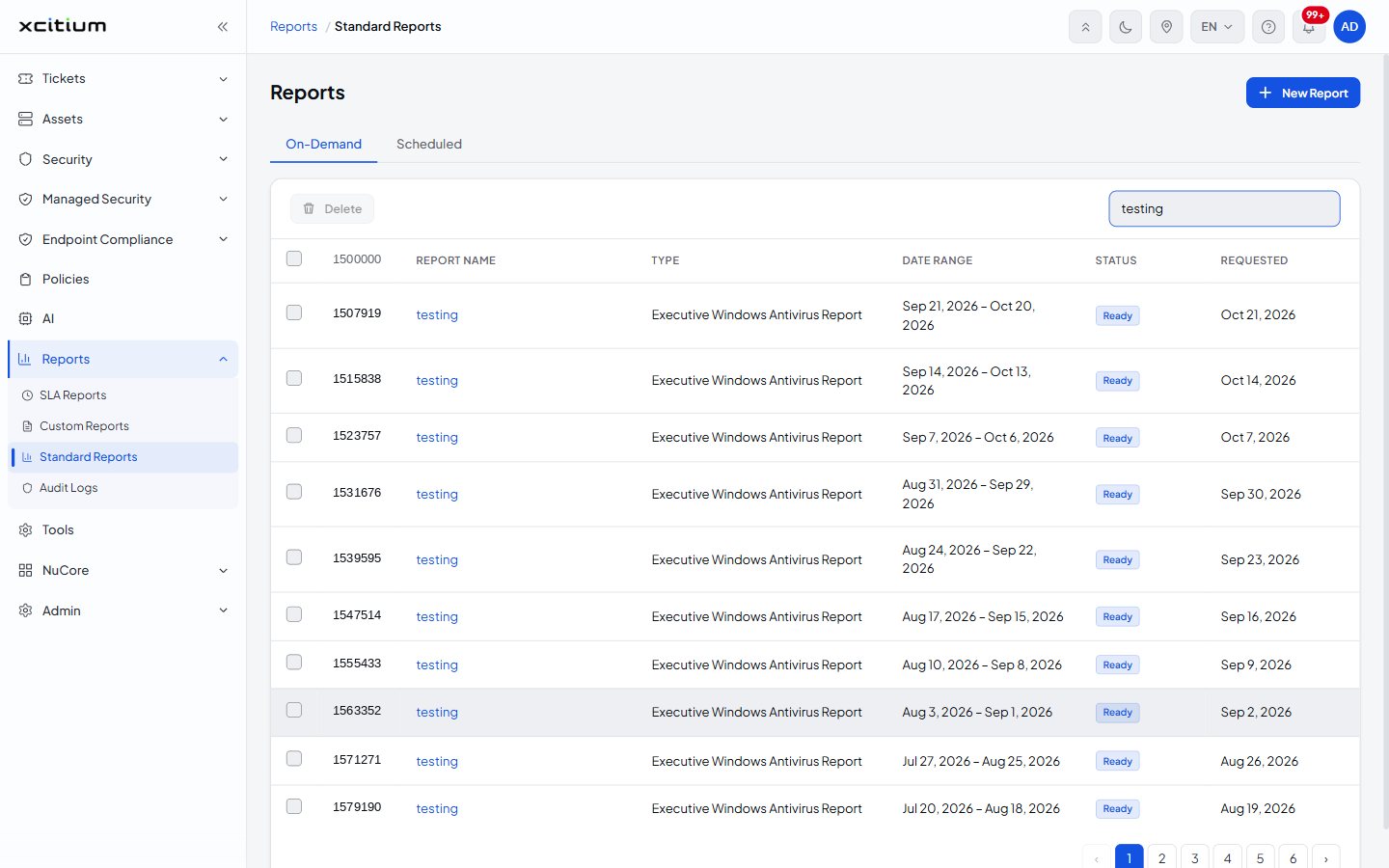
| Search reports… | Filters the list as you type. The match is on the 'Report Name' column and is not case sensitive, so typing 'testing' leaves only the rows named 'testing'. Clearing the box restores the full list. The page count changes with the filter. |
Open a Finished Report
- Click 'Reports' > 'Standard Reports'. The 'On-Demand' tab opens.
- Find the report. Type part of its name into 'Search reports…' or page through the list.
- Check that the 'Status' column reads 'Ready'.
- Click the name in the 'Report Name' column. The report opens as a PDF document.
Search for a Report
- Click into the 'Search reports…' box at the top right of the table.
- Type any part of the report name. The table filters while you type and the page buttons rebuild to match.
- Clear the box to go back to the full list.
Delete Reports
- Tick the reports you want to remove. Use the header checkbox to take every report on the page.
- Click 'Delete' at the top left of the table.
Note: deleting a report removes the produced file from the history. It does not remove the schedule that produced it — see Scheduled Reports to stop a recurring report.