


Manage Procedure Folders
- Click 'Assets' > 'Monitoring & Management' > 'Procedures', then use the pane on the left of the screen.
Procedures are organised into folders. The left pane shows those folders as a tree; clicking one lists only the procedures it holds.
You can search for a folder, expand and collapse the tree, and add, rename and delete your own folders.
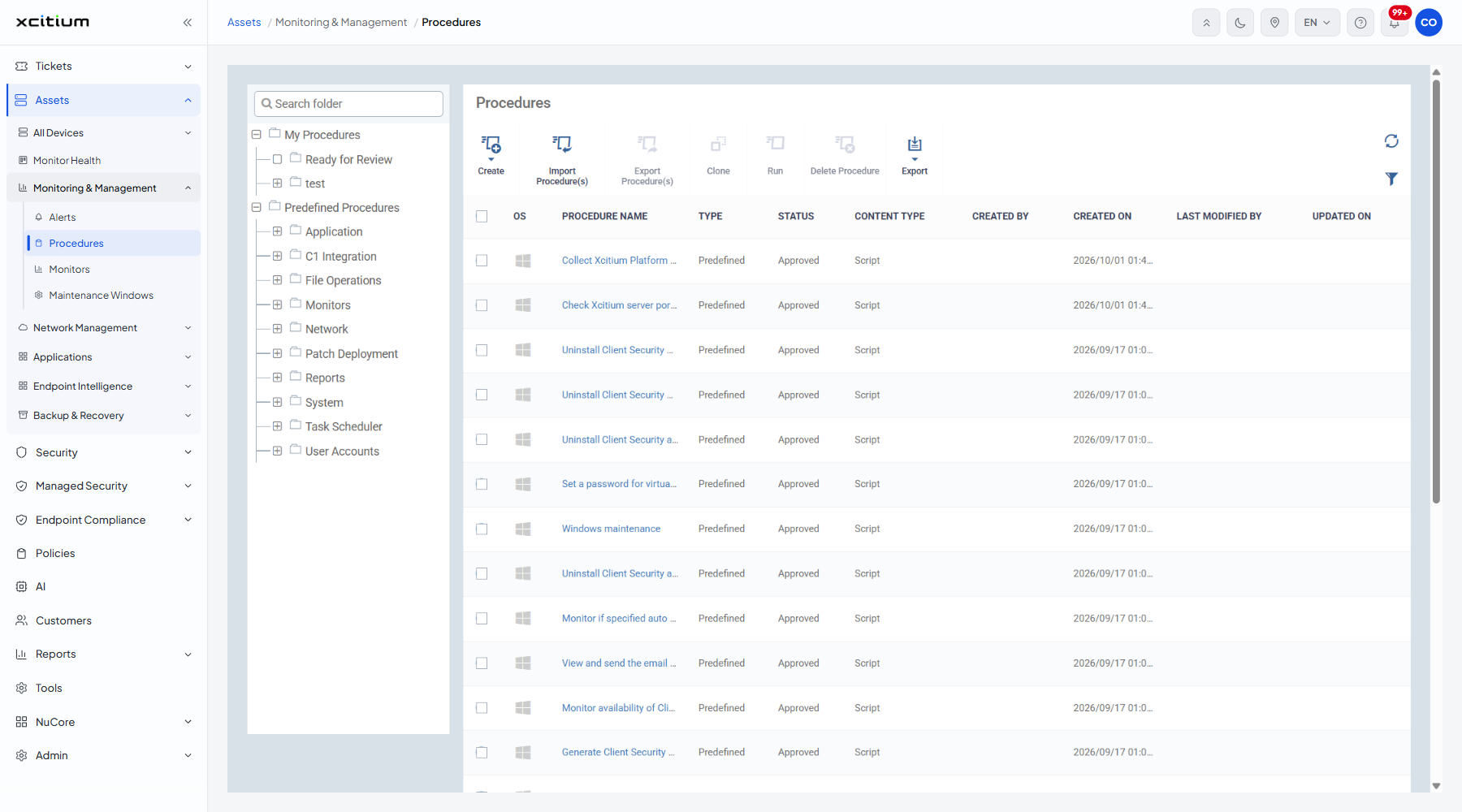
The tree
A 'Search folder' box sits above the tree. The tree has two roots:
- My Procedures — the procedures your account has created. This root and its sub-folders are the only ones you can change.
- Predefined Procedures — the procedures that ship with the product, grouped into Application, C1 Integration, File Operations, Monitors, Network, Patch Deployment, Reports, System, Task Scheduler and User Accounts. These folders are read-only.
Click the '+' beside a folder to expand it and the '-' to collapse it.
The folder actions
Hover over a folder to show its actions. Which actions appear depends on the folder:
| Folder | Actions |
| 'My Procedures' (the root) | 'Add Folder' only. |
| A folder under My Procedures | 'Rename Folder', 'Add Folder', 'Delete Folder'. |
| Any predefined folder | None. Predefined folders cannot be changed. |
The Add Folder dialog
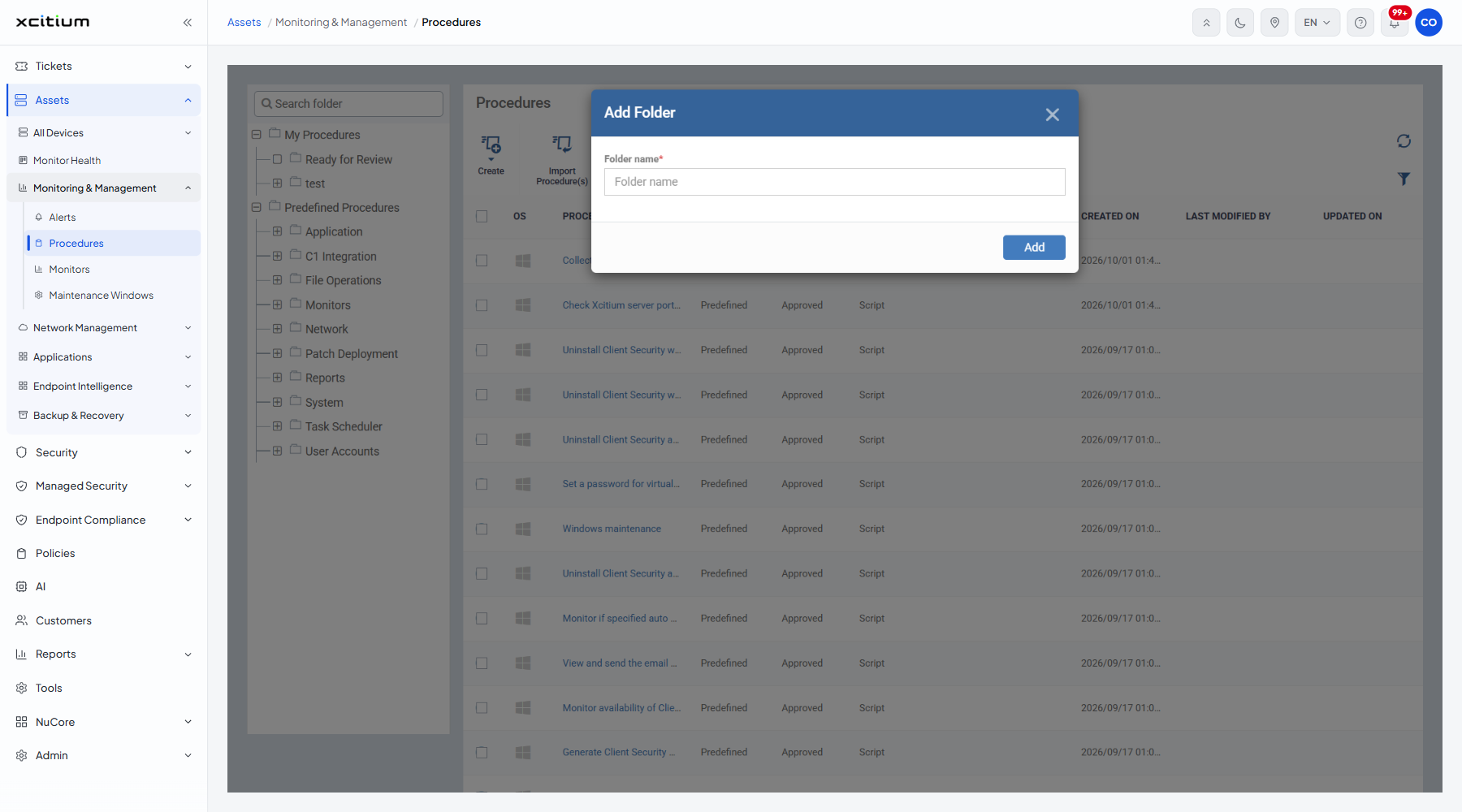
Add a folder
- Click 'Assets' > 'Monitoring & Management' > 'Procedures'.
- Hover over 'My Procedures', or over the folder you want the new one to sit inside.
- Click the 'Add Folder' button that appears on the folder row.
- Type a name into 'Folder name'.
- Click 'Add'.
Rename or delete a folder
- Hover over one of your own folders in the tree.
- Click 'Rename Folder' to change its name, or 'Delete Folder' to remove it.
Note: the 'Folder' dropdown on every Create-procedure dialog offers only 'My Procedures' and its sub-folders, so a new procedure can never be saved into a predefined folder.