


User List
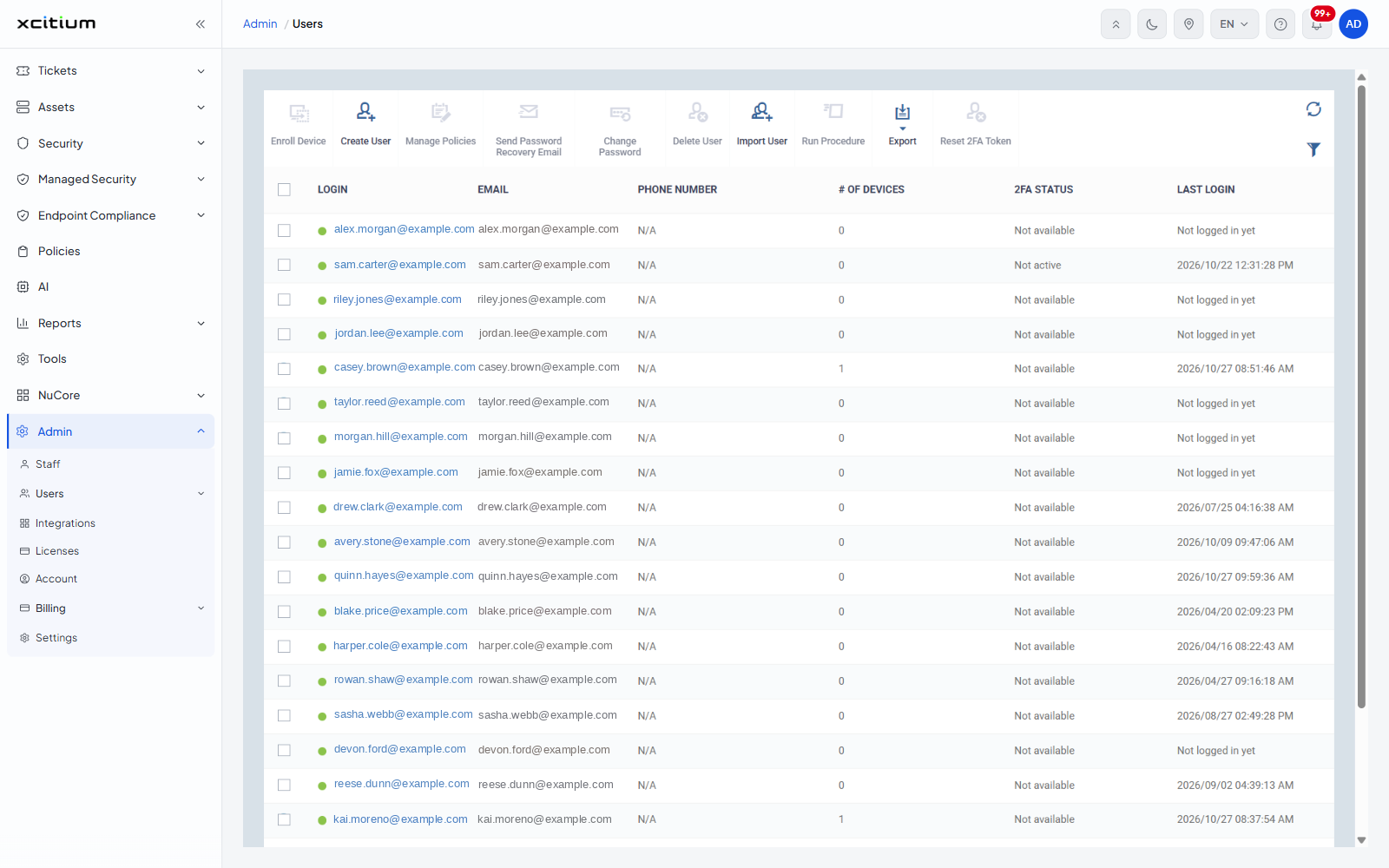
User List shows every user on the account. It is the starting point for enrolling a device, creating a user, importing users in bulk and opening one user's record.
Getting there
- Click Admin, then Users.
- Click User List.
What the list shows
- Login — click it to open that user's record
- Email
- Phone number
- Number of devices enrolled to the user
- 2FA Status
- Last login — a date and time, or Not logged in yet
Every column except the device count sorts when you click its heading. Results per page offers 20, 50, 100 and 200, with 20 chosen to begin with, and the footer tells you which rows you are looking at.
Toolbar actions
The toolbar is a row of icons — hover one to see its name. Tick a user first for the actions that work on a selection.
- Enroll Device — start enrolling a device for the ticked user
- Create User
- Manage Policies
- Send Password Recovery Email
- Change Password
- Delete User
- Import User
- Run Procedure
- Export
- Reset 2FA Token
- Table refresh — reload the list
- Table filter — open the filters
Filtering the list
Click Table filter to open a filter strip below the table; click the same icon again to close it.
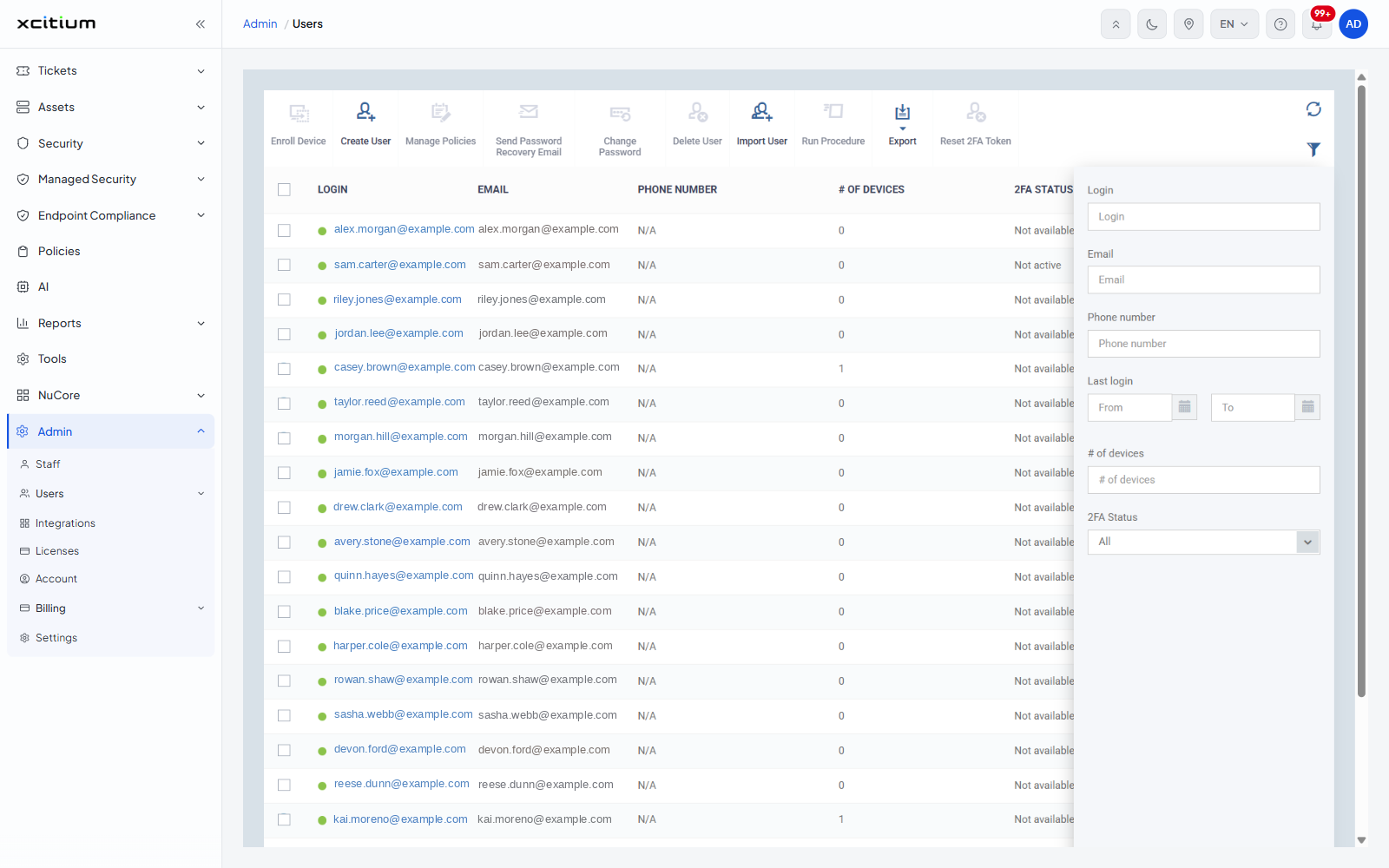
- Login — text
- Email — text
- Phone number — text
- Last login — a From and a To box, each with a calendar picker
- Number of devices — text
- 2FA Status — All, Not available, Not active, Active or Not configured, with All chosen to begin with