


A Network Monitor's Conditions Tab
- Click 'Assets' > 'Network Management' > 'Monitors', click a monitor name, then open the 'Conditions' tab.
The tab lists the conditions this network monitor holds and lets you add and remove them. A network monitor offers five condition types, fewer than a device monitor, because the target has no agent.
You can watch uptime, processor and memory load, free disk space, whether the device answers at all, and the value of any SNMP OID.
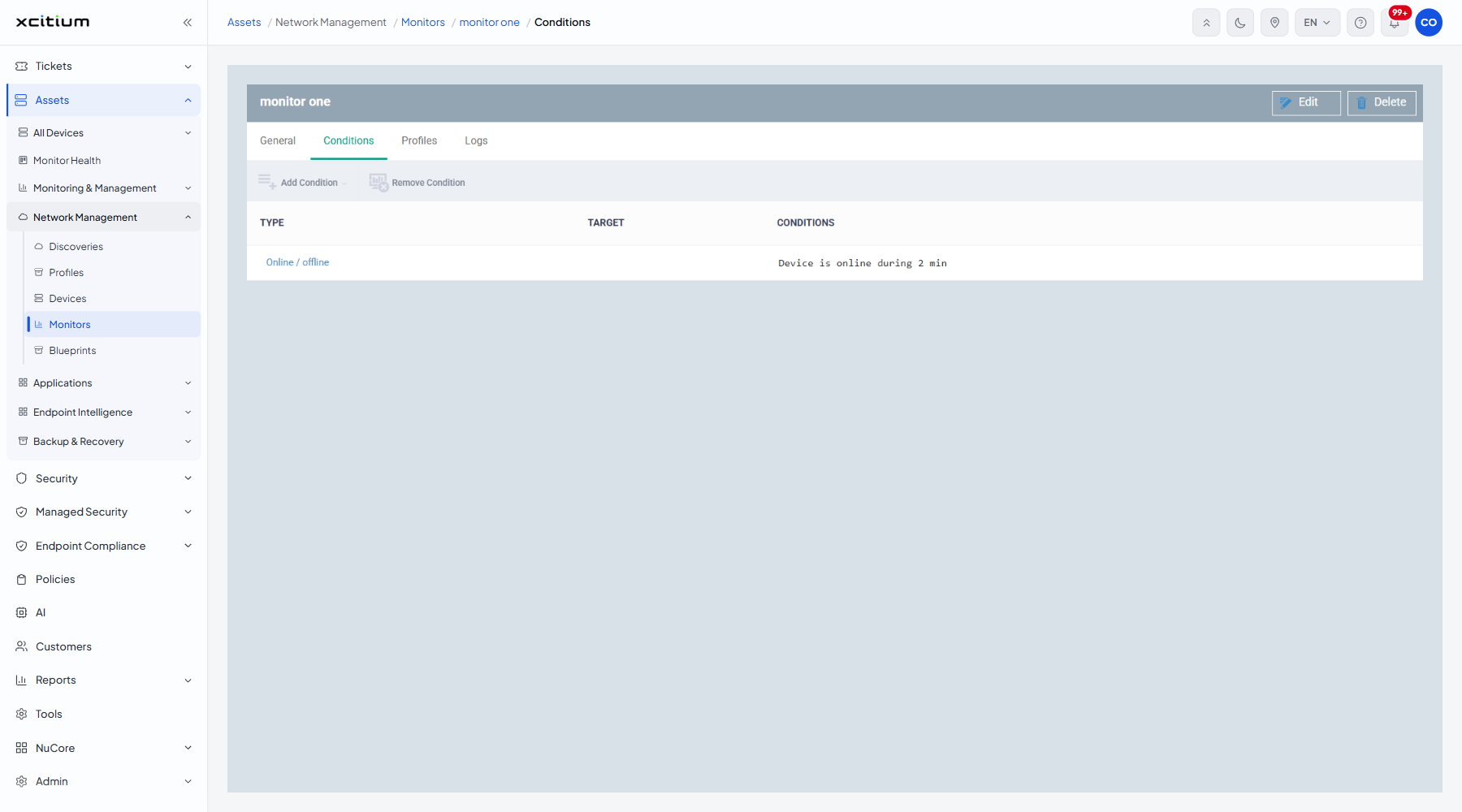
The columns
| Column | Description |
| Type | What the condition watches, for example 'Online / offline'. |
| Target | The thing the condition applies to, where the type needs one. |
| Conditions | The test itself, for example 'Device is online during 2 min'. |
Edit mode
The toolbar carries 'Add Condition' and 'Remove Condition', and both stay disabled until you click 'Edit' on the monitor header; hovering a disabled button shows 'Enable Edit mode'.
The condition types
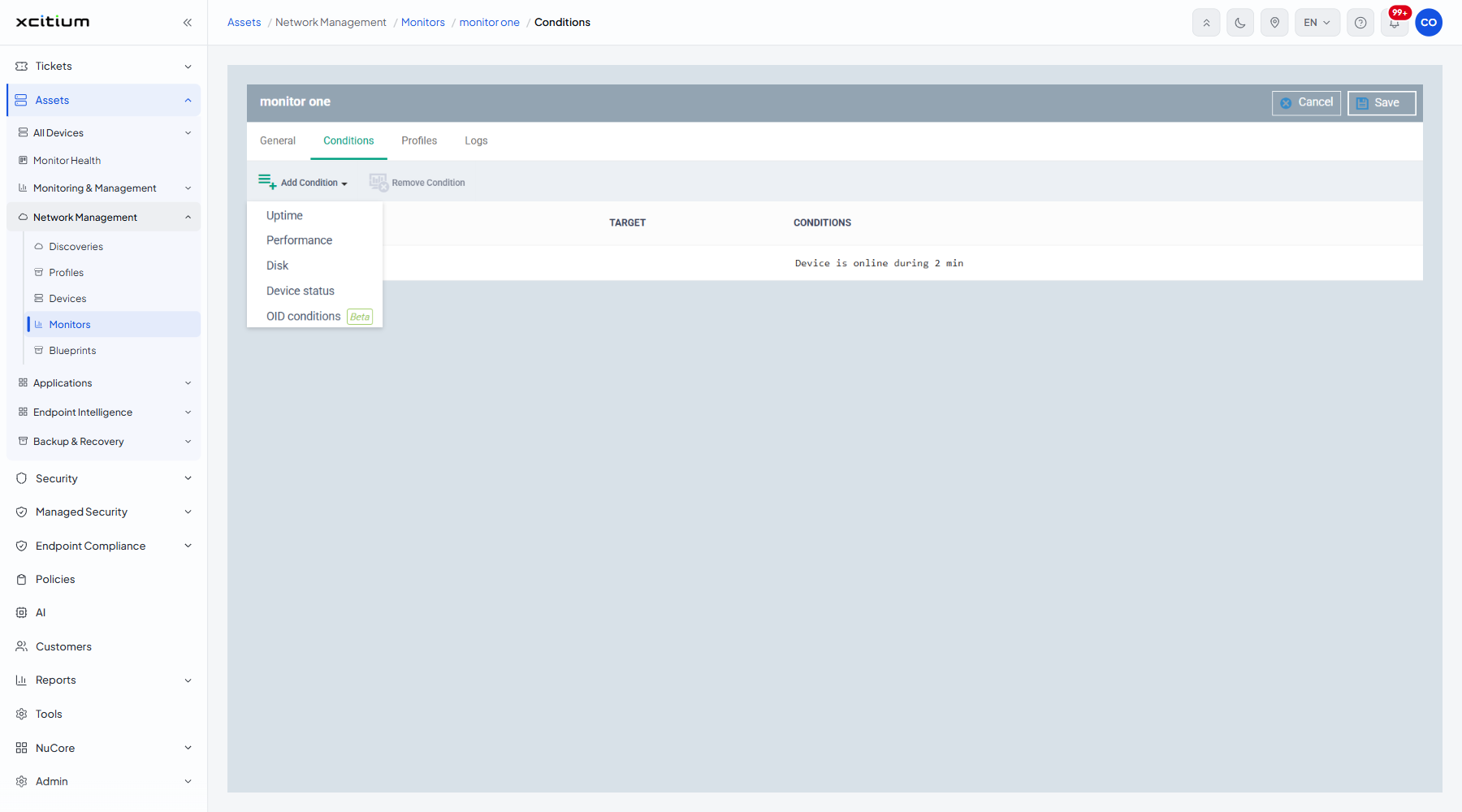
Every entry opens a dialog titled 'Add Condition for «<type>»' with a 'Create' button.
| Option | Description |
| Uptime | How long the device has been up. See Add a Network Uptime Condition. |
| Performance | Processor or memory load. See Add a Network Performance Condition. |
| Disk | Free space on the drives. See Add a Network Disk Condition. |
| Device status | Whether the device is online or offline. See Add a Network Device Status Condition. |
| OID conditions (badged 'Beta') | The value of an SNMP OID. See Add an OID Condition. |
Add a condition
- Open the monitor and click 'Edit'.
- Open the 'Conditions' tab.
- Click 'Add Condition' and choose a type.
- Fill in the dialog and click 'Create'.
- Click 'Save' on the monitor header.
Note: the 'Trigger an alert if' setting on the General tab decides whether all the conditions must be met or just one.