


Unassigned Tickets
- Click 'Tickets' > 'Technician Queue' > 'Unassigned' to open this interface. The screen is headed 'Unassigned Tickets' with the line 'Tickets waiting to be assigned to a technician'.
This screen holds every ticket that has no technician against it. Because the SLA clock runs whether or not anybody owns a ticket, this is the queue that most needs clearing, and the screen is built around getting tickets out of it quickly.
You can check how loaded each technician already is, filter the backlog by priority and customer, read the AI's recommended assignee for each ticket, assign tickets one at a time, or auto-assign the whole queue.
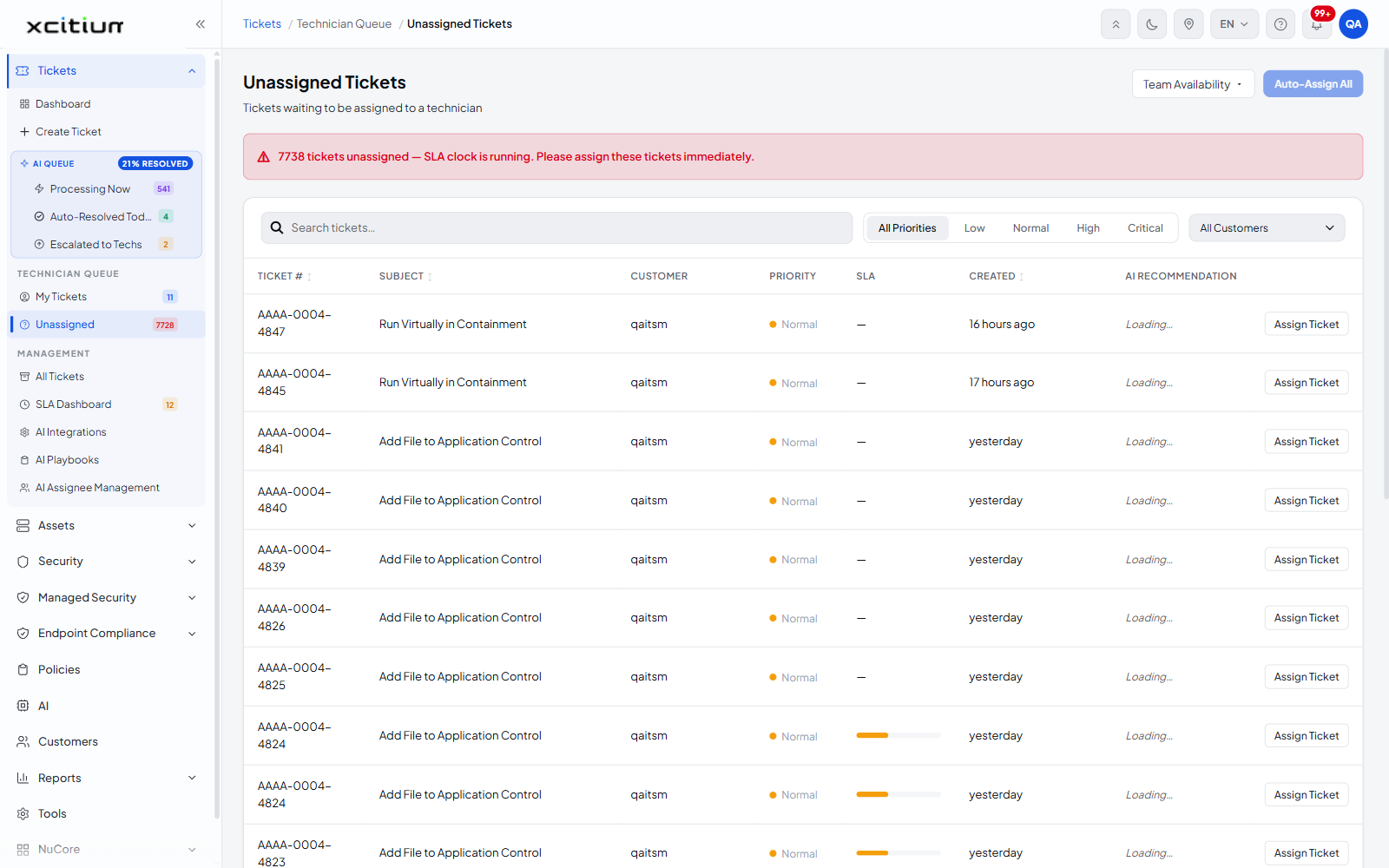
The warning banner
A banner across the top of the list states how many tickets are unassigned and warns that the SLA clock is running, for example '⚠ 7738 tickets unassigned — SLA clock is running. Please assign these tickets immediately.'
Check team availability
'Team Availability' at the top of the screen is a collapsible panel.
- Click 'Team Availability'. The panel expands.
- Under the heading 'TECHNICIAN AVAILABILITY' it lists each technician with their current ticket load.
- Click the heading again to collapse the panel.
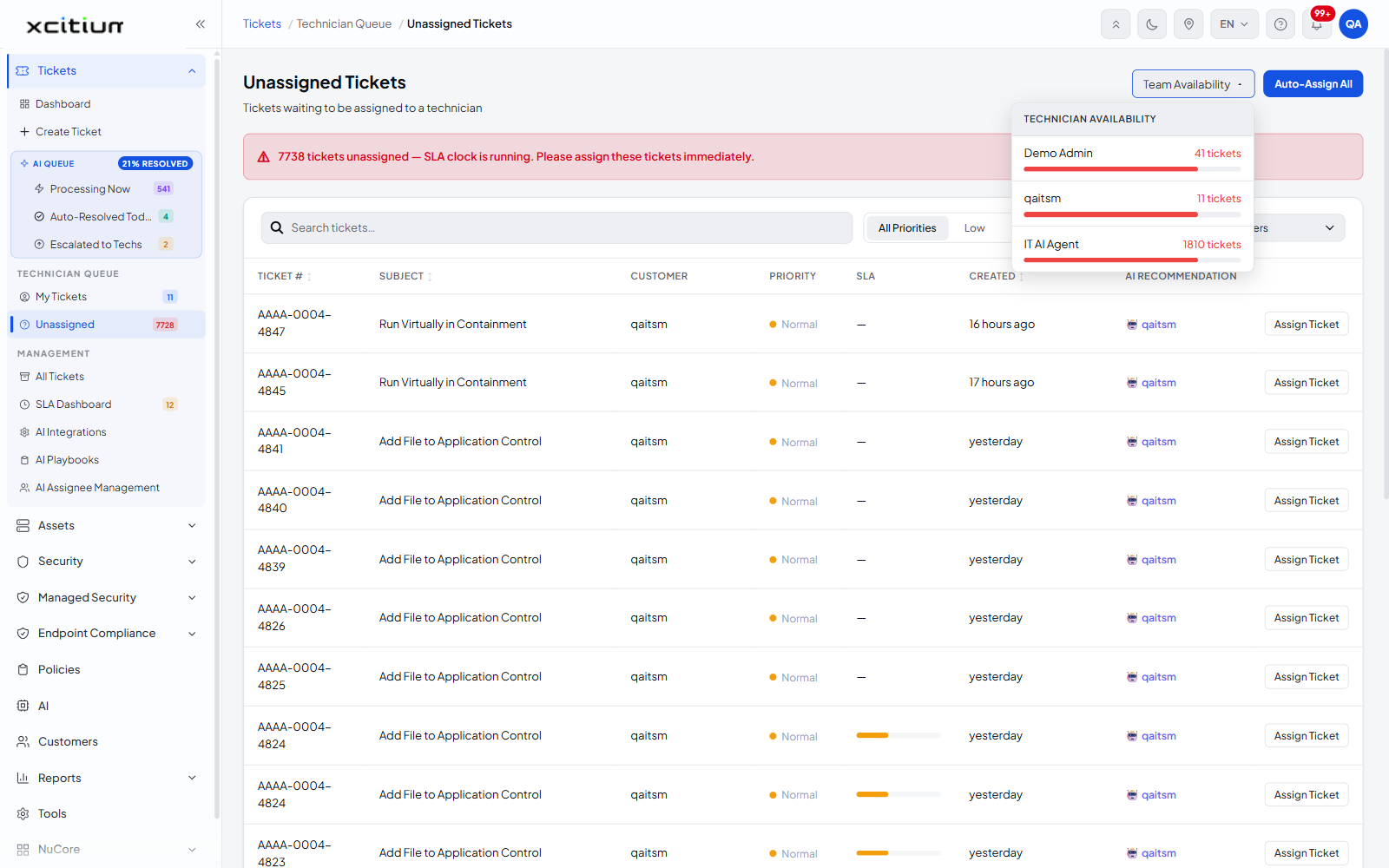
The toolbar
| Control | Description |
| Team Availability | Expands or collapses the technician load panel described above. |
| Auto-Assign All | Hands the whole unassigned queue out to technicians automatically. |
Filter the queue
A row of priority tabs sits above the table. Only one can be active at a time.
| Tab | Description |
| All Priorities | Every unassigned ticket. This is the default. |
| Low | Unassigned tickets at Low priority. |
| Normal | Unassigned tickets at Normal priority. |
| High | Unassigned tickets at High priority. |
| Critical | Unassigned tickets at Critical priority. |
Alongside the tabs are a search box with the placeholder 'Search tickets…' and an 'All Customers' dropdown that limits the queue to a single customer.
The ticket list
| Column | Description |
| TICKET # | The ticket number, for example AAAA-0004-4847. Sortable — click the arrows in the header. |
| SUBJECT | The subject line of the ticket. Sortable. |
| CUSTOMER | The customer the ticket belongs to. |
| PRIORITY | The ticket priority, shown as a coloured pill. |
| SLA | The SLA position for the ticket. Shows '—' when no SLA applies. |
| CREATED | How long ago the ticket was raised, for example '16 hours ago'. Sortable. |
| AI RECOMMENDATION | The technician the AI suggests for this ticket, prefixed with a robot icon. Reads 'Loading…' while the recommendation is being worked out. |
| (actions) | Holds the 'Assign Ticket' button for the row. |
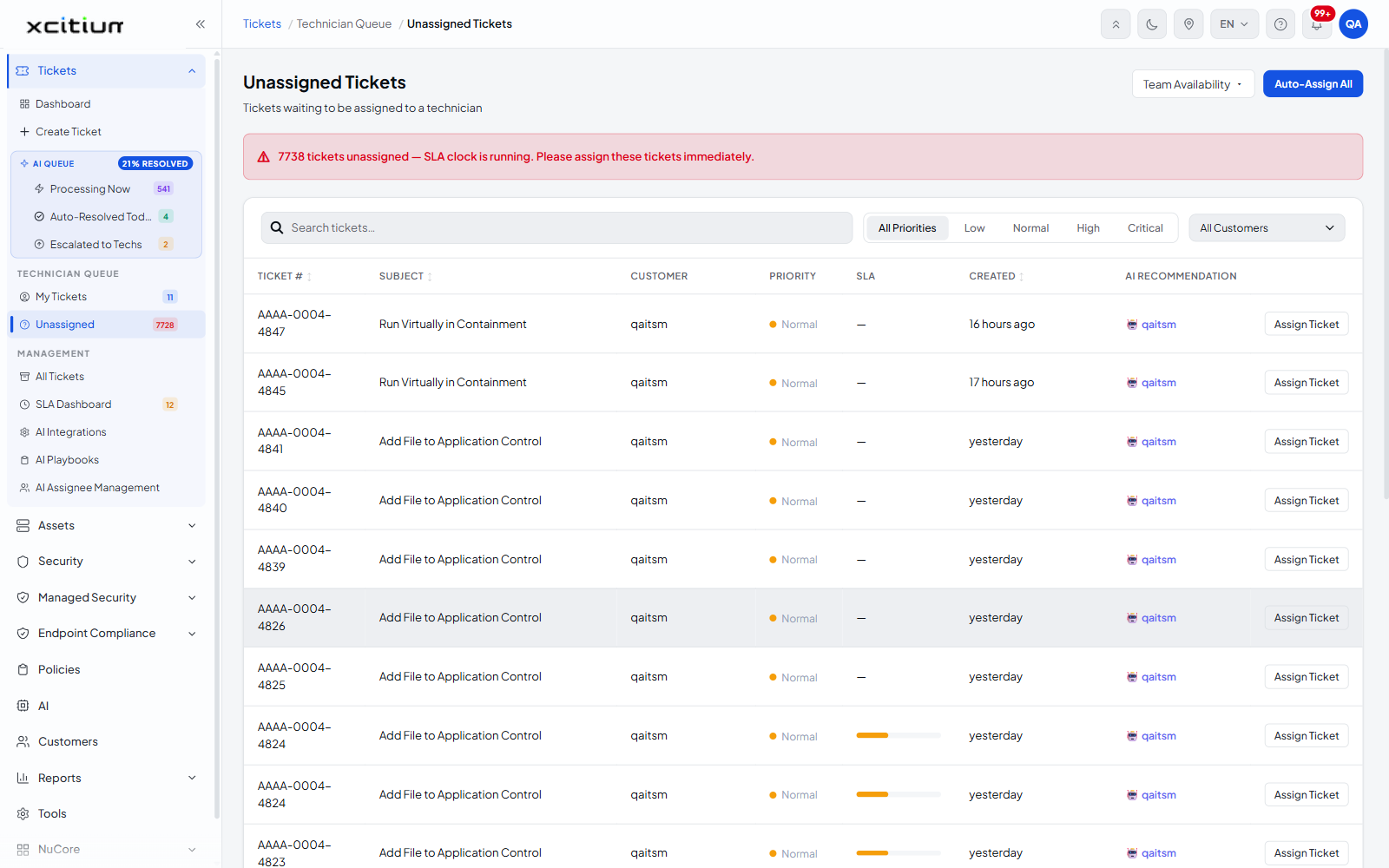
Row action
| Action | Description |
| Assign Ticket | Opens the 'AI Assignment Suggestion' dialog for that ticket. See Assign a Ticket from the Unassigned Queue. |
Assign the whole queue at once
- Click 'Tickets' > 'Technician Queue' > 'Unassigned'.
- Expand 'Team Availability' and check the current loads.
- Click 'Auto-Assign All'.
Note: 'Auto-Assign All' acts on the queue, not on a selection. Review the team loads before you use it.
Page through the queue
| Control | Description |
| Record count | The total number of rows matching the current filters. |
| Records per page | A dropdown offering '20 / page', '50 / page' and '100 / page'. '20 / page' is the default. |
| ‹ | Goes to the previous page. |
| Page n / n | The current page and the total number of pages. |
| › | Goes to the next page. |
| Go to | Jumps straight to a page number you type. |
See Assign a Ticket from the Unassigned Queue for assigning one ticket at a time, and My Tickets for the work already in your name.