


Portal Setup
Portal Setup holds the account-wide platform settings: directory sync, what your customers see on their support page, the client versions devices install, the extensions you have switched on, exception reports, device removal and account security. It has seven pages.
Getting there
- Click Admin, then Settings.
- Click the Portal Setup tab. It opens on Active Directory.
Active Directory
The domains synced into the platform over LDAP, so users come in from your directory rather than being added by hand. The list reads No results found until you add one.
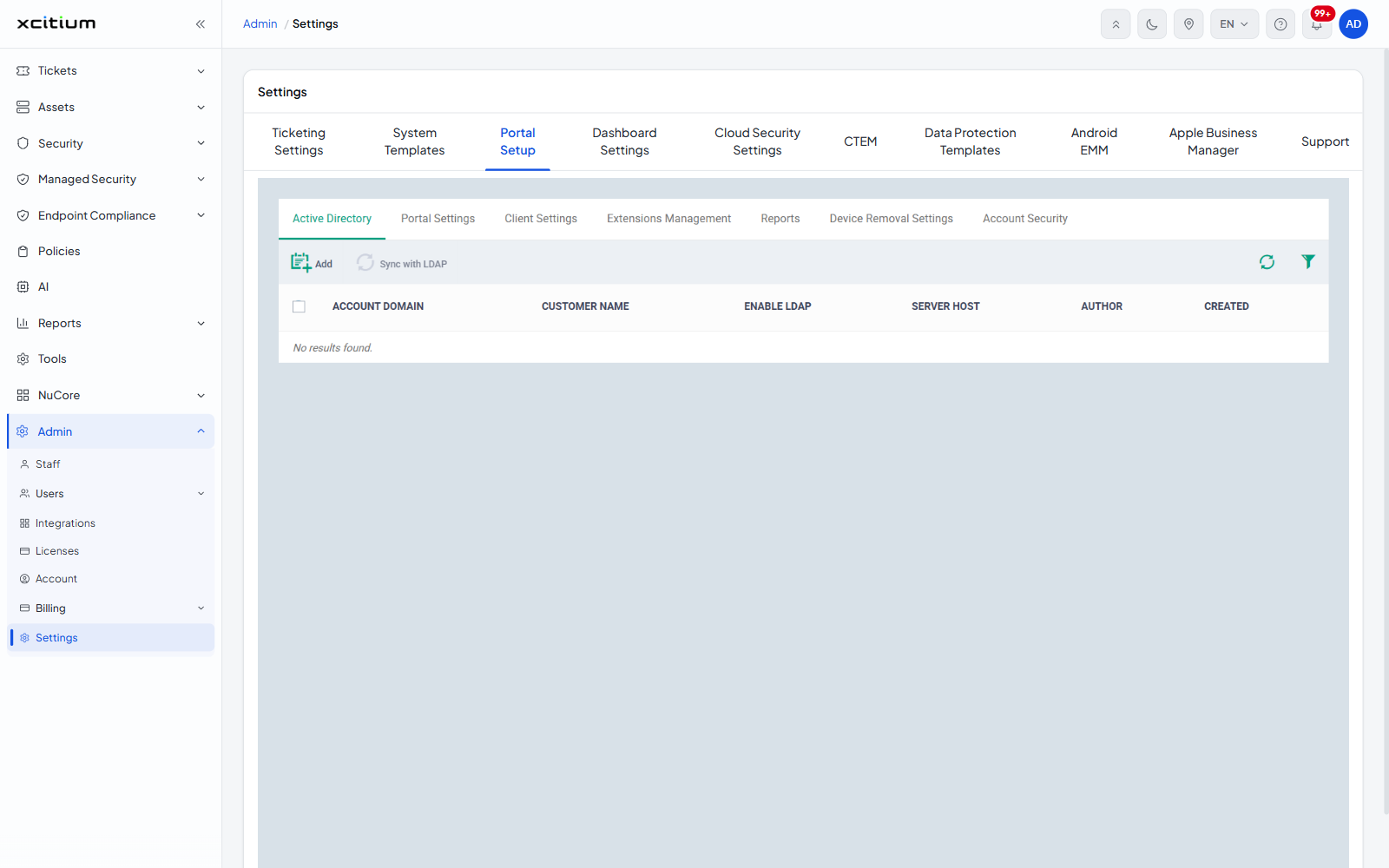
- Account domain
- Customer name
- Enable LDAP
- Server host
- Author
- Created
- Click Add and enter the domain's details.
- Tick the domain and click Sync with LDAP to pull its users in.
Portal Settings
Whether your contact details are shown to your customers. Click Edit to change them.
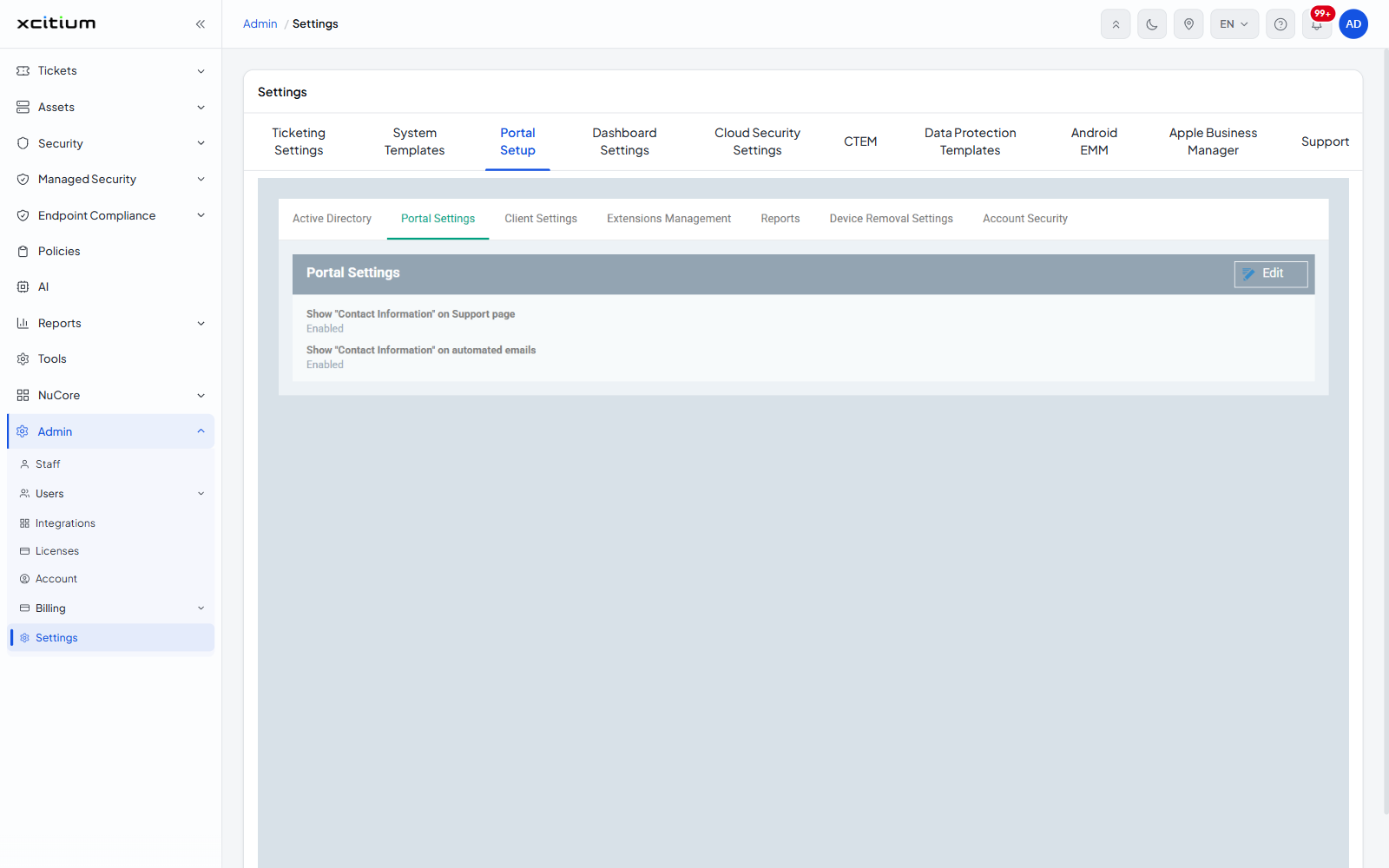
- Show "Contact Information" on Support page
- Show "Contact Information" on automated emails
Client Settings
The client software settings for each platform. Choose the platform first — Android, macOS / iOS or Windows — then the client you want.
Android has two pages. Client Configuration sets how often devices report in and what they are allowed to do. Click Edit to change the values.
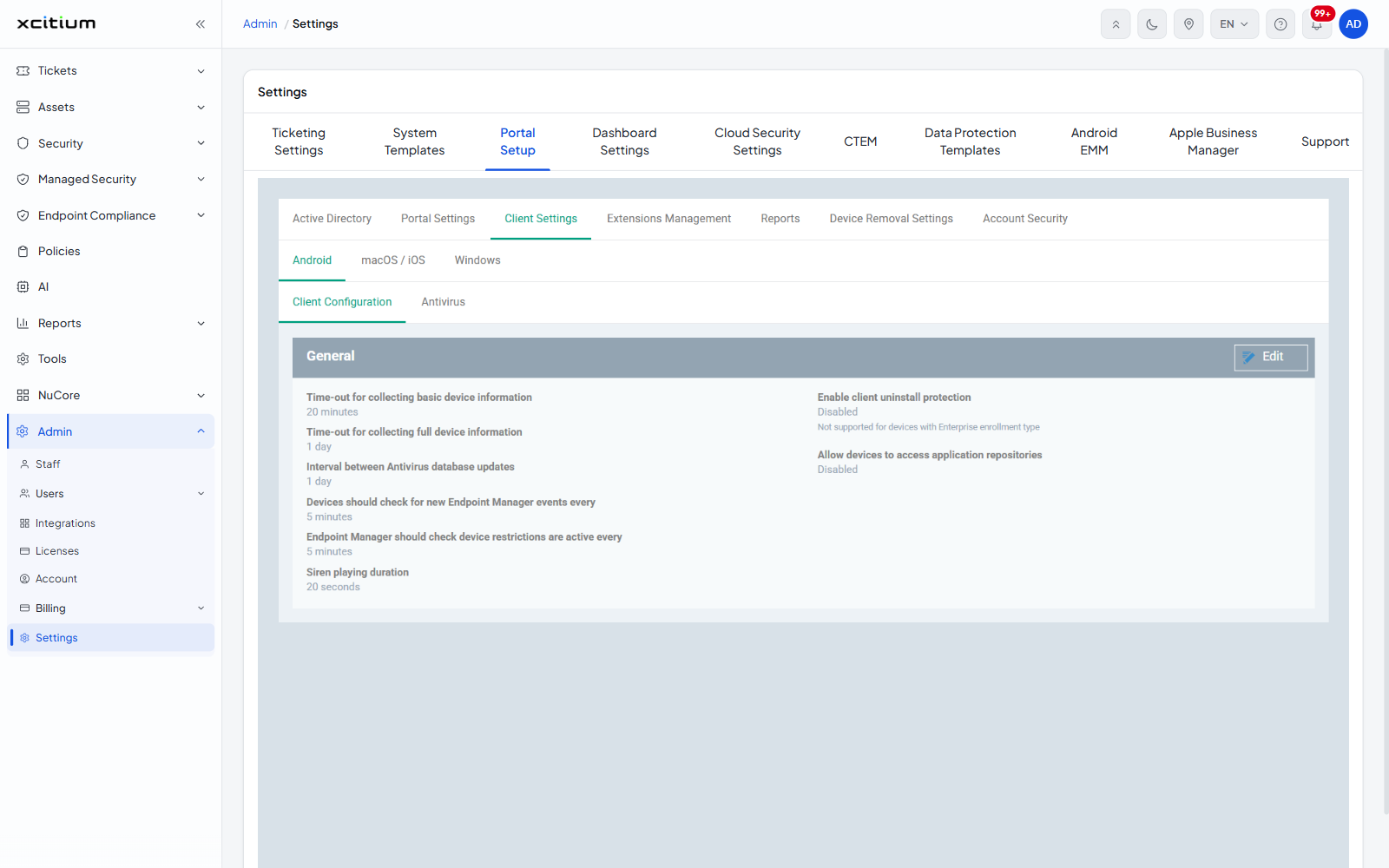
- Time-out for collecting basic device information
- Time-out for collecting full device information
- Interval between Antivirus database updates
- Devices should check for new Endpoint Manager events every
- Endpoint Manager should check device restrictions are active every
- Siren playing duration — how long the alarm sounds when you trigger it on a lost device
- Enable client uninstall protection — not supported for devices with Enterprise enrollment type
- Allow devices to access application repositories
Antivirus sets how the Android client reacts when it finds something.
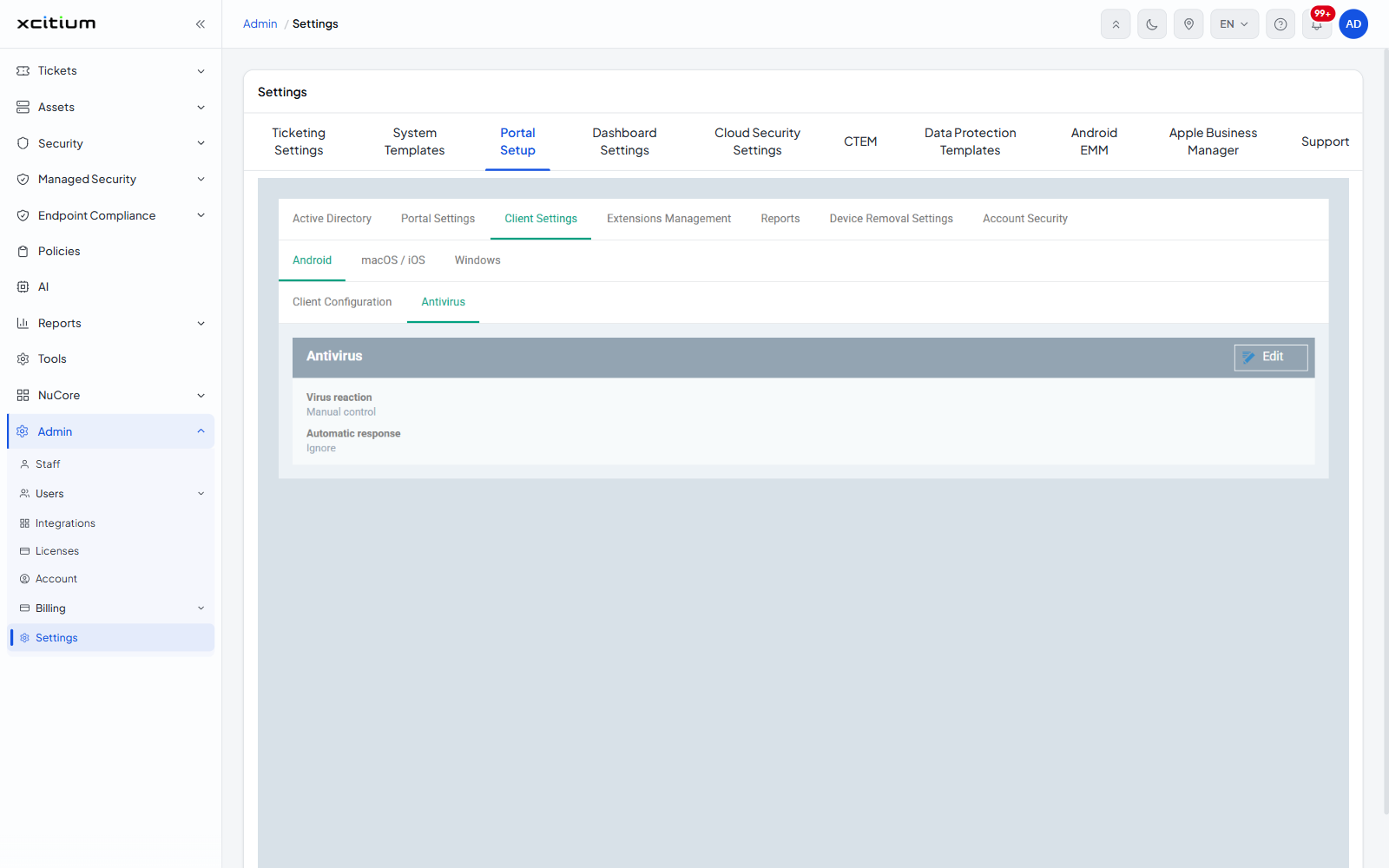
- Virus reaction — for example Manual control
- Automatic response — for example Ignore
macOS / iOS holds the APNs certificate that lets the platform manage Apple devices. Without a valid certificate Apple devices cannot be managed, so watch the expiry date and use Renew before it passes. Delete removes the certificate, which stops management of every Apple device on the account.
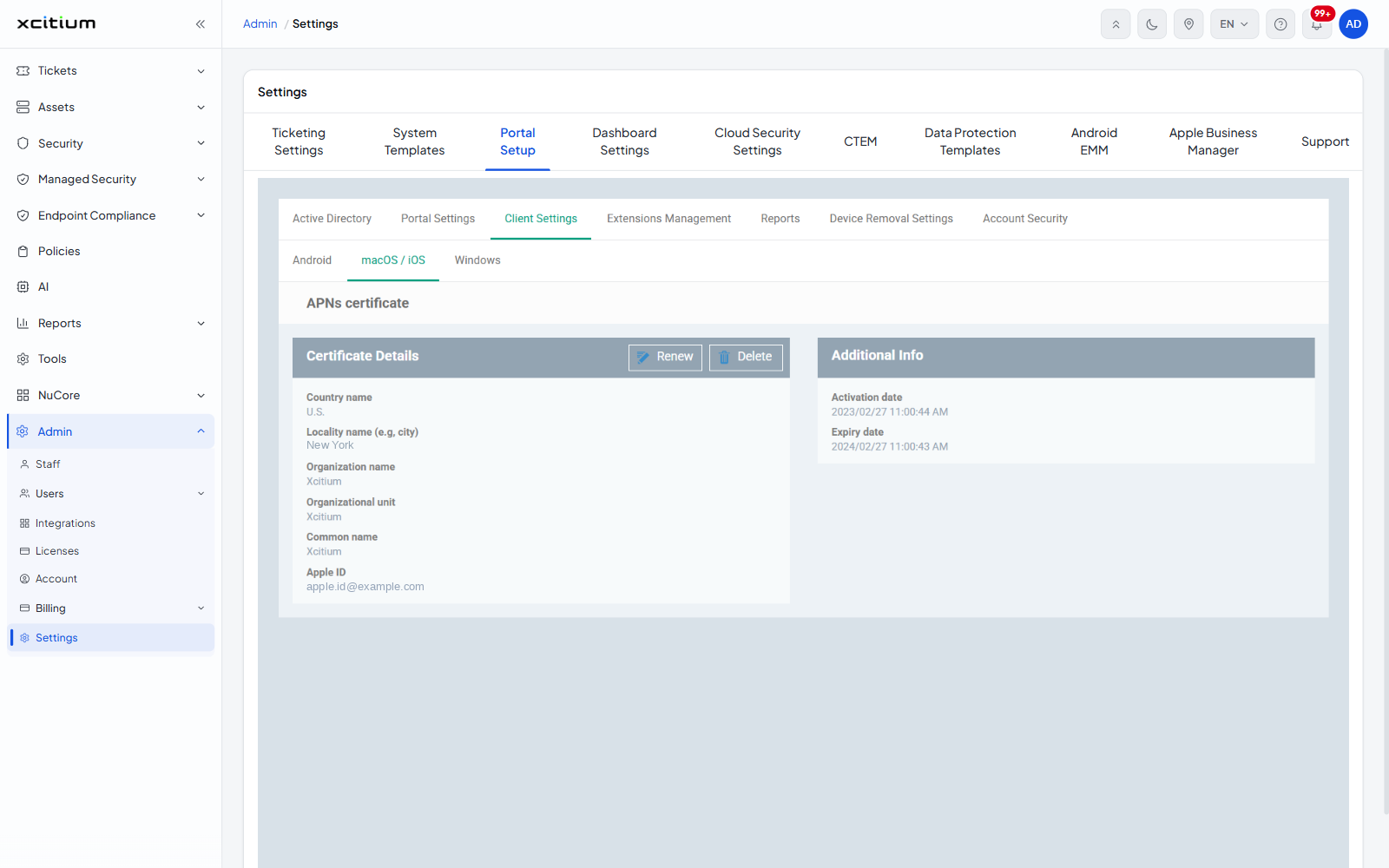
- Certificate Details — the country, locality, organization, organizational unit, common name and the Apple ID the certificate was issued against
- Additional Info — the certificate's activation date and expiry date
Windows has three pages, one per client: Communication Client, the security client and the EXDR client. Each sets which version new installations get and whether that version can be changed. Click Edit to change them.
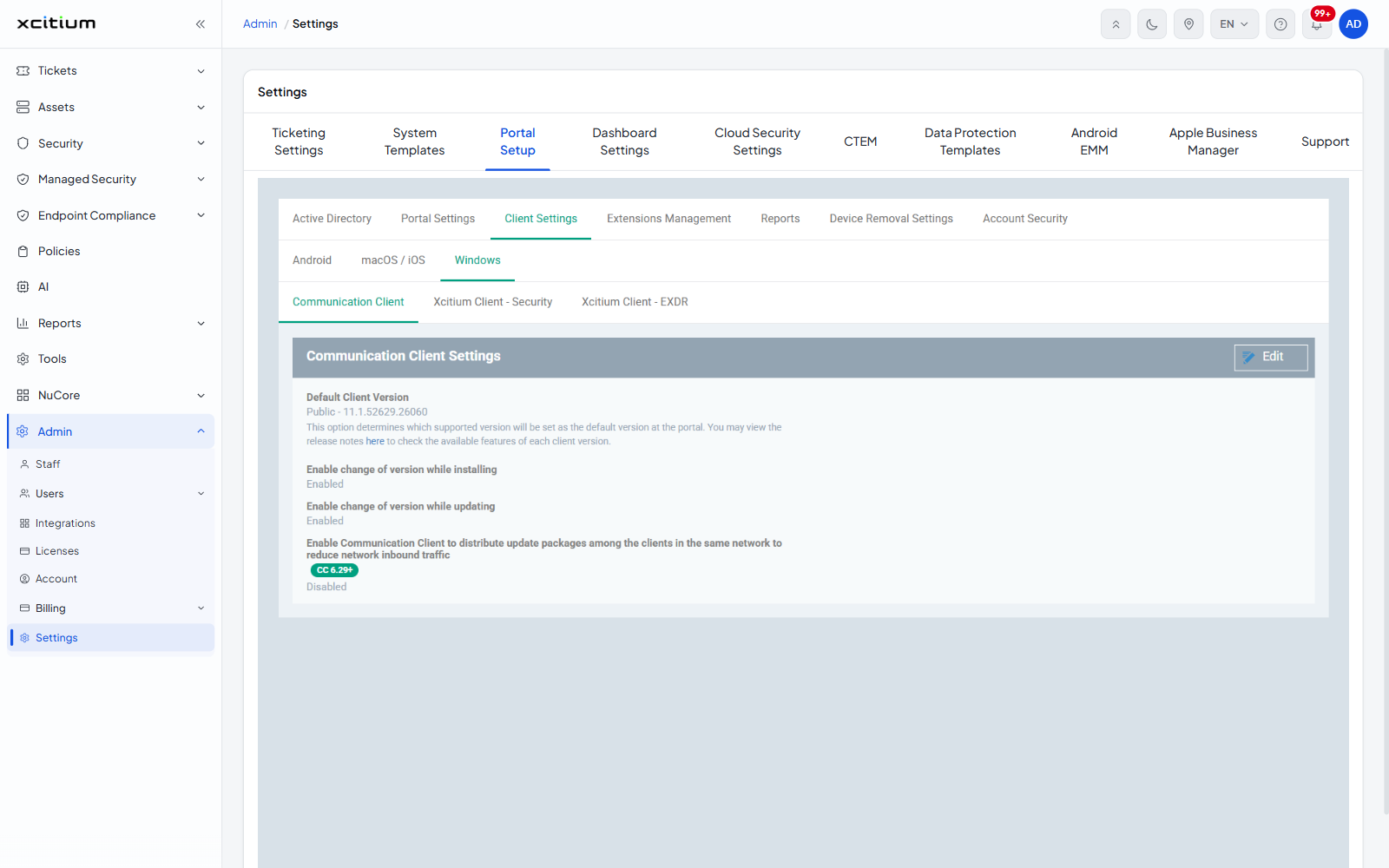
- Default Client Version — the version installed unless someone picks another
- Enable change of version while installing
- Enable change of version while updating
The Communication Client page carries one extra setting: letting clients share update packages with other clients on the same network, which cuts inbound traffic. It needs Communication Client 6.29 or later.
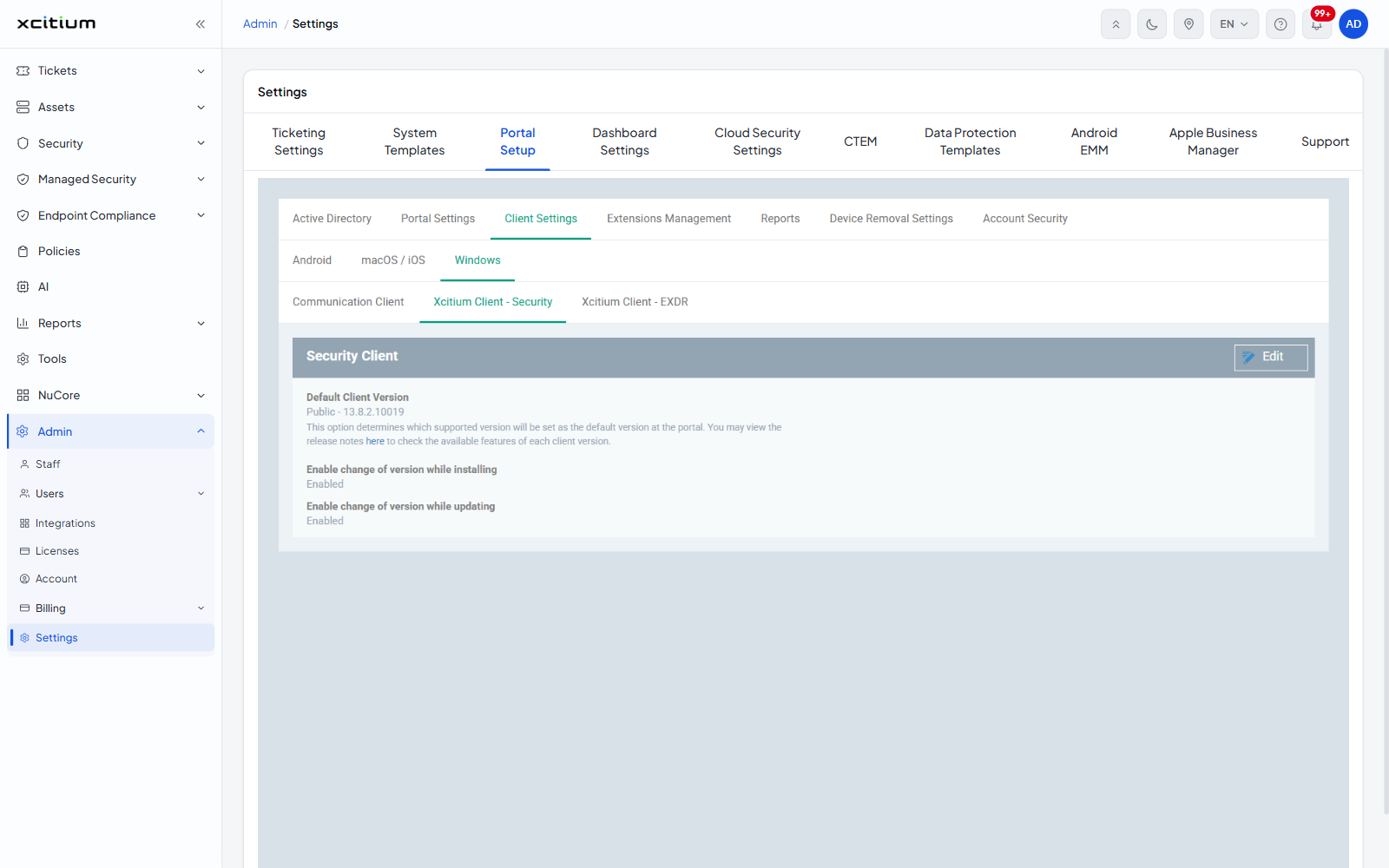
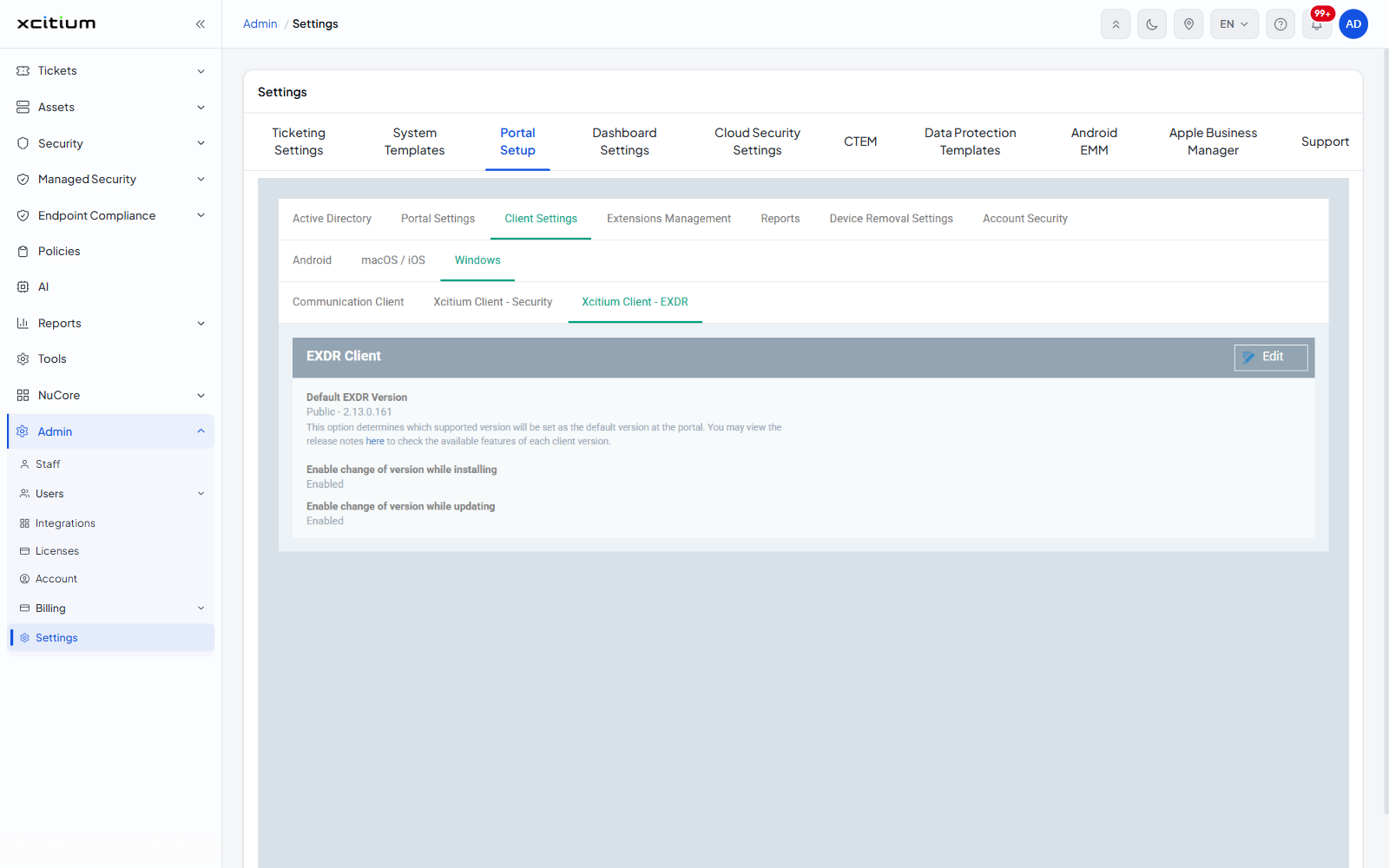
All three pages link to the release notes so you can check what each version contains before you make it the default.
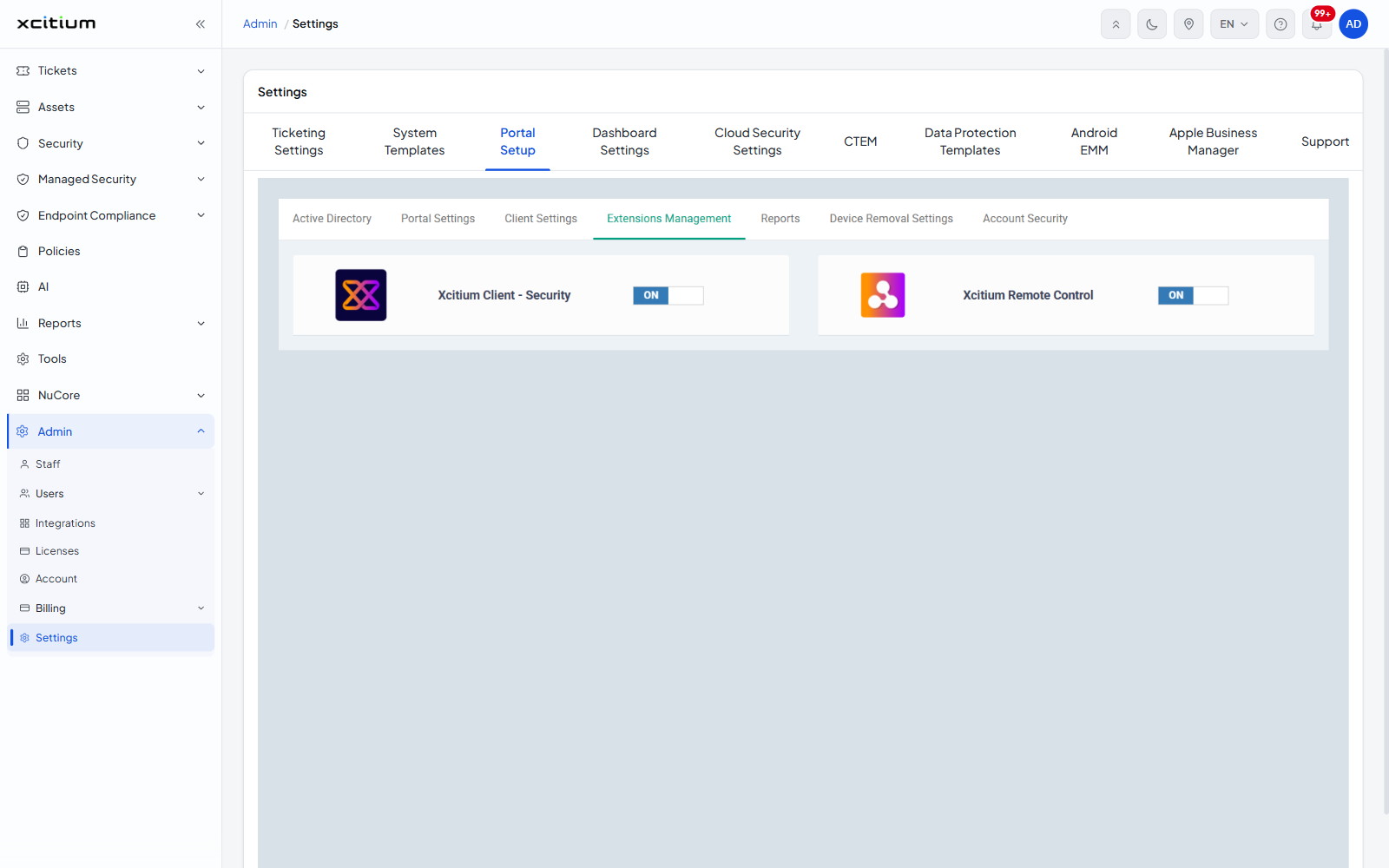
Extensions Management
Switch the optional modules on or off for the whole account. The switches act straight away — there is no Edit and no Save.
Reports
Whether exception reports are sent back to the product team. Click Edit to change it.
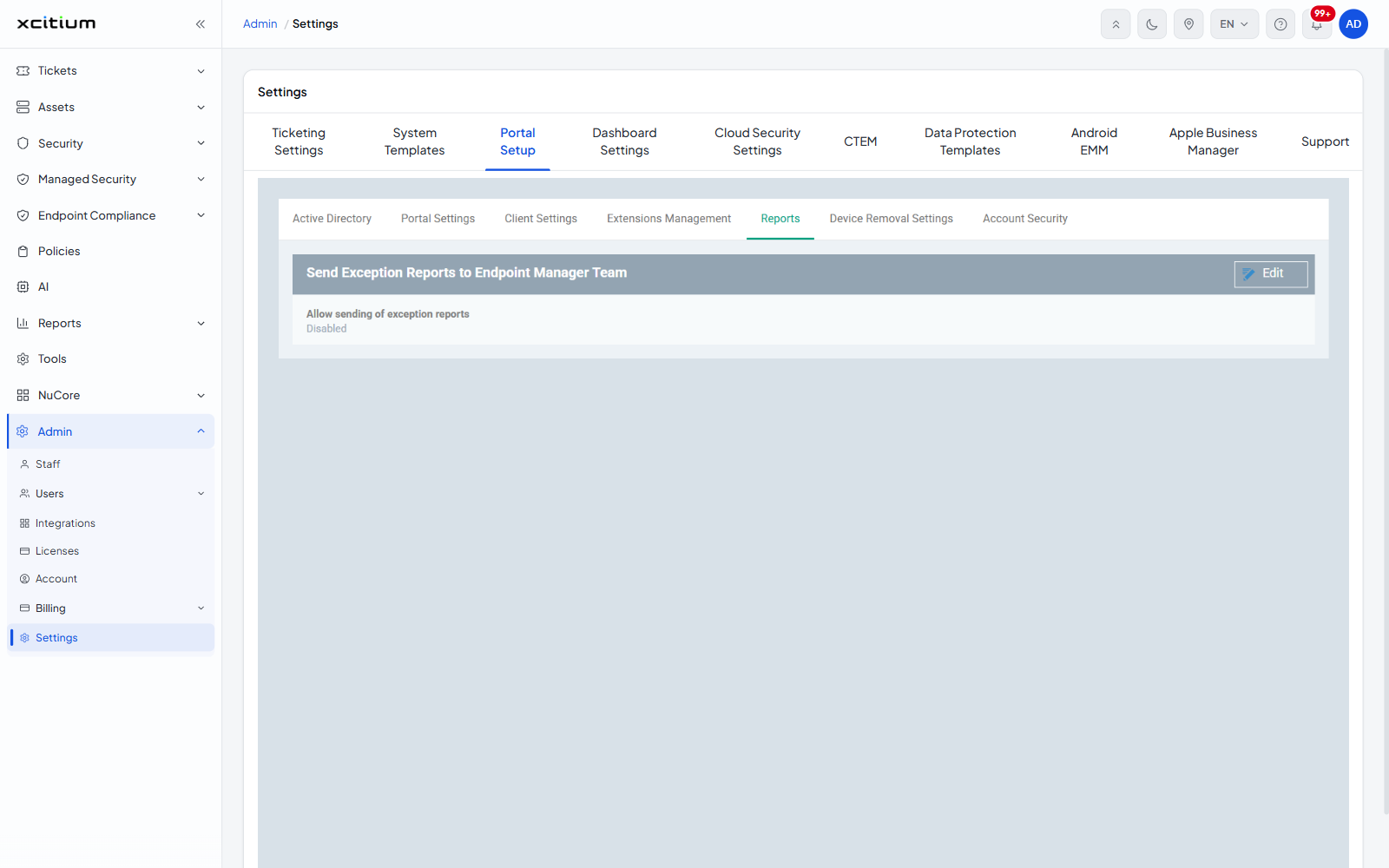
- Allow sending of exception reports
Device Removal Settings
When devices are marked as old or duplicate, and whether they are then removed. Click Edit to change the values.
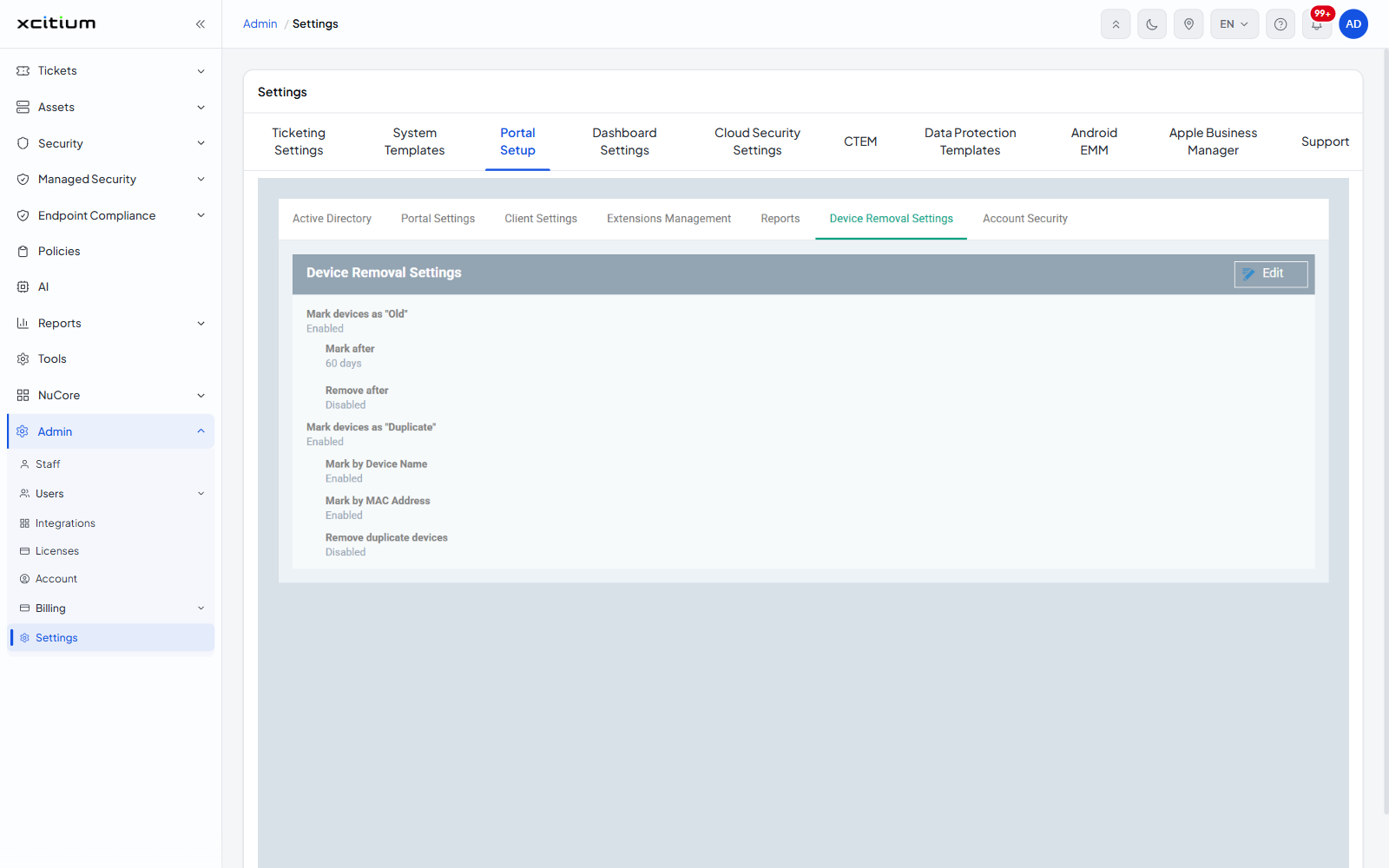
- Mark devices as "Old" — with Mark after, a number of days without contact, and Remove after
- Mark devices as "Duplicate" — with Mark by Device Name, Mark by MAC Address and Remove duplicate devices
Account Security
Two rules that apply to everyone on the account. Click Edit to change them.
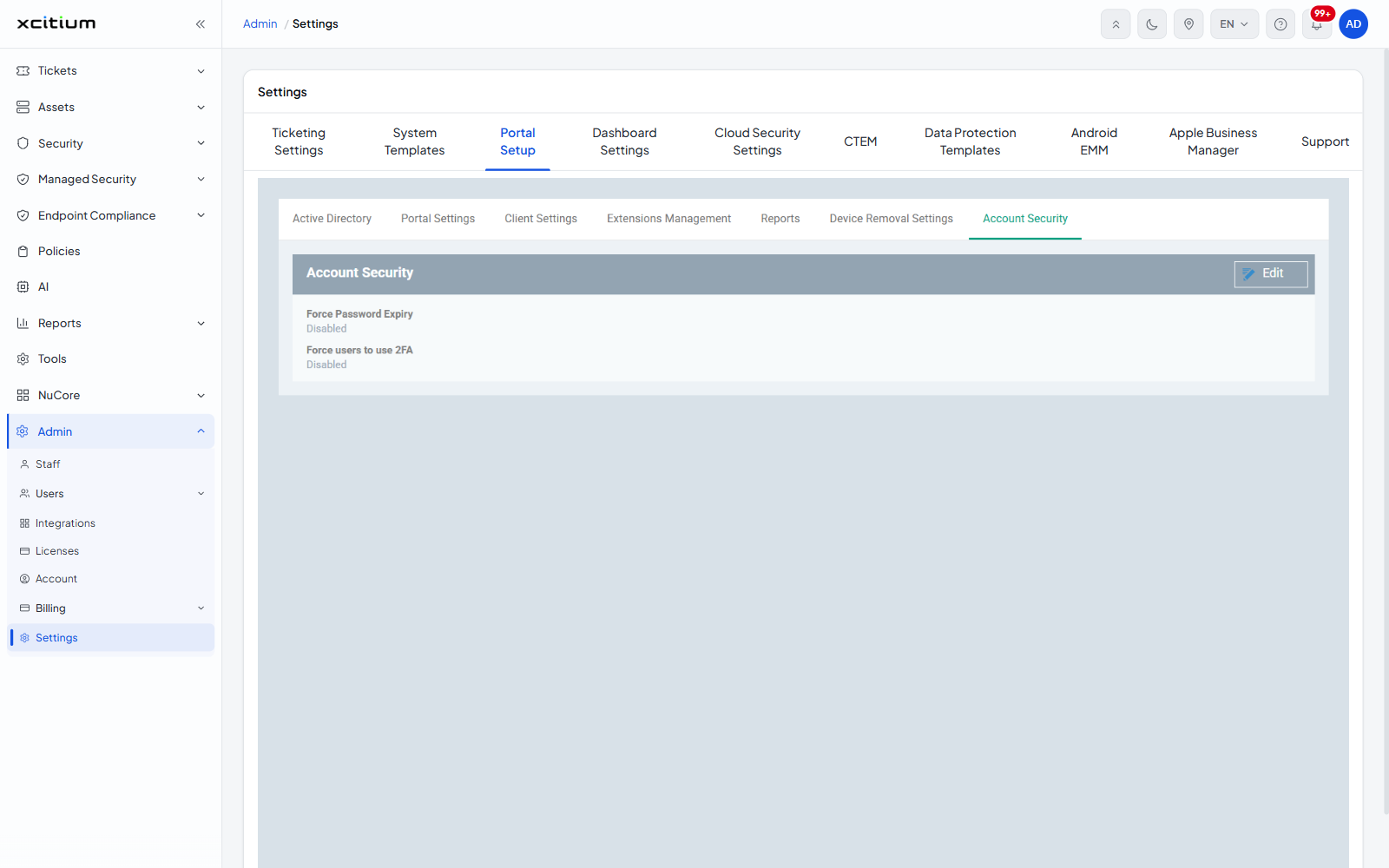
- Force Password Expiry — make users change their password periodically
- Force users to use 2FA — require two-factor authentication for everyone
Force users to use 2FA is the account-wide counterpart to the 2FA column on the Staff page, which shows where each person has got to.