


Tickets
- Click 'Tickets' in the left navigation bar to open this module.
The Tickets module is where every support request in your account is created, triaged, worked and closed. It combines a conventional service desk with an AI service agent that picks up incoming tickets, analyses them, resolves the ones it can and escalates the rest to a technician. The module also holds the SLA tracking, the AI configuration and the automation that drive that behaviour.
You can raise tickets, watch what the AI is doing with them, pick up work assigned to you, assign unassigned work to technicians, track SLA compliance, and configure the integrations, playbooks and fallback assignees the AI uses.
How the module is organised
The 'Tickets' entry in the left navigation expands into two standalone links and three groups:
- Dashboard — the landing page for the module, with AI performance, ticket health and recent activity.
- Create Ticket — the form used to raise a ticket by hand.
- AI Queue — what the AI service agent is doing right now. The group header also shows the current AI resolution rate. It contains 'Processing Now', 'Auto-Resolved Today' and 'Escalated to Techs'.
- Technician Queue — human workload. It contains 'My Tickets' and 'Unassigned'.
- Management — cross-cutting views and configuration. It contains 'All Tickets', 'SLA Dashboard', 'AI Integrations', 'AI Playbooks' and 'AI Assignee Management'.
Each queue link carries a live count badge, so you can see the size of each queue without opening it.
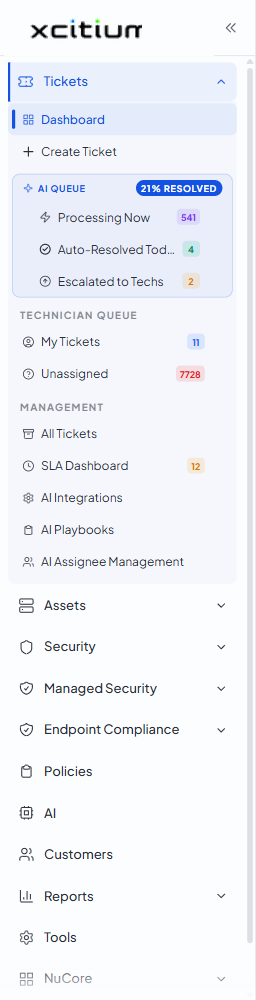
The navigation items
| Item | Description |
| Dashboard | Opens the module landing page. Shows the AI resolution gauge, the 24-hour trend, the AI & Operations cards, the Ticket Health cards, a Recent Tickets panel and an AI Insights panel. See Dashboard. |
| Create Ticket | Opens the form used to raise a ticket manually on behalf of a user. See Create Ticket. |
| Processing Now | Tickets the AI service agent is actively working on. The badge shows how many. See Processing Now. |
| Auto-Resolved Today | Tickets the AI closed without a technician. See Auto-Resolved Today. |
| Escalated to Techs | Tickets the AI handed to a human technician. See Escalated to Technicians. |
| My Tickets | Tickets assigned to the signed-in technician. See My Tickets. |
| Unassigned | Tickets with no technician yet, with the SLA clock already running. See Unassigned Tickets. |
| All Tickets | Every ticket in the account, with the full set of filters. See All Tickets. |
| SLA Dashboard | Breach, risk and compliance figures across all tickets. See SLA Dashboard. |
| AI Integrations | Per-customer integrations the AI can act through. See AI Integrations. |
| AI Playbooks | The instructions the AI follows for particular request types. See AI Playbooks. |
| AI Assignee Management | The fallback people the AI routes to when it cannot resolve a case. See AI Assignee Management. |
Open the Tickets module
- Sign in to the platform.
- Click 'Tickets' in the left navigation bar. The group expands.
- Click the view you want to work in.
Note: the counts on the navigation badges and on the dashboard cards are live. They change as the AI works through the queue, so two screens opened a minute apart can show different totals.
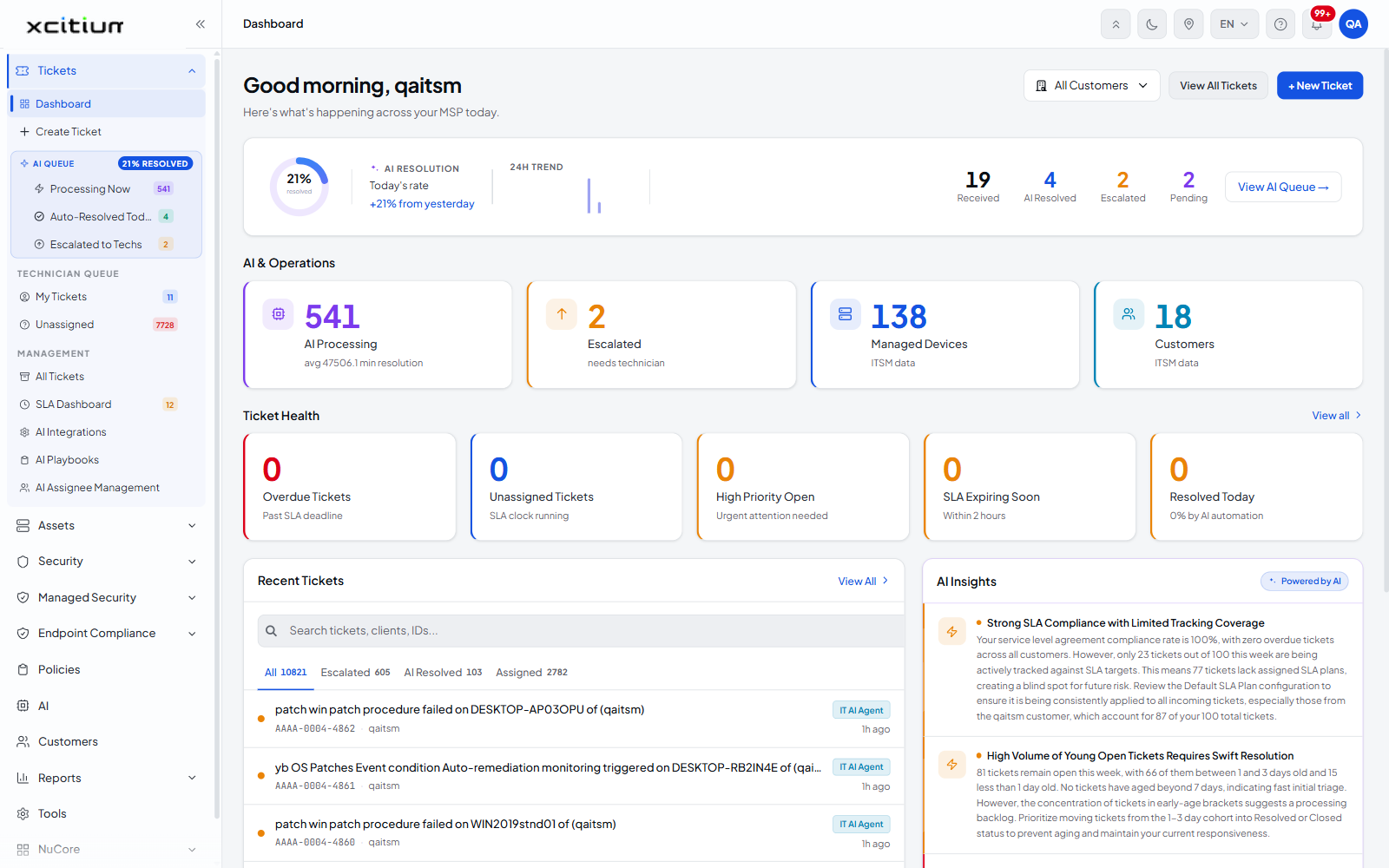
See Dashboard for the landing page and All Tickets for the full ticket list.