


AI Integrations
- Click 'Tickets' > 'Management' > 'AI Integrations' to open this interface.
Integrations are the external systems the AI service agent can act through when it works a ticket — for example a directory or a mail platform where it can reset a password or disable an account. Integrations are configured per customer, so each of your customers has its own set.
You can search your customers, select one, and manage the integrations held against that customer.
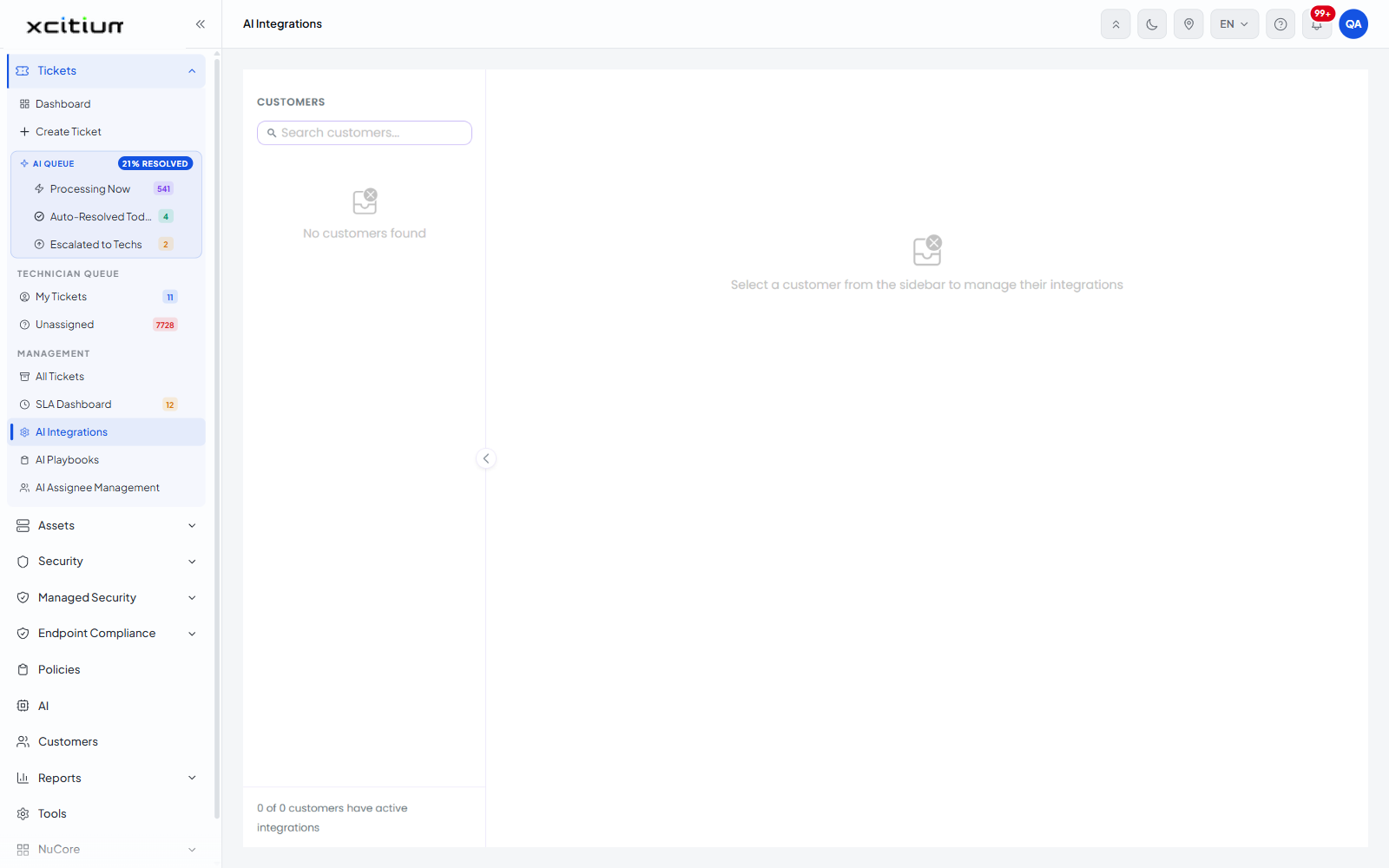
How the screen is laid out
This is an embedded application, so it renders its own layout inside the Tickets module. It has a customer sidebar on the left and a work area on the right.
| Element | Description |
| CUSTOMERS | The sidebar heading. |
| Search customers... | A search box that filters the customer list as you type. |
| Customer list | One entry per customer. Reads 'No customers found' when the list is empty. |
| Collapse control | A chevron on the sidebar edge that collapses and expands the customer list, giving the work area the full width. |
| Coverage line | A summary at the foot of the sidebar reading '<n> of <n> customers have active integrations'. |
| Work area | Shows 'Select a customer from the sidebar to manage their integrations' until a customer is chosen. |
Open a customer's integrations
- Click 'Tickets' > 'Management' > 'AI Integrations'.
- Find the customer in the sidebar, using 'Search customers...' if the list is long.
- Click the customer. Their integrations open in the work area.
Check integration coverage
- Open the screen.
- Read the line at the foot of the sidebar — it reports how many of your customers have at least one active integration.
Note: the tools a playbook can use depend on the integrations connected here. A playbook whose tools belong to an unconnected provider shows that provider's tools greyed out with a 'Connect' button.