


Filter the Device List
Open the Device List, then click the 'Table filter' icon at the right of the search row to open this panel.
The filter panel narrows the device table by any combination of operating system, connection state, security state, patch state and device attributes. It applies as you set it — there is no 'Apply' button.
You can combine as many sections as you need, then clear the lot with 'Table Filter Clear' on the toolbar.
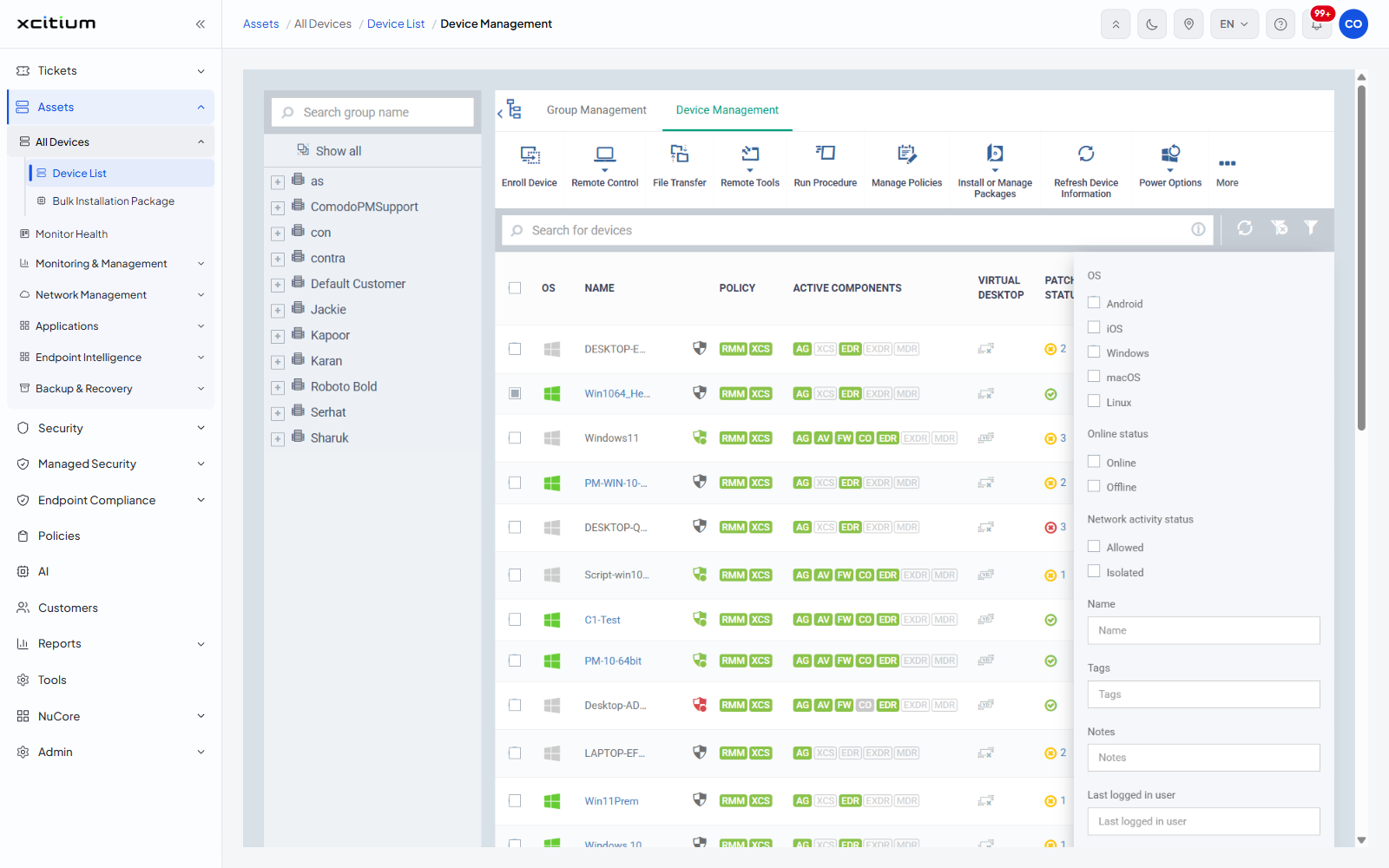
The filter sections
| Section | Type | Options |
| OS | Checkboxes | 'Android', 'iOS', 'Windows', 'macOS', 'Linux'. |
| Online status | Checkboxes | 'Online', 'Offline'. |
| Network activity status | Checkboxes | 'Allowed', 'Isolated'. |
| Name | Text | Matches the device name. |
| Tags | Text | Matches the tags applied to the device. |
| Notes | Text | Matches the notes held against the device. |
| Last logged in user | Text | Matches the last signed-in account. |
| Serial Number | Text | Matches the hardware serial number. |
| Client security status | Checkboxes | 'Client security is not installed', 'Not supported client(s)', 'Secure', 'Silent mode', 'Need attention', 'At risk', 'Device is not Managed'. |
| Virtual desktop status | Checkboxes | 'Running', 'Not Running', 'Unsupported'. |
| Patch status | Checkboxes | 'No patches are available', 'Critical patches are available', 'Non-critical patches are available', 'Optional patches are available', 'Important patches are available'. |
| Third Party Patches | Checkboxes | 'Up-to-date', 'Updates Available'. |
| Customer | Text | Matches the customer name. |
| Owner | Text | Matches the device owner. |
| Last activity | Date pickers | 'From' and 'To', each with a calendar button. |
| Duplicate devices | Dropdown | 'All' (the default), 'Primary devices only', 'Duplicate devices only', 'Primary devices and their duplicates'. |
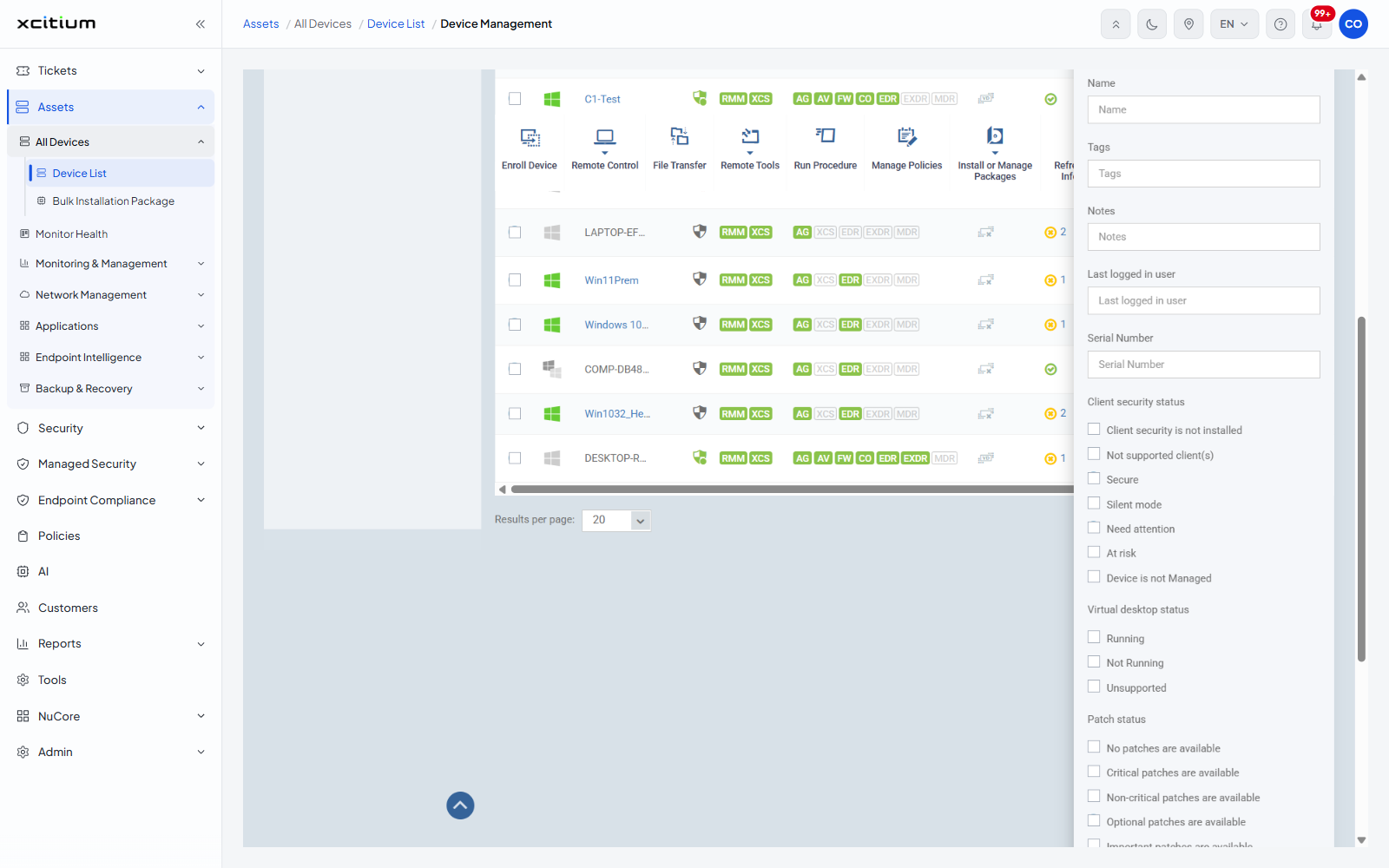
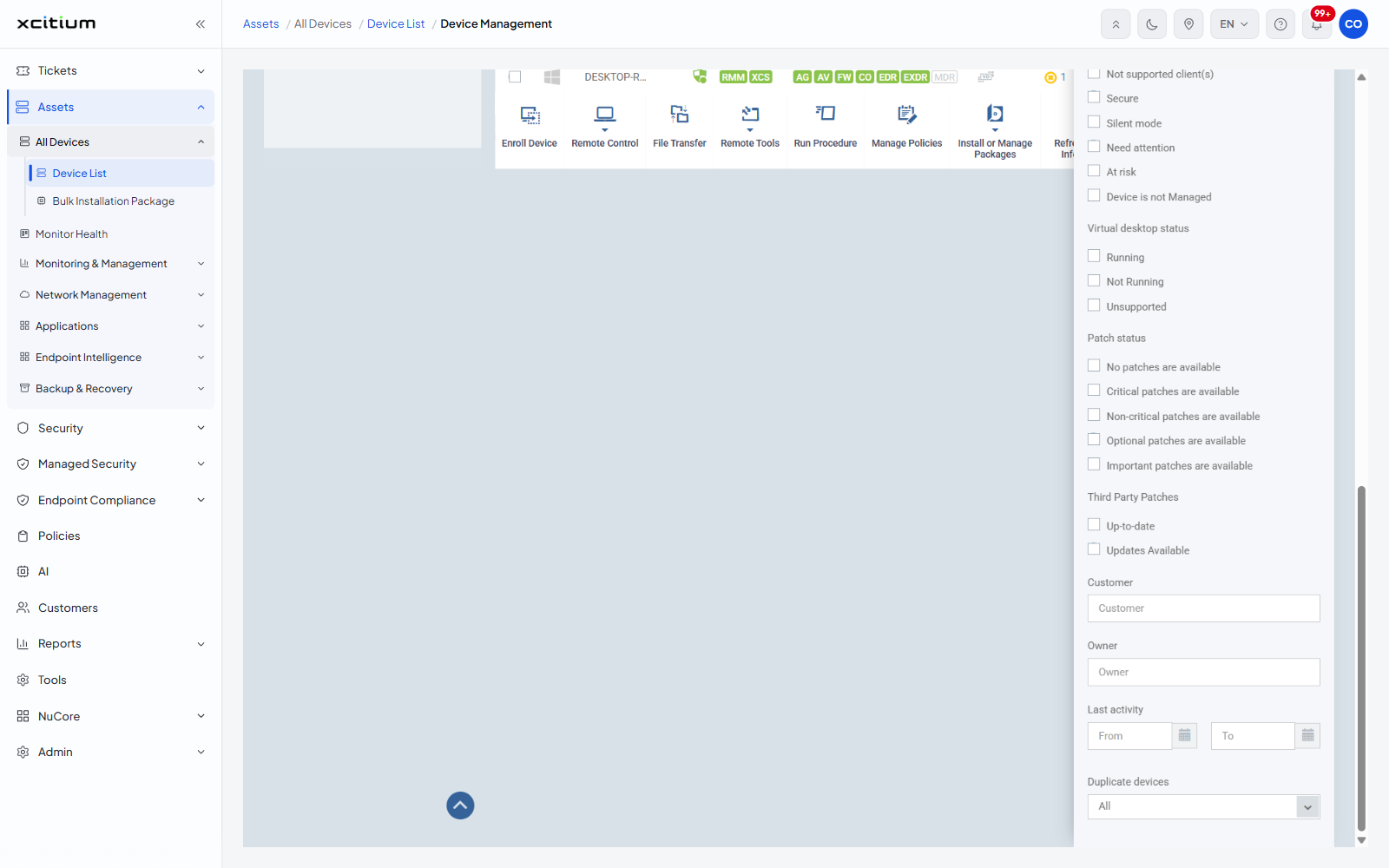
Filter the list
- Open the Device List.
- Click the 'Table filter' icon.
- Tick the checkboxes, type into the text boxes or set the dates you want.
- The table narrows as you go, and the record count under it updates.
- To start again, click 'Table Filter Clear' on the toolbar.
Note: the filter panel sits on top of the group-tree selection. Selecting a customer in the tree and then filtering narrows within that customer.