


Policy Associated Devices
- Open a policy, then click 'Associated Devices' under 'Overview' in the left-hand pane.
'Associated Devices' lists the devices the policy is attached to and says how each one picked it up. It is also reachable by clicking the number in the 'DEVICES' column of any policy list.
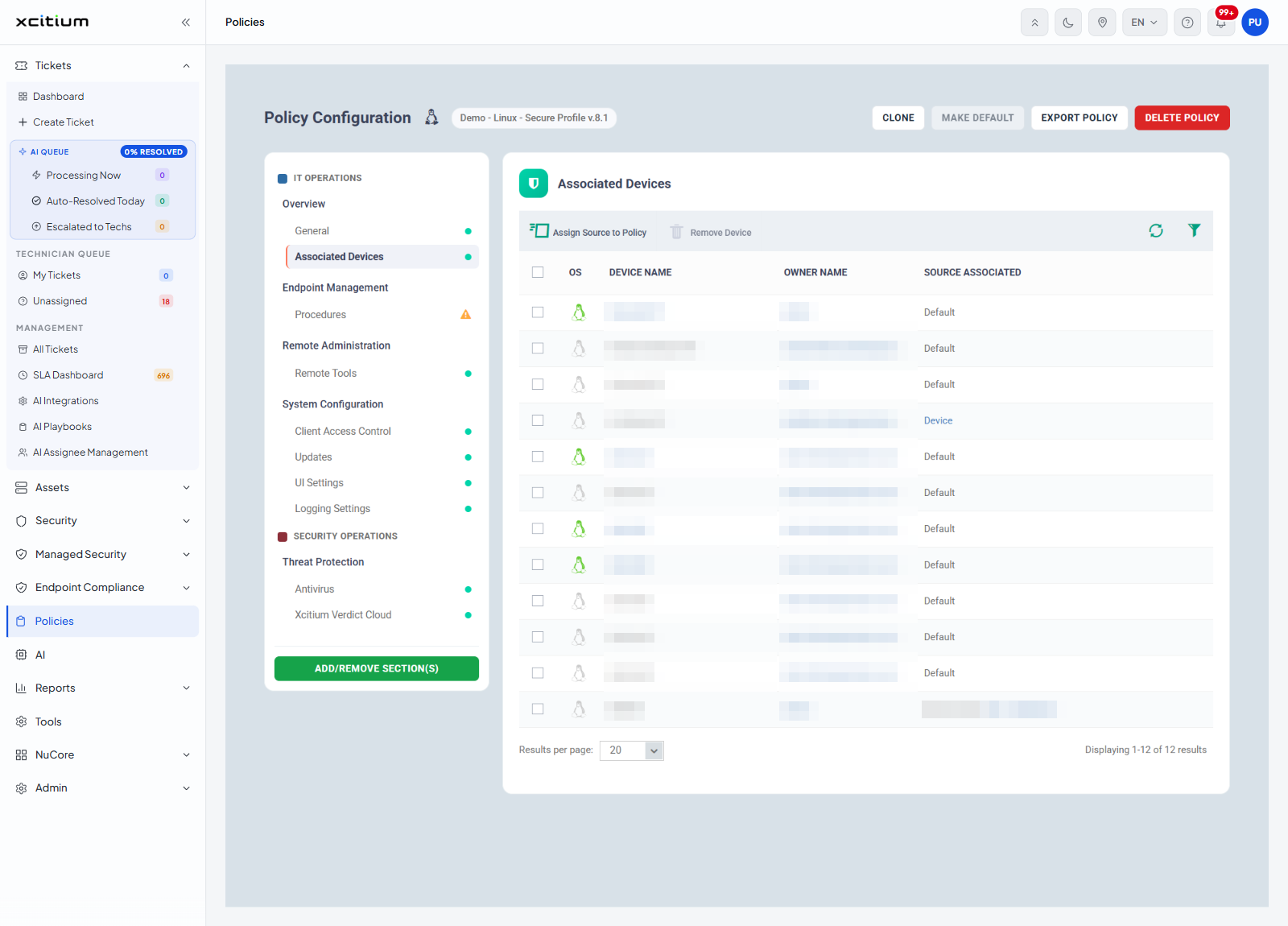
Toolbar
| Button | Description |
| Assign Source to Policy | Opens a dialog where you choose the users, user groups, devices, device groups or customers the policy is assigned to. Available even when the list is empty. |
| Remove Device | Removes the ticked devices from the policy. Greyed out until a row is ticked. |
Columns
| Column | Description |
| Check box (first column) | Ticks the row so the toolbar buttons become available. The header check box ticks every row on the page. |
| OS | An icon for the device's operating system. |
| DEVICE NAME | The name of the device. |
| OWNER NAME | The user the device belongs to. |
| SOURCE ASSOCIATED | Why this device has the policy. The values are 'Default' (the device has it because the policy is the default for its operating system), 'Device' (the policy is attached to that device directly) and a device group, shown as 'Device Group:' followed by the group name. |
See where a policy is in use
- Click 'Policies' > 'Policy Configuration'.
- Click the number in the 'DEVICES' column of the policy's row, or open the policy and click 'Associated Devices'.
- Read the 'SOURCE ASSOCIATED' column to see whether each device has the policy because it is the default, because the policy was attached to the device, or because the device is in a group that has it.
Note: 'Assign Source to Policy' and 'Remove Device' both change which devices the policy reaches. Check the ticked row before you use them.