


External Devices Control
- Open a Windows profile, then click the 'External Devices Control' tab.
'External Devices Control' blocks whole classes of hardware from being used on the device, and lets you allow back the individual pieces you trust. The panel carries 'Edit' and 'Delete' buttons.
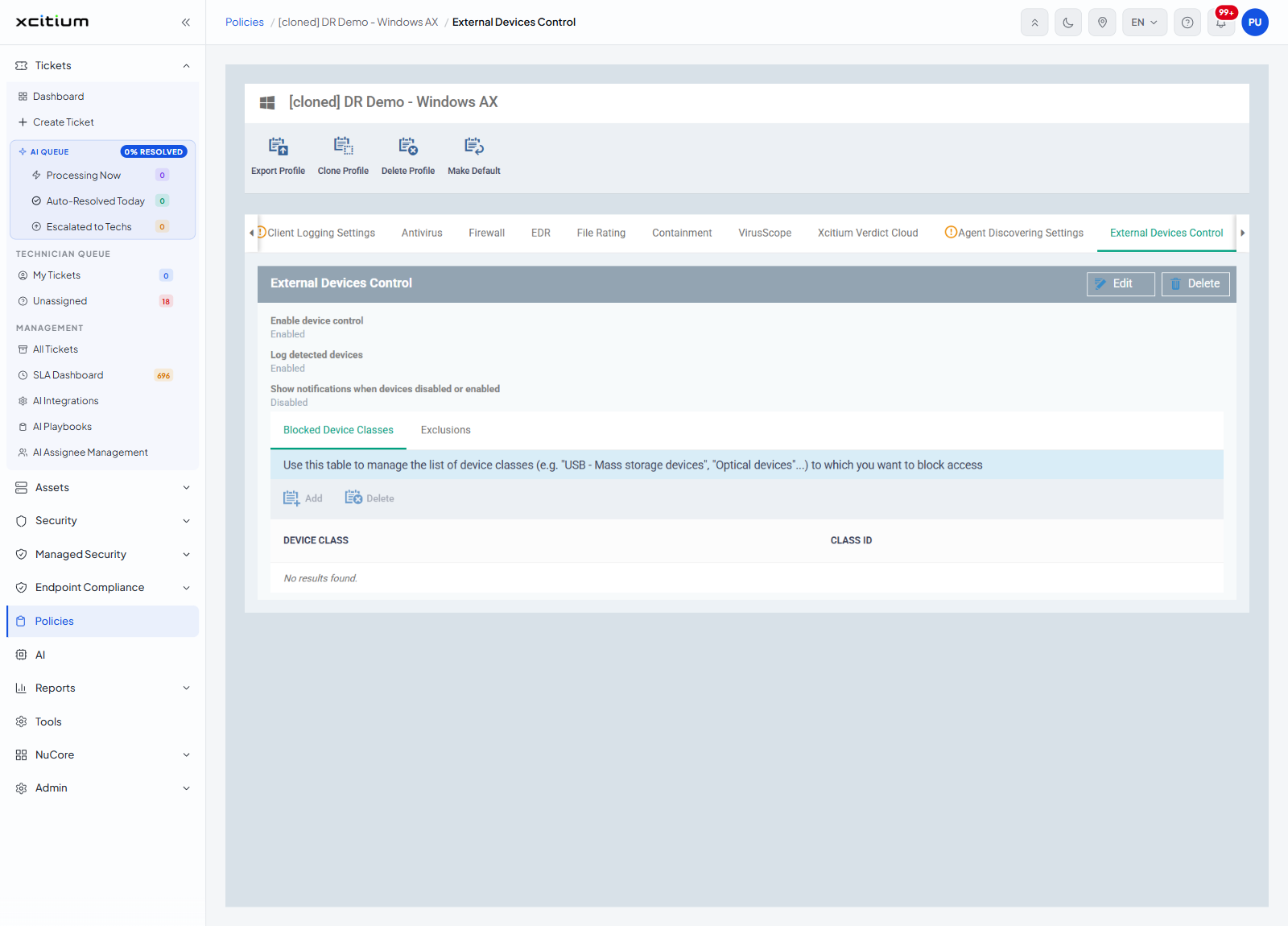
Settings
| Setting | Value seen |
| Enable device control | Enabled |
| Log detected devices | Enabled |
| Show notifications when devices disabled or enabled | Disabled |
Blocked Device Classes
The first sub-tab opens with the line 'Use this table to manage the list of device classes (e.g. "USB - Mass storage devices", "Optical devices"...) to which you want to block access'.
| Button | Description |
| Add | Adds a device class to the blocked list. |
| Delete | Removes the ticked class from the blocked list. |
| Column | Description |
| DEVICE CLASS | The kind of hardware that is blocked. |
| CLASS ID | The identifier Windows uses for that class. |
A profile that blocks nothing shows the list headings over 'No results found.'
Add a device class
'Add' is greyed out until you click 'Edit'. It opens the 'Add Device Class' dialog, a tick-list under the columns 'DEVICE CLASS' and 'CLASS ID'.
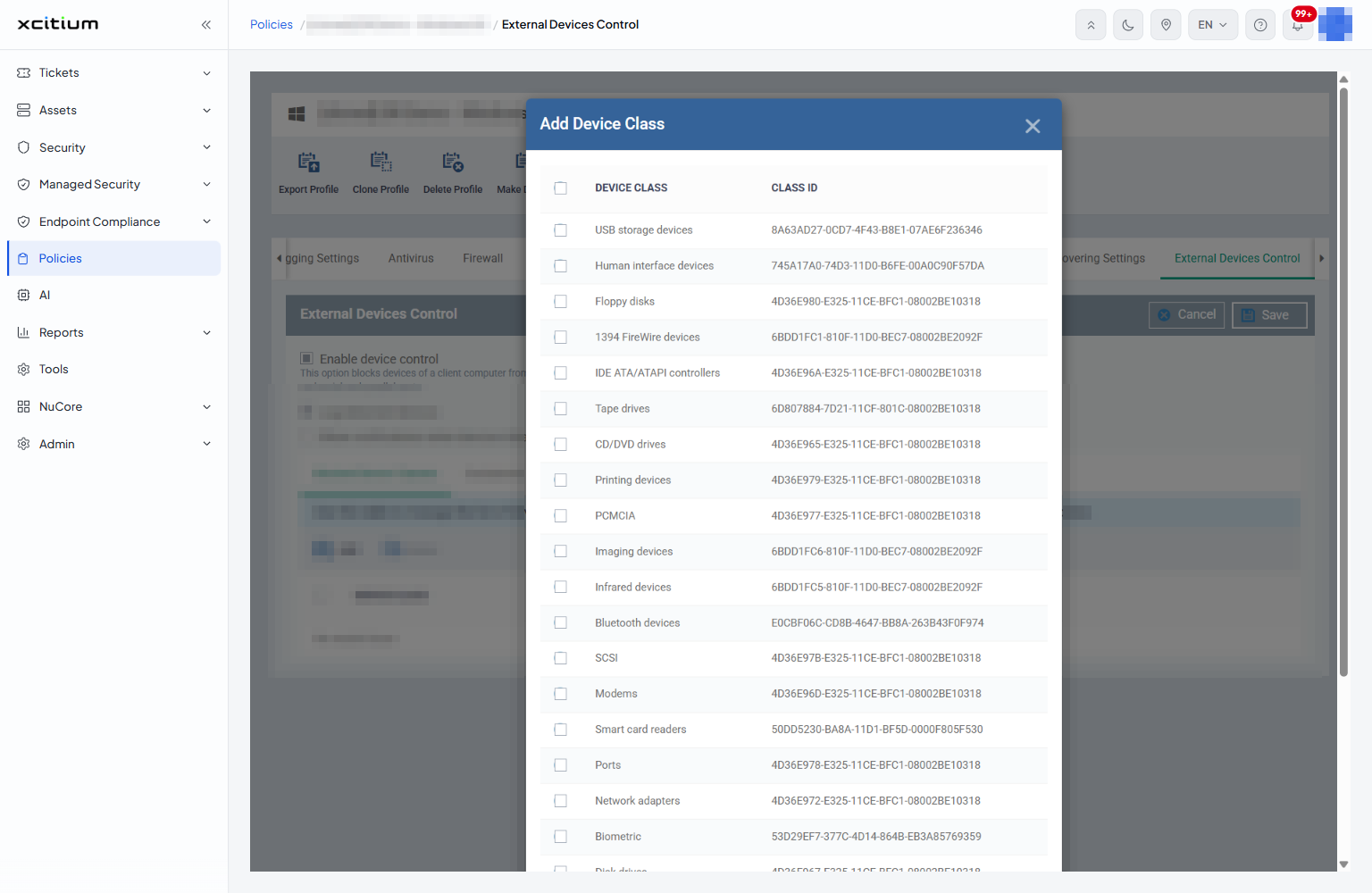
The classes offered are 'USB storage devices', 'Human interface devices', 'Floppy disks', '1394 FireWire devices', 'IDE ATA/ATAPI controllers', 'Tape drives', 'CD/DVD drives', 'Printing devices', 'PCMCIA', 'Imaging devices', 'Infrared devices', 'Bluetooth devices', 'SCSI', 'Modems', 'Smart card readers', 'Ports', 'Network adapters', 'Biometric', 'Disk drives', 'Storage volumes' and 'Portable devices'.
- Click 'Policies' in the left navigation bar and open the profile.
- Click the 'External Devices Control' tab, then click 'Edit'.
- On 'Blocked Device Classes', click 'Add'.
- Tick each class you want to block.
- Click 'Ok', then click 'Save'.
Exclusions
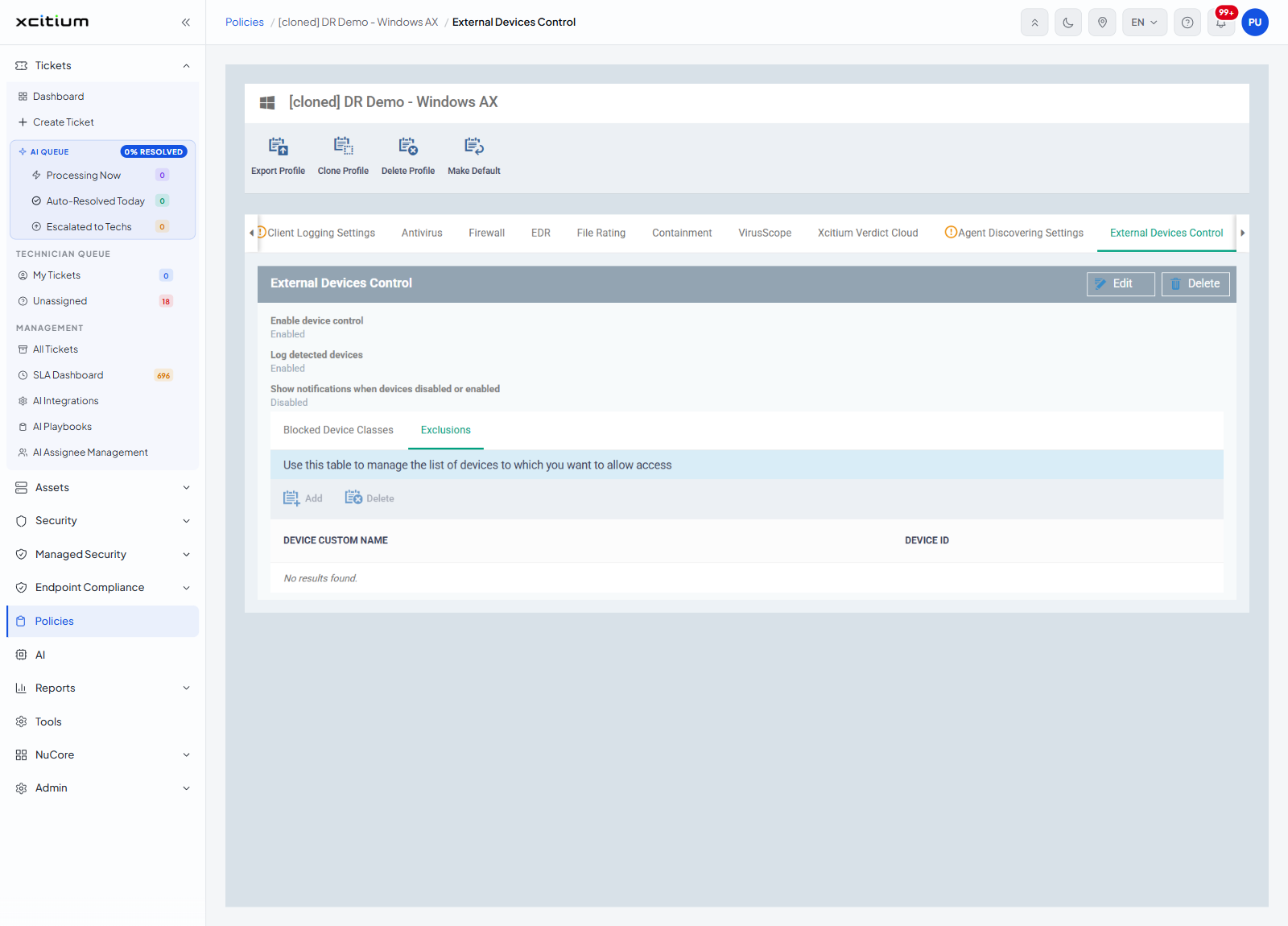
The second sub-tab opens with the line 'Use this table to manage the list of devices to which you want to allow access'. It has the same 'Add' and 'Delete' buttons.
| Column | Description |
| DEVICE CUSTOM NAME | A name you give the allowed device. |
| DEVICE ID | The identifier of that individual device. |
This list stays empty until you add an entry to it.
Add an exclusion
'Add' on the 'Exclusions' sub-tab, again after clicking 'Edit', opens the 'Add Exclusion' dialog.
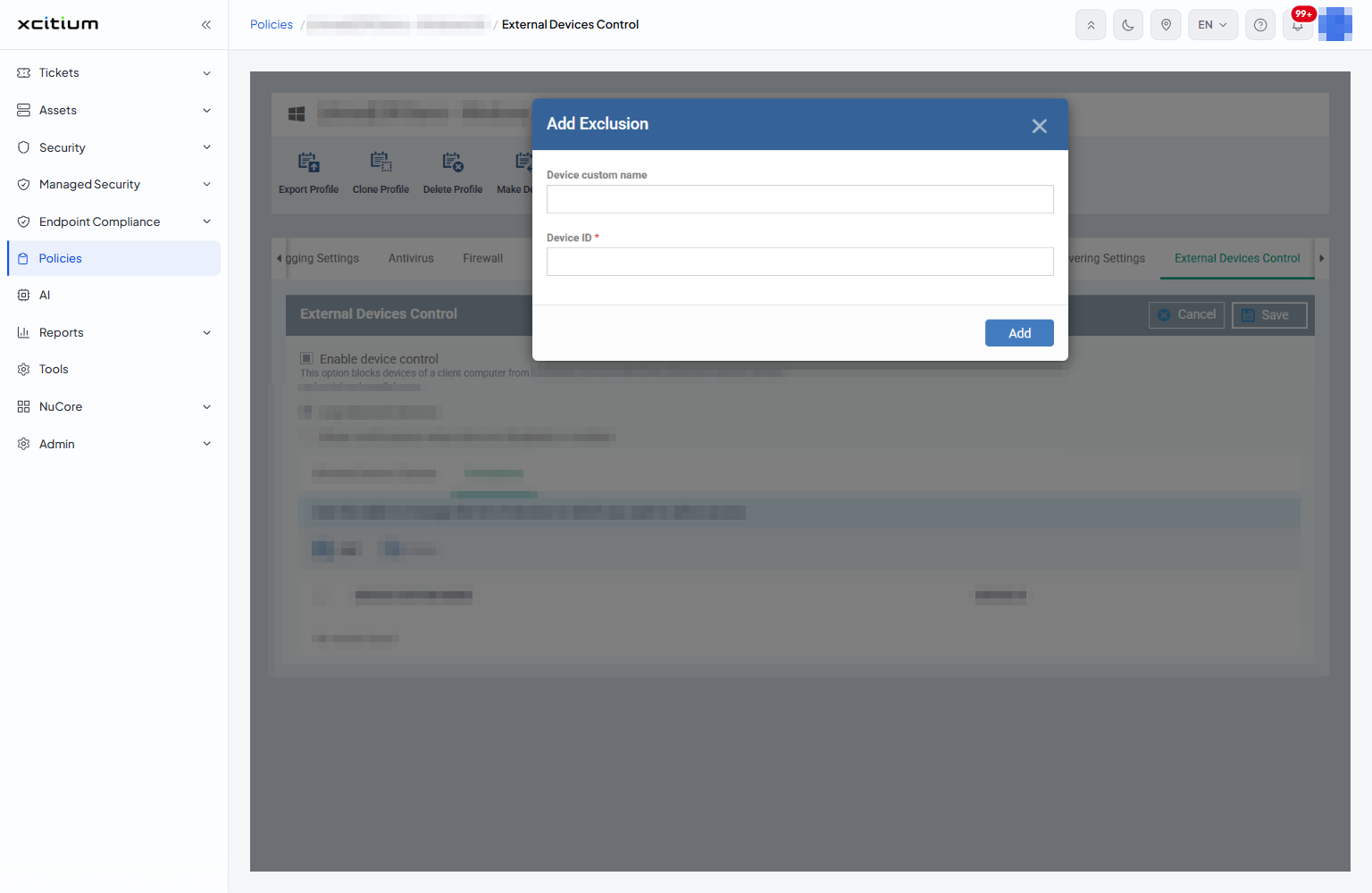
| Field | Description |
| Device custom name | A name of your own for the device, shown in the 'DEVICE CUSTOM NAME' column. |
| Device ID | The identifier of the device you want to allow. This field is required. |
- Click 'Policies' in the left navigation bar and open the profile.
- Click the 'External Devices Control' tab, then click 'Edit'.
- Click 'Exclusions', then click 'Add'.
- Give the device a name and its 'Device ID'.
- Click 'Add', then click 'Save'.
Block a class of device
- Click 'Policies' in the left navigation bar and open the profile.
- Click the 'External Devices Control' tab, then 'Edit'.
- Turn on 'Enable device control'.
- On 'Blocked Device Classes', click 'Add' and choose the class to block.
- On 'Exclusions', click 'Add' and list any individual device that should still be allowed.
- Click 'Save'.
Note: 'Exclusions' lets a named device through a class you have blocked. Without it, blocking a class blocks everything in that class.