


View a User
Clicking a name in the Login column opens that user's record. It has four tabs and carries the same per-user actions as the User List toolbar.
Getting there
- Open Admin, then Users, then User List.
- Click a name in the Login column.
User Info
The Personal panel holds the user's own details.
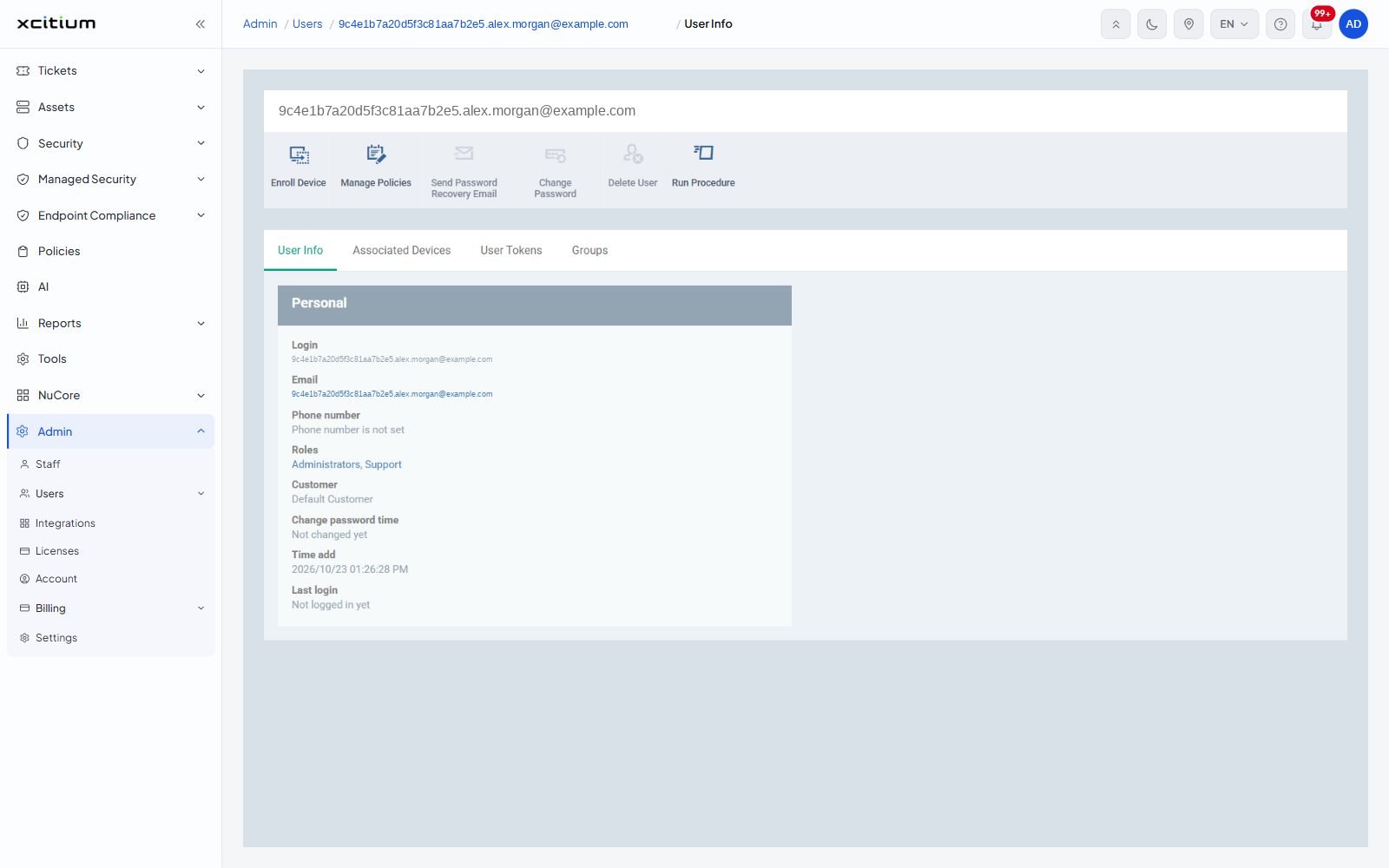
- Login
- Email — a link that starts a new message
- Phone number — reads Phone number is not set when empty
- Roles — each role is a link to that role's page
- Customer
- Change password time — reads Not changed yet if the password has never been changed
- Time add — when the user was created
- Last login — reads Not logged in yet if they have never signed in
Associated Devices
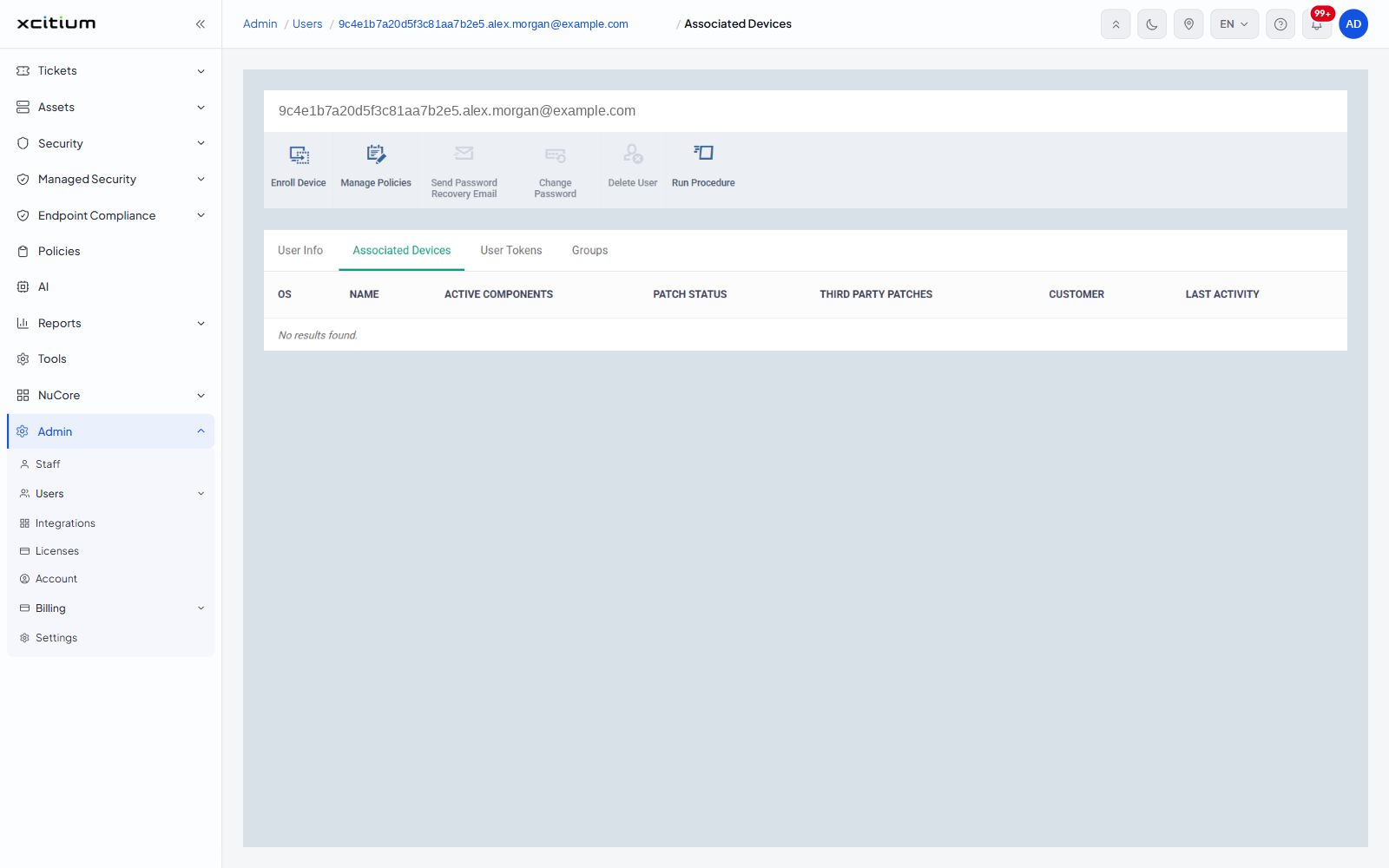
The devices enrolled to this user, with OS, Name, Active components, Patch status, Third Party Patches, Customer and Last activity. The tab reads No results found when the user has no devices.
User Tokens
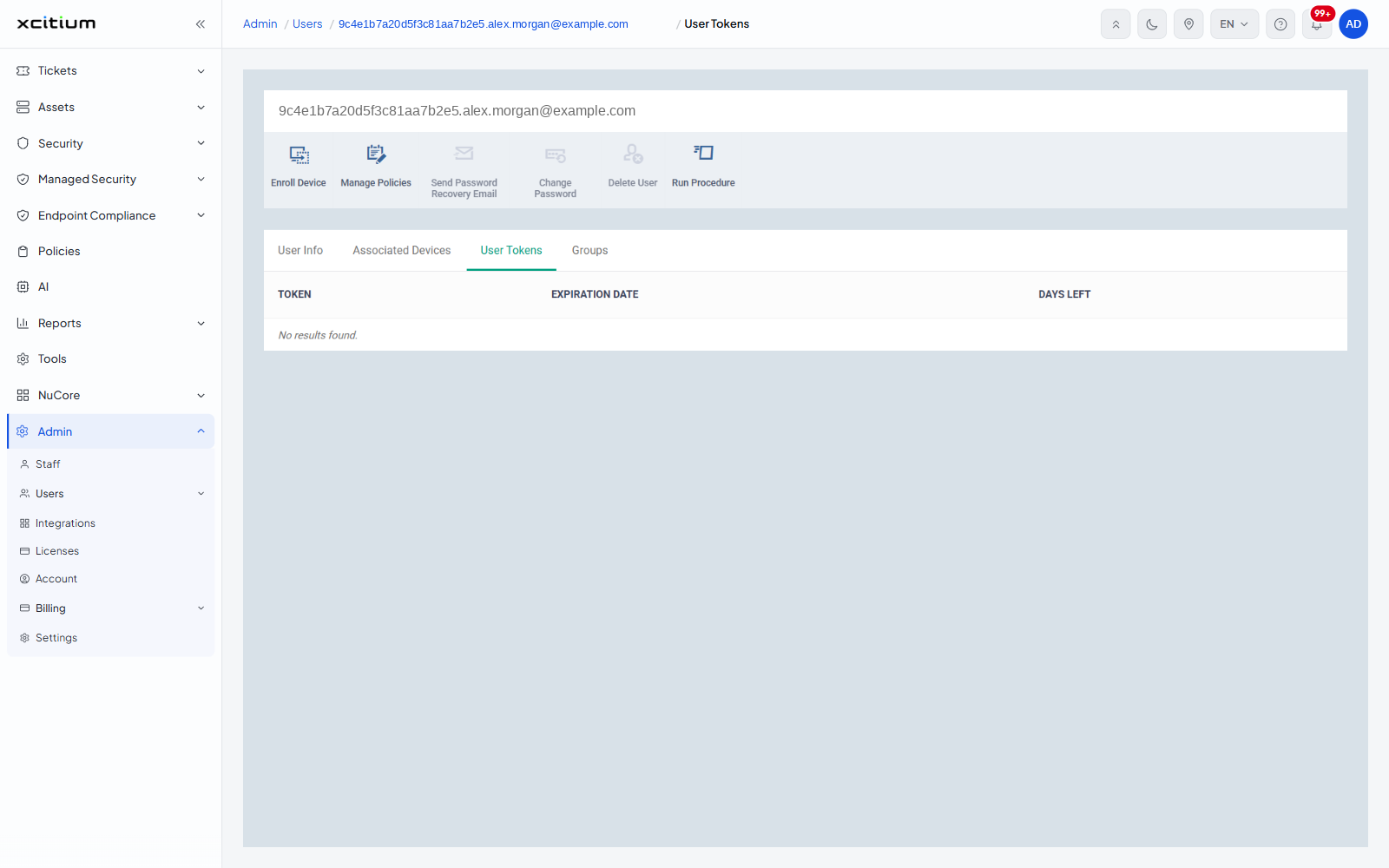
The enrolment tokens issued to this user, with Token, Expiration Date and Days Left.
Groups
The groups this user belongs to, with Group Name, the number of users in each, Created by and Created. The tab has its own toolbar.
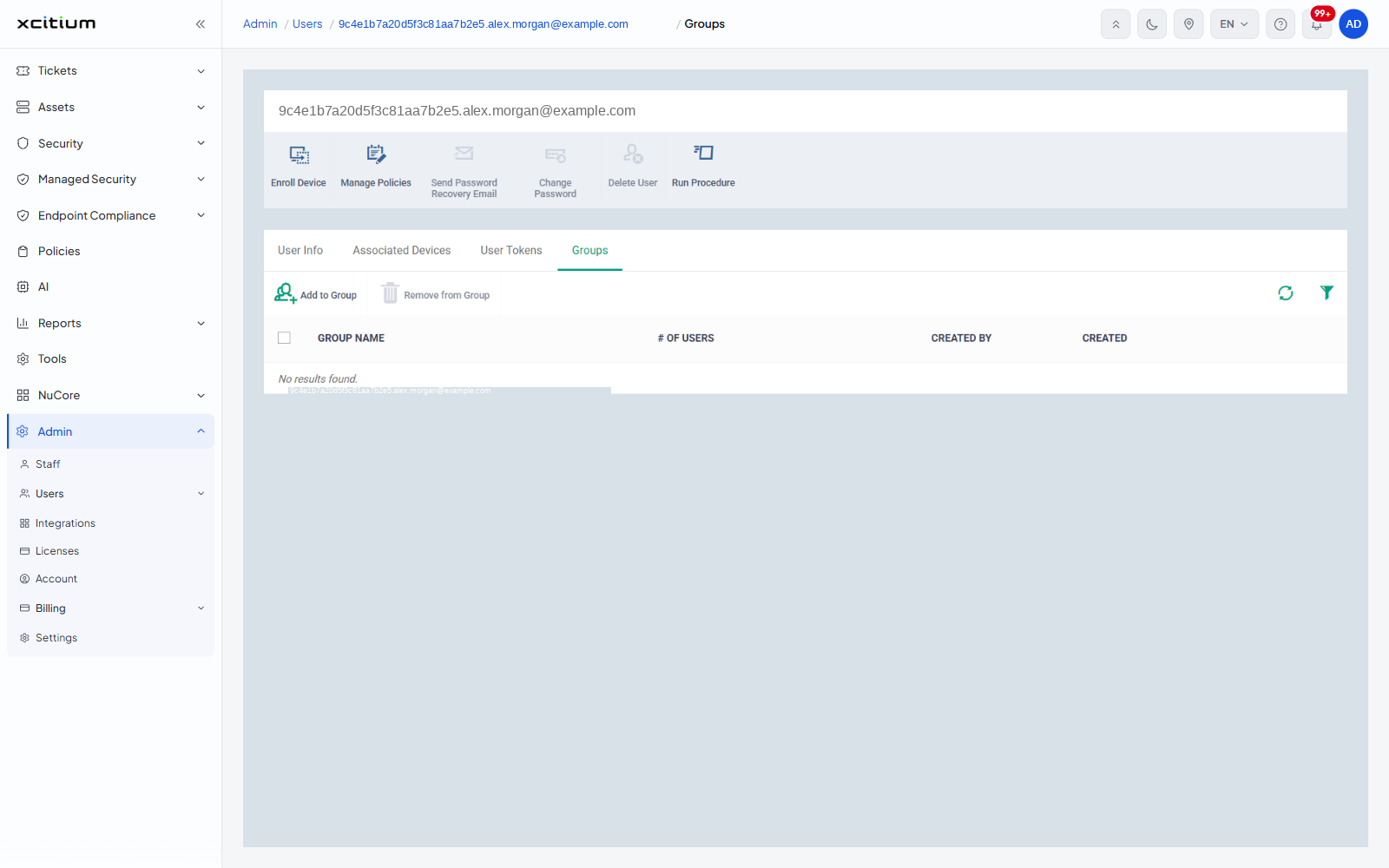
- Add to Group — put this user into another group
- Remove from Group — take this user out of the ticked group
- Table refresh
- Table filter
Actions on this user
The icons in the header act on the user you are looking at.
- Enroll Device
- Manage Policies
- Send Password Recovery Email
- Change Password
- Delete User
- Run Procedure