


View and Edit a Procedure's Script
- Click 'Assets' > 'Monitoring & Management' > 'Procedures', click a procedure name, then open the 'View Procedure' tab.
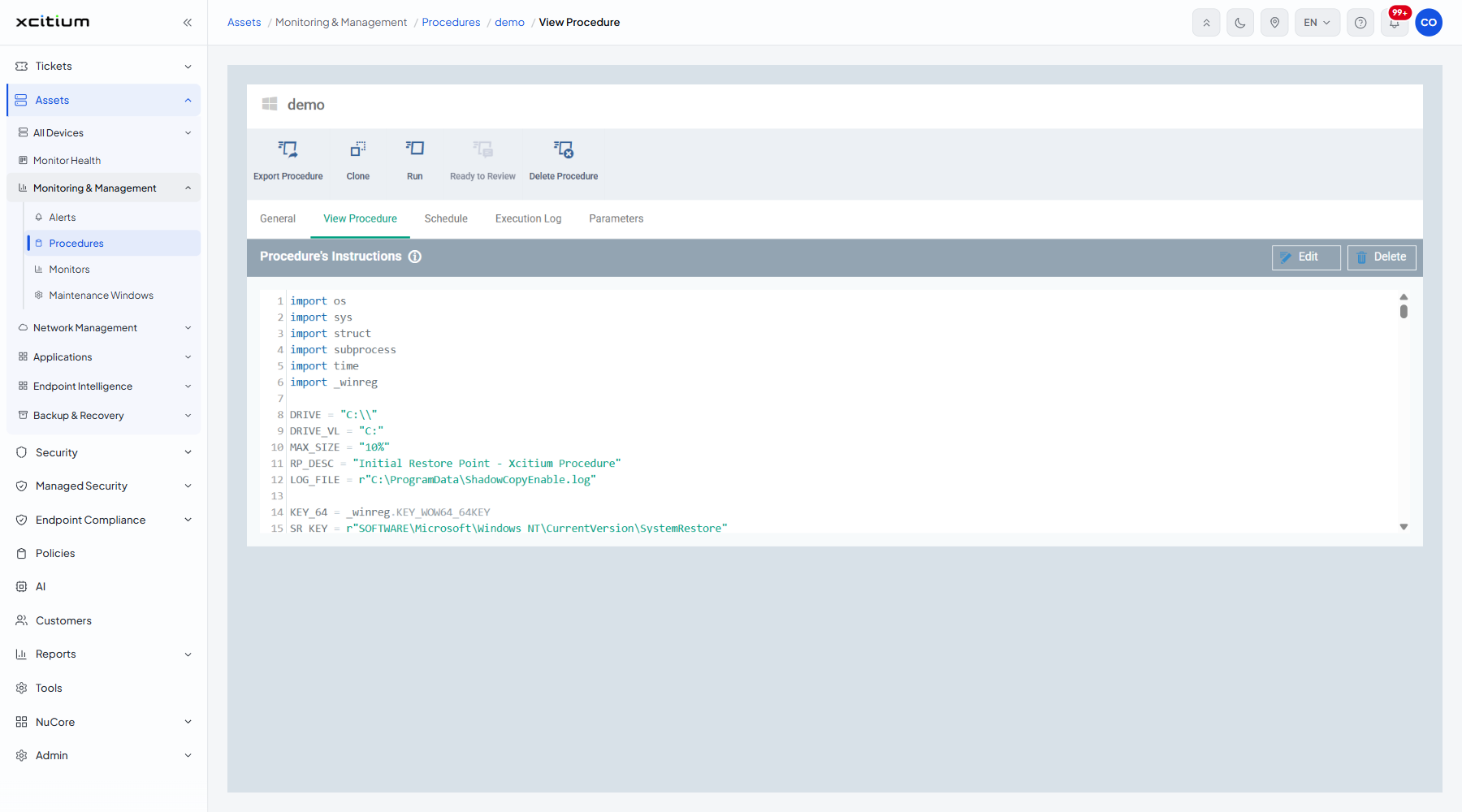
The tab holds a panel called "Procedure's Instructions" showing the body of the procedure in a line-numbered, read-only code view.
You can read the body here, and open an editor to change it or to paste in another procedure.
The editor
Click 'Edit' on the panel to make the code editable. The panel gains its own controls.
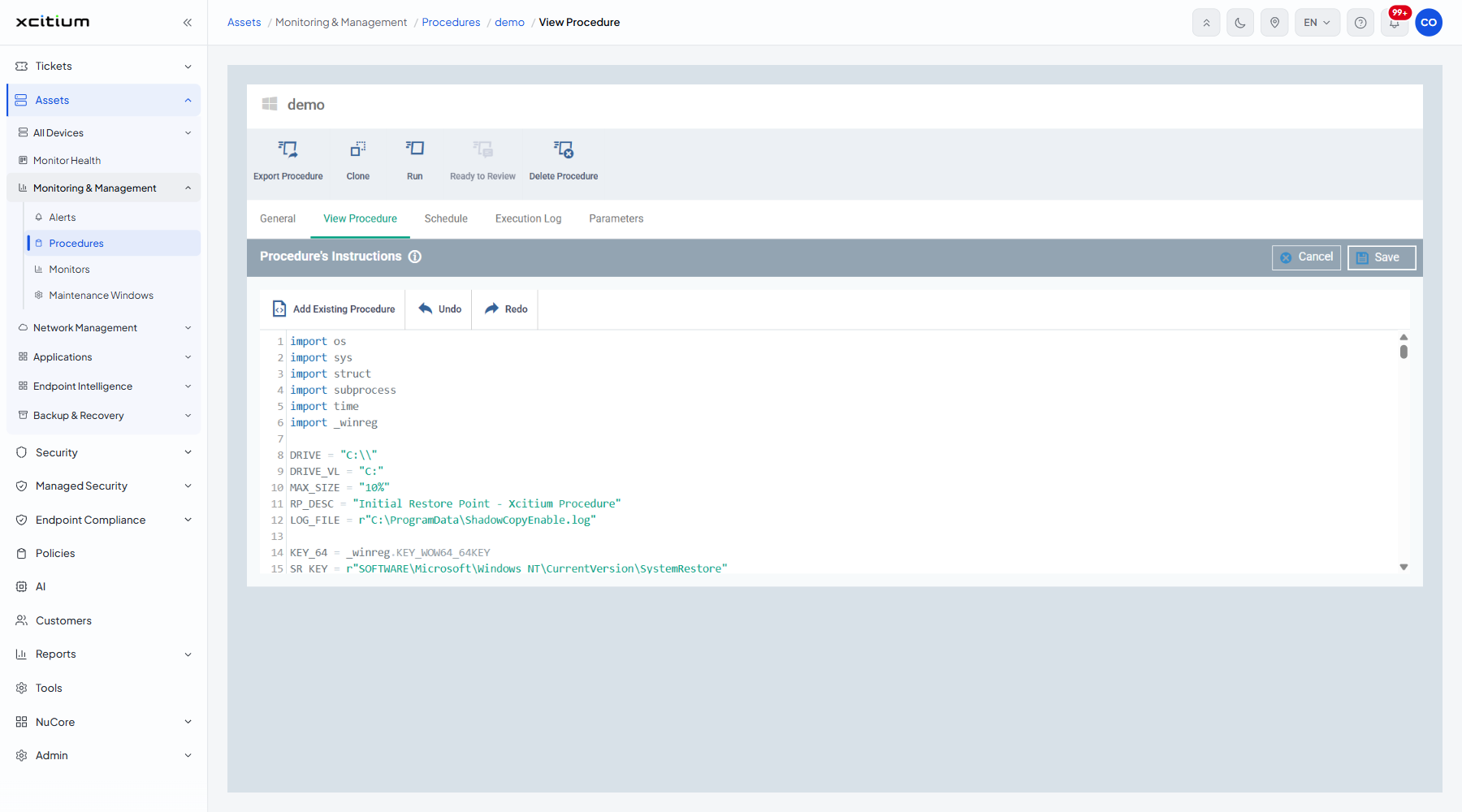
| Button | Description |
| Cancel | Leaves the editor and discards anything you typed. |
| Save | Stores the new body. The procedure moves to the Edited status and must be approved again before it will run. |
| Add Existing Procedure | Inserts the body of another procedure at the cursor. See below. |
| Undo | Steps back through your changes. |
| Redo | Steps forward again. |
The Add Existing Procedure dialog
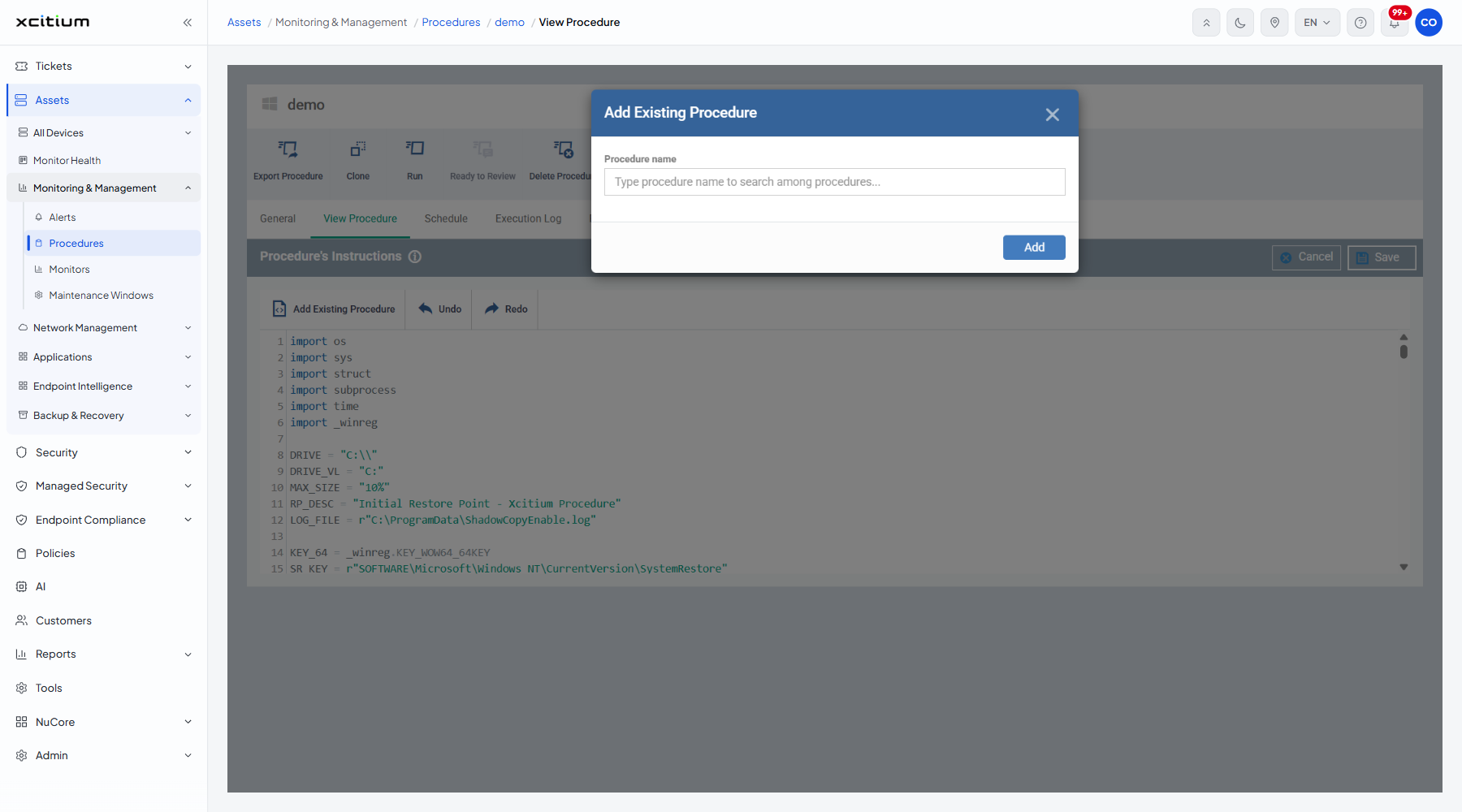
| Field | Type | Options / default | Required |
| Procedure name | Lookup | Empty by default, with the placeholder 'Type procedure name to search among procedures...'. Start typing to pick a procedure. | Yes |
Edit the body of a procedure
- Open the procedure.
- Open the 'View Procedure' tab.
- Click 'Edit'.
- Type into the code editor, or click ‘Add Existing Procedure’ and pick another procedure to pull its body in.
- Click 'Save', or 'Cancel' to discard the change.
- Click 'Ready to Review' on the procedure header to send the new version for approval.
Note: a predefined procedure cannot be edited. Clone it first and edit the copy.