


Device Detail
- Click 'Security' > 'Endpoint Security' > 'Alerts' > 'Device View', then click a device name in the 'Device Name' column.
The device record opens in place of the device list. It gathers what the platform has seen on that one machine: its alerts, the use of administrator privilege, its network connections, how its addresses have changed, who has logged on, and the trend of its events.
You can look up a different device, open the device in the device management interface, and set the period each panel covers.
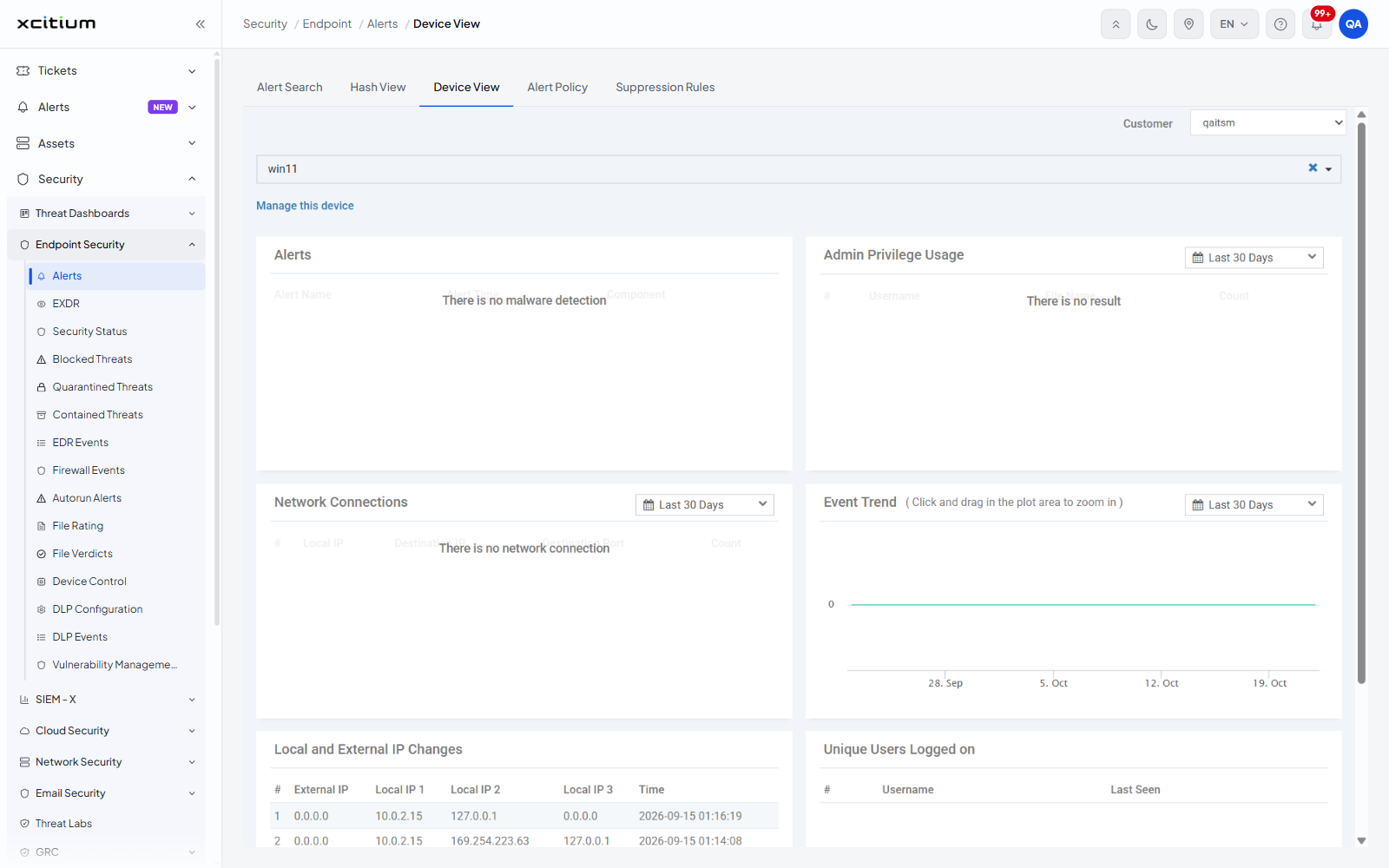
The header
| Control | Description |
| Device box | A wide box at the top holding the name of the device you are looking at. Click the cross at its right to clear it, or the arrow next to the cross to pick another device. |
| Manage this device | A link under the box that opens this device in the device management interface. |
The panels
Each panel that covers a period carries its own time range control at the top right, set to 'Last 30 Days' by default, with the choices 'Last 15 Minutes', 'Last 30 Minutes', 'Last 60 Minutes', 'Last 12 Hours', 'Last 1 Day', 'Last 3 Days', 'Last 7 Days', 'Last 15 Days', 'Last 30 Days' and 'Custom range'.
| Panel | Columns and content |
| Alerts | Columns 'Alert Name', 'Alert Time' and 'Component'. Reads 'There is no malware detection' when empty. |
| Admin Privilege Usage | Columns '#', 'Username', 'File Name' and 'Count'. Reads 'There is no result' when empty. |
| Network Connections | Columns '#', 'Local IP', 'Destination IP', 'Destination Port' and 'Count'. Reads 'There is no network connection' when empty. |
| Event Trend | A line chart of events over the period. The heading carries the hint '( Click and drag in the plot area to zoom in )'. |
| Local and External IP Changes | Columns '#', 'External IP', 'Local IP 1', 'Local IP 2', 'Local IP 3' and 'Time'. The foot of the panel gives the total and the page, for example 'Total Count : 65 , Page 1 of 13', with numbered page links and 'Next' and 'Last'. |
| Unique Users Logged on | Columns '#', 'Username' and 'Last Seen'. |
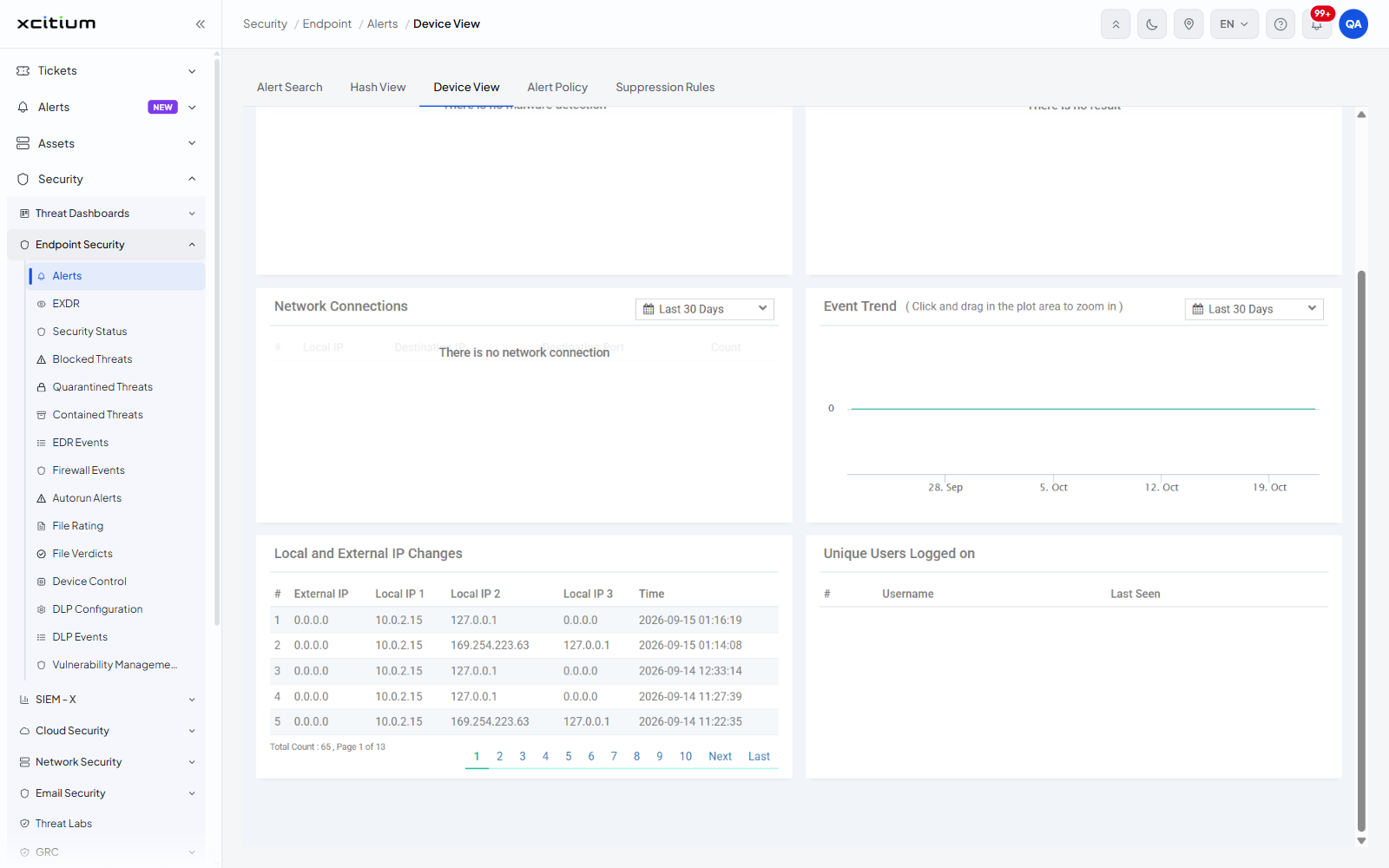
Look at another device
- Click the cross at the right of the device box to clear the current device, or click the arrow next to it.
- Type part of the device name and pick the device from the list.
- The panels reload for that device.
Go back to the device list
- Click 'Device View' in the tab bar at the top of the page.