


Custom Reports
- Click 'Reports' > 'Custom Reports' to open this interface.
'Custom Reports' is the report catalogue. Unlike the executive PDFs on 'Standard Reports', the reports here are detailed data extracts — a list of every blocked threat, every device, every vulnerability or every policy — produced as a spreadsheet or CSV file that you download.
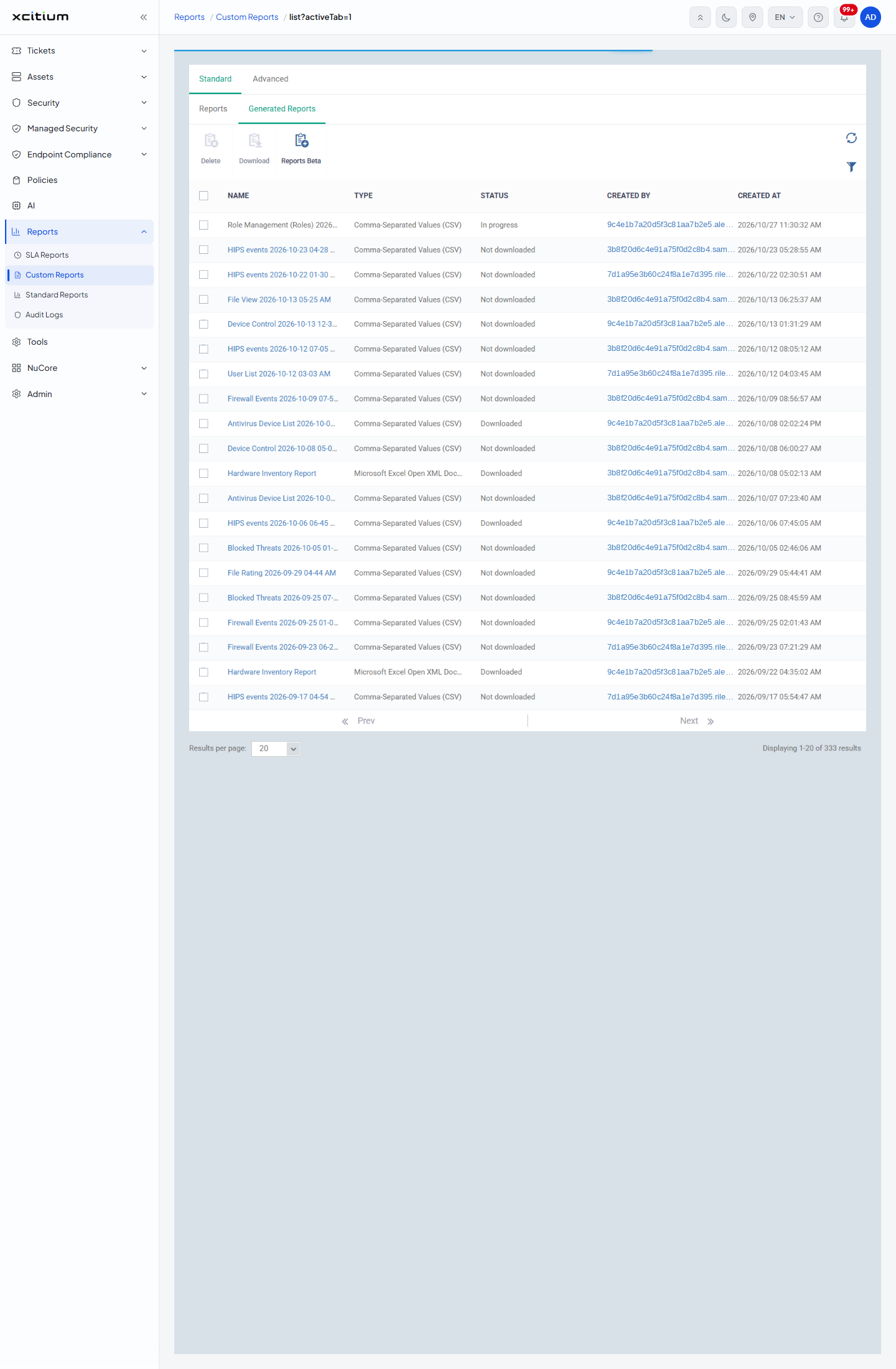
You can pick a report from the catalogue, set its customer, device and date filters, generate it, and then find and download the finished file from a list of everything your team has produced.
The Interface
The page is an embedded console with its own scrollbar. It carries two levels of tabs.
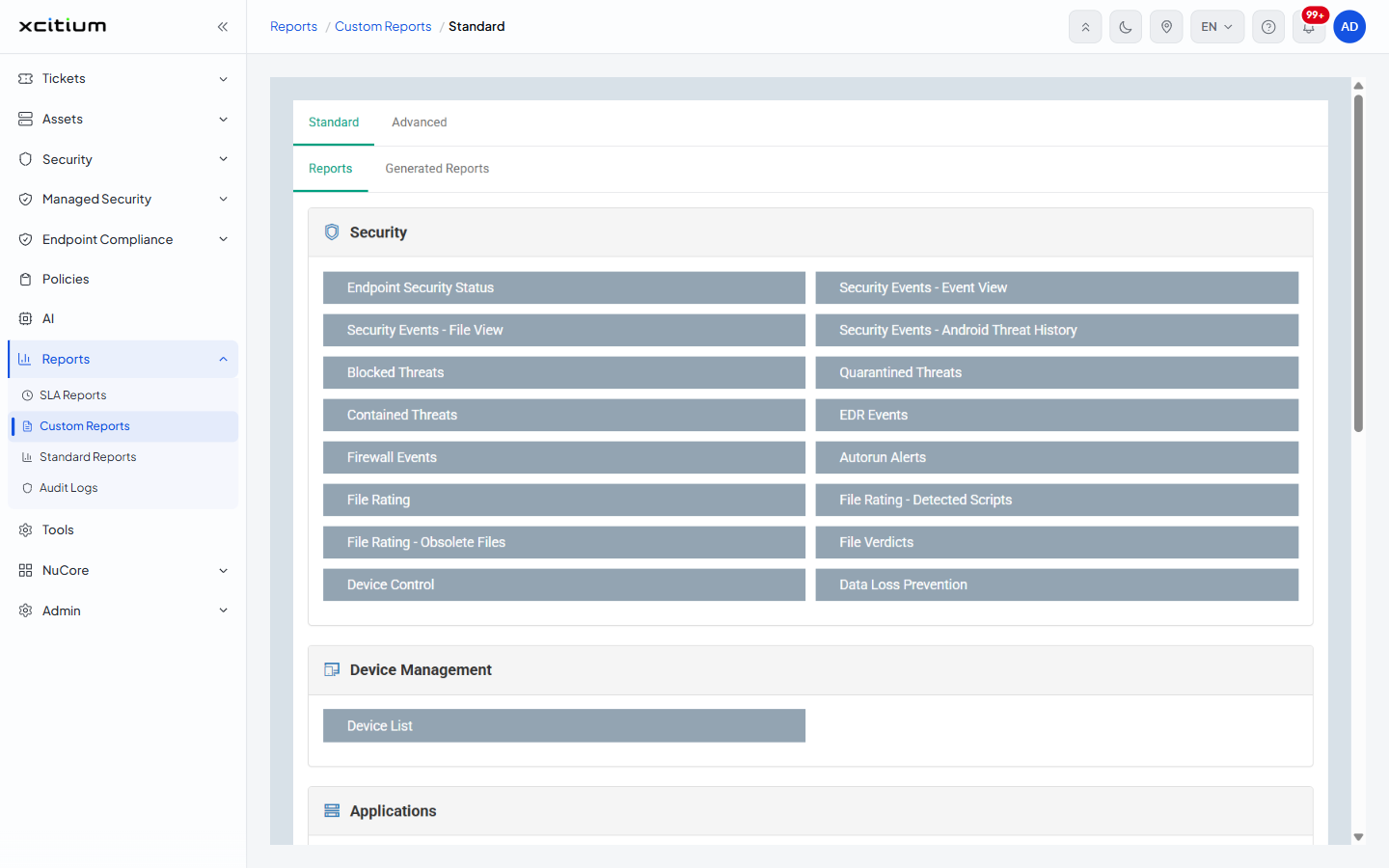
| Tab | Description |
| Standard | The working report catalogue. Opens when the page loads. Holds two sub-tabs, 'Reports' and 'Generated Reports'. |
| Advanced | The advanced report builder, with its own 'Home', 'Our Data' and 'Create report' sub-tabs. See Advanced Reports. |
Sub-tabs Under 'Standard'
| Sub-tab | Description |
| Reports | The catalogue of forty report definitions, grouped into six categories. Click a report to open its parameters and generate it. See The Report Catalogue. |
| Generated Reports | Every file that has been produced from the catalogue, with its type, status and who asked for it. See Generated Reports. |
Produce a Custom Report
- Click 'Reports' > 'Custom Reports'. The 'Standard' tab and its 'Reports' sub-tab open.
- Find the report you want in one of the six category panels and click it.
- If a 'Report Parameters' dialog opens, set the customer, device and date range, then click 'Generate Report'.
- Open the 'Generated Reports' sub-tab and wait for the new row's 'Status' to stop reading 'In progress'.
- Download the file.
Note: not every report in the catalogue asks for parameters. Some reports have nothing to configure and start generating the moment you click the tile — a green message reading 'Report has been created. Please check «Reports» at the Dashboard' appears at the top right and the new row is added to 'Generated Reports' straight away. Click a tile only when you actually want that report.