


Filter Rows
Use 'Filter' to keep only the rows you need.
Filter by Date
- Click 'Filter'. A list of every field in the table opens.
- For a date field, click a quick button: 'Today', 'Yesterday', 'Last Week' or 'Last Month'. Click '...' for more: 'Last 7 Days', 'Last 30 Days', 'Last 3 Months', 'Last 12 Months' or 'Specific dates...'.
- Click 'Apply Filters'.
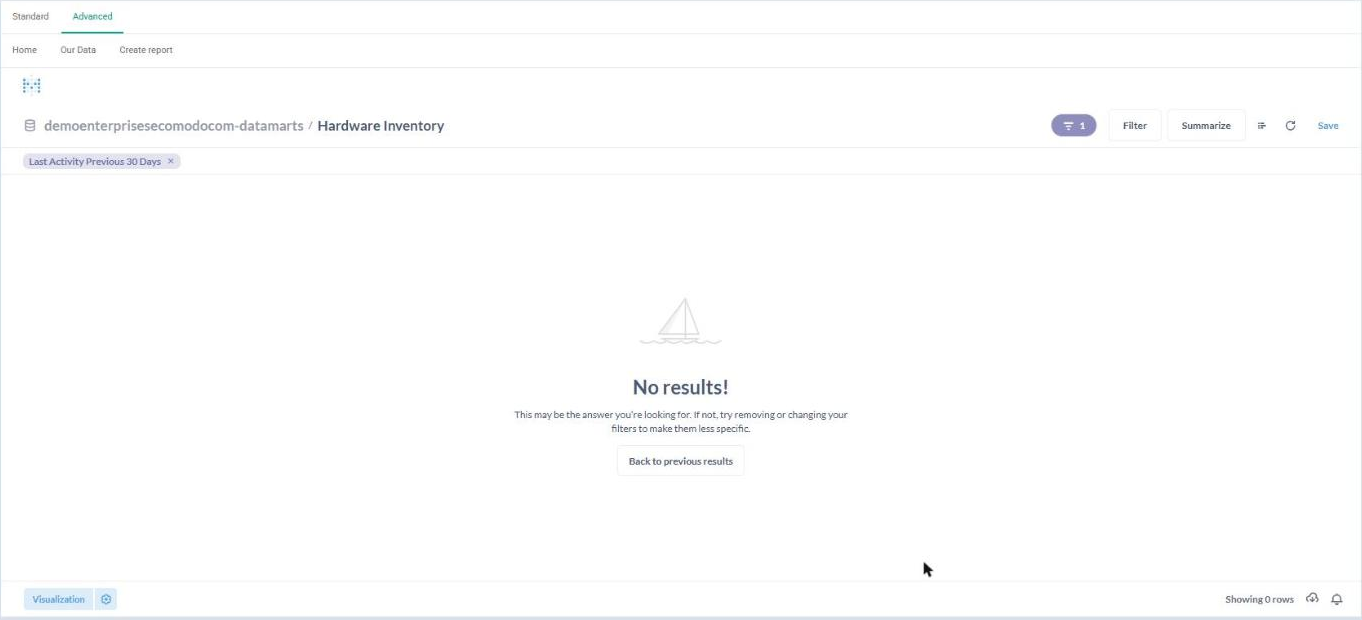
- Your filter shows as a chip under the title. Click the x on the chip to remove it.
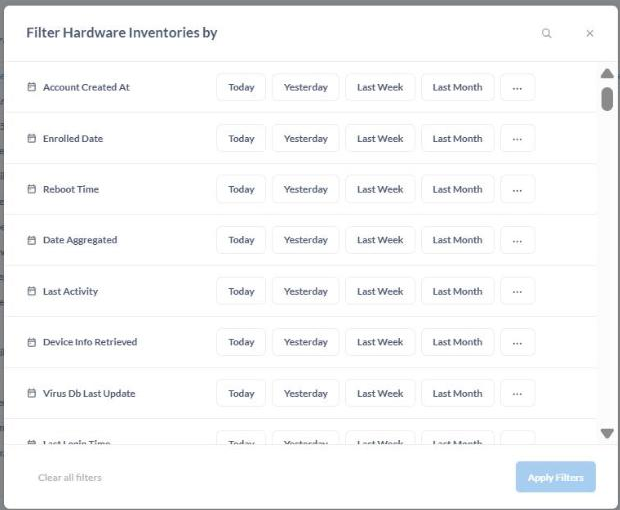
The 'Filter by' window lists every field. Date fields have quick buttons.
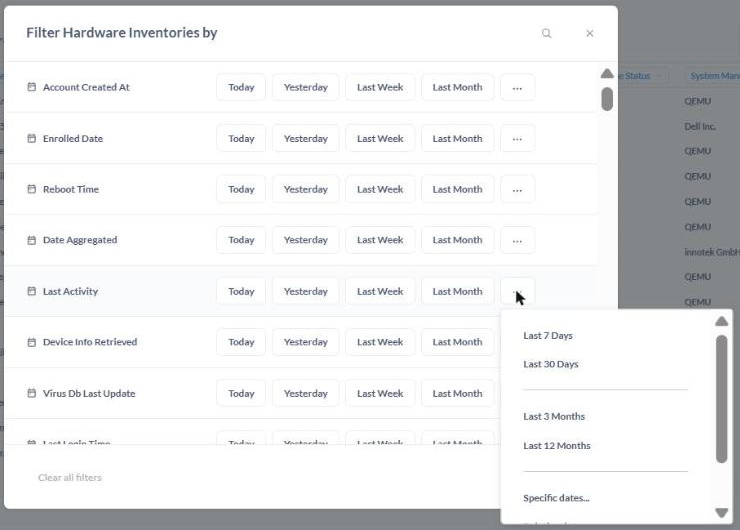
The '...' menu next to a date field offers 'Last 7 Days', 'Last 30 Days', 'Last 3 Months' and more.
Use the search icon at the top of the window to find a field by name, and 'Clear all filters' to start over. A number badge next to the 'Filter' button shows how many filters are active.
Note: If your filter leaves no rows, the screen says 'No results!' with a 'Back to previous results' button. Remove the filter or widen it. For example, if a table has no activity in the last 30 days, try 'Last 12 Months'.
Filter by Text
- Click 'Filter' and find a text field, for example 'Device Name'.
- Click the small operator link next to the field name (it says 'is') and choose one: 'Is', 'Is not', 'Contains', 'Does not contain', 'Is empty', 'Not empty', 'Starts with' or 'Ends with'.
- Click the box and start typing. Matching values are suggested as you type.
- Click the value you want in the suggestion list.
- Click 'Apply Filters'. The chip shows the field, the operator and the value, for example 'Device Name contains' followed by the value you picked.
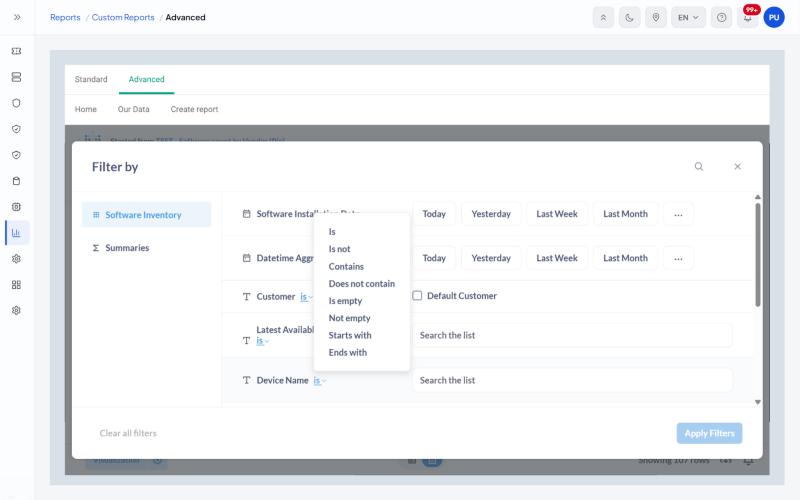
The operator list for a text field.
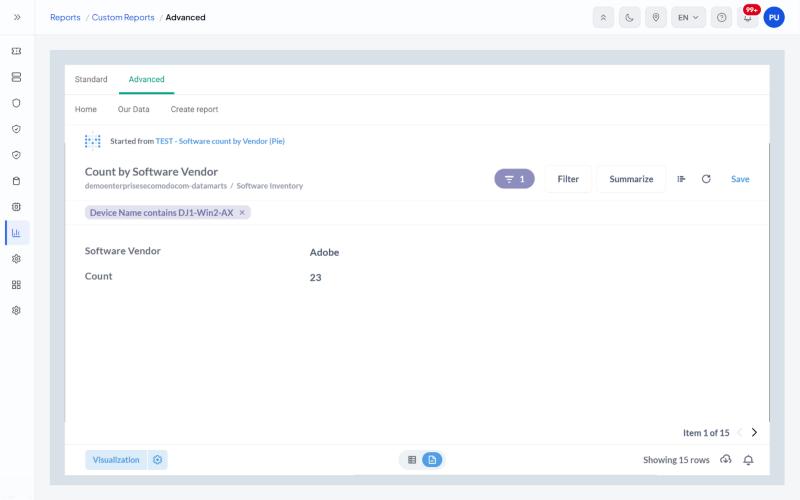
The applied text filter shows as a chip under the report title.
Note: If you type part of a name and press Enter, the first suggestion is chosen, not the text you typed. To filter on part of a name, click the exact value you want in the suggestion list.
Some short lists, such as 'Customer', show a tick box (for example 'Default Customer') instead of a text box. Tick the value you want.
Filter on Totals
The filter window has a list on the left. The table name holds filters on the original rows. 'Summaries' holds filters on totals you have calculated, for example only vendors with a count above 100.