


Clusters
- Click 'Security' > 'Cloud Security' > 'Clusters' to open this interface.
Clusters lists every Kubernetes cluster that has been onboarded, whether the console can still reach it, what it contains and how it scores against the container benchmarks. It is the starting point for container security.
You can onboard a cluster, move between the cluster, namespace and workload views, filter and search the list, change the period it covers, and drill into a cluster's nodes, workloads, namespaces and policies.
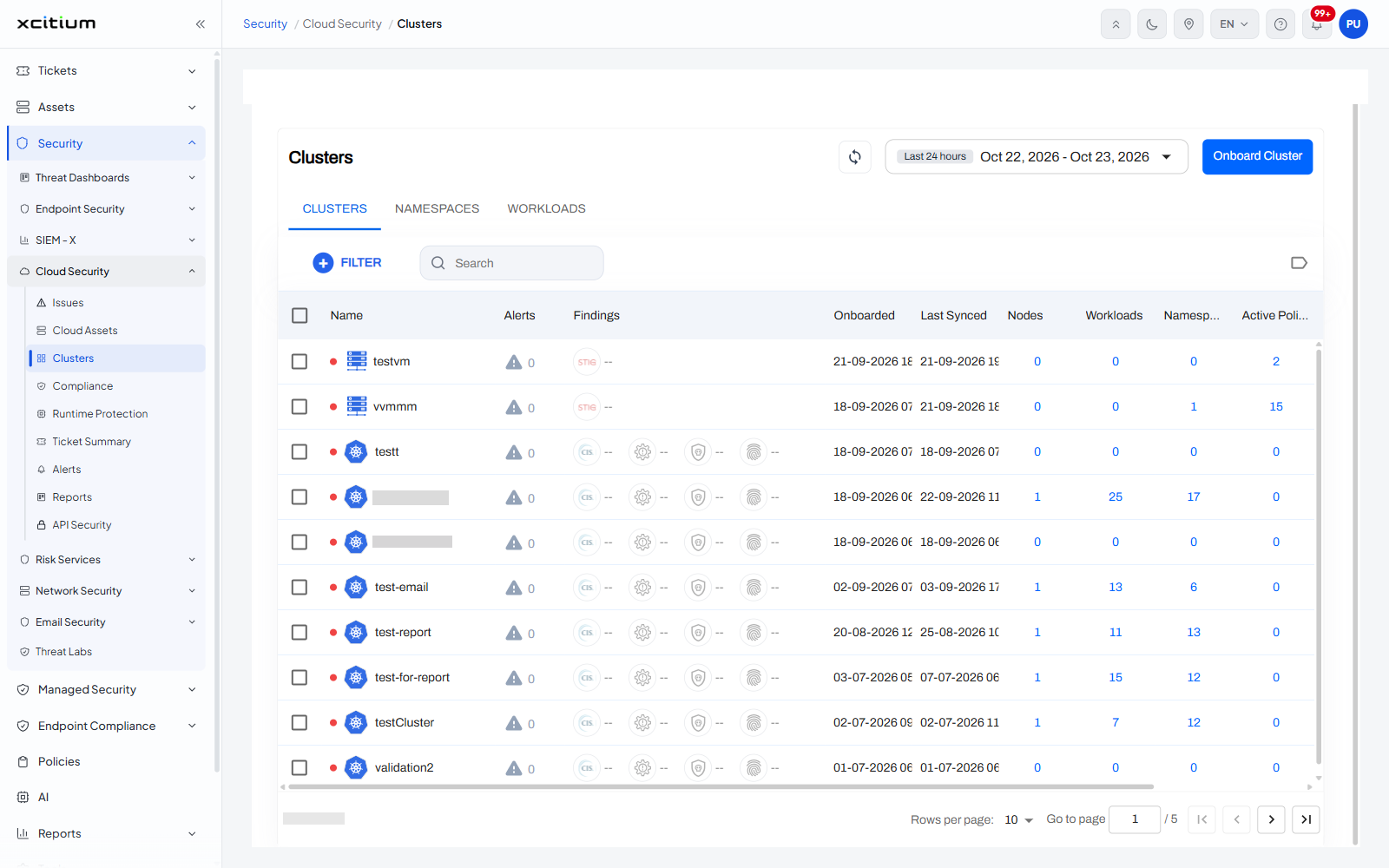
Controls above the list
| Control | Description |
| Refresh | A circular-arrow icon at the top right that reloads the list. |
| Date range | A chip naming the period, 'Last 24 hours' by default, with the dates it resolves to. |
| Onboard Cluster | A blue button that starts cluster onboarding. |
| CLUSTERS / NAMESPACES / WORKLOADS | Three tabs that change what the table lists. 'CLUSTERS' is the one it opens on. |
| + FILTER | A blue button that adds a filter condition. |
| Search | A box with the placeholder 'Search'. |
| Tags | A tag icon at the right of the search row. |
Column descriptions
| Column | Description |
| (check box) | Selects the cluster. A select-all check box sits in the header row. |
| Name | A coloured status dot, the platform icon and the cluster name. The dot shows whether the console can reach the cluster. |
| Alerts | A warning icon with the number of alerts raised on the cluster. |
| Findings | One badge per benchmark the cluster is scored against - 'STIG' and 'CIS' among them - each with its result or '--' where it has not been assessed. |
| Onboarded | When the cluster was onboarded, as date and time. |
| Last Synced | When the console last heard from it. |
| Nodes | How many nodes it has, shown as a link. |
| Workloads | How many workloads it runs, shown as a link. |
| Namespaces | How many namespaces it holds, shown as a link. |
| Active Policies | How many runtime policies apply to it, shown as a link. |
| Tags | The tags on the cluster. Shows 'None' where there are none. |
Onboard a cluster
- Click 'Onboard Cluster' at the top right.
- Follow the onboarding screen, which generates the installation command for the cluster.
Note: the console counts a cluster it cannot currently reach as 'Disconnected'. A cluster that is disconnected shows zero for the live namespace and workload counts, even if it lists namespaces.
Note: 'Onboard Cluster' starts connecting a new cluster, so use it only when you intend to add one.