


Add a Disk Condition
- Click 'Assets' > 'Monitoring & Management' > 'Monitors', open a monitor, click 'Edit', open the 'Conditions' tab, then click 'Add Condition' > 'Disk'.
The condition watches the free space on the drives of the device.
You can watch the system drive alone, every drive, or the rate at which the system drive is filling up.
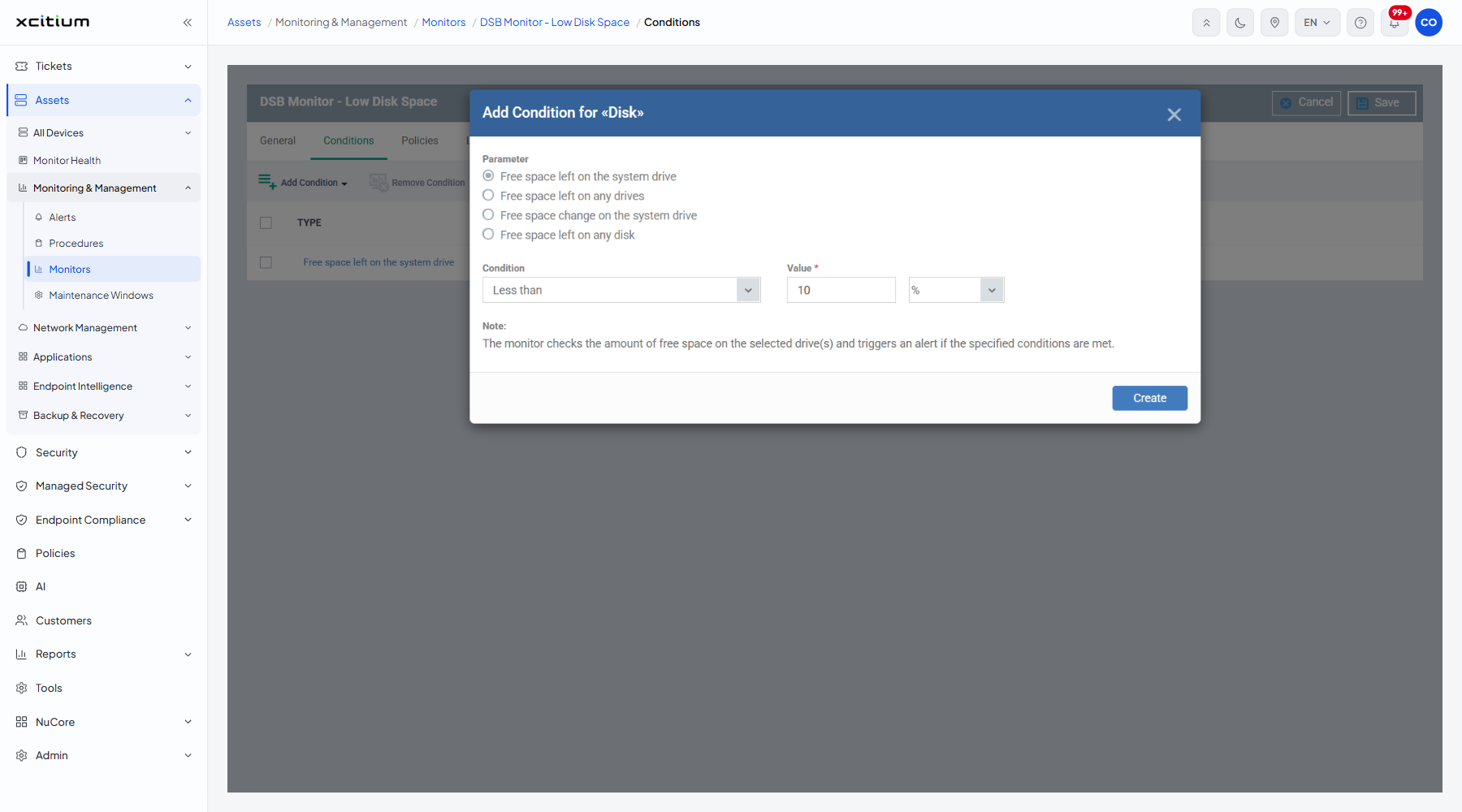
The fields
| Field | Type | Options / default | Required |
| Parameter | Radio group | 'Free space left on the system drive' (default), 'Free space left on any drives', 'Free space change on the system drive', 'Free space left on any disk'. | Yes |
| Condition | Dropdown | 'More than', 'Equals to', 'Less than' (default), 'More than or equals to', 'Less than or equals to'. | Yes |
| Value | Number box and unit | Pre-filled '10', with a unit dropdown offering '%' (selected), 'MB' and 'GB'. | Yes |
The dialog's own note: 'The monitor checks the amount of free space on the selected drive(s) and triggers an alert if the specified conditions are met.'
Add the condition
- Choose what to watch under 'Parameter'.
- Pick the comparison in 'Condition'.
- Type the threshold into 'Value' and choose its unit.
- Click 'Create'.
- Click 'Save' on the monitor header to store the change.
Note: a percentage suits a fleet of mixed drive sizes; an absolute figure in GB suits a server whose free space you want kept above a fixed floor.