


A Monitor's Conditions Tab
- Click 'Assets' > 'Monitoring & Management' > 'Monitors', click a monitor name, then open the 'Conditions' tab.
A condition is the thing the monitor actually watches. The tab lists the conditions this monitor holds and lets you add and remove them.
You can choose from fifteen condition types, and combine several in one monitor.
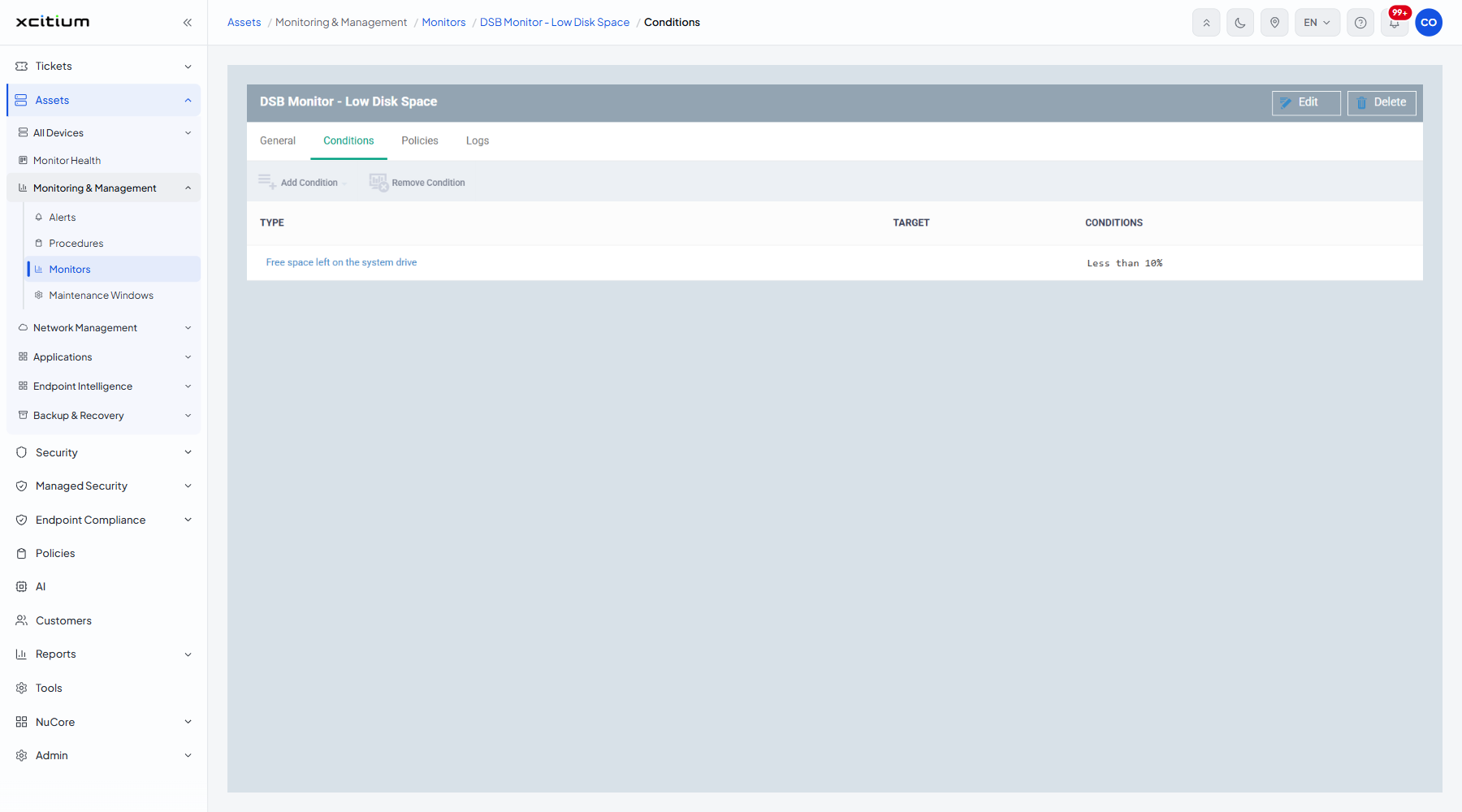
The columns
| Column | Description |
| Type | What the condition watches, for example 'Free space left on the system drive'. |
| Target | The file, folder, service, process, host or port the condition applies to, where the type needs one. |
| Conditions | The test itself, for example 'Less than 10%'. |
When the monitor holds no conditions the tab reads 'No results found.'
Edit mode
The toolbar carries 'Add Condition' and 'Remove Condition', and both stay disabled until you click 'Edit' on the monitor header. Hovering a disabled button shows the tooltip 'Enable Edit mode'. In edit mode the header buttons become 'Cancel' and 'Save'.
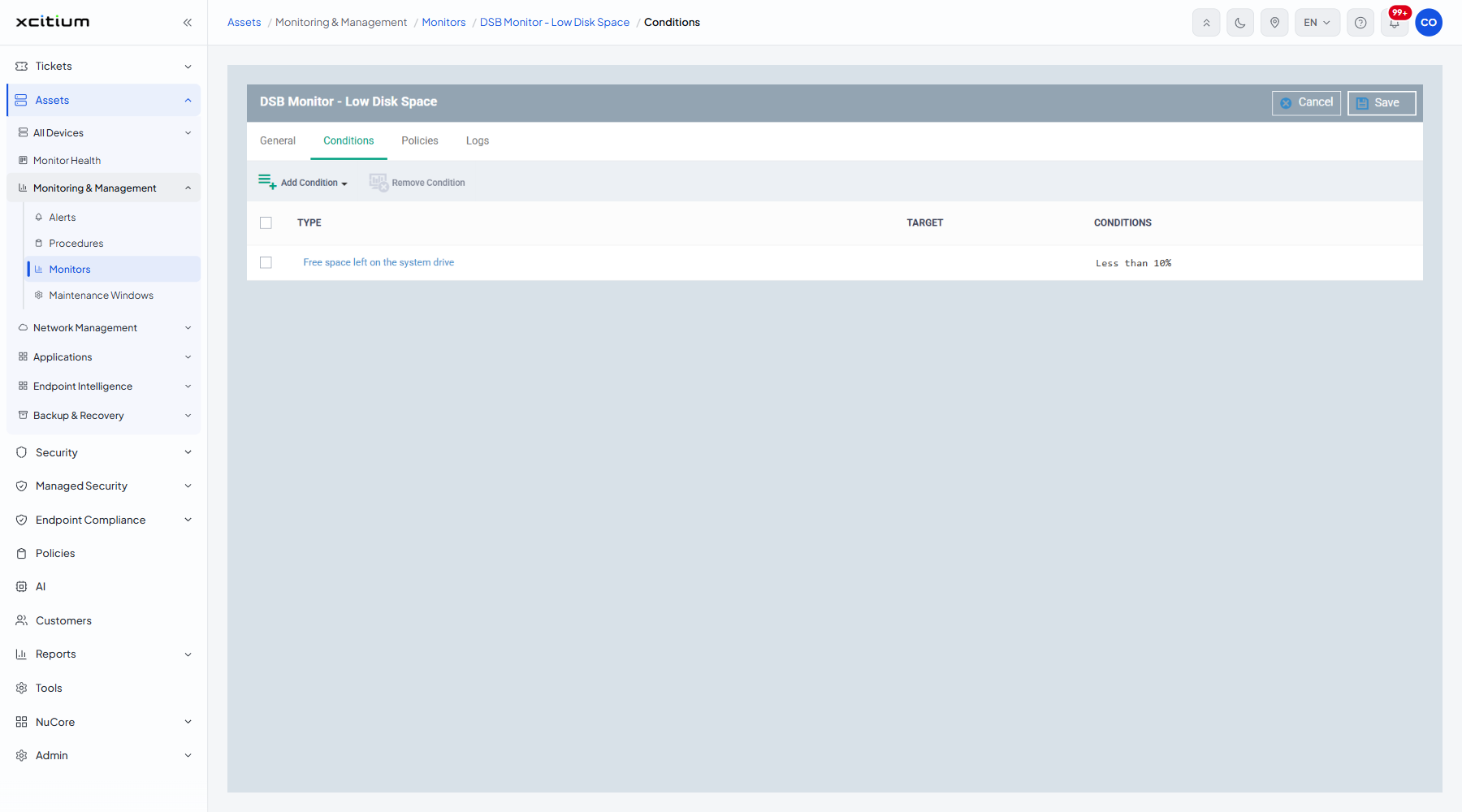
| Button | Description |
| Add Condition | Opens the menu of condition types. |
| Remove Condition | Deletes the ticked condition from the monitor. |
The condition types
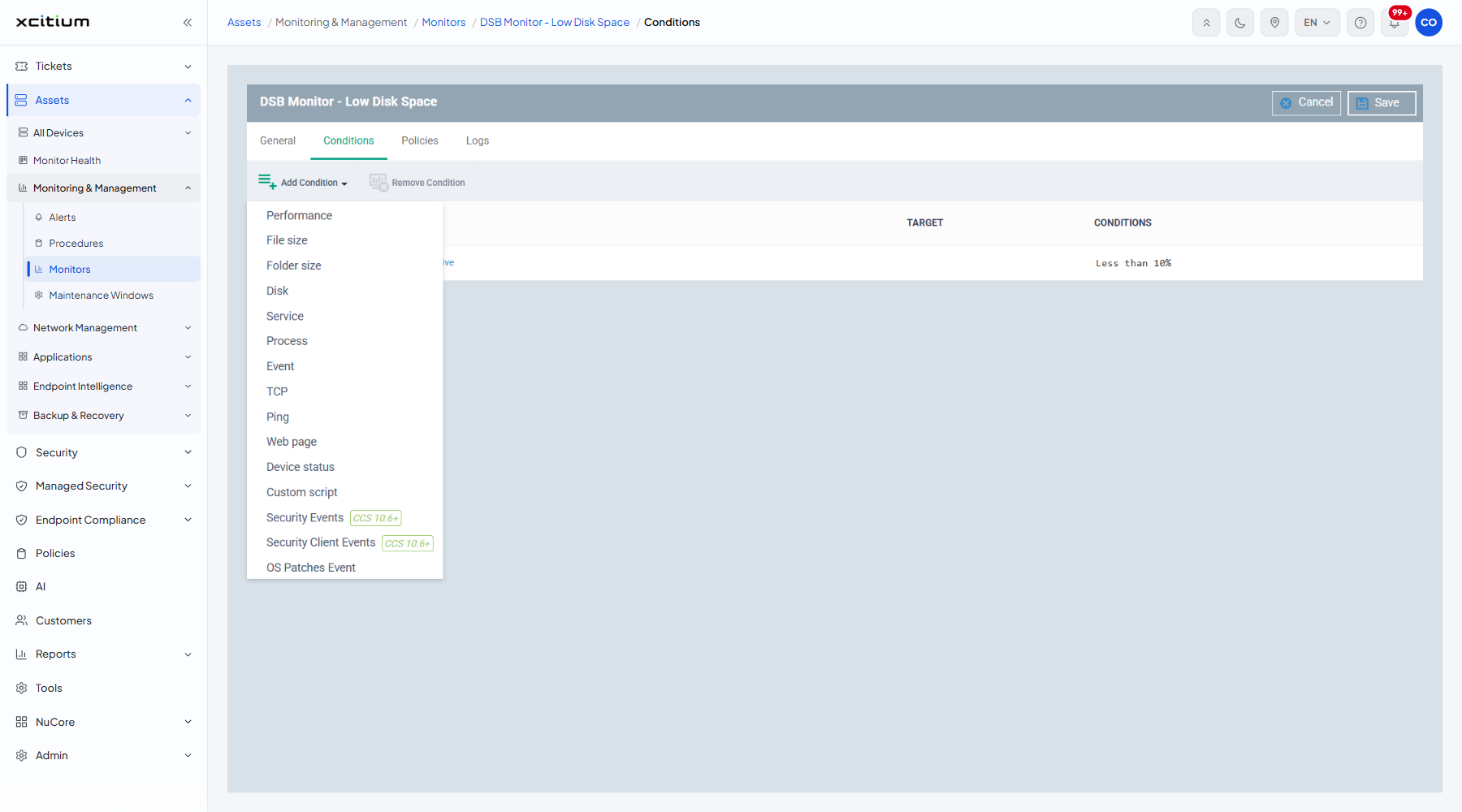
Every entry opens a dialog titled 'Add Condition for «<type>»' with a 'Create' button.
| Option | Description |
| Performance | CPU, memory, network or disk utilisation. See Add a Performance Condition. |
| File size | The size of a named file. See Add a File Size Condition. |
| Folder size | The size of a named folder. See Add a Folder Size Condition. |
| Disk | Free space on the drives. See Add a Disk Condition. |
| Service | Whether a Windows service is running. See Add a Service Condition. |
| Process | Whether a process is running. See Add a Process Condition. |
| Event | A Windows event with a given source, ID and level. See Add an Event Condition. |
| TCP | Whether a port is open or closed. See Add a TCP Condition. |
| Ping | Whether a host answers. See Add a Ping Condition. |
| Web page | Whether a page contains given content. See Add a Web Page Condition. |
| Device status | Whether the device itself is online or offline. See Add a Device Status Condition. |
| Custom script | A script of your own that decides. See Add a Custom Script Condition. |
| Security Events (badged 'CCS 10.6+') | Malware and firewall events from the security client. See Add a Security Events Condition. |
| Security Client Events (badged 'CCS 10.6+') | The health of the security client itself. See Add a Security Client Events Condition. |
| OS Patches Event | Operating-system patches of chosen classifications. See Add an OS Patches Event Condition. |
Add a condition
- Open the monitor.
- Click 'Edit' on the header to enter edit mode.
- Open the 'Conditions' tab.
- Click 'Add Condition' and choose a type.
- Fill in the dialog and click ‘Create’.
- Click 'Save' on the monitor header to store the change.
Remove a condition
- Open the monitor and click 'Edit'.
- Open the 'Conditions' tab and tick the condition.
- Click 'Remove Condition'.
- Click 'Save'.
Note: the 'Trigger an alert if' setting on the General tab decides whether all the conditions must be met or just one.