


Add a Folder Size Condition
- Click 'Assets' > 'Monitoring & Management' > 'Monitors', open a monitor, click 'Edit', open the 'Conditions' tab, then click 'Add Condition' > 'Folder size'.
The condition watches how much disk space a named folder takes up, counting everything inside it.
You can point it at a spool, a temp folder or a user profile and be told when it grows past a size.
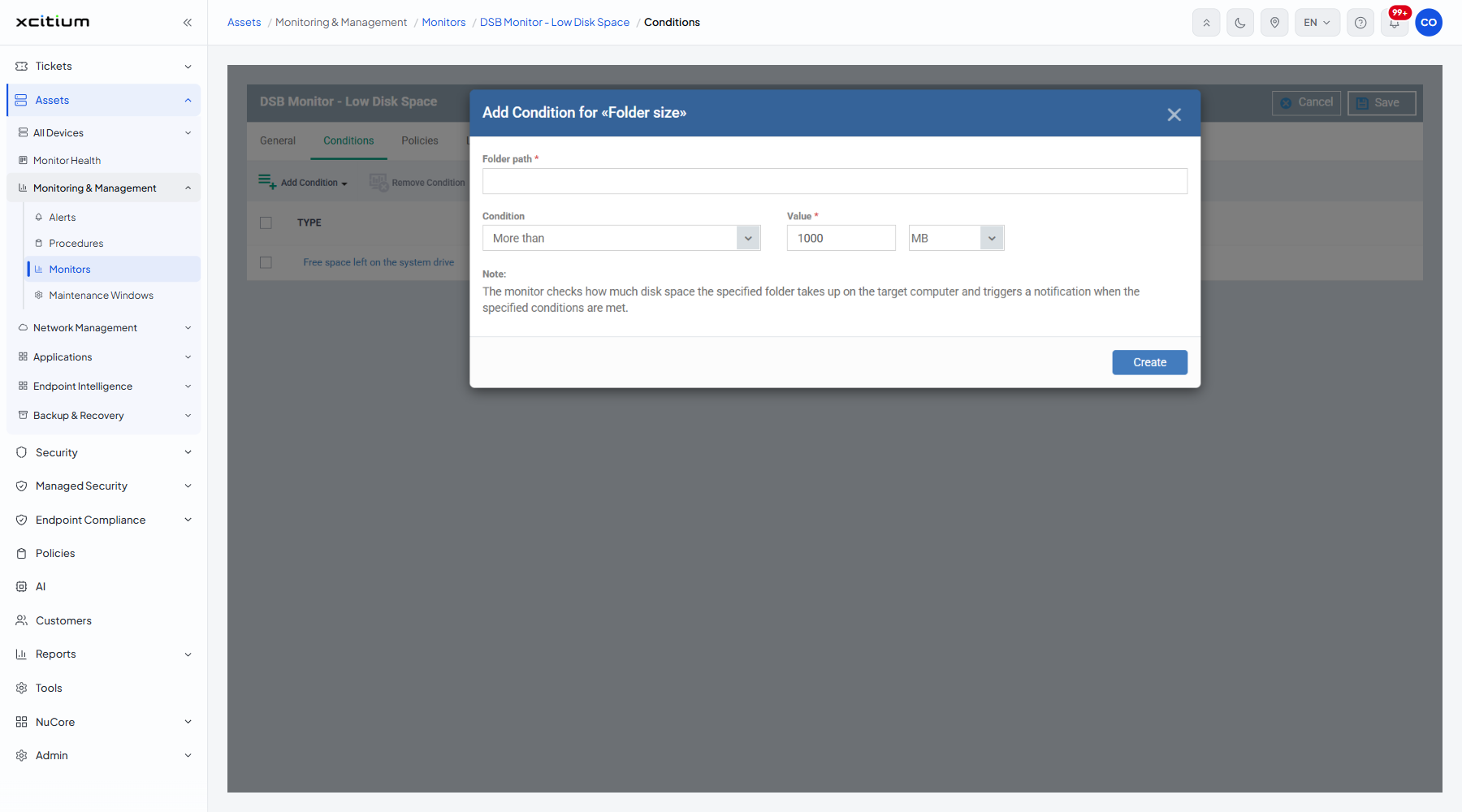
The fields
| Field | Type | Options / default | Required |
| Folder path | Text box | Empty by default. The full path to the folder on the endpoint. | Yes |
| Condition | Dropdown | 'More than' (default), 'Equals to', 'Less than'. | Yes |
| Value | Number box and unit | Pre-filled '1000', with a unit dropdown offering 'KB', 'MB' (selected) and 'GB'. | Yes |
The dialog's own note:'The monitor checks how much disk space the specified folder takes up on the target computer and triggers a notification when the specified conditions are met.'
Add the condition
- Type the full path into 'Folder path'.
- Pick the comparison in 'Condition'.
- Type the size into 'Value' and choose its unit.
- Click 'Create'.
- Click 'Save' on the monitor header to store the change.
Note: measuring a very large folder costs time on the endpoint. Point the condition at the specific folder that grows rather than at a whole drive.