Security Status
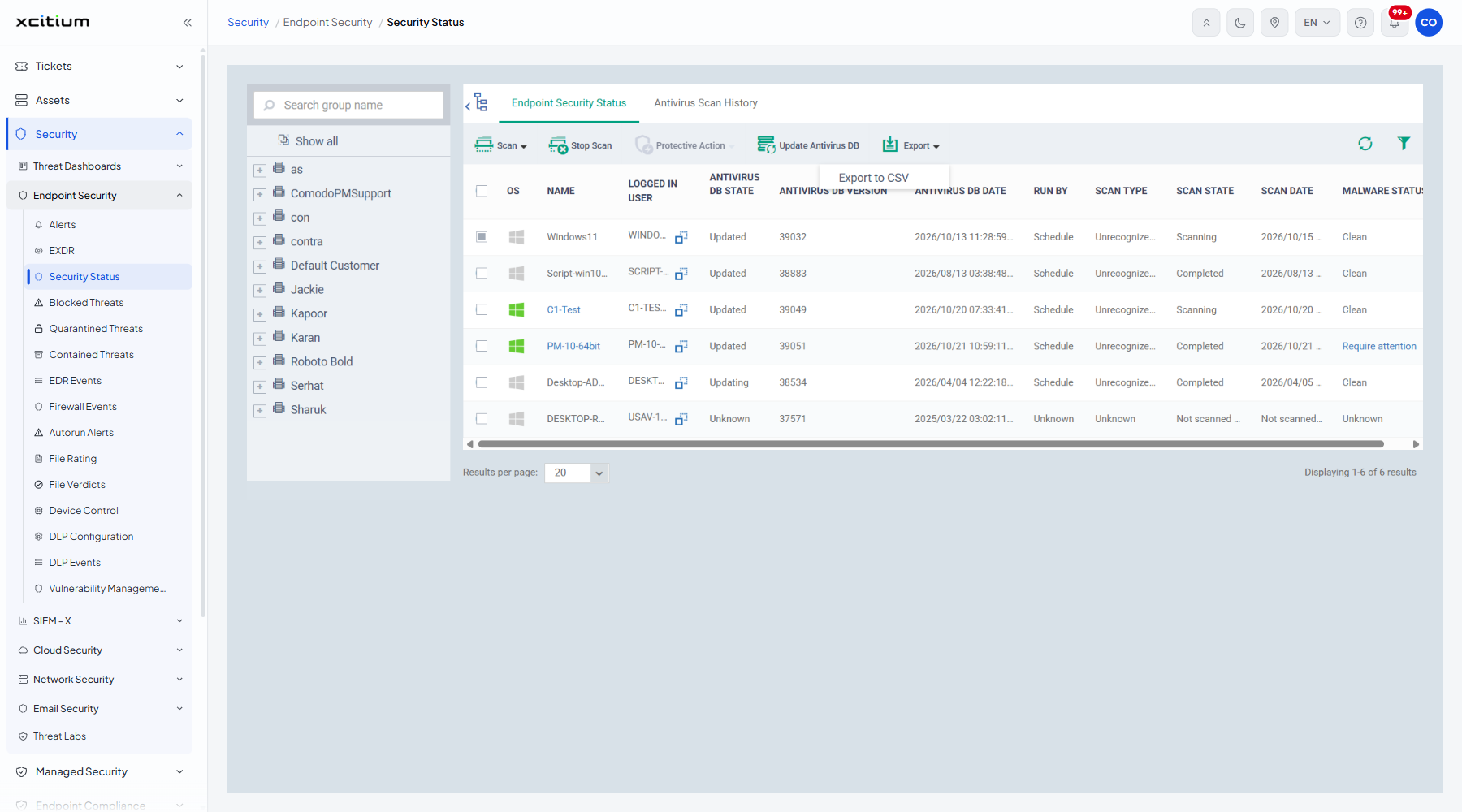
- Click 'Security' > 'Endpoint Security' > 'Security Status' to open this interface.
Security Status lists every enrolled device with the state of its antivirus database and its most recent scan. It is the screen you use to find devices that are out of date, have not been scanned, or need attention.
You can start or stop a scan, take a protective action on an infected device, push an antivirus database update, filter the list and export it.
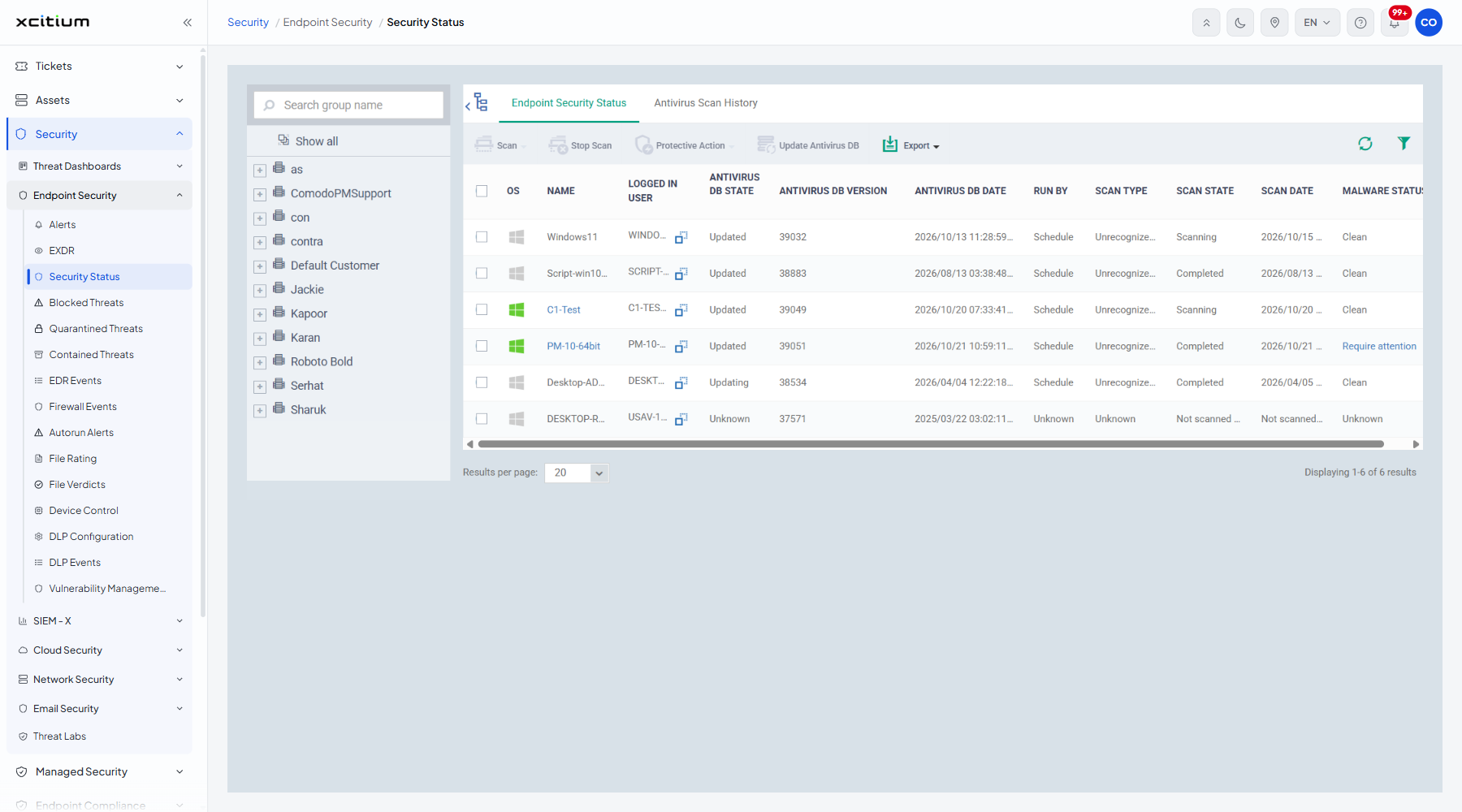
The tabs
| Tab |
Description |
| Endpoint Security Status |
The current state of each device. The default tab. |
| Antivirus Scan History |
One row per scan that has run. |
The columns
| Column |
Description |
| OS |
The operating system of the device, shown as an icon. |
| NAME |
The device name. |
| LOGGED IN USER |
The account signed in on the device. |
| ANTIVIRUS DB STATE |
Whether the virus database is current. Values seen include 'Updated', 'Updating' and 'Unknown'. |
| ANTIVIRUS DB VERSION |
The database version number on the device. |
| ANTIVIRUS DB DATE |
When that database version was issued. |
| RUN BY |
What started the last scan, for example 'Schedule'. |
| SCAN TYPE |
The kind of scan that ran, for example 'Unrecognized Files Scan' or 'Custom Scan'. |
| SCAN STATE |
How the last scan ended. Values seen include 'Completed', 'Scanning' and 'Not scanned yet'. |
| SCAN DATE |
When the last scan ran. |
| MALWARE STATUS |
Whether the device is clean. Values seen include 'Clean', 'Require attention' and 'Unknown'. |
The toolbar
| Button |
Description |
| Scan |
A menu of scans to run on the ticked devices. |
| Stop Scan |
Stops a scan that is running on the ticked devices. |
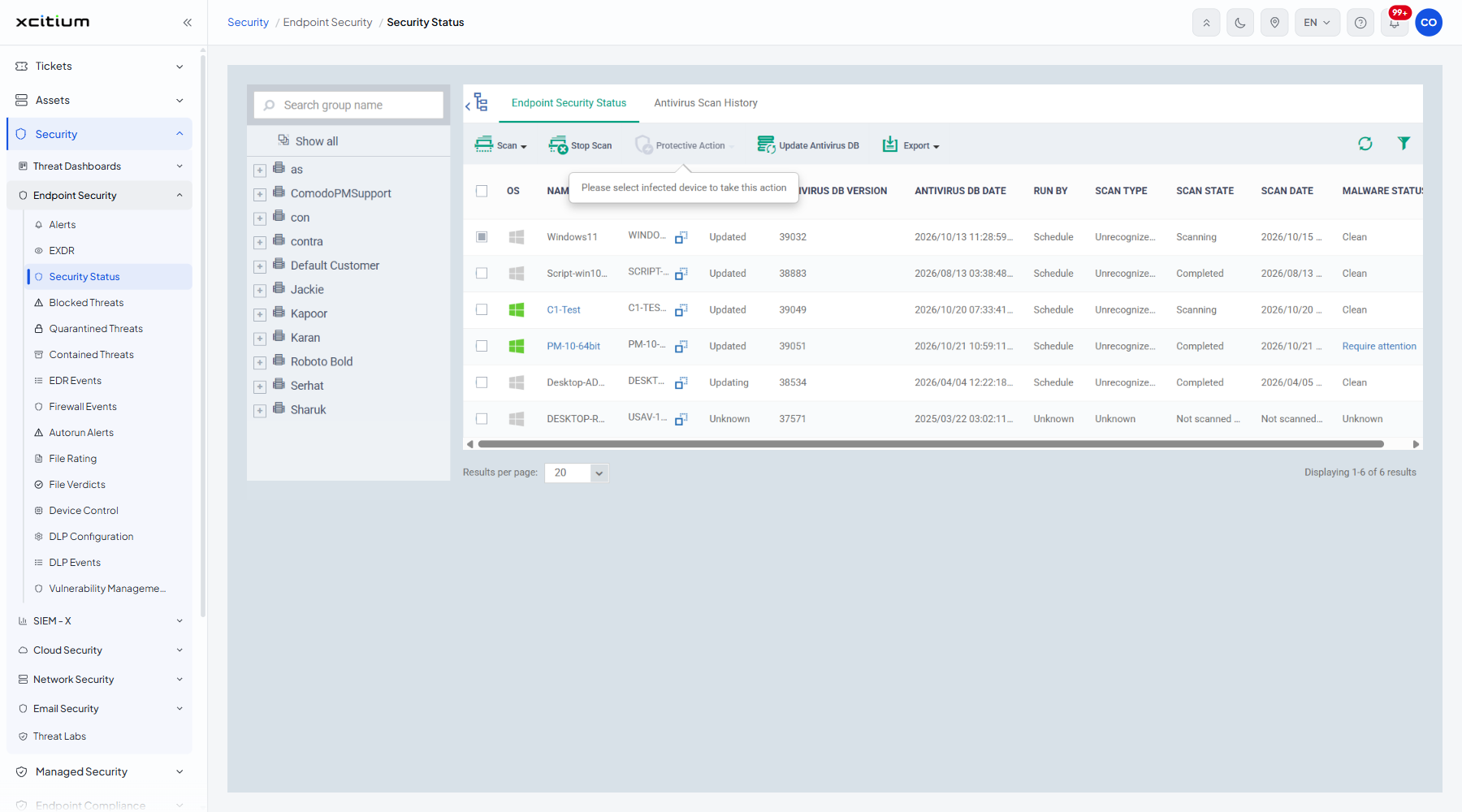
| Protective Action |
Acts on an infected device. It stays greyed out until you tick one; the tooltip reads "Please select infected device to take this action". |
| Update Antivirus DB |
Pushes a virus database update to the ticked devices. |
| Export |
A menu holding 'Export to CSV'. |
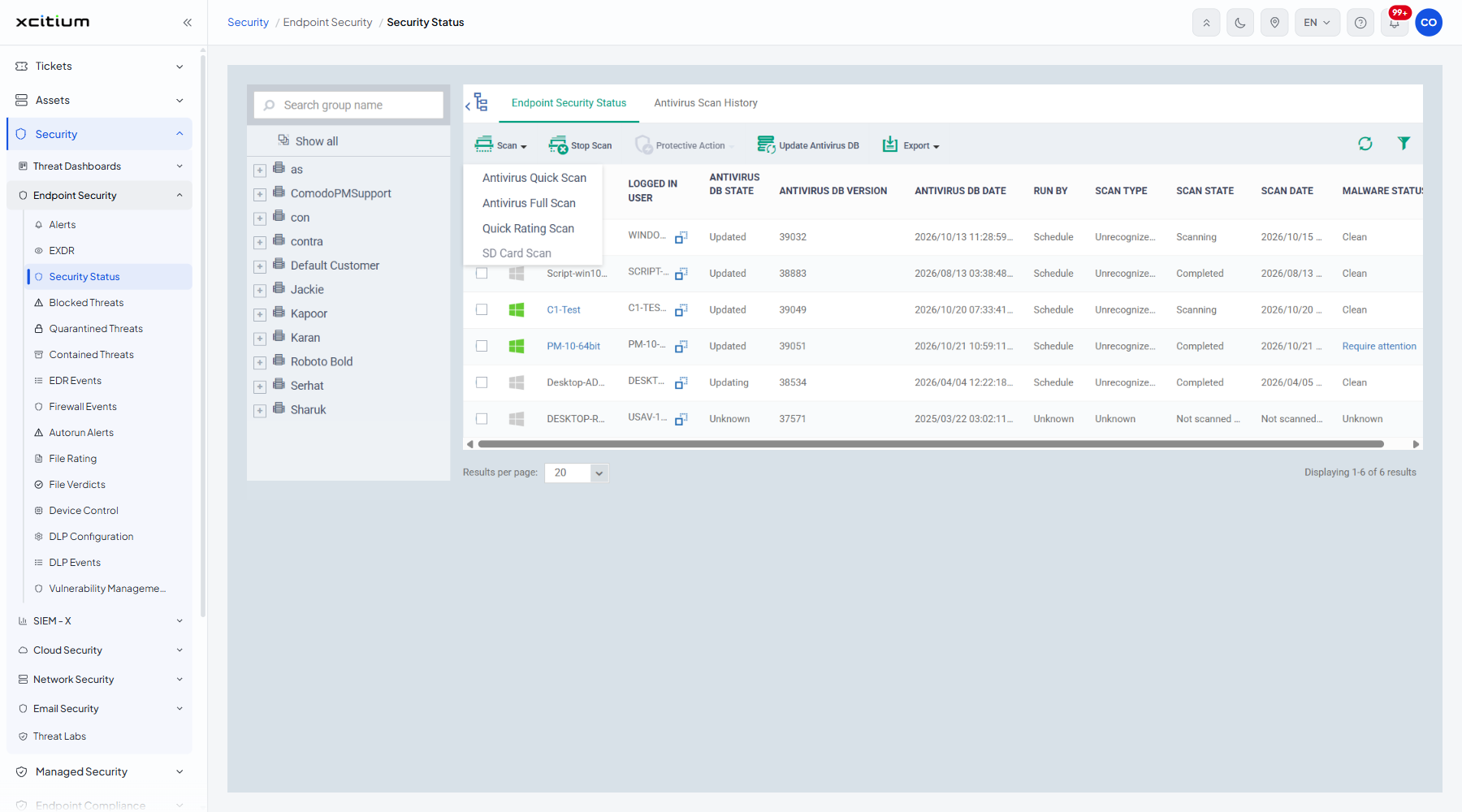
Run a scan
- Tick the devices you want to scan.
- Click 'Scan'.
- Pick the scan: 'Antivirus Quick Scan', 'Antivirus Full Scan', 'Quick Rating Scan' or 'SD Card Scan'.
Export the list
- Click 'Export'.
- Click 'Export to CSV'.
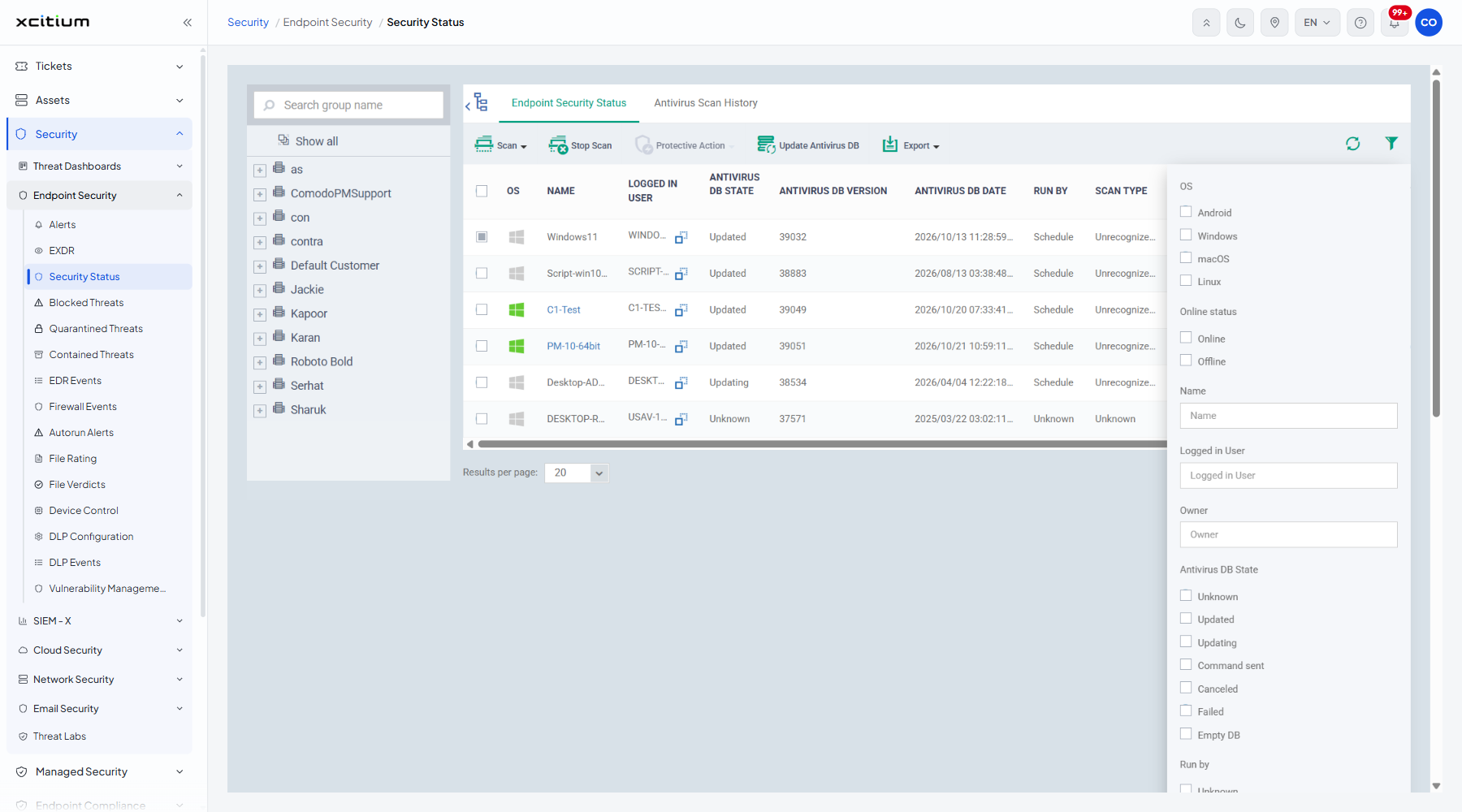
Filter the list
- Click the funnel icon at the top right of the table.
- Set the criteria you want.
| Filter |
Description |
| OS |
Tick boxes for 'Android', 'Windows', 'macOS' and 'Linux'. |
| Online status |
Tick boxes for 'Online' and 'Offline'. |
| Name |
Free text. The device name. |
| Logged in User |
Free text. |
| Owner |
Free text. |
| Antivirus DB State |
'Unknown', 'Updated', 'Updating', 'Command sent', 'Canceled', 'Failed' and 'Empty DB'. |
| Run by |
'Unknown', 'Schedule', 'User' and 'Portal'. |
| Scan type |
'Unknown', 'Antivirus Quick Scan', 'Antivirus Full Scan', 'Custom Scan', 'Manual Scan', 'Quick Rating Scan' and 'SD Card Scan'. |
| Scan Type (name) |
Free text. |
| Scan State |
'Not scanned yet', 'Completed', 'Scanning', 'Failed', 'Canceled' and 'Command sent'. |
| Scan Date |
A date range. |
| Malware status |
'Unknown', 'Require attention' and 'Clean'. |
| DB version status |
'Up to date' and 'Out of date'. |