


A Monitor's General Tab
Click 'Assets' > 'Monitoring & Management' > 'Monitors', then click a monitor name.
The monitor opens on its 'General' tab, which carries its name and folder, whether all or any of its conditions must be met, which alert it raises, and whether it runs a procedure to fix the problem by itself.
You can read these settings here and change them with the Edit button.
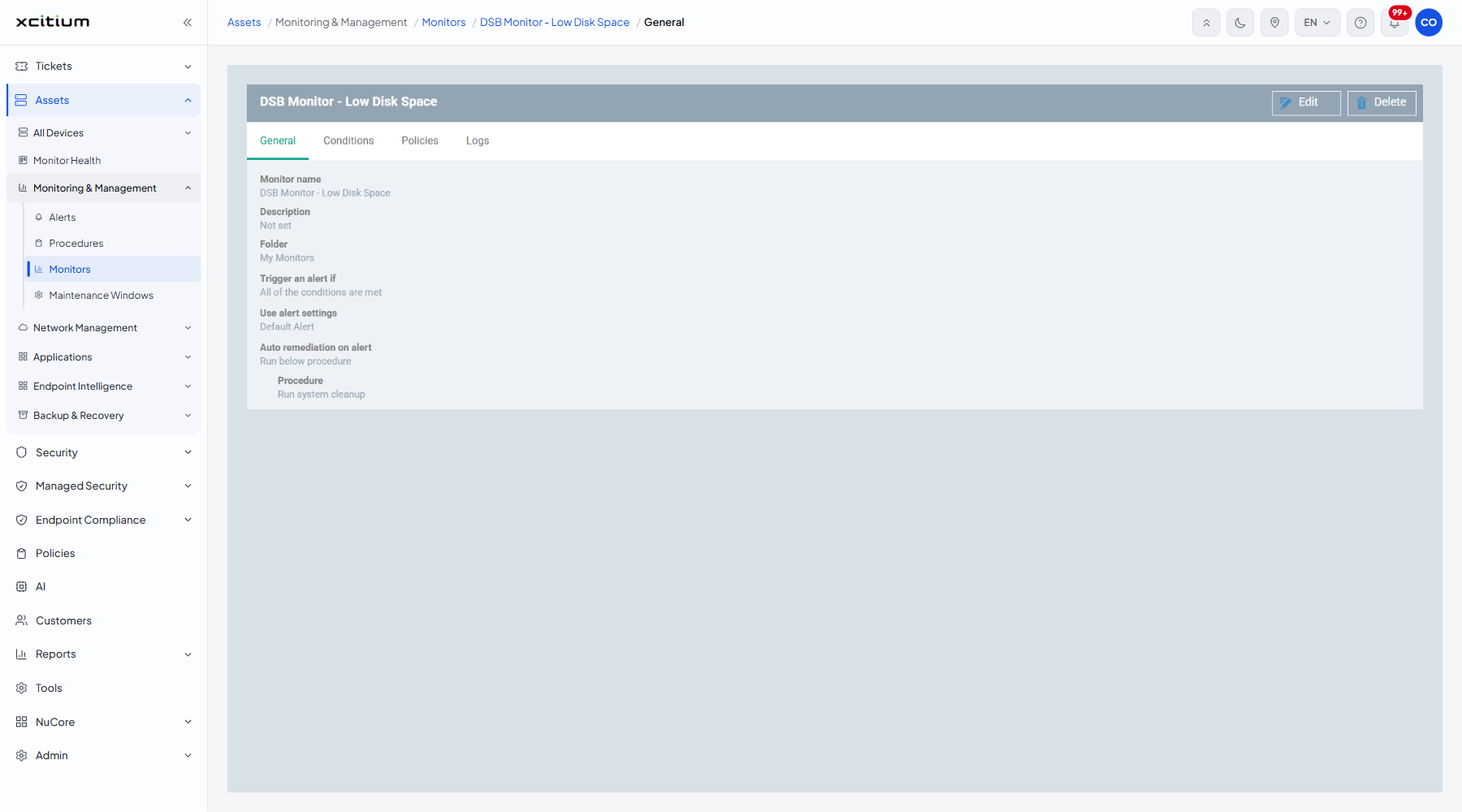
The header and tabs
The header shows the monitor name with two buttons, 'Edit' and 'Delete'. Four tabs sit below it:
- General — the settings on this page. This is the default.
- Conditions — what the monitor watches for. See A Monitor's Conditions Tab.
- Policies — the policies that apply the monitor. See A Monitor's Policies Tab.
- Logs — every time the monitor was triggered. See A Monitor's Logs Tab.
The settings
| Column | Description |
| Monitor name | The label of the monitor. |
| Description | What the monitor is for. Reads 'Not set' when empty. |
| Folder | The folder the monitor sits in. |
| Trigger an alert if | Whether every condition must be met or just one of them. |
| Use alert settings | The alert raised when the monitor triggers, for example 'Default Alert'. |
| Auto remediation on alert | Whether the monitor runs a procedure to fix the problem. Values: 'Take no action', 'Run below procedure'. |
| Procedure | The procedure that runs, shown only when auto remediation is set to 'Run below procedure'. |
The Edit form
Click 'Edit' to turn the settings into a form. The header buttons become 'Cancel' and 'Save'.
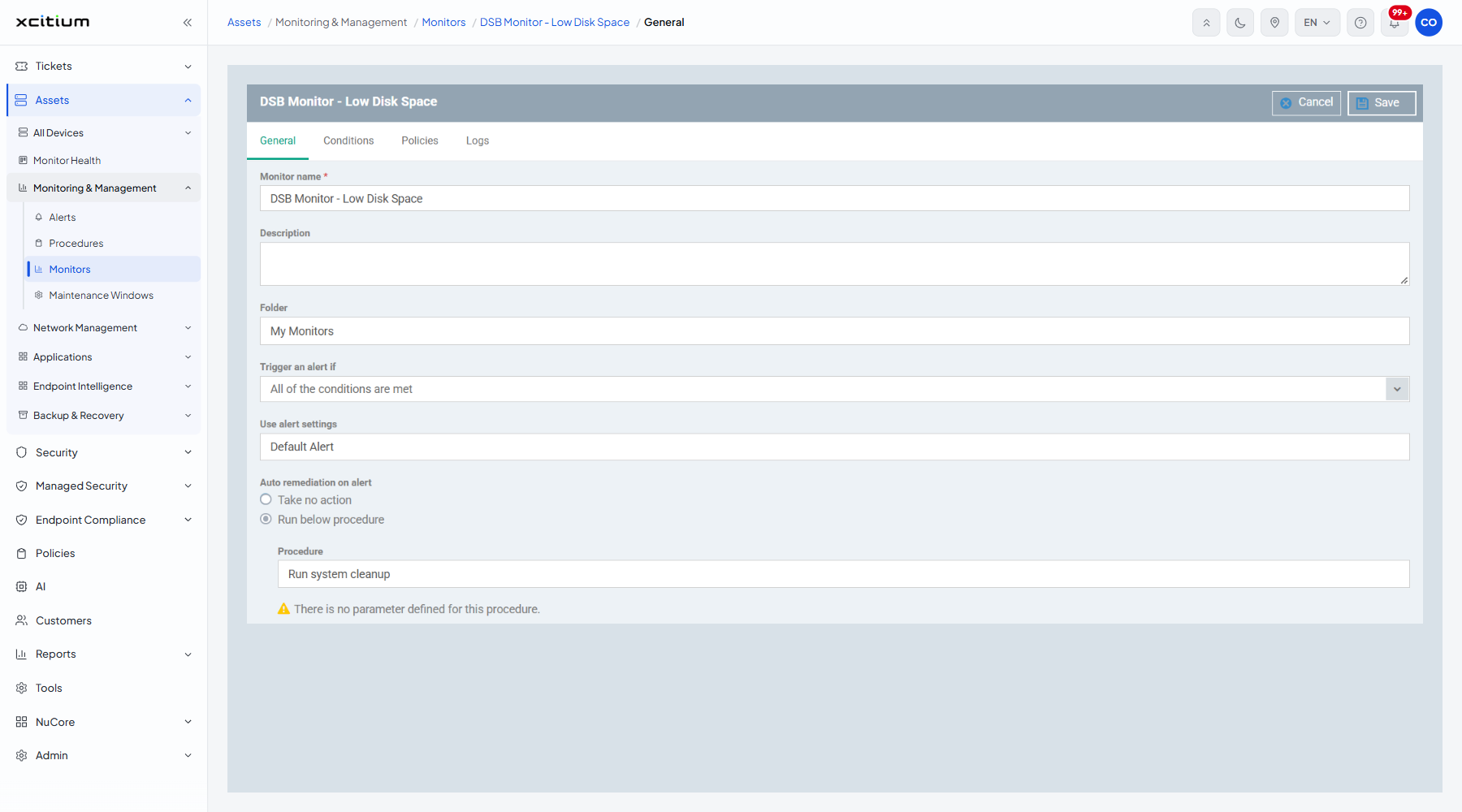
| Field | Type | Options / default | Required |
| Monitor name | Text box | The current name. | Yes |
| Description | Textarea | The current description. | No |
| Folder | Lookup | Placeholder 'Type approved folder name to search among folders'. | No |
| Trigger an alert if | Dropdown | 'All of the conditions are met' (default), 'Any of the conditions are met'. | No |
| Use alert settings | Lookup | Placeholder 'Type alert name to search among alerts...'. | No |
| Auto remediation on alert | Radio group | 'Take no action' or 'Run below procedure'. | No |
| Procedure | Lookup | Appears only when 'Run below procedure' is chosen. Placeholder 'Type procedure name to search among procedures...'. Beneath it the form lists the procedure's parameters, or the line 'There is no parameter defined for this procedure.' | No |
Make a monitor fix the problem itself
- Open the monitor and stay on the General tab.
- Click 'Edit'.
- Choose 'Run below procedure' under 'Auto remediation on alert'.
- Start typing in the 'Procedure' box and pick the procedure that fixes the condition.
- Fill in any parameter values the procedure asks for.
- Click 'Save'.
Note: auto remediation does not work with a 'Device status' condition. See Add a Device Status Condition.