


Patch management
- Open a Windows profile, then click the 'Patch management' tab.
'Patch management' decides whether the device takes operating-system patches and third-party application patches through the platform. The panel carries 'Edit' and 'Delete' buttons and has two sub-tabs. The tab itself is marked with a green 'BETA' badge in the tab strip.
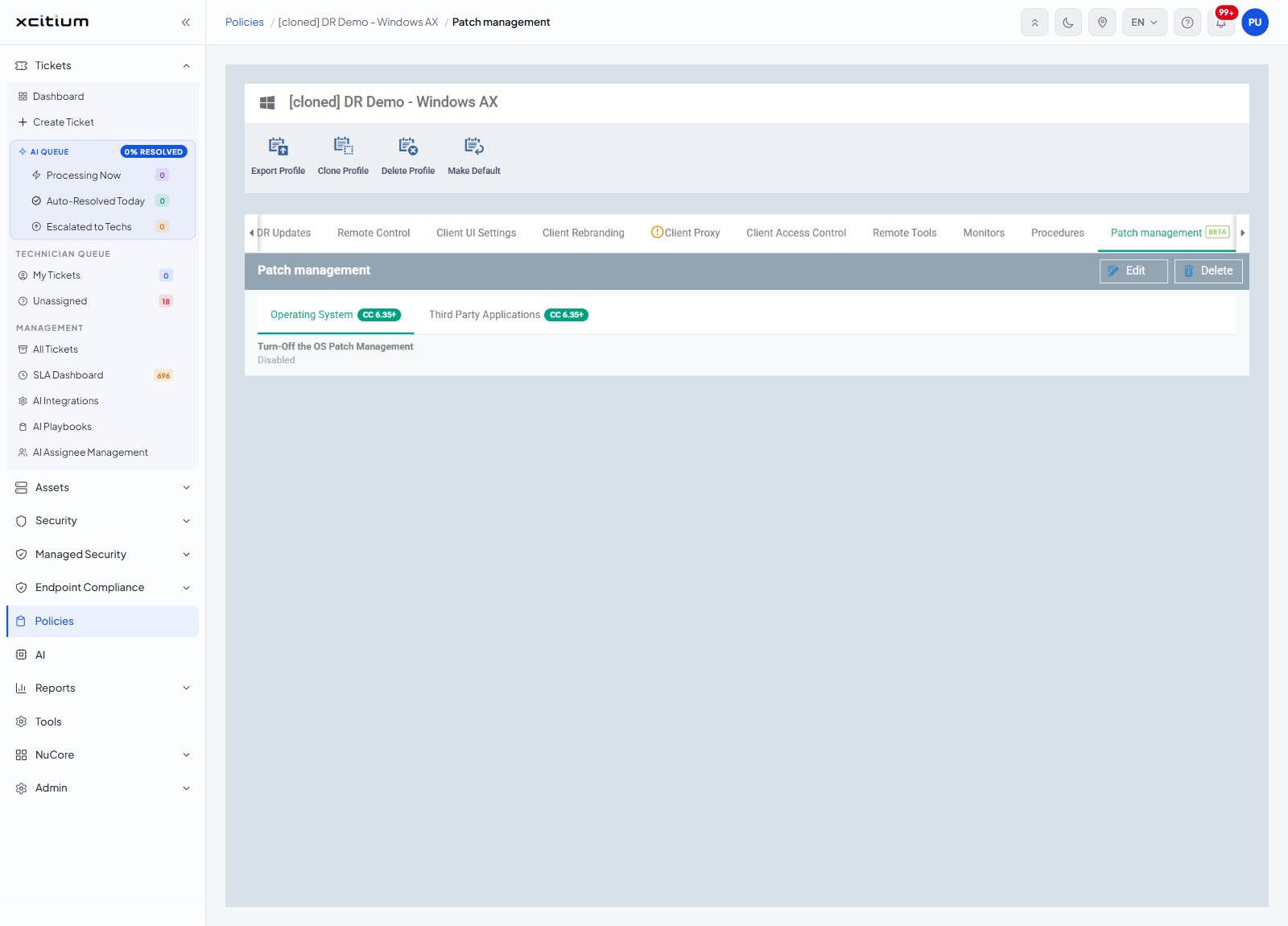
Sub-tabs
| Sub-tab | Badge | Setting it holds |
| Operating System | CC 6.35+ | 'Turn-Off the OS Patch Management' |
| Third Party Applications | CC 6.35+ | 'Turn-Off the Third Party Applications Patch Management' |
Operating System
'Turn-Off the OS Patch Management' stops the platform patching the operating system on devices that use this profile. When it reads 'Disabled', operating-system patching is left on.
Third Party Applications
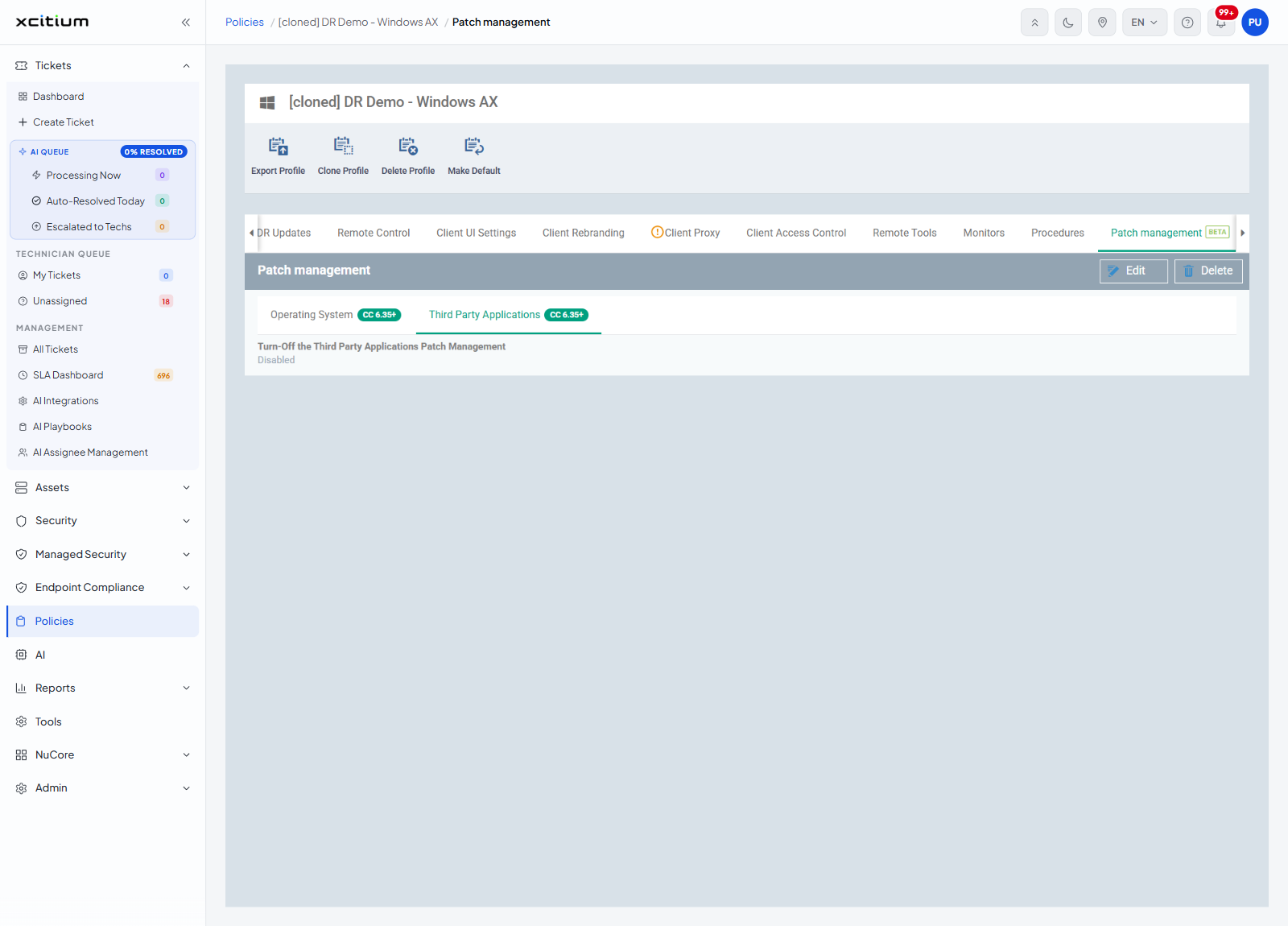
'Turn-Off the Third Party Applications Patch Management' stops the platform patching third-party applications on devices that use this profile. It can also read 'Disabled'.
Turn patching off for a group of devices
- Click 'Policies' in the left navigation bar and open the profile.
- Click the 'Patch management' tab.
- Click 'Edit'.
- On 'Operating System', turn 'Turn-Off the OS Patch Management' on to stop operating-system patching.
- Click 'Third Party Applications' and do the same for application patching if you need to.
- Click 'Save'.
Note: both settings are worded as switches that turn patching off. Leaving them disabled leaves patching on.
Note: when patches are installed is governed separately. See Maintenance Window.