


User Settings
- Click 'Security' > 'SIEM - X' > 'Token Management' > 'User Settings' to open this interface.
The 'User Notification Settings' tab decides which portal users are e-mailed when the SIEM has something to report. Every user on the account has a row; a user is notified only while the switch on their row is set.
You can sort the list, page through it, turn notification on or off for a user, extend a user's setting to every customer, and save the changes.
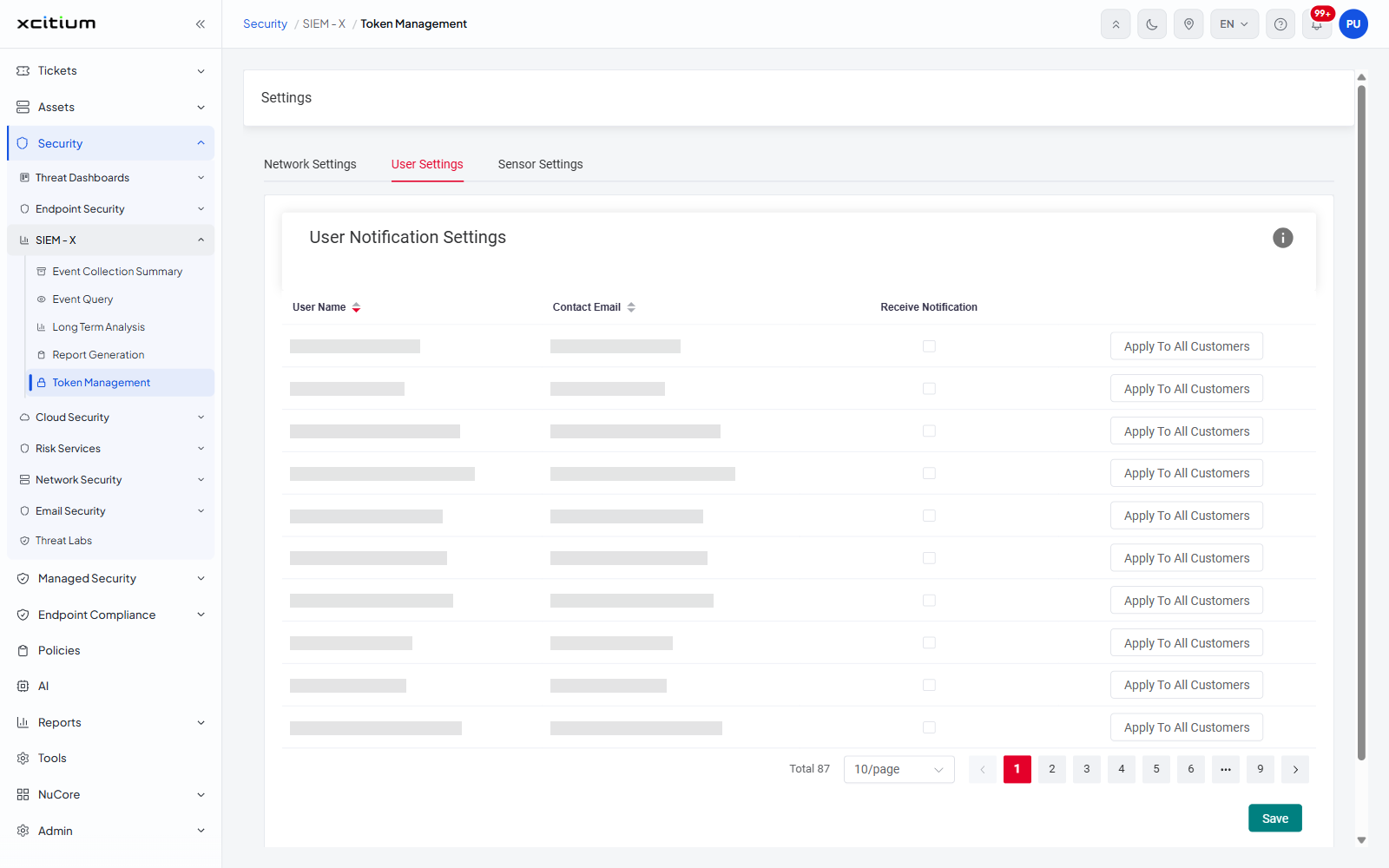
Column descriptions
| Column | Description |
| User Name | The portal user. Sortable - the heading carries the tooltip 'Sort by User Name'. |
| Contact Email | The address notifications are sent to. Sortable - the heading carries the tooltip 'Sort by Contact Email'. |
| Receive Notification | A check box. Ticked means that user is e-mailed; cleared means they are not. |
| (unnamed) | An 'Apply To All Customers' button on each row, which extends that user's notification setting to every customer on the account. |
Controls on this tab
| Control | Description |
| Information icon | A round icon in the top right corner of the 'User Notification Settings' panel. |
| Total <n> | The number of users in the list. |
| Rows per page | A drop-down showing '10/page'. |
| Page buttons | A previous arrow, numbered pages, an ellipsis with the tooltip 'Next 5 pages' when there are more pages than fit, and a next arrow. |
| Save | A green button at the bottom right of the panel. Writes the notification settings. |
Turn notification on for a user
- Find the user. Click 'User Name' or 'Contact Email' to sort the list, or use the page buttons to reach the page they are on.
- Tick 'Receive Notification' on their row.
- Click 'Apply To All Customers' on the row if the setting should cover every customer rather than the one in scope.
- Click 'Save'.
Note: 'Save' and 'Apply To All Customers' both change live settings.