


Audit Logs
- Click 'Reports' > 'Audit Logs' to open this interface.
'Audit Logs' is the record of what administrators have done. Every configuration change, remote session and device command is written here with who did it, what it affected, what the value was before and after, and which session it belonged to. Use it to answer 'who changed this, and when'.
You can read the trail, filter it by date, administrator, component, source and event, look up a single session, change how many rows are shown, and export the filtered list.
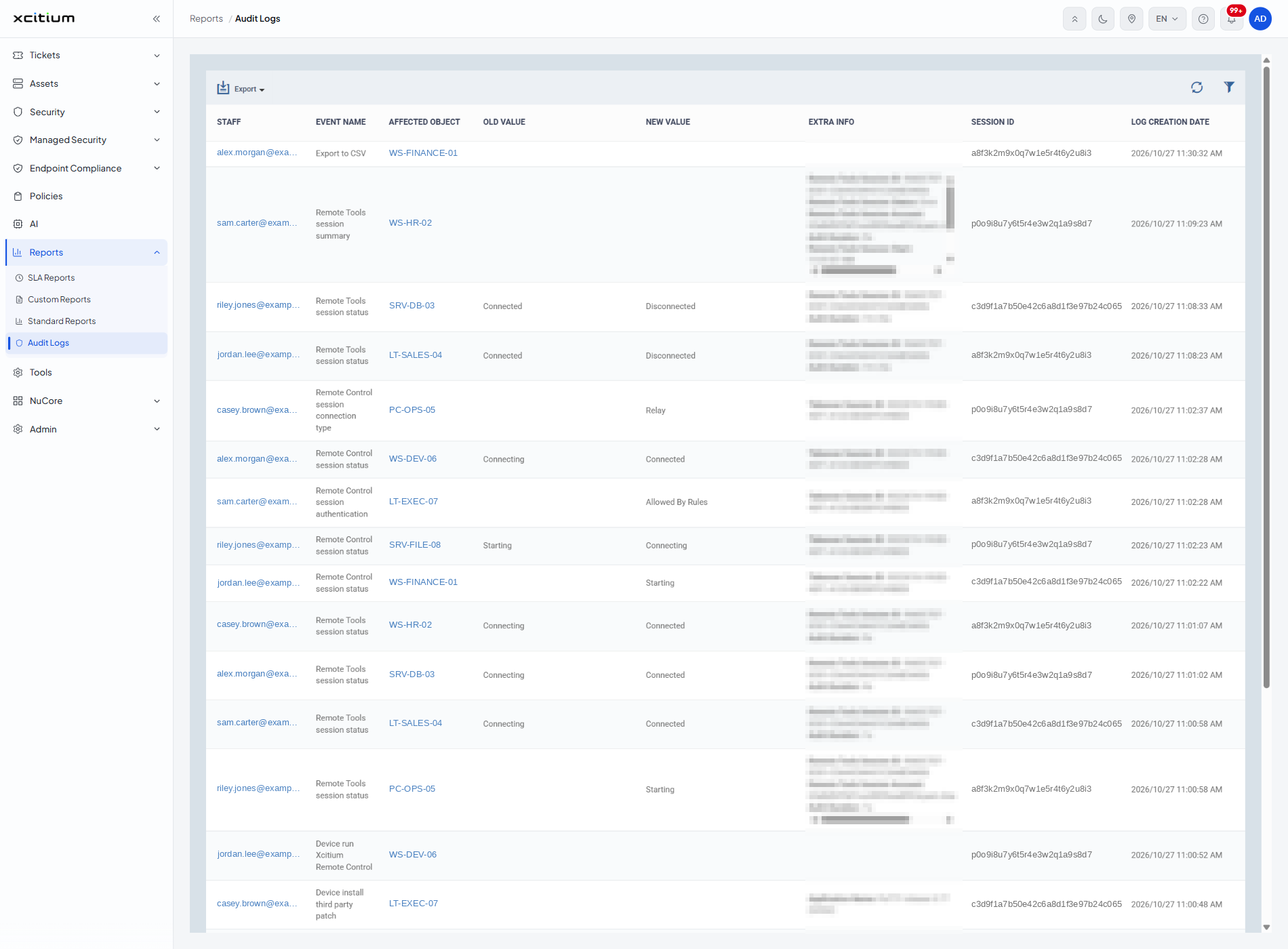
Column Descriptions
| Column | Description |
| STAFF | The administrator who performed the action, shown as their login. The value is a link to that user's account page. Long logins are truncated; widen the browser window or scroll the table to read them in full. |
| EVENT NAME | What was done, in the platform's own wording — for example 'Export to CSV', 'Remote Tools session status', 'Device install third party patch' or 'Device run Xcitium Remote Control'. |
| AFFECTED OBJECT | The device, file, policy or other object the action was performed on, as a link to that object. For a device this is the device name; for an export it is the report file. |
| OLD VALUE | The value before the change, where the event records one, for example 'Connected' or 'Starting'. Blank for events that create rather than change something. |
| NEW VALUE | The value after the change, for example 'Disconnected', 'Relay' or 'Allowed By Rules'. |
| EXTRA INFO | Any further detail the event carries, as labelled lines — for example 'Remote Tools Session ID', 'Remote Tools Session Status', 'Remote Tools Session Account', 'Auth Duration', 'Takeover Session ID' or 'Application Name'. A long block gets its own scrollbars inside the cell. |
| SESSION ID | The identifier of the administrator session the action belonged to. Rows sharing an ID happened in one sitting. |
| LOG CREATION DATE | When the entry was written, to the second, as yyyy/mm/dd and a 12-hour time. |
Toolbar
| Control | Description |
| Export | A menu at the top left with one item, 'Export to CSV', which saves the current list as a comma-separated file. |
| Table refresh | The circular-arrow icon at the top right. Re-reads the log so new entries appear. |
| Table filter | The funnel icon beneath it. Opens and closes the filter panel. See Filter the Audit Log. |
Sorting and Scrolling
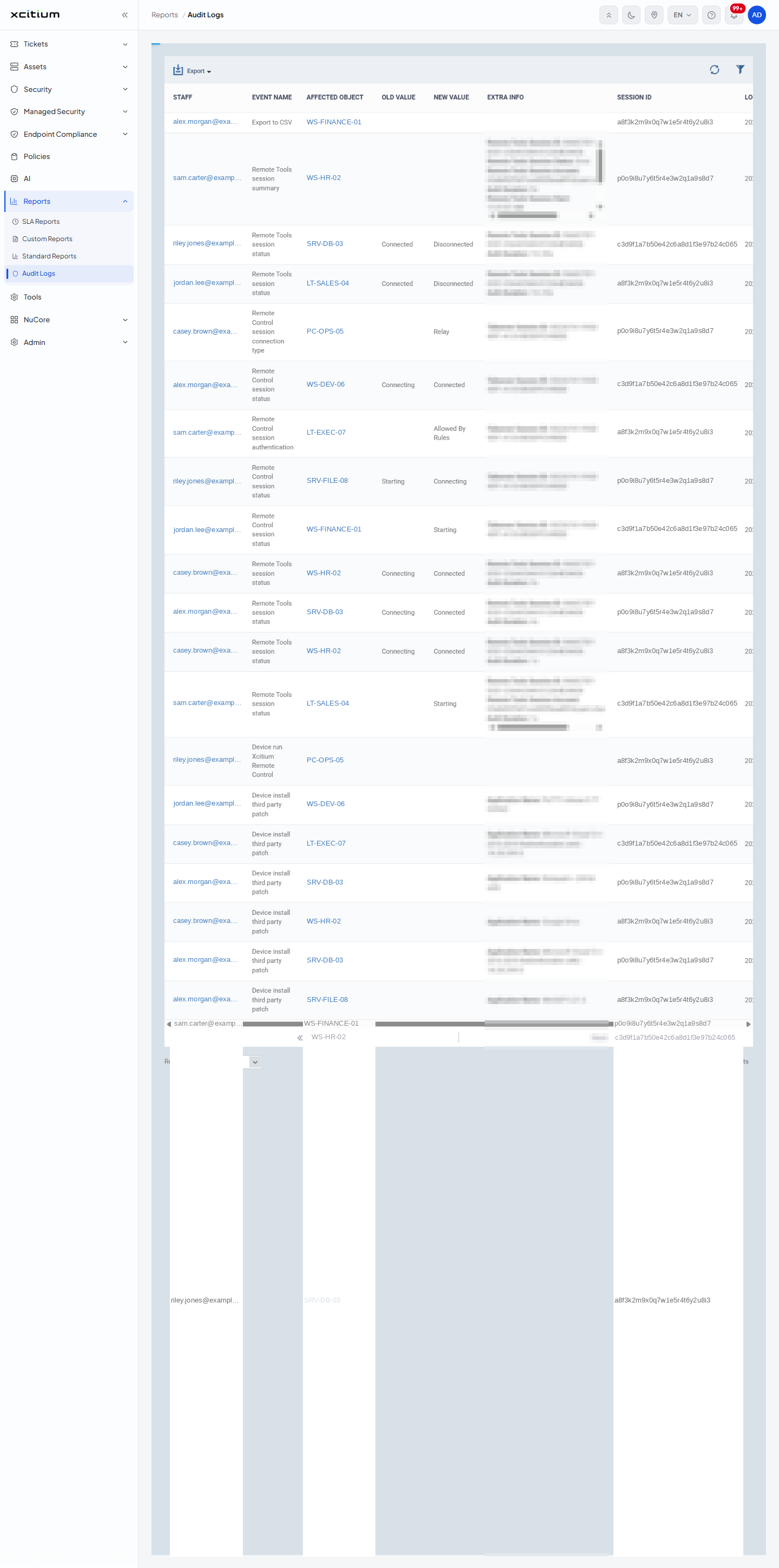
'Staff' is a sortable heading — click it to reorder the list. The table is wider than the panel on a normal window, so a horizontal scrollbar sits under the rows; drag it right to reach 'SESSION ID' and 'LOG CREATION DATE'.
Trace a Change
- Click 'Reports' > 'Audit Logs'.
- Click the funnel icon to open the filter panel.
- Set 'Log creation date' 'From' and 'To' to the window you are interested in.
- Type the administrator's login into 'Staff', or pick the event from the 'Event name' list.
- Click 'Apply' at the bottom of the panel.
- Read the 'OLD VALUE' and 'NEW VALUE' columns of the rows that come back.
Follow a Whole Session
- Find one entry from the session and copy its 'SESSION ID'.
- Open the filter panel, paste it into 'Session ID' and click 'Apply'.
- Every action taken in that sitting is listed together.
Note: the audit log records your own actions too. Generating or exporting a report writes an 'Export to CSV' entry against your login.