


Runtime Policies
- Click 'Security' > 'Cloud Security' > 'Runtime Protection' > 'Policies' to open this interface.
Runtime Policies holds the rules that decide what a workload is allowed to do at run time. Policies are either discovered automatically from observed behaviour, supplied as hardening policies, or written by you.
You can create a policy, activate one, ignore or delete one, and export a selection.
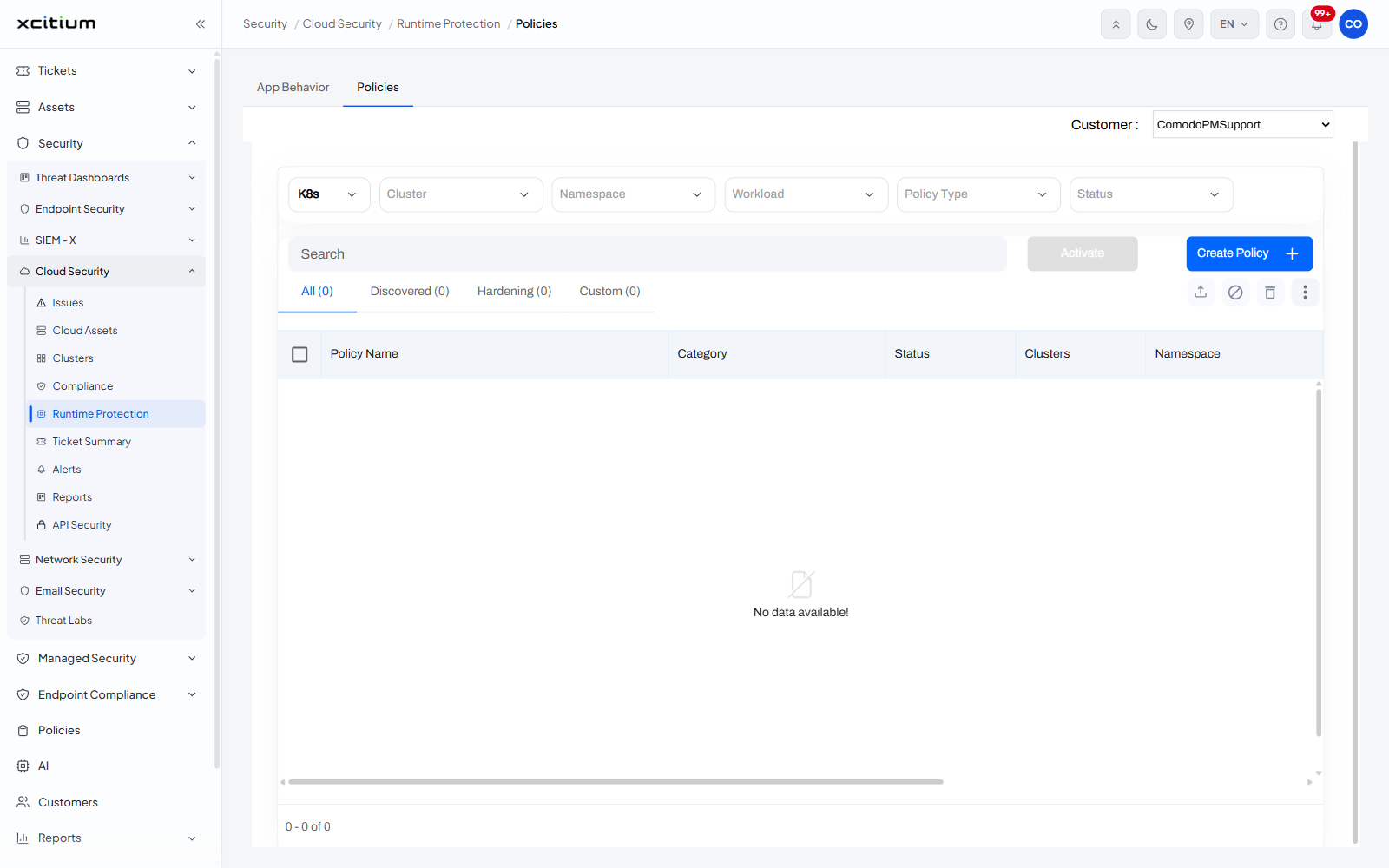
The scope controls
Six pickers sit across the top: 'K8s', 'Cluster', 'Namespace', 'Workload', 'Policy Type' and 'Status', followed by a 'Search' box.
The count chips
| Chip | Description |
| All (n) | Every policy. |
| Discovered (n) | Policies the console derived from observed behaviour. |
| Hardening (n) | Supplied hardening policies. |
| Custom (n) | Policies you wrote. |
The columns
| Column | Description |
| Policy Name | The name of the policy. |
| Category | Which of the four categories it belongs to. |
| Status | Whether it is active. |
| Clusters | The clusters it applies to. |
| Namespace | The namespace it applies to. |
| Selector Labels | The labels that decide which workloads it covers. |
| Alerts | How many alerts it has raised. |
| Tags | The tags on the policy. |
The actions
| Control | Description |
| Activate | Brings the selected policies into force. |
| Create Policy | Writes a new policy. |
| Select policies to export | Chooses policies to download. |
| Ignore | Marks the selected policies as ignored. |
| Delete | Removes the selected policies. |
Activate a discovered policy
- Click the 'Discovered (n)' chip to see the policies the console derived.
- Read the 'Selector Labels' column to check which workloads the policy would cover.
- Select the policy.
- Click 'Activate'.
Note: activating a policy changes what a running workload is allowed to do. Check its scope before you activate it.