


Create a New Ticket
- Click 'Managed Security' > 'Tickets' and click 'Create New Ticket'.
The 'Create New Ticket' dialog raises a service ticket for the customer currently chosen on the 'Tickets' page. You give the ticket a subject, a severity and a description, and you can attach files to it.
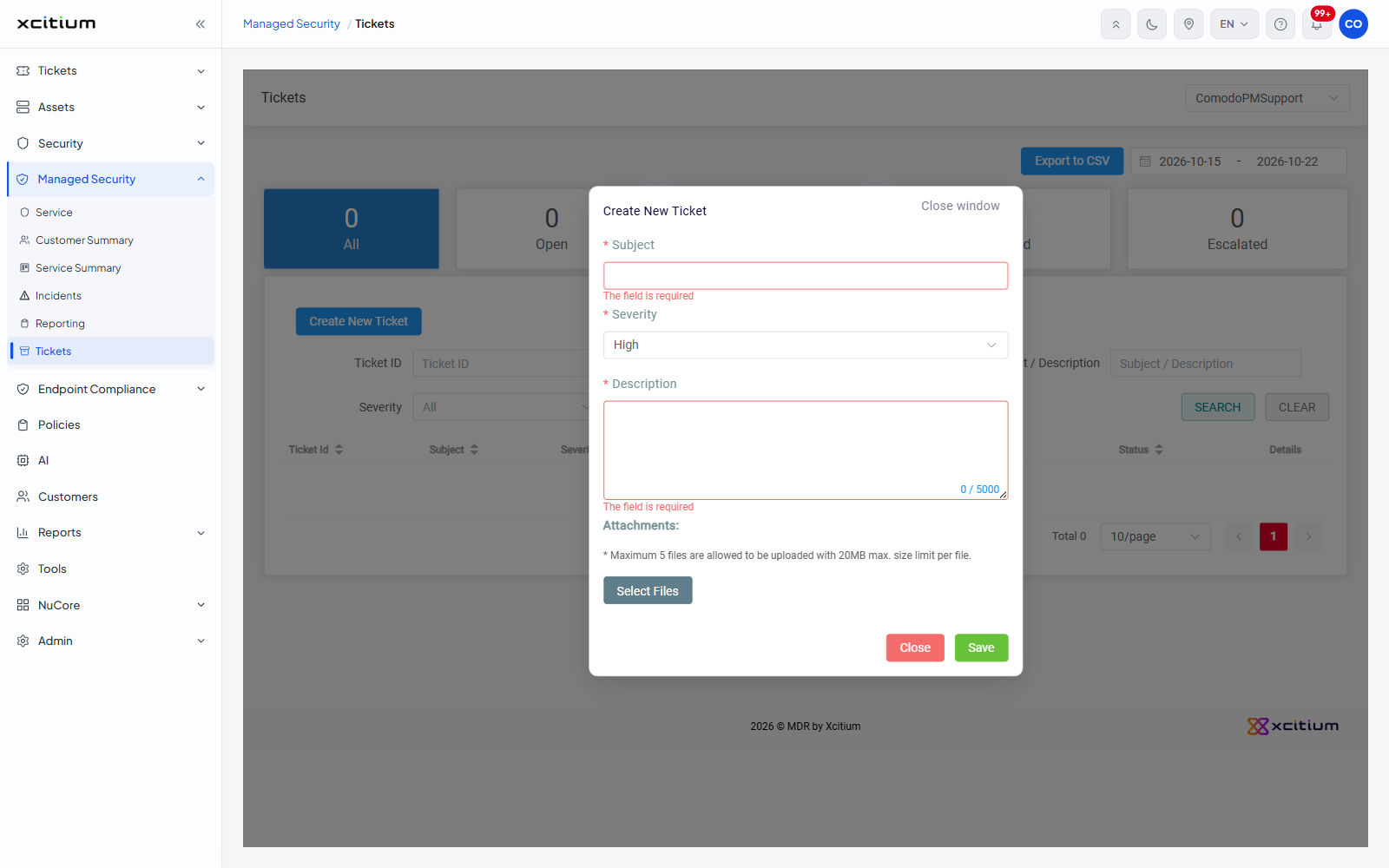
Field descriptions
Fields marked with a red asterisk are required. An empty required field shows the message 'The field is required' under it.
| Field | Control | Default | Required | Description |
| Subject | Text box | Empty | Yes | The subject line of the ticket. |
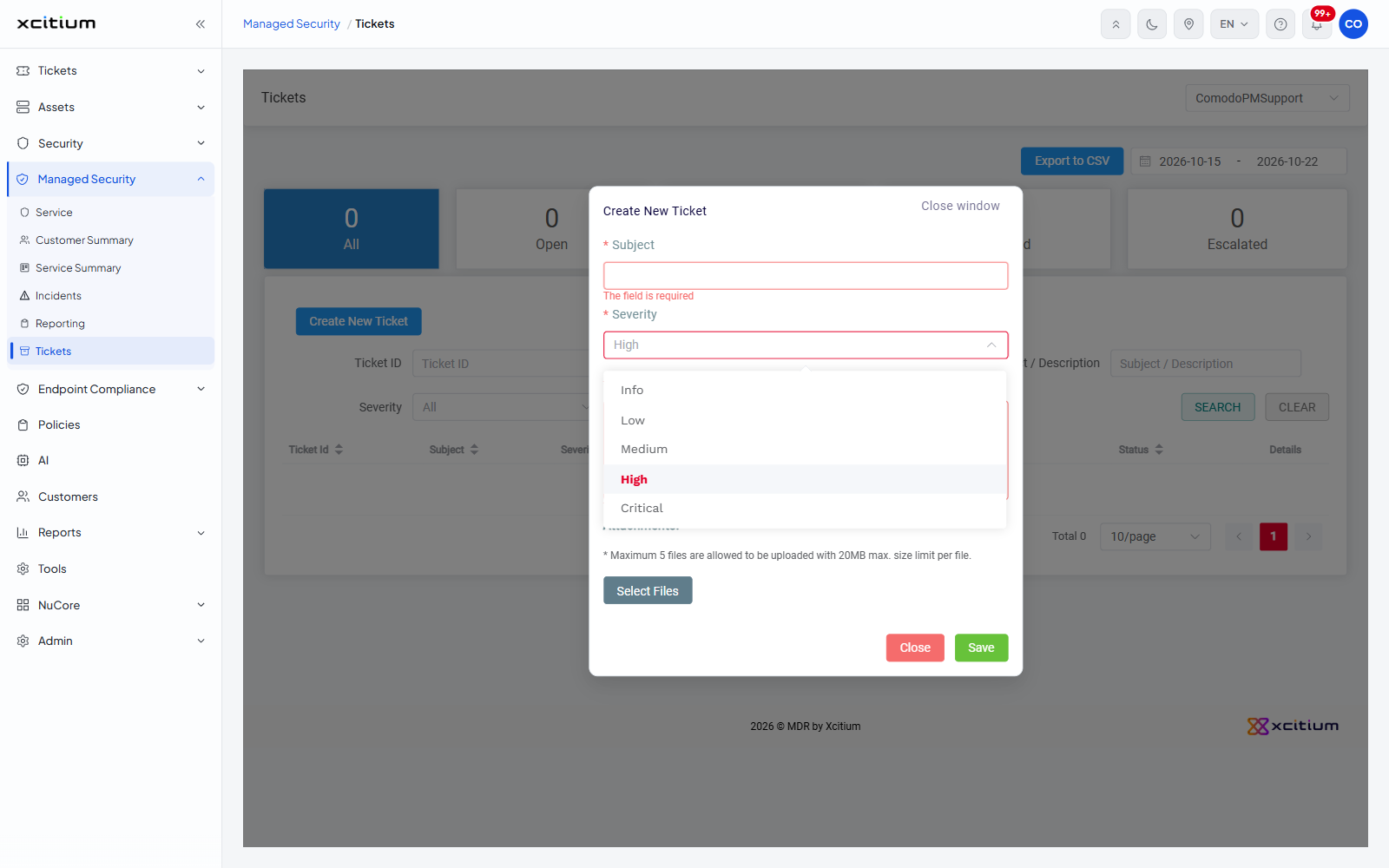
| Severity | Drop-down | 'High' | Yes | How urgent the ticket is. Options: 'Info', 'Low', 'Medium', 'High', 'Critical'. |
| Description | Multi-line text box with a character counter | Empty | Yes | What the ticket is about. The counter under the box reads 0 / 5000, so the description takes up to 5000 characters. |
| Attachments | 'Select Files' button | None | No | Files to attach to the ticket. The note under the heading reads: Maximum 5 files are allowed to be uploaded with 20MB max. size limit per file. |
Dialog controls
| Control | Description |
| Close window | Top right of the dialog. Closes the dialog without raising a ticket. |
| Select Files | Opens your file browser so you can pick the files to attach. |
| Close | Closes the dialog without raising a ticket. |
| Save | Raises the ticket and closes the dialog. |
Raise a ticket
- Click 'Managed Security' > 'Tickets'.
- Pick the customer the ticket is for in the selector at the top right.
- Click 'Create New Ticket'. The dialog opens.
- Type the subject in 'Subject'.
- Pick how urgent the ticket is in 'Severity'. It starts at 'High'.
- Describe the problem in 'Description'. You have up to 5000 characters.
- To attach files, click 'Select Files' and pick them. You can attach up to five files, each up to 20MB.
- Click 'Save'.
Note: the ticket is raised against the customer chosen on the 'Tickets' page behind the dialog. Check the customer selector before you click 'Create New Ticket'.