


License Details
Opening a licence shows its own record, how its seats are spread across your customers, and who receives its report. There are three tabs.
Getting there
- Open Admin, then Licenses.
- Click a key in the License key column, or tick the licence and click Details.
License Summary
The Main License Details panel holds the licence's record, and a SubLicense Details panel below it holds the same fields for its sublicence. Click Edit to change them.
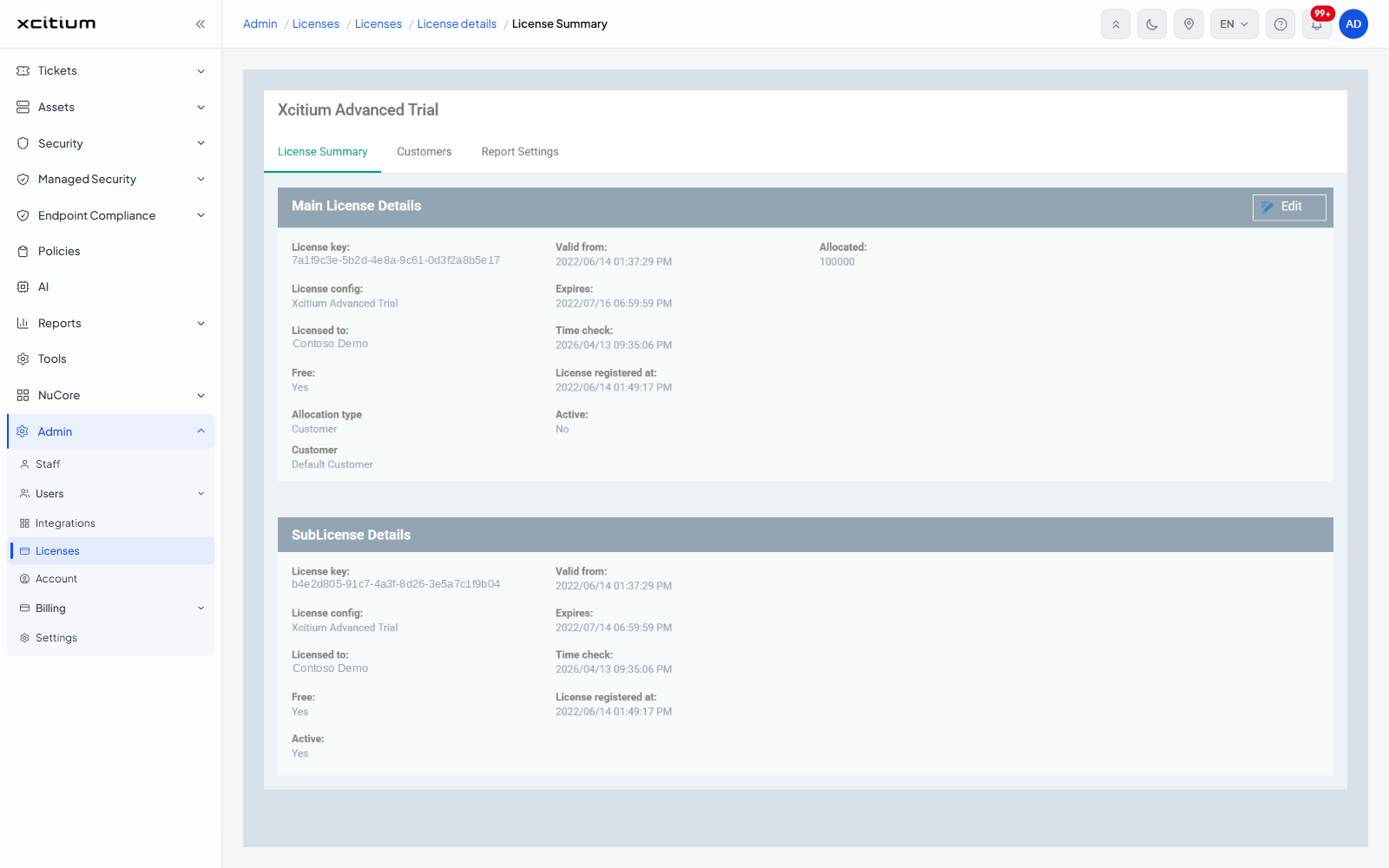
- License key
- License config — the product the licence covers
- Licensed to — the account holder the licence is registered to
- Free — seats still available
- Allocation type
- Customer
- Valid from
- Expires
- Time check
- License registered at
- Active
- Allocated — seats in use
Customers
How the licence's seats are spread across your customers. Four tiles across the top show Seats, Allocated, Free seats and Days To Expiration.
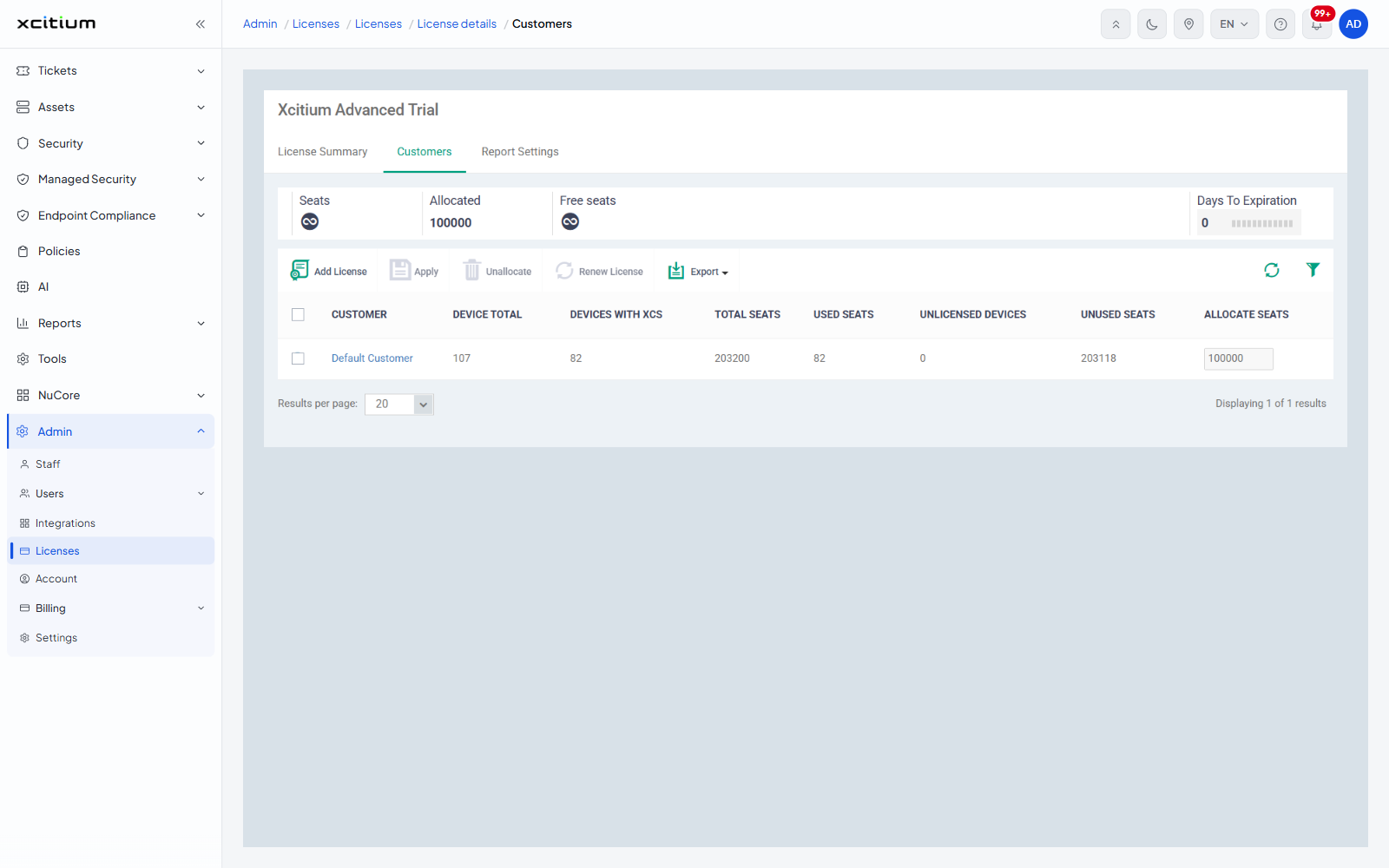
- Customer
- Device Total
- Devices with XCS
- Total Seats
- Used Seats
- Unlicensed Devices
- Unused Seats
- Allocate Seats — the number of seats to give that customer
Allocating seats
- Type a number into Allocate Seats on a customer's row.
- Click Apply.
Unallocate takes seats back from the ticked customers, Renew License extends the licence, and Add License adds another key without leaving the page. Allocate Seats is unavailable if your role cannot change allocations.
Report Settings
Who receives this licence's report, and how often. Click Edit to change it.
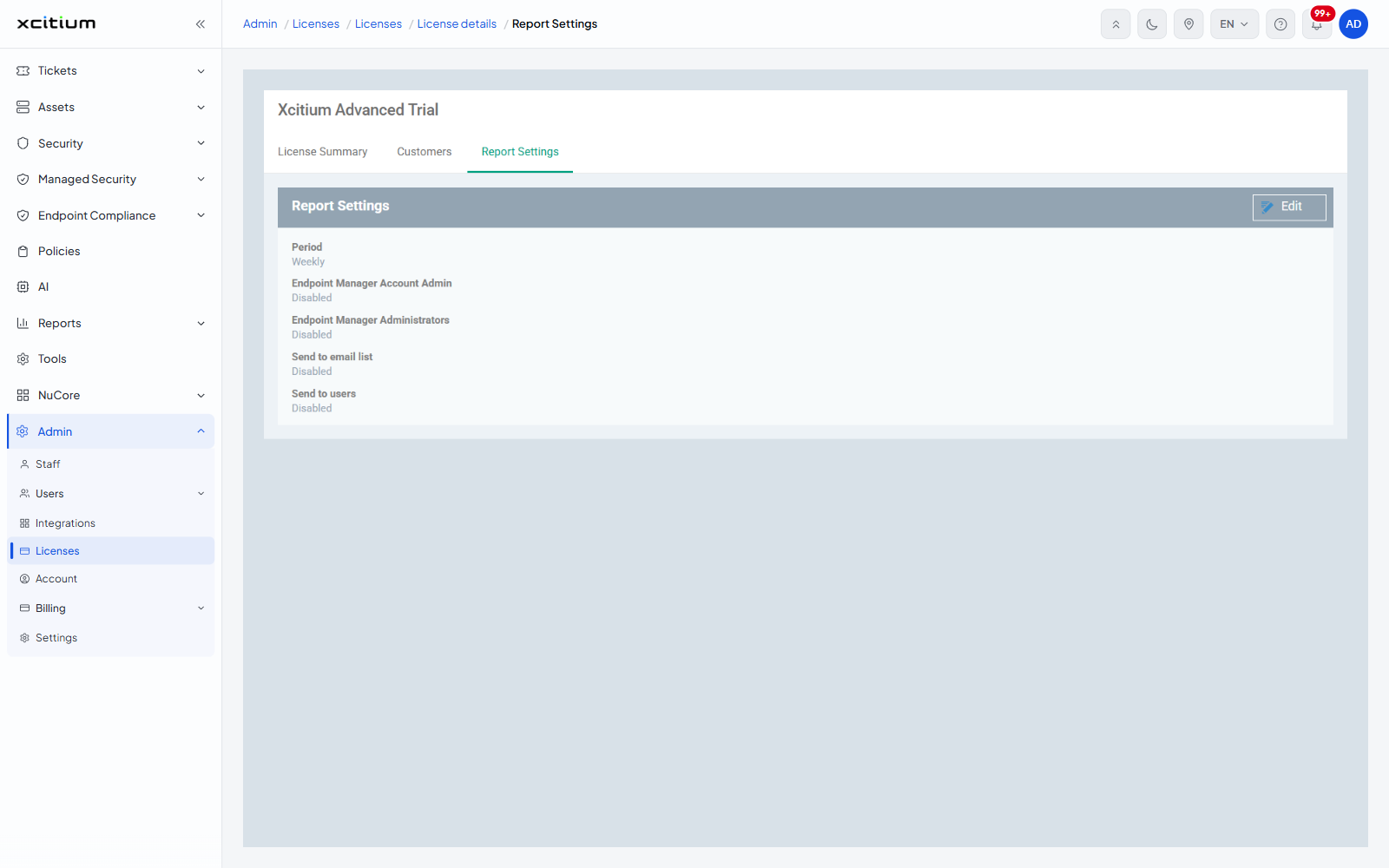
- Period — how often the report is sent, for example Weekly
- Endpoint Manager Account Admin — send it to the account admin
- Endpoint Manager Administrators — send it to all administrators
- Send to email list — send it to the addresses you list
- Send to users — send it to named users