


Create a Procedure
- Click 'Assets' > 'Monitoring & Management' > 'Procedures', then click 'Create' on the toolbar.
Creating a procedure takes two steps. First you name it and choose the folder it belongs to; then you open it and write what it actually does.
You can create five types of procedure, one for each combination of platform and job.
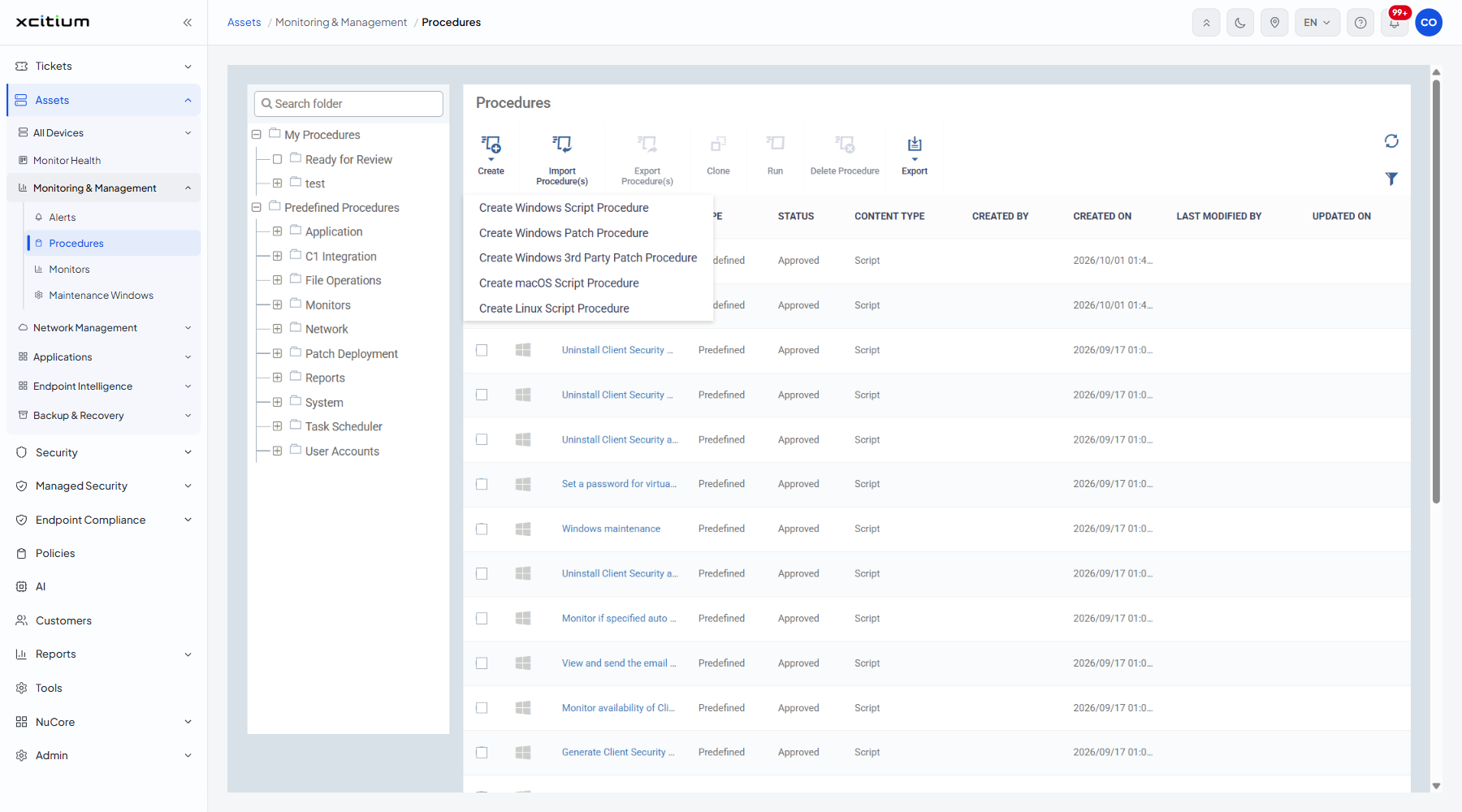
The procedure types
| Option | Description |
| Create Windows Script Procedure | A script that runs on managed Windows devices. |
| Create Windows Patch Procedure | A job that installs operating-system patches on managed Windows devices. |
| Create Windows 3rd Party Patch Procedure | A job that updates third-party applications on managed Windows devices. |
| Create macOS Script Procedure | A script that runs on managed macOS devices. |
| Create Linux Script Procedure | A script that runs on managed Linux devices. |
The create dialog
All five entries open the same three fields under their own title.
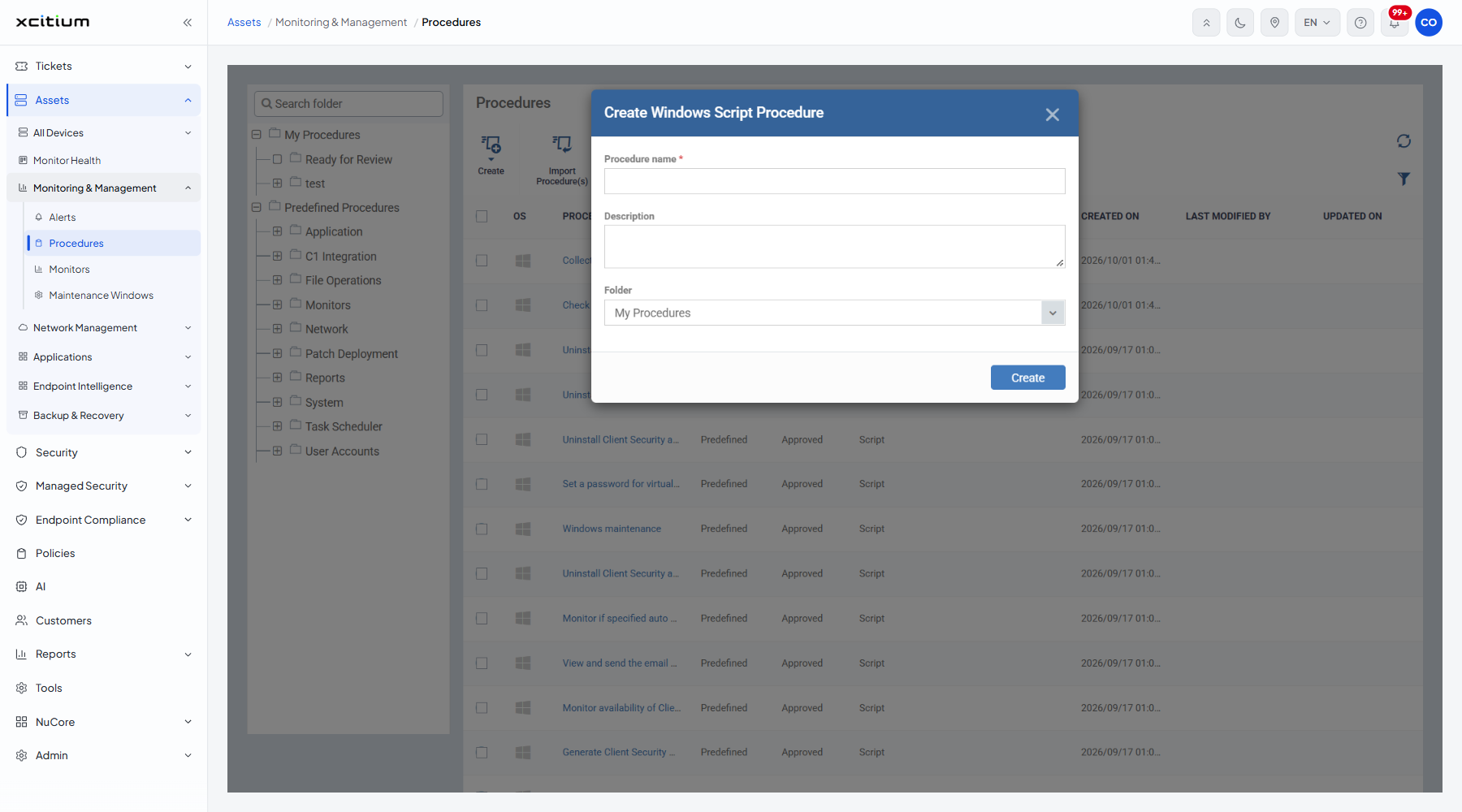
| Field | Type | Options / default | Required |
| Procedure name | Text box | Empty by default. On 'Create Windows Patch Procedure' this field is labelled 'Patch procedure name'. | Yes |
| Description | Textarea | Empty by default. | No |
| Folder | Dropdown | 'My Procedures' by default. The list holds 'My Procedures' and its sub-folders only; predefined folders are not offered. | No |
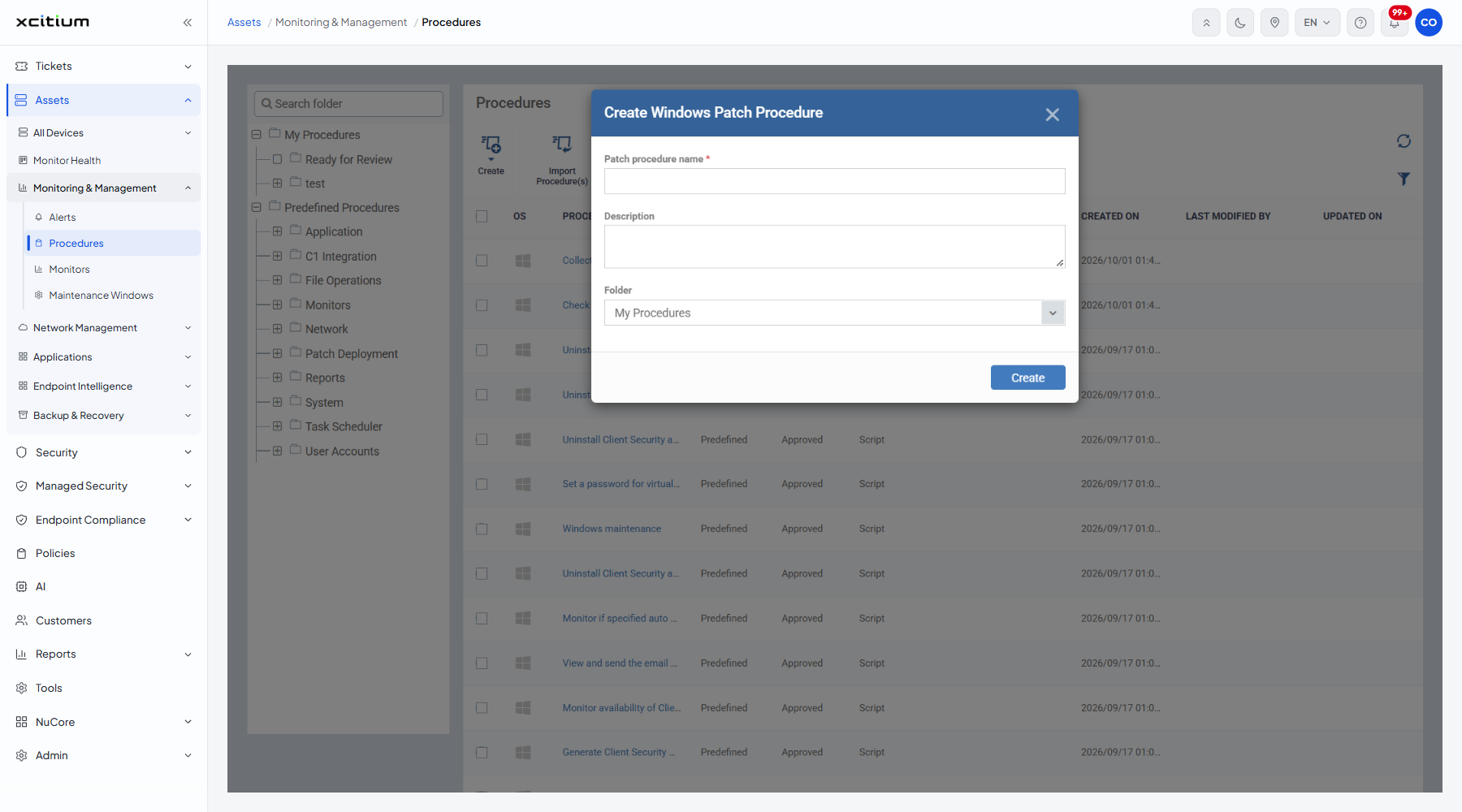
Create a procedure
- Click 'Assets' > 'Monitoring & Management' > 'Procedures'.
- Click 'Create' on the toolbar.
- Choose the procedure type you want from the menu.
- Type a name into the name box.
- Add a description if it helps.
- Choose the folder the procedure should sit in from 'Folder'.
- Click 'Create'.
- The procedure opens on its 'General' tab. Open 'View Procedure' and click 'Edit' to write the script. See View and Edit a Procedure's Script.
Note: a new procedure does nothing until you write its body and have it approved. Creating it only reserves the name and the folder.