


Create a Monitoring Rule
- Click 'Security' > 'Endpoint Security' > 'DLP Configuration' > 'Create' > 'Monitoring Rule' to open this dialog.
A monitoring rule watches a particular user action — using removable storage, or taking a screenshot — and either leaves it alone or blocks it.
You can name the rule, choose what it watches, choose what happens and decide whether the action is logged.
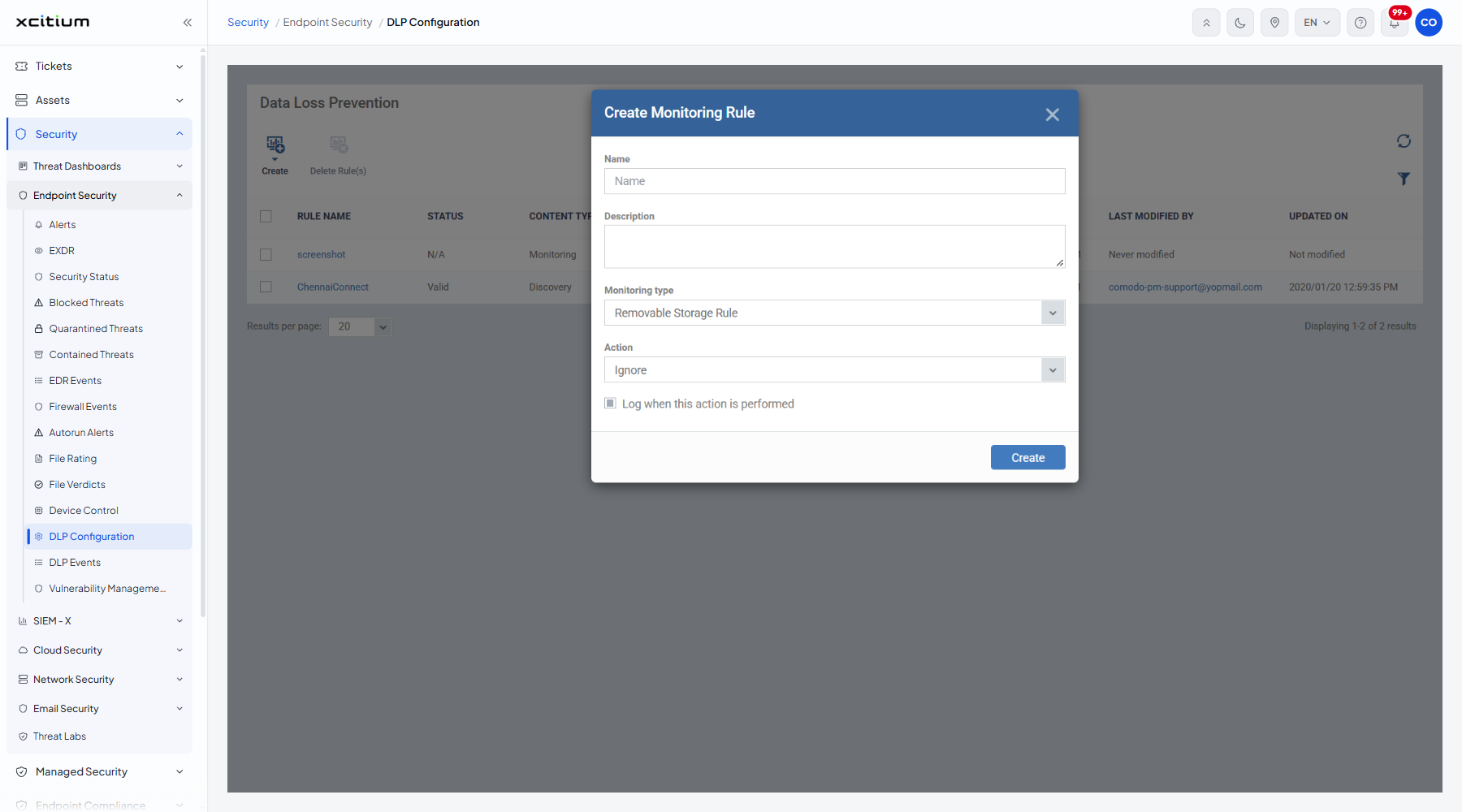
The fields
| Field | Description |
| Name | A text box with the hint 'Name'. The name the rule is listed under. |
| Description | A multi-line box. What the rule is for. |
| Monitoring type | A list offering 'Removable Storage Rule' and 'Screenshot Rule'. 'Removable Storage Rule' is selected when the dialog opens. |
| Action | A list offering 'Ignore' and 'Block'. 'Ignore' is selected when the dialog opens. |
| Log when this action is performed | A tick box, ticked when the dialog opens. Writes an entry to 'DLP Events' each time the rule fires. |
Create the rule
- Type a name in 'Name'.
- Type a description in 'Description'.
- Pick 'Removable Storage Rule' or 'Screenshot Rule' in 'Monitoring type'.
- Pick 'Ignore' or 'Block' in 'Action'.
- Leave 'Log when this action is performed' ticked if you want the rule to write to the event log.
- Click 'Create'.
Note: the rule is listed with the content type 'Monitoring' once it is saved.