


Add an Event Condition
- Click 'Assets' > 'Monitoring & Management' > 'Monitors', open a monitor, click 'Edit', open the 'Conditions' tab, then click 'Add Condition' > 'Event'.
The condition watches the Windows event log and triggers when an entry matches the criteria you tick.
You can match on the event ID, the level, the source, or any combination of the three.
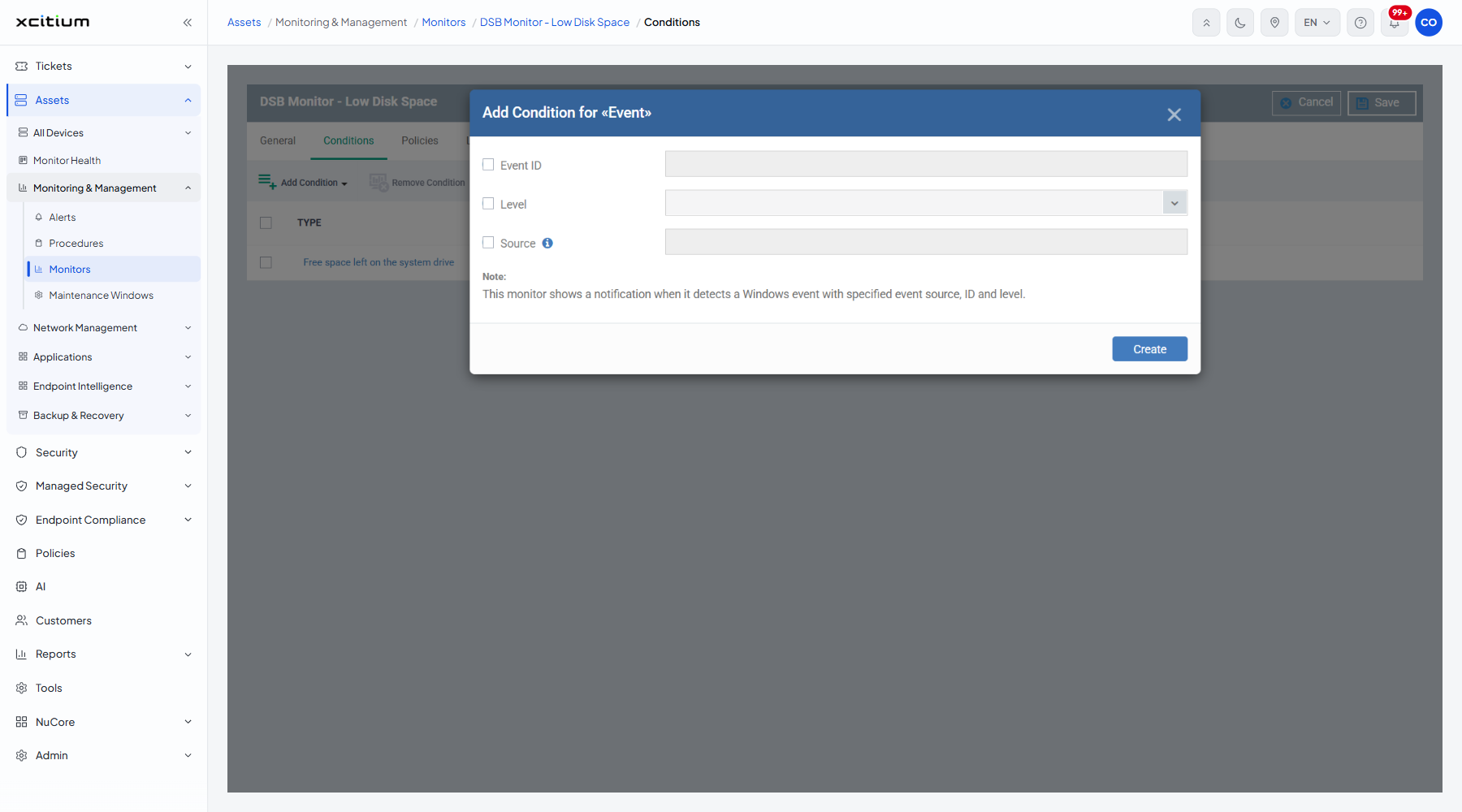
The fields
| Field | Type | Options / default | Required |
| Event ID | Checkbox and text box | Both clear and empty by default. Tick the box to match on a particular event ID, then type it. | No |
| Level | Checkbox and dropdown | Clear by default. Tick the box to match on severity, then choose 'Critical error', 'Error', 'Warning', 'Information' or 'Verbose'. | No |
| Source | Checkbox and text box | Both clear and empty by default. Tick the box to match on the component that logged the event, then type its name. | No |
The dialog's own note: 'This monitor shows a notification when it detects a Windows event with specified event source, ID and level.'/p>
Add the condition
- Tick the criteria you want to match on.
- Fill in the box or dropdown beside each one you ticked.
- Click 'Create'.
- Click 'Save' on the monitor header to store the change.
Note: each criterion is optional, but leaving all three clear matches every event, which will flood you with alerts. Tick at least the level.