


Add a Web Page Condition
- Click 'Assets' > 'Monitoring & Management' > 'Monitors', open a monitor, click 'Edit', open the 'Conditions' tab, then click 'Add Condition' > 'Web page'.
The condition fetches a web page from the device and triggers on what the page contains.
You can confirm an internal site is serving the right content, or be told when an error page appears.
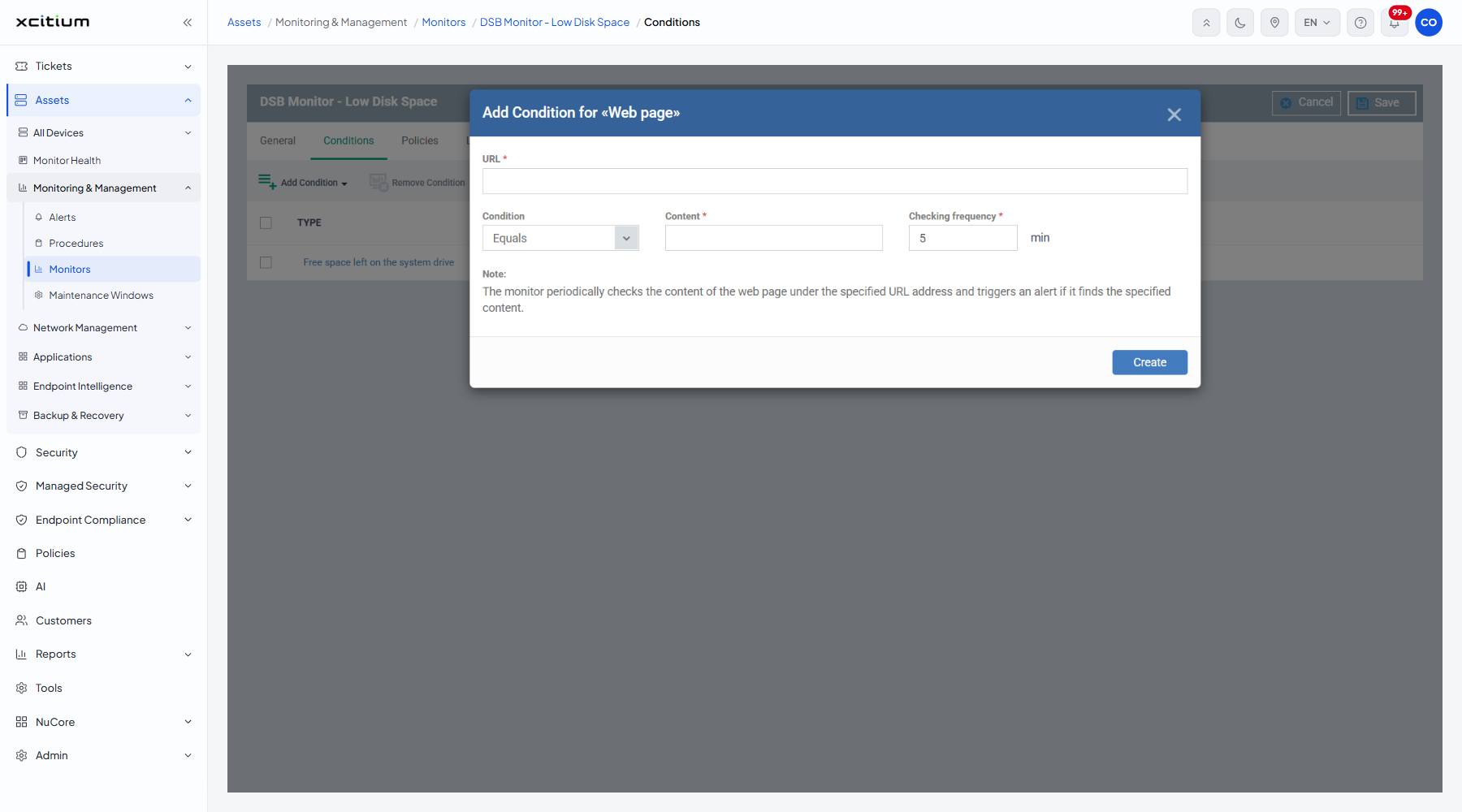
The fields
| Field | Type | Options / default | Required |
| URL | Text box | Empty by default. The address of the page to fetch. | Yes |
| Condition | Dropdown | 'Equals' (default), 'Not equals', 'Contains', 'Not contains'. | Yes |
| Content | Text box | Empty by default. The text to compare the page against. | Yes |
| Checking frequency | Number box | Pre-filled '5', in minutes. | Yes |
The dialog's own note: 'The monitor periodically checks the content of the web page under the specified URL address and triggers an alert if it finds the specified content.'
Add the condition
- Type the address into 'URL'.
- Pick the test in 'Condition'.
- Type the text to look for into 'Content'.
- Set how often to check in 'Checking frequency'.
- Click 'Create'.
- Click 'Save' on the monitor header to store the change.
Note: 'Not contains' with a string your healthy page always carries is a reliable way to catch an outage, because an error page will not carry it either.