


Add a Performance Condition
- Click 'Assets' > 'Monitoring & Management' > 'Monitors', open a monitor, click 'Edit', open the 'Conditions' tab, then click 'Add Condition' > 'Performance'.
The condition watches a performance counter on the device and triggers when that counter meets the test you set.
You can watch processor, memory, network or disk utilisation, and require the reading to hold for a period before the alert fires.
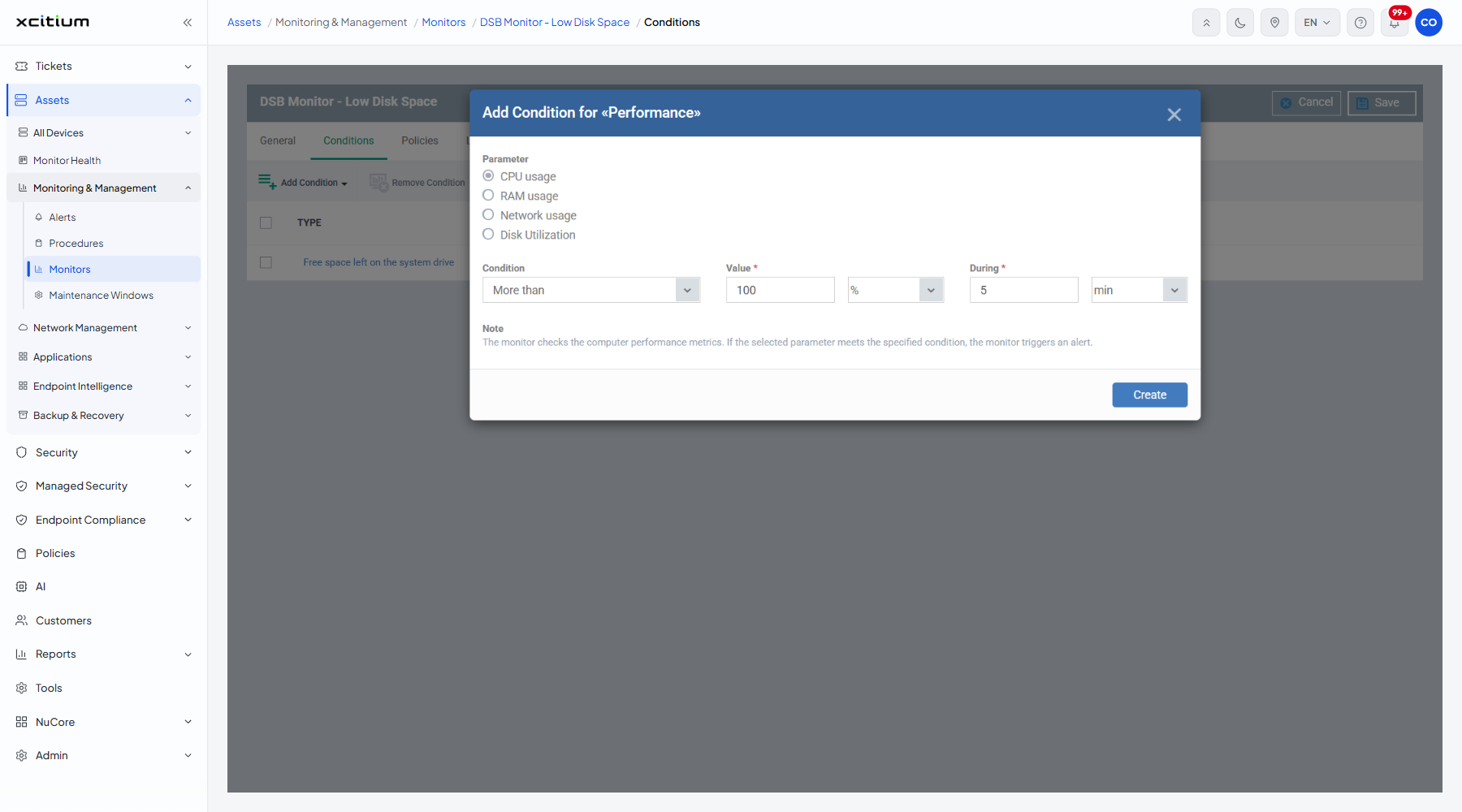
The fields
| Field | Type | Options / default | Required |
| Parameter | Radio group | 'CPU usage' (default), 'RAM usage', 'Network usage', 'Disk Utilization'. | Yes |
| Condition | Dropdown | 'More than' (default), 'Equals to', 'Less than', 'More than or equals to', 'Less than or equals to'. | Yes |
| Value | Number box and unit | Pre-filled '100', with a unit dropdown offering '%'. | Yes |
| During | Number box and unit | Pre-filled '5', with a unit dropdown offering 'sec' and 'min' ('min' selected). | Yes |
The dialog's own note: 'The monitor checks the computer performance metrics. If the selected parameter meets the specified condition, the monitor triggers an alert.'
Add the condition
- Choose the counter under 'Parameter'.
- Pick the comparison in 'Condition'.
- Type the threshold into 'Value'.
- Set how long the reading must hold in 'During'.
- Click 'Create'.
- Click 'Save' on the monitor header to store the change.
Note: a short ‘During’ makes the monitor noisy. Give a processor condition a minute or two so a brief spike does not raise an alert.